
Is Cursor Actually Better Than GitHub Copilot, or Is It Just Hype?
That’s the question I see pop up in nearly every developer Slack thread and Hacker News comment section lately. Someone switches from VS Code with Copilot to Cursor, posts a glowing thread about it, and then the replies split into two camps: “life-changing” and “it’s just a VS Code fork with a wrapper.” Both camps are loud. Neither is entirely right.
Transparency note: this article is compiled from each tool’s official documentation and publicly available user feedback rather than a first-hand paid test; check the vendors’ latest announcements for current pricing and features.
This article contains affiliate links. If you buy through them I may earn a commission at no extra cost to you. All opinions are my own.
Here’s the thing worth untangling. GitHub Copilot was the tool that made AI pair programming mainstream, and it’s genuinely good at what it does — autocomplete that feels like it read your mind. But Copilot was designed as an extension. It lives inside your editor as a guest. Cursor ↗ took a different bet entirely: fork VS Code, rebuild the editor around the AI from the ground up, and treat the language model as a first-class citizen instead of a bolt-on plugin.
That architectural difference is the whole story, and it’s why this review focuses on the actual capabilities rather than the marketing. Based on Cursor’s official documentation, its public changelogs, and the consistent themes across user reviews on Reddit, G2, and developer forums, I’m going to break down where Cursor genuinely pulls ahead — and where the “it’s just hype” crowd has a point. Let’s get into it.
What Cursor Actually Is (And Who Builds It)
Cursor is an AI-first code editor built by Anysphere, a company that’s raised significant venture funding and attracted a lot of attention in the developer-tools space. The product is a fork of Visual Studio Code, which matters more than it sounds. Because it’s built on the VS Code codebase, your existing extensions, themes, keybindings, and settings mostly carry over. You can import your entire VS Code setup during onboarding, and within a minute or two it looks and feels like the editor you already know.
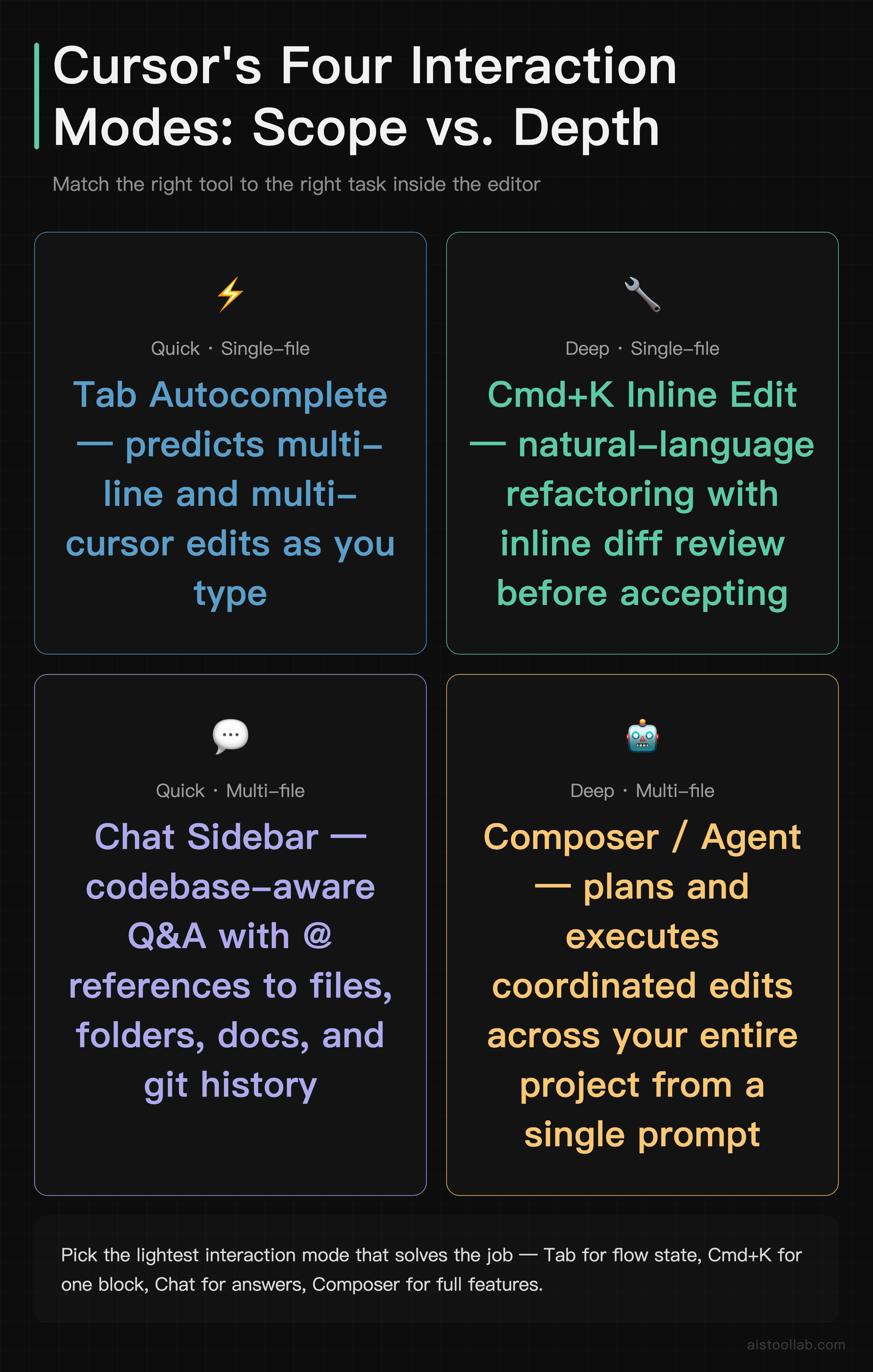
The difference is everything happening underneath. Where Copilot reads your current file and offers completions, Cursor indexes your whole codebase and builds an understanding of how files relate to each other. It offers several distinct interaction modes: an inline edit prompt (Cmd+K), a chat sidebar that’s aware of your project, a Tab-based autocomplete that predicts multi-line and multi-cursor edits, and an agent-style Composer that can plan and execute changes across multiple files at once.
Critically, Cursor isn’t locked to a single model vendor. According to its official documentation, you can route requests to frontier models from Anthropic and OpenAI, and the editor lets you switch between them depending on the task. That flexibility is one of the core reasons developers describe it as a different category of tool — not “Copilot but slightly nicer,” but a purpose-built environment where the AI is the editor’s reason for existing. If you’ve read my Claude 3.5 Sonnet review, you already know why having access to multiple strong models matters for real coding work.
The Honest Pros and Cons
Let me put the verdict-shaped stuff up front, because you probably want to know whether this is worth your attention before reading 2,000 more words.
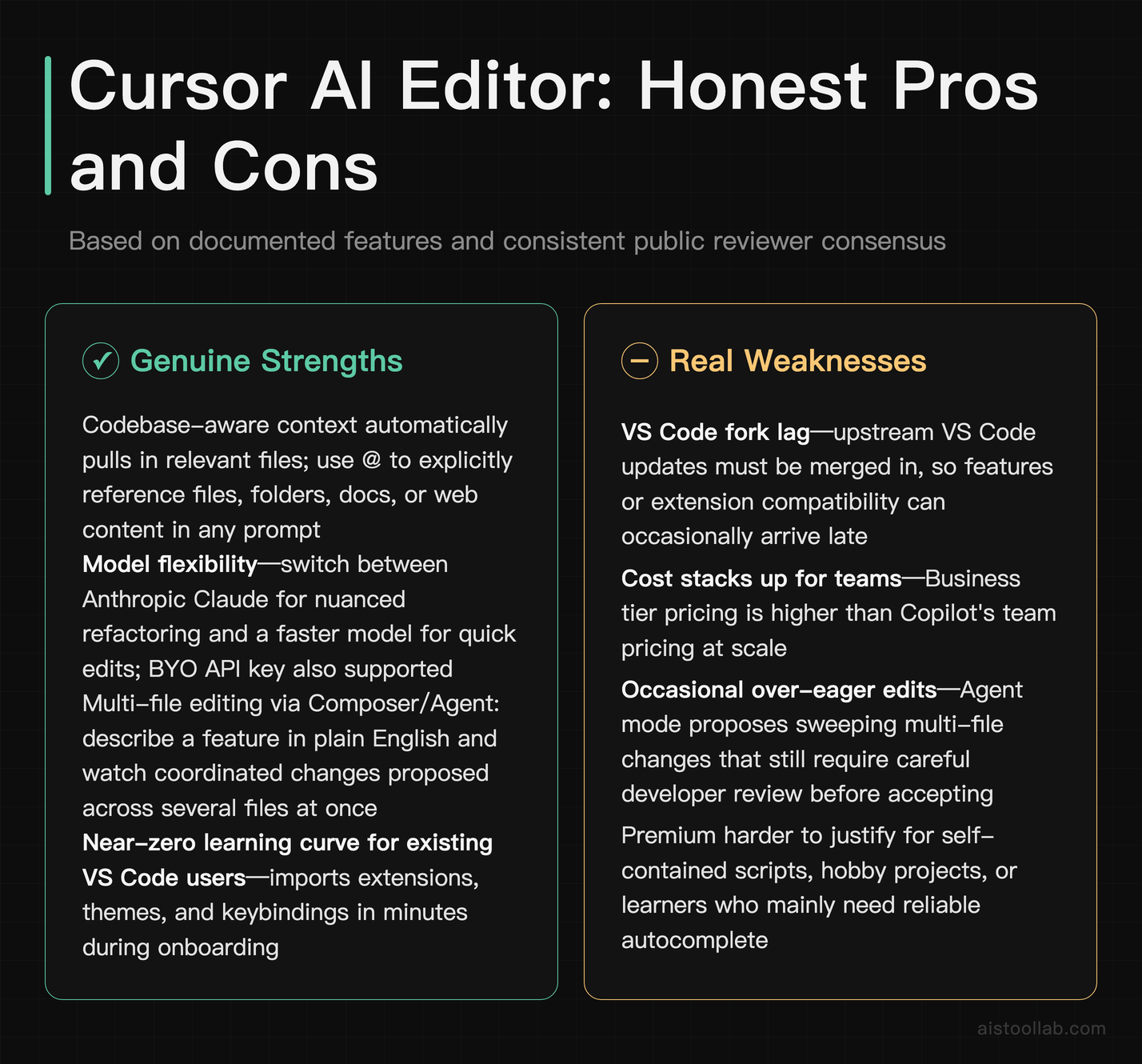
What genuinely impresses, based on the documented features and reviewer consensus:
- Codebase-aware context. Cursor can pull in relevant files automatically, and you can explicitly reference files, folders, docs, or even web content in a prompt. This is the single biggest practical gap with vanilla Copilot.
- Model choice. Being able to pick Claude for nuanced refactoring and a faster model for quick edits is a real workflow advantage, not a gimmick.
- Multi-file editing via Composer/Agent. Describing a feature in plain English and watching it propose coordinated changes across several files saves meaningful context-switching time.
- It feels like VS Code. Almost zero learning curve if you’re already a VS Code user.
Where the skeptics have a point:
- It’s a fork, so it can lag upstream VS Code. When Microsoft ships updates, Cursor has to merge them, which occasionally means features or extension compatibility arrive late.
- Cost stacks up for teams. At the Pro tier it’s reasonable, but heavy usage and the Business tier add up versus Copilot’s pricing.
- The agent can over-edit. Reviewers regularly note that the more autonomous modes sometimes change more than you wanted, so you still need to review every diff.
- Privacy considerations. Your code context is sent to model providers unless you configure privacy mode, which matters for some enterprises.
None of those cons are dealbreakers for most individual developers, but they’re worth knowing before you switch your entire workflow.
Three Real-World Use Cases Where Cursor Earns Its Keep
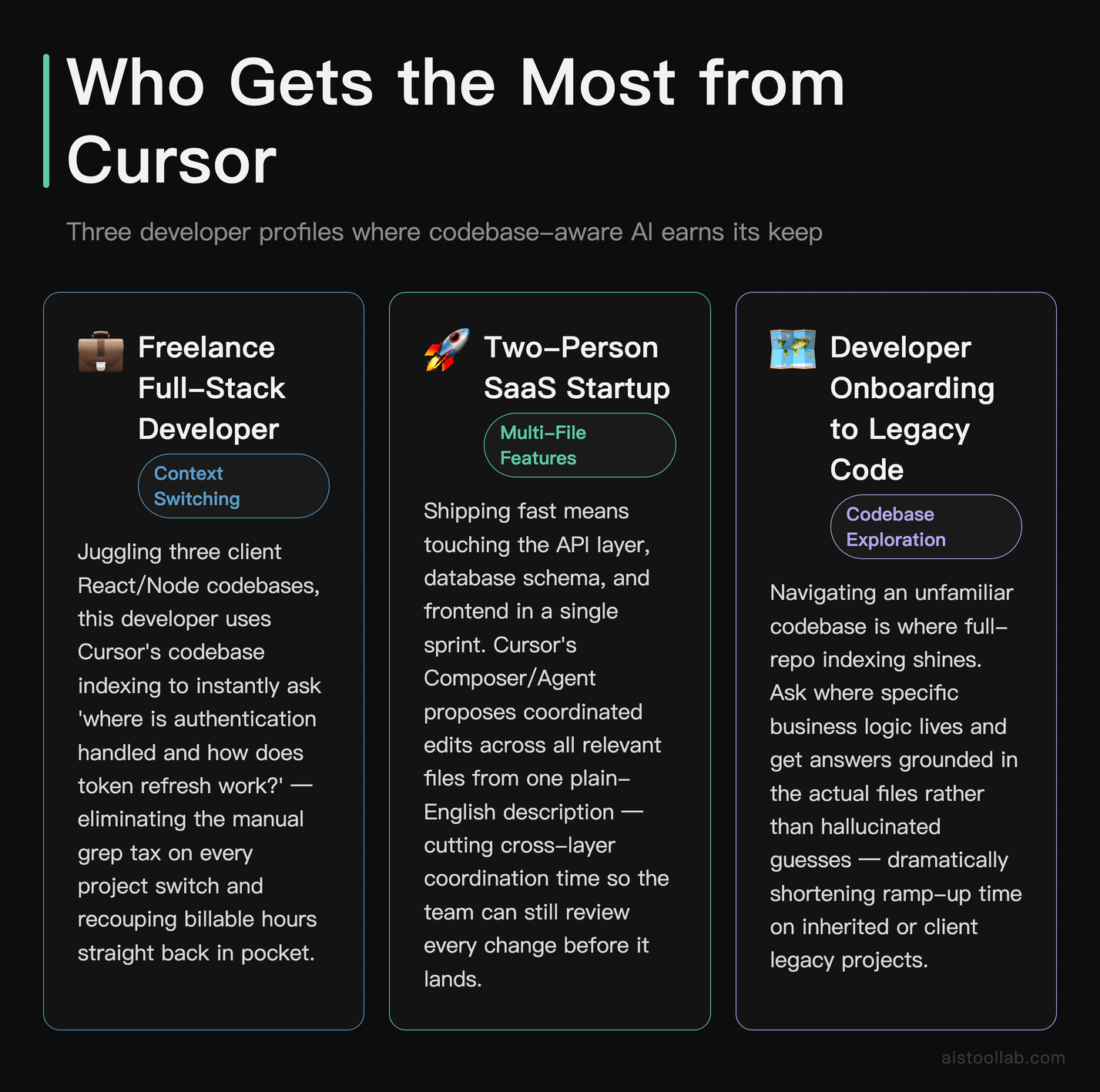
The freelance full-stack developer juggling three client codebases
Picture a solo developer billing hourly across three separate React-plus-Node projects. The pain isn’t writing new code — it’s re-loading context every time they switch projects. “Wait, how did I structure the auth middleware in this one?” With Copilot, they’d grep through files manually. With Cursor’s codebase indexing, they can open the chat and ask “where is authentication handled in this project and how does the token refresh work?” and get an answer grounded in the actual files. For someone who charges by the hour, shaving the context-reload tax off every project switch is money straight back in pocket.
The two-person SaaS startup shipping fast
A small startup team moving quickly often needs to implement a feature that touches the API layer, the database schema, and the frontend in one go. This is exactly where Cursor’s Composer/Agent mode shines. A developer can describe “add a soft-delete flag to the user model, update the API to filter deleted users, and add a restore button to the admin panel,” and Cursor proposes coordinated edits across all the relevant files. The team still reviews every change — you’d be foolish not to — but the first draft of a multi-file feature arrives in one shot instead of three separate manual passes.
The developer inheriting a legacy codebase nobody understands
We’ve all been handed the project where the original author left two years ago and the documentation is a single outdated README. Cursor’s ability to answer questions about an unfamiliar codebase — “what does this function do and what calls it?” — turns it into an onboarding tool, not just a writing tool. Reviewers frequently cite this as the moment they “got it”: pointing the AI at code they didn’t write and getting a coherent explanation back. That’s a different value proposition from autocomplete, and it’s one Copilot’s chat does too, but Cursor’s deeper indexing tends to produce more grounded answers for larger projects.
Deep Feature Breakdown: Where Cursor Pulls Ahead
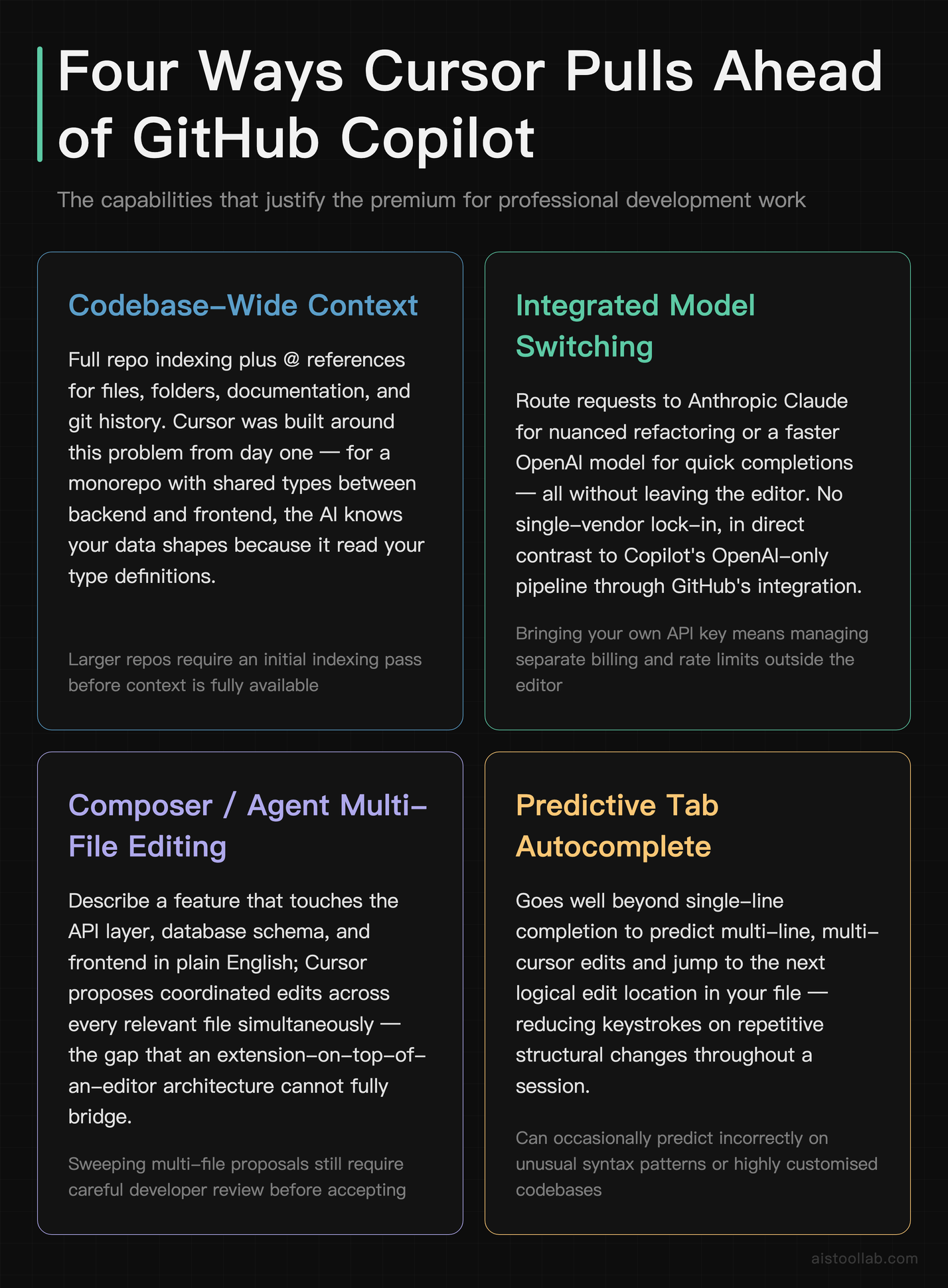
1. Multi-file context that actually understands your project
This is the headline feature, so let’s be precise about it. GitHub Copilot’s classic autocomplete works primarily from your open file and nearby context. It’s brilliant for line-by-line completion but historically struggled when the answer depends on code three folders away. Copilot has expanded its context handling and added Copilot Chat with workspace awareness, so the gap is narrower than it was — but Cursor was built around this problem from day one.
In Cursor you can use @ symbols to pull specific files, folders, documentation, or git history directly into a prompt. You can index an entire repository so the AI retrieves the relevant chunks automatically. For a complex project — say a monorepo with shared types between a backend and frontend — this is the difference between “the AI guesses at your data shape” and “the AI knows your data shape because it read your type definitions.” For professional development on anything larger than a toy app, that’s not a nice-to-have, it’s the whole game.
2. Integrated model switching instead of vendor lock-in
Copilot runs on OpenAI models through GitHub’s integration. That’s a perfectly good stack, but you don’t choose. Cursor, by contrast, lets you switch models from a dropdown. According to its official documentation, you can route a tricky architectural refactor to a strong reasoning model like Claude’s larger Opus-class models and send quick, cheap edits to a faster model — all without leaving the editor.
Why does this matter in practice? Different models have genuinely different strengths, something I dug into across several AI model performance benchmarks pieces on this site. One model might write cleaner TypeScript; another might be better at explaining a gnarly regex or reasoning through a race condition. Being able to A/B the same prompt against two models in seconds is a real productivity lever that a single-vendor tool simply can’t offer. Cursor also offers configuration for bringing your own API keys, which power users appreciate for cost control.
3. Inline editing, the command palette, and AI refactoring
The Cmd+K inline edit is deceptively powerful. Highlight a block, describe the change in plain English — “convert this to async/await and add error handling” — and Cursor rewrites it in place with a diff you approve or reject. It’s faster than the chat-then-copy-paste dance that Copilot Chat sometimes turns into, because the edit lands exactly where your cursor is.
The Tab autocomplete deserves its own mention. Unlike a simple next-token suggestion, Cursor’s Tab model predicts your next edit — including jumping your cursor to the next logical place to change and suggesting multi-line diffs. Reviewers consistently describe it as the feature that makes going back to plain Copilot feel slow. Combined with AI-powered refactoring across files and a command palette that accepts natural-language instructions, these represent several concrete capabilities that go beyond what a typical VS Code extension stack delivers out of the box. I’d be cautious about claiming an exact “3 to 5 features ahead” number as gospel — that’s a framing, not a benchmark — but the practical lead in day-to-day editing flow is real and widely reported.
4. Debugging and error-aware workflows
Cursor can read terminal output and lint errors, then propose fixes. When a build fails, you can feed the error straight into the chat and it’ll reason about the cause with full file context. For debugging — historically the least fun part of any developer’s day — having the AI see both the error and the surrounding code, rather than just the snippet you paste into a separate chat window, meaningfully tightens the loop. This is where the “purpose-built IDE” pitch stops being marketing and starts being noticeable.
Cursor vs GitHub Copilot vs Plain VS Code: The Comparison
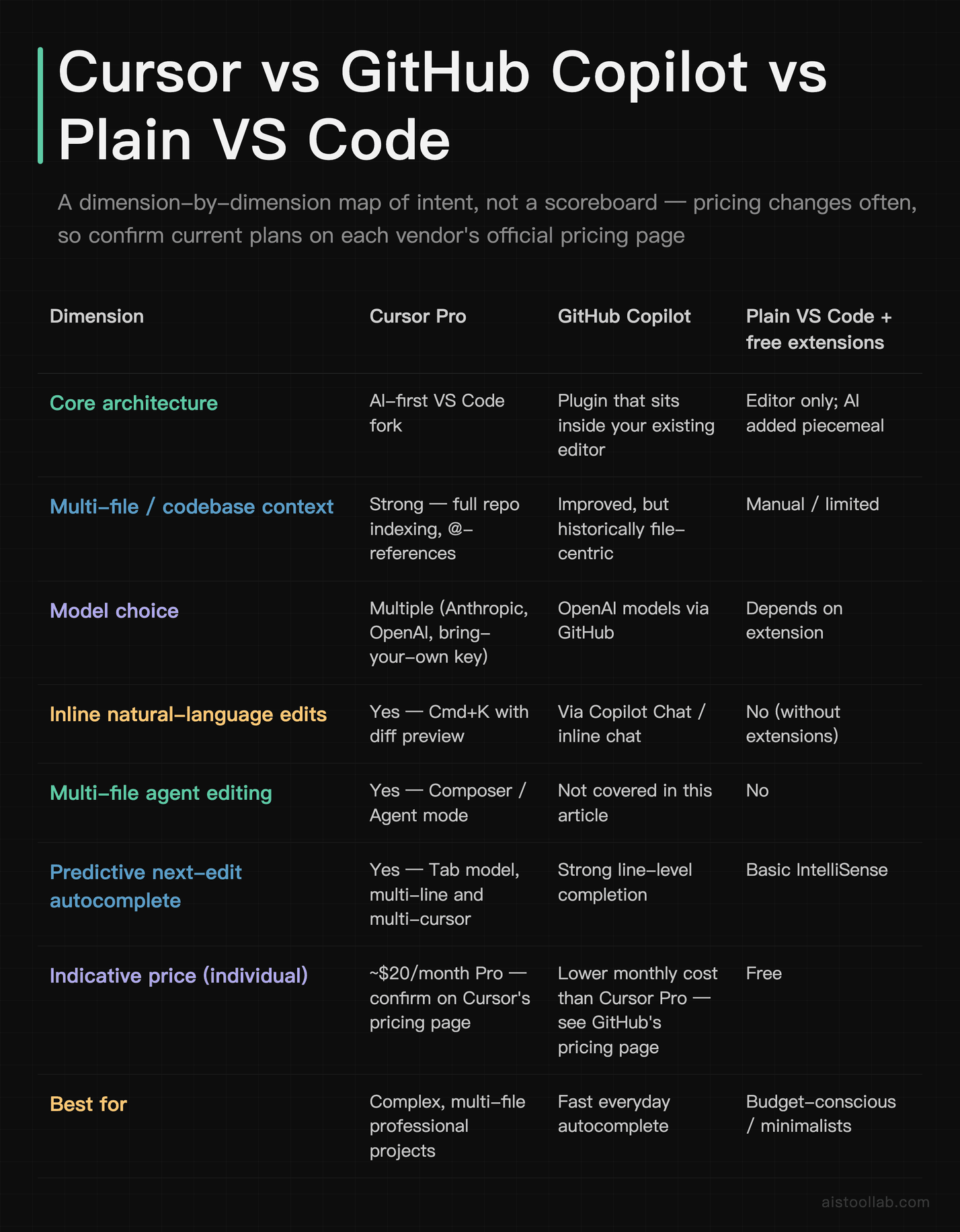
Pricing is set by each tool’s official site and may change. Checked June 2026.
Read that table as a map of intent, not a scoreboard. Copilot at roughly half the monthly price is a fantastic deal if autocomplete is 90% of what you want. Cursor’s premium is for the codebase-awareness and model flexibility — and whether that’s worth doubling your spend depends entirely on how complex your projects are.
What the Adoption Data and Reviews Actually Say
I want to be careful here, because this is exactly the kind of section where AI-tool articles tend to invent statistics. So let me stick to what’s defensible. Cursor has seen rapid, widely-reported adoption among professional developers, and Anysphere has publicly discussed strong revenue growth — the company is frequently cited as one of the fastest-growing developer tools of its generation. The exact figures float around and change quarter to quarter, so I won’t pin a number to it that I can’t verify.
On the qualitative side, the signal is clearer. Across G2, Reddit’s programming communities, and Hacker News threads, the recurring theme is that developers report meaningful time savings on multi-file feature work and debugging — the tasks where single-file autocomplete falls short. The praise clusters around the Tab autocomplete and codebase chat; the criticism clusters around occasional over-eager edits and cost at scale. When the same strengths and the same complaints show up independently across thousands of users, that consensus is more trustworthy than any single benchmark number. The honest takeaway: the productivity gains are real and frequently described, but they’re task-dependent, not a flat “X% faster across the board.”
The Verdict: Who Should Actually Switch
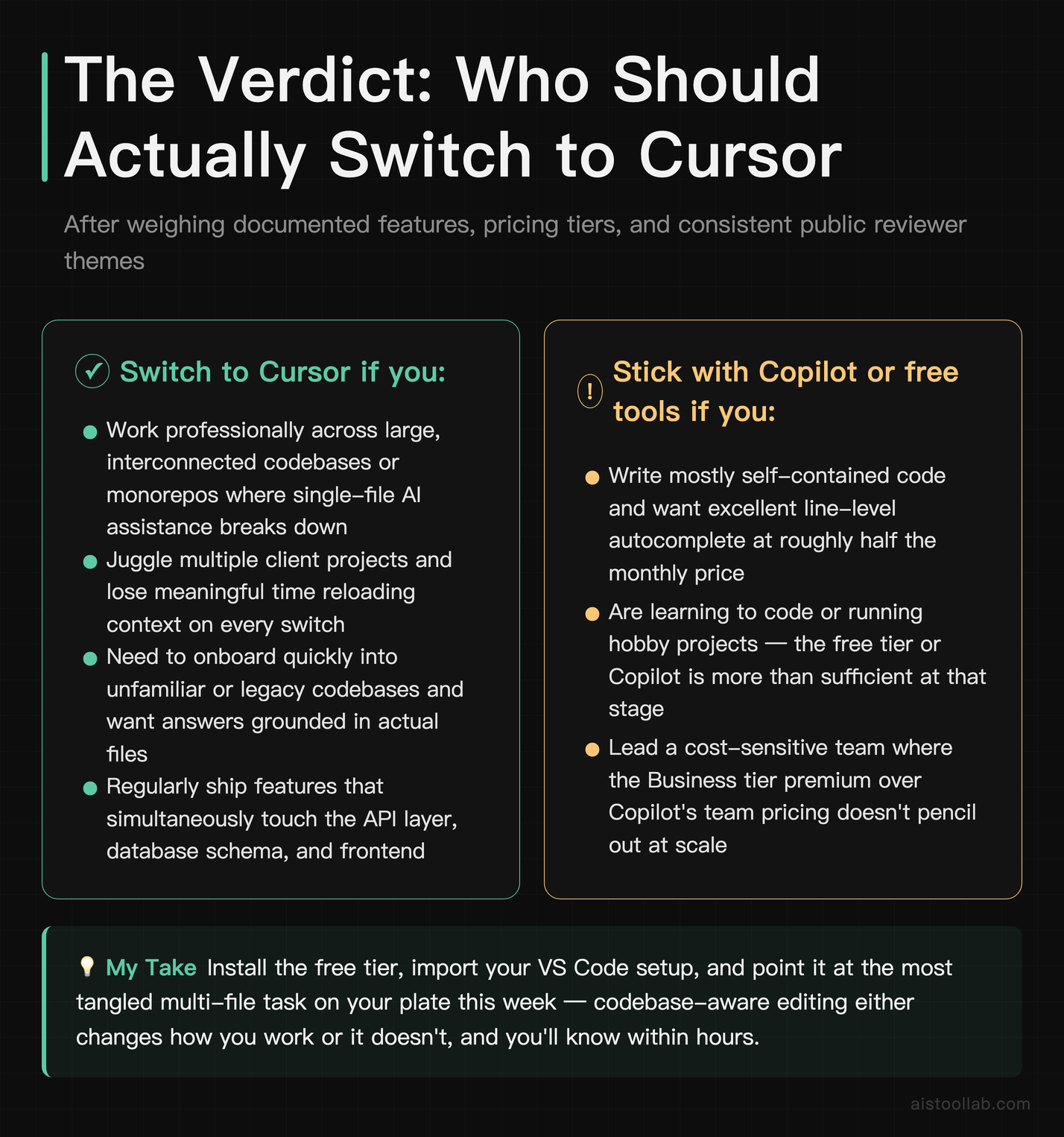
After weighing the documented features, the pricing, and the consistent themes across public reviews, here’s where I land. Cursor isn’t “just a VS Code fork with a wrapper,” and it isn’t a magic productivity machine either. It’s a purpose-built AI IDE that solves a specific, real problem — single-file AI assistance breaks down on complex projects — and it solves it better than a bolted-on extension does, mainly through deep codebase context and genuine model choice.
If you’re a professional developer working across large, interconnected codebases, juggling multiple client projects, or onboarding into unfamiliar legacy code, Cursor is worth the $20 a month and you’ll likely feel the difference within your first real feature implementation. If you mostly write self-contained code and just want excellent autocomplete, GitHub Copilot at a lower price is the smarter spend. And if you’re learning or on a budget, start free and upgrade only when you hit the wall.
My recommendation if it were my money on the line: install the free tier, import your VS Code setup, and point it at the most tangled multi-file task on your plate this week. The codebase-aware editing either changes how you work or it doesn’t — and you’ll know which within an afternoon. That’s a far better test than any review, including this one.
Frequently Asked Questions
Is Cursor worth $20 a month when GitHub Copilot is cheaper?
It depends almost entirely on the complexity of your work. If you’re writing mostly self-contained code and you love fast, accurate autocomplete, Copilot at its lower price point is excellent value and you may not need anything more. But if you regularly work across large codebases — monorepos, multi-service backends, projects where a single feature touches five files — Cursor’s codebase-aware context and multi-file editing can genuinely pay for the difference in saved time. Think of it this way: if Cursor saves a freelancer billing hourly even 30 minutes a week, the subscription pays for itself many times over. For hobby projects and learners, the free tier or Copilot is plenty. For professional development where context-switching is your biggest tax, the premium is easy to justify. The smart move is to run the free tier on a real project for a week and see whether the multi-file features actually change your workflow before committing.
Does Cursor have a free plan?
Yes. Cursor offers a free tier that includes a limited amount of premium model usage and the core editor experience, along with paid Pro and Business tiers. The free plan is genuinely useful for trying the product and for light usage, though heavier users will hit the limits on the more capable models fairly quickly. The Pro tier unlocks substantially more usage of premium models and the advanced features most professionals care about. Because exact quotas and tier details change as the product evolves, check Cursor’s official pricing page for the current limits before you assume what’s included. The important point for evaluation purposes: you do not have to pay anything to find out whether Cursor’s approach clicks for you. Install it, import your VS Code setup, point it at a real project, and you’ll know within an afternoon whether the codebase context features earn a spot in your daily workflow.
Can I keep my VS Code extensions and settings?
For the most part, yes — and this is one of Cursor’s quiet strengths. Because Cursor is built on the VS Code codebase, it supports the VS Code extension ecosystem, and the onboarding flow lets you import your existing extensions, themes, keybindings, and settings in one step. Most developers find their familiar setup carries over with minimal fuss, which removes the biggest psychological barrier to switching editors. The caveat: because Cursor is a fork that periodically merges upstream changes from Microsoft’s VS Code, there can be a lag before the very newest VS Code features or certain extensions are fully compatible. In practice this rarely breaks common workflows, but if you depend on a bleeding-edge extension or a Microsoft-proprietary feature, test it before committing. For the vast majority of users, the transition feels less like learning a new tool and more like the same editor with a much smarter brain attached.
How is Cursor’s multi-file context different from Copilot’s?
The core difference is architectural intent. Copilot began as an autocomplete tool focused on your current file and immediate surroundings, and while GitHub has expanded its context handling and added workspace-aware chat, that broader awareness was layered on over time. Cursor was designed around whole-codebase understanding from the start. It indexes your repository so it can retrieve relevant code automatically, and it lets you explicitly attach files, folders, documentation, and git context to any prompt using @ references. The practical result shows up when an answer depends on code far from where you’re typing — a type defined in another module, a utility function in a shared package, an API contract in a separate service. Cursor tends to ground its responses in that distant code more reliably because pulling it in is a first-class feature rather than an inferred guess. For small files the two feel similar; for large, interconnected projects the difference becomes obvious quickly.
Which AI models can I use inside Cursor?
According to Cursor’s official documentation, you can access frontier models from multiple providers — including Anthropic’s Claude family and OpenAI’s GPT models — and switch between them from within the editor. This is a meaningful contrast with Copilot, which runs on OpenAI models through GitHub’s integration without giving you a vendor choice. Cursor also supports configurations where power users bring their own API keys, which helps with cost control and access to specific models. The available model lineup changes as new models launch, so the exact list at any given moment is best confirmed on Cursor’s own site. The practical benefit is flexibility: you can send a complex reasoning-heavy refactor to a stronger model and route quick edits to a faster, cheaper one, optimizing both quality and cost on a per-task basis. If you care about model strengths and weaknesses, this flexibility is one of Cursor’s most underrated advantages over single-vendor tools.
Is my code safe? Does Cursor send it to third parties?
This is an important consideration for any AI coding tool, Cursor included. Because the AI features work by sending code context to model providers, your code does leave your machine when you use those features — that’s true of Copilot too. Cursor offers a privacy mode designed to ensure code isn’t stored or used for training, and the company publishes documentation on its security and data handling practices. For individual developers and most startups this is generally acceptable, but if you work in a regulated industry or under strict client confidentiality agreements, you should read the current privacy and security documentation carefully and confirm it meets your compliance requirements before adopting it for sensitive codebases. Some enterprises run additional review or restrict which tools touch proprietary code. The bottom line: don’t assume — verify the current privacy settings against your specific obligations, and enable privacy mode if your work demands it. This is one area where reading the official docs beats trusting any review.
Does Cursor replace the need for a human reviewer?
Absolutely not, and any honest review has to say so plainly. Cursor accelerates writing, refactoring, and understanding code, but it can and does make mistakes — and reviewers specifically flag that its more autonomous modes sometimes change more than intended. Every diff it proposes should be reviewed by a human who understands the consequences. Think of Cursor as an extremely fast, knowledgeable junior developer who occasionally misreads the brief: enormously helpful, but not someone you’d let merge to main unsupervised. The productivity gains come from giving you a strong first draft and handling tedious mechanical edits, not from removing your judgment from the loop. Teams that get the most value treat AI-generated changes the same way they’d treat a pull request from a new hire — read it, test it, question it. Used that way, Cursor speeds you up without quietly introducing subtle bugs. Used as a blind autopilot, it’ll eventually burn you.
Who should stick with Copilot or plain VS Code instead?
Plenty of developers genuinely don’t need Cursor, and pretending otherwise would be dishonest. If your work is mostly small, self-contained scripts or single-file edits, GitHub Copilot’s autocomplete delivers most of the everyday value at a lower monthly cost. If you’re a student, a hobbyist, or someone on a tight budget, plain VS Code with free extensions and the free tiers of AI tools may be all you ever need. And if you work in an environment with strict rules about which tools can access source code, the simplest compliant option might win regardless of features. Cursor’s sweet spot is specifically professional development on complex, multi-file projects where codebase awareness and model flexibility translate into real saved hours. Outside that sweet spot, the extra spend is harder to justify. Match the tool to the actual shape of your work rather than to the loudest thread on Hacker News — that’s the most reliable way to decide.
Last updated: 2026
Found this review helpful?
👉 Browse the AI Tools Library to find the right tools for your workflow.
Related reading: AI Developer Utility Tools Compared 2026: Hash Identifiers, Text Generators, Color Tools — Speed, Pricing, and Practical Value