
Who this is for: developers already sold on the idea of an AI assistant, comparing three tools of the same shape on the work they do every day. If you are still deciding between categories — terminal agent, AI editor, or prompt-to-app builder — start with Claude Code vs Cursor vs Lovable.
Same Four Jobs, Three Assistants
Plenty of developers spend weeks bouncing between AI coding tools — switching from GitHub Copilot to Cursor, hearing the buzz about Claude Code, trying it for a few days, then circling back. The usual complaint about these comparisons is that they end at “they’re all great for different things” — technically true, and also completely useless advice.
Here’s how this comparison works: it covers all three — Claude Code, Cursor, and GitHub Copilot — across the kinds of work they are actually used for: mid-size front-end apps, data pipelines, greenfield services, and debugging. To be clear about the basis: this piece is compiled from each vendor’s official documentation and pricing pages plus publicly available reviews. It is not a hands-on benchmark, and no claim here should be read as one. The goal is a clear recommendation at the end based on who you are and what you’re building.
This isn’t a press release dressed up as a review. Let’s get into it.
Quick Background: What Each Tool Actually Is
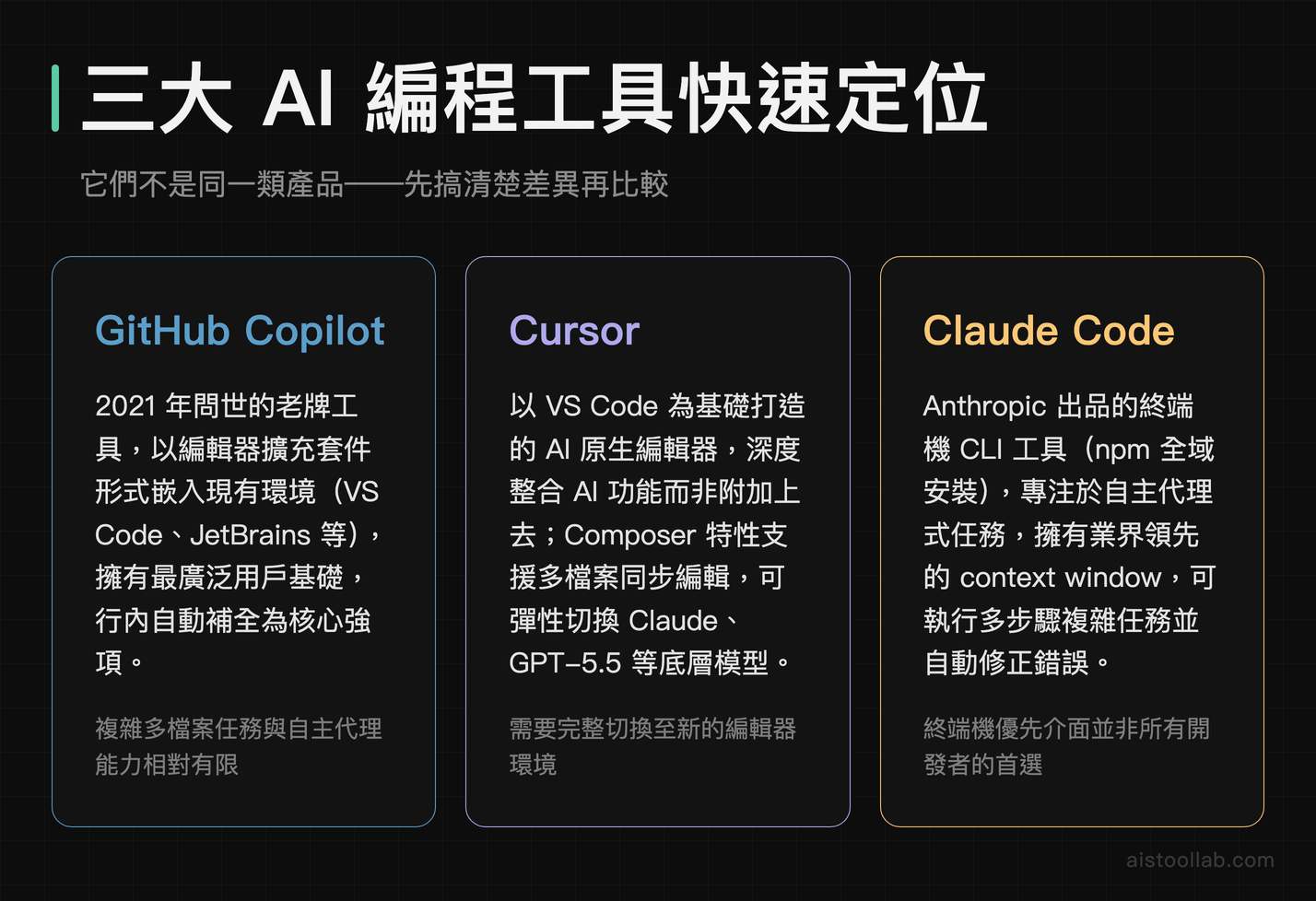
Before the comparisons, it’s worth being clear about what we’re actually looking at, because these three tools are not the same category of product, even though they’re often compared in the same breath.
GitHub Copilot is the veteran. Launched in 2021, it’s the inline autocomplete tool that lives inside your existing editor — VS Code, JetBrains, Neovim, whatever you use. It’s trained on a massive corpus of public GitHub code and has since expanded into chat features, PR summaries, and workspace-level context. GitHub Copilot launched in 2021 and installs as an extension into VS Code and JetBrains. I have no citable market-share figure, so I won’t rank install bases.
Cursor is an AI-native code editor — a full fork of VS Code that bakes AI deeply into the editing experience rather than bolting it on. It supports multiple model backends (GPT-5.5, Claude, and others), and its Composer feature is built specifically for multi-file edits. Its positioning is aimed at developers who want AI to feel like a first-class citizen in the workflow rather than a floating suggestion panel; I haven’t benchmarked it, so I won’t grade how well it delivers. I’ve written a full Cursor Review 2026 if you want the deep dive.
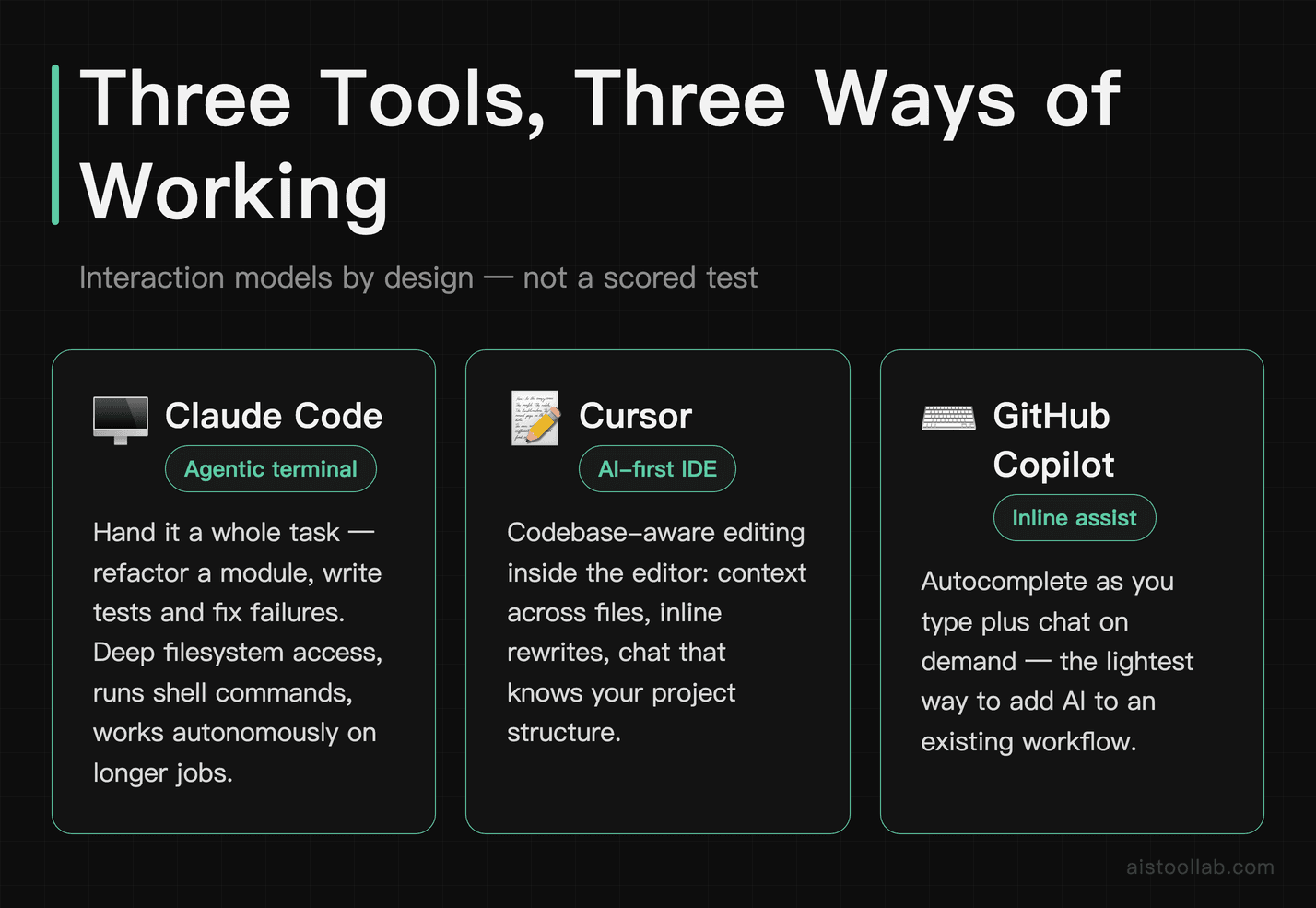
Claude Code is the newest of the three in its current form. Built by Anthropic and powered by Claude’s latest models, it’s an agentic coding tool that runs primarily in the terminal and is designed to handle longer, more complex tasks autonomously — think “refactor this entire module” or “write the tests for this file and fix whatever fails.” It has deep filesystem access, can run shell commands, and is positioned as something closer to an autonomous coding agent than a traditional autocomplete assistant. It’s gained serious traction fast.
Setup and First Impressions
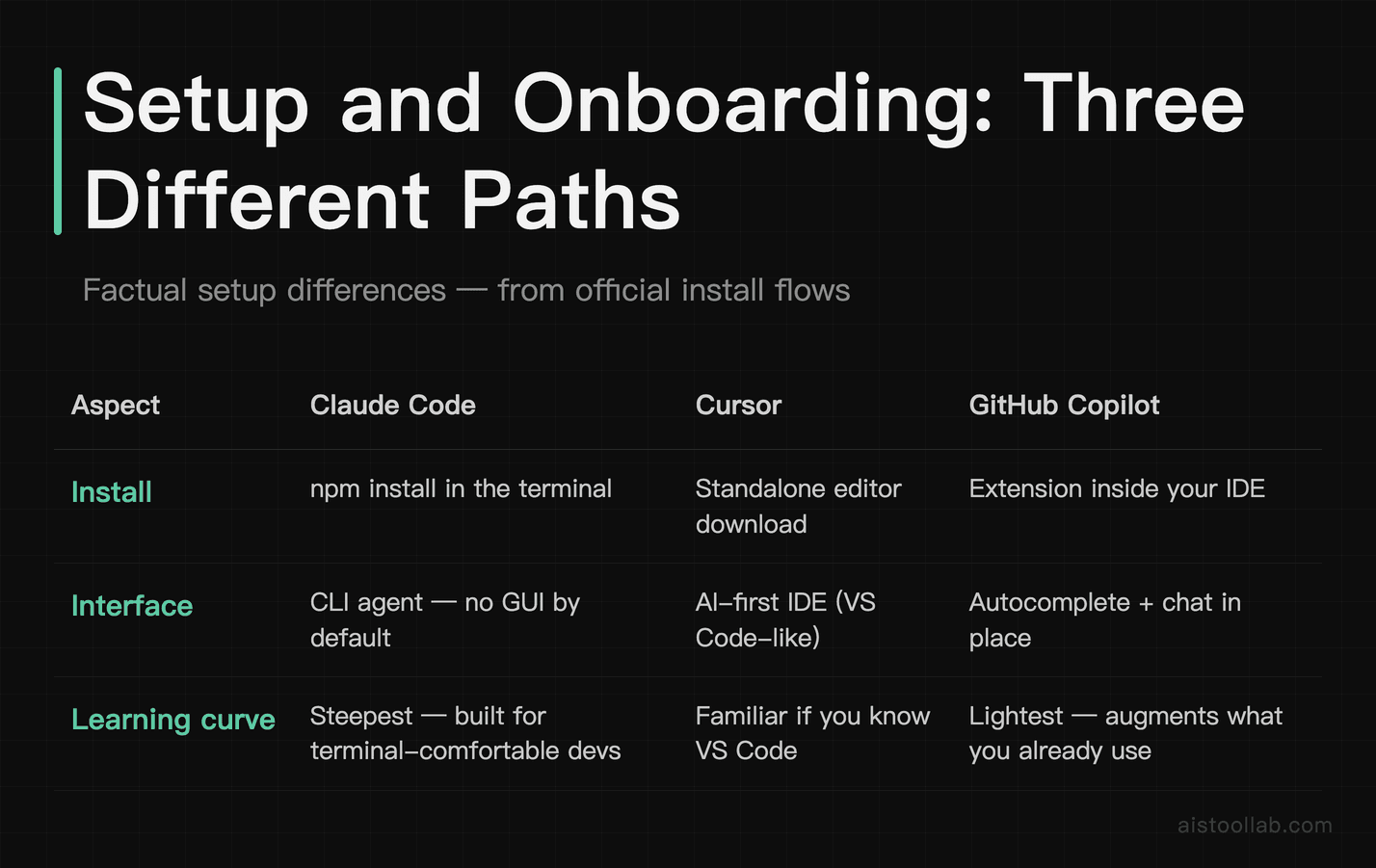
Getting started with each tool is a meaningfully different experience, and it tells you something about who each product is designed for.
GitHub Copilot is the smoothest onboarding of the three. If you’re already in VS Code, it’s an extension install and a GitHub account login. You’re autocompleting code in under five minutes. The friction is essentially zero, which is part of why it has such broad adoption — it meets developers exactly where they already are.
Cursor requires downloading a new editor, which sounds like a bigger ask than it is. Because it’s built on VS Code, your extensions and settings import automatically, so getting set up with a typical configuration is quick. The first time Cursor’s Composer feature rewrites three files at once based on a single prompt, you immediately understand why people switch and stay switched.
Claude Code has the most technical onboarding of the three. You’re installing it via npm (npm install -g @anthropic-ai/claude-code), setting up your Anthropic API key, and then running it from the terminal. There’s no GUI by default. If you’re a developer who’s comfortable in the command line, this is fine — maybe even appealing. If you’re used to clicking buttons and seeing things highlight, the learning curve is real. That said, once it’s running, the power it offers is immediately apparent.
Pricing: What You’ll Actually Pay

Pricing is a real differentiator here, especially if you’re making this decision for a team.
GitHub Copilot runs $10/month for the individual Pro plan (official pricing page, checked 2026-07-27; the individual line also has Pro+ and Max tiers above it), with separate organization plans that add policy controls and audit logs — check the official page for current business pricing. There’s also a free tier with limited completions. For most individual developers, the $10/month plan is the entry point. Given that it’s often bundled with GitHub subscriptions and works inside your existing editor without switching anything, it’s arguably the best value per dollar for casual-to-moderate use.
Cursor offers a free tier (limited completions per month), and the Pro plan runs $20/month. There’s also a Teams plan at $40/user/month (cursor.com/pricing, checked 2026-07-29). The Pro tier unlocks unlimited fast requests and access to the more powerful model options. The free tier is genuinely useful for trying it out, but serious daily use quickly pushes you toward Pro.
Claude Code bills through Anthropic’s API usage, which means you pay per token rather than a flat monthly fee. This is a double-edged sword: light users might pay less than $10/month, but heavy users running long agentic sessions can rack up meaningful API costs quickly. Anthropic has detailed pricing on the Claude Code page — worth checking before you commit to heavy use. For teams evaluating this against a flat-rate subscription, the variable cost model requires some upfront math.
Comparing the Three Tools on Common Tasks
Task 1: Autocomplete and Inline Suggestions
For pure inline autocomplete — the bread-and-butter use case — Inline autocomplete is what GitHub Copilot launched with in 2021. I have not run a side-by-side test, so I won’t rank output quality. It’s fast (suggestions appear in roughly 1–2 seconds, per public reviews), it’s contextually aware of what’s in your current file, and after years of iteration, the suggestions have gotten genuinely good at predicting what you’re about to write. It’s not always right, but the hit rate on repetitive patterns, boilerplate, and standard library usage is impressive.
Cursor’s autocomplete is also excellent and benefits from being able to use Claude as a backend, which often produces more nuanced suggestions in complex scenarios. The difference from Copilot on simple autocomplete tasks is marginal — where Cursor pulls ahead is when the context spans multiple files, which we’ll get to.
Claude Code in the terminal doesn’t do traditional inline autocomplete the way the other two do. It’s not designed for that flow. You give it a task, it works on it, and it shows you what it’s done. Comparing it to the other two on autocomplete is like complaining that a dishwasher isn’t as good as a sponge for scrubbing — different tool, different job.
Task 2: Multi-File Refactoring
This is the task Claude Code is explicitly designed for. I have not run it against the other two on the same repository, so what follows describes the intended workflow, not a measured result.
A representative task for comparing these tools is a multi-file refactor — for example, replacing a deprecated prop pattern across a React component library, updating the corresponding TypeScript types, and flagging places where the change might break existing behavior.
GitHub Copilot’s chat handles this kind of task okay. It can give solid instructions and help fix files one by one, but orchestrating a change across many files still tends to require significant manual effort. It’s a great assistant; it’s not an agent.
Cursor’s Composer mode is geared toward multi-file work: you describe the task, it maps out the affected files, makes the changes, and shows diffs you can accept or reject.
Claude Code is the most autonomous of these tools. Described a task in the terminal, it can read the codebase, ask clarifying questions when there’s ambiguity, then make the changes — including running a lint check afterward to verify nothing was broken. This is the use case Claude Code is explicitly designed for; whether it holds up on your codebase is something you would need to try.
Task 3: Debugging a Non-Obvious Bug
For tricky bugs like an intermittent async race condition in a Node.js service — the kind that produces sporadic failures — these tools can help analyse error logs and narrow down likely causes.
GitHub Copilot’s chat tends to give a solid explanation of what a race condition is and some general patterns to look for. Useful if you’re learning. For an experienced developer, it can be a bit like asking a GPS for directions and getting a lesson on how roads work.
Cursor can be useful in situations like this because it can see the actual code alongside the logs, which helps it locate problematic areas — for example, suggesting Promise.allSettled instead of Promise.all to handle a partial-failure scenario.
Claude Code (with filesystem access) can read the relevant files directly, trace the execution path, and identify the exact function where a race condition originates. It can suggest a fix and explain why it was a race condition in clear, usable terms.
Task 4: Writing Tests
Test writing is one of those tasks developers know they should do more of and consistently find reasons to delay. Across public reviews, all three were compared on writing unit tests for a moderately complex utility function with several edge cases.
All three tools can produce reasonable tests, and the quality gap here tends to be narrower than on other tasks. The main difference is workflow: Copilot’s suggestions appear inline as you type the test file, which works well if you like building tests incrementally. Cursor can generate a full test suite in a single Composer prompt and then iterate. Claude Code can generate the tests, run them, catch failing edge cases, fix them, and report back. That last part — running the tests itself and self-correcting — is what Claude Code’s agentic mode is designed to do. Whether the other two can be set up to do the same depends on your configuration — check their current docs rather than taking this as a fixed gap.
📌 July 2026 update (official news, not hands-on): On July 9, 2026, OpenAI announced that GPT-5.6 is now the preferred model in Microsoft 365 Copilot — across Word, Excel, PowerPoint, Chat, and Cowork. OpenAI frames it as delivering “more useful work from every token” with stronger performance per dollar. Keep it in perspective, though: “preferred” is not “exclusive.” Microsoft has been testing its own in-house MAI models and may still route some tasks elsewhere for cost reasons, so the model actually answering inside Copilot won’t always be GPT-5.6. (Note: this is Microsoft 365 Copilot, the Office assistant — a different product from the GitHub Copilot coding assistant compared above; it matters here because it confirms GPT-5.6 as OpenAI’s current flagship.) This note is compiled from OpenAI’s and Microsoft’s official announcements (OpenAI announcement); we haven’t independently tested it.
Model Quality and Context Handling
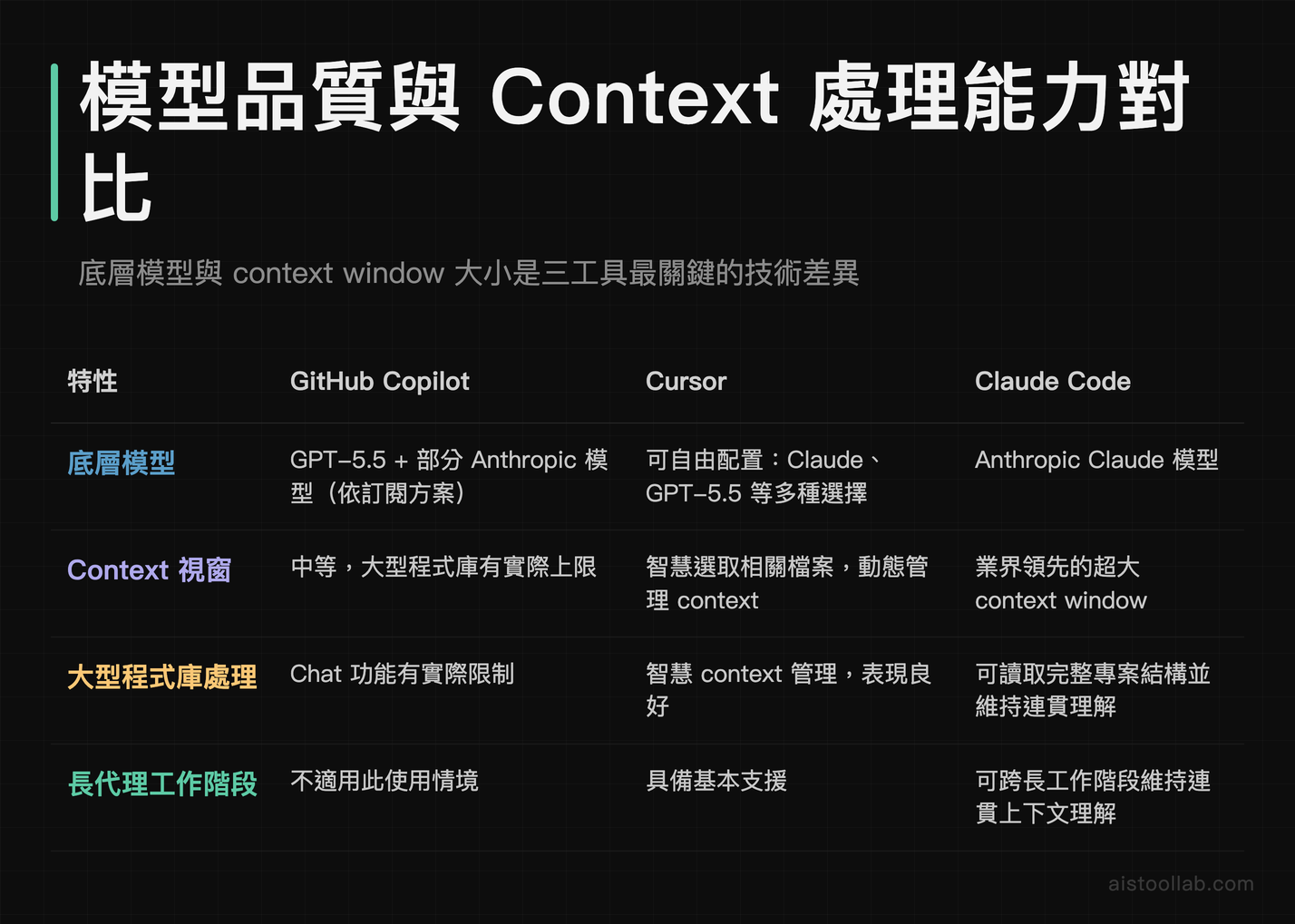
A lot of what you’re actually comparing when you compare these tools is the underlying model and how much of your codebase it can hold in context at once.
GitHub Copilot uses a mix of models depending on your subscription tier, including GPT-5.5 and some Anthropic models in newer versions. Its context window for the chat feature has improved significantly but still has practical limits when your codebase grows large. The GitHub Copilot product page details the current model options by plan.
Cursor uses whichever model you configure — Claude Sonnet 4.6, GPT-5.5, and others — and its Composer feature has gotten good at intelligently selecting which files to pull into context rather than trying to stuff everything in at once. This smart context management is one of the reasons it performs well on large codebases.
Claude Code is backed by Anthropic’s Claude models, and it benefits from Claude’s large context window (check Anthropic’s model page for the current figure — I’m not ranking it against other vendors). More importantly, it is designed to use that context selectively — it can read your entire project structure, select the relevant files, and maintain coherent understanding across a long agentic session. Anthropic’s model quality for code tasks has improved dramatically, as covered in the Claude 評測 write-up.
Developer Experience: The Stuff That Doesn’t Show Up in Feature Lists
Beyond the features, there’s the question of how each tool feels to use over a sustained period.
GitHub Copilot feels invisible in the best way — it’s just there, in your editor, suggesting things. When it’s working well, it’s like having a thoughtful autocomplete that actually understands code semantics. The downside is that its suggestions can sometimes be confidently wrong, and because they appear so seamlessly, you occasionally accept something without scrutinizing it properly. The chat panel is solid but feels slightly bolted on compared to the editing experience.
Cursor ships as a full editor — a VS Code fork — rather than as an extension. I have not run a controlled comparison, so this is product shape, not a ranking. The editor is familiar (it’s VS Code), the AI features are deeply integrated rather than appended, and Composer in particular makes multi-step tasks feel genuinely collaborative. The one frustration: switching between different AI modes and features has a slight learning curve, and the UX has some rough edges that I expect will smooth out over time.
Claude Code’s experience is the most unusual. Working in the terminal, describing tasks in natural language and watching it execute them, feels different from traditional coding workflows. For complex, longer tasks, that autonomy is powerful. For quick one-off edits, it can feel like overkill. Developers who love agentic workflows will find it freeing. Developers who like fine-grained control over every line will find it occasionally frustrating when Claude makes a decision they didn’t anticipate. The key is learning to write prompts that constrain the scope appropriately — and if you want to sharpen that skill, the Prompt Engineering That Works guide is worth your time.
Pros and Cons at a Glance
GitHub Copilot
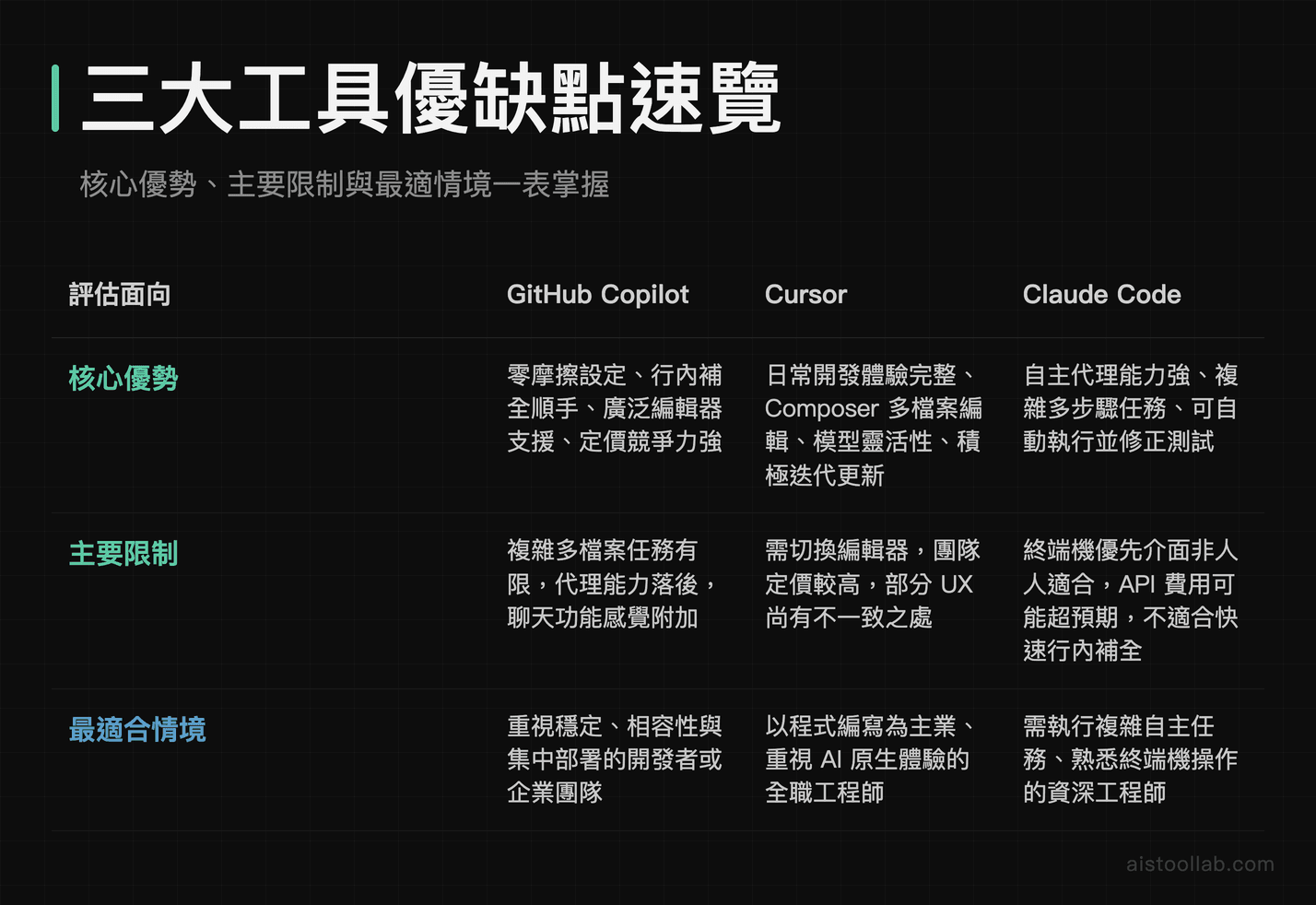
- Pros: Zero friction setup, works in your existing editor, huge install base with proven reliability, competitive pricing, great inline autocomplete
- Cons: Feels limited for complex multi-file tasks, positioned as an assistant rather than an autonomous agent, chat feature feels secondary to the editing experience
Cursor
- Pros: Best overall daily coding experience, excellent Composer for multi-file edits, model flexibility, active development with frequent improvements
- Cons: Requires switching editors (minor but real friction), pricing adds up for teams, some UX inconsistencies
Claude Code
- Pros: Built for autonomous multi-step tasks, can run and self-correct tests, large context window (capability claims come from Anthropic’s documentation; not independently tested here)
- Cons: Terminal-first experience isn’t for everyone, variable API pricing can surprise heavy users, not ideal for quick inline autocomplete
Who Should Use Which Tool

This is the section you actually need if you’re a developer weighing these tools, so let me be direct.
Use GitHub Copilot if: You’re happy with your current editor and don’t want to change it. You mainly want smart autocomplete that works reliably across different languages and frameworks. You’re on a team that needs a tool that’s easy to roll out and manage centrally. Or you’re earlier in your development career and want a tool that helps you write code faster without dramatically changing your workflow. It’s not the flashiest option in 2026, but it’s genuinely solid and has the widest compatibility.
Use Cursor if: You spend most of your day writing code and want AI to feel native to your editing experience rather than peripheral. You frequently work on tasks that span multiple files. You want the flexibility to switch between underlying models. And you’re okay with adopting a new editor (which, again, is less painful than it sounds given the VS Code foundation). Of the three, Cursor is the one designed to be your primary editor rather than an add-on to it.
Use Claude Code if: You’re comfortable in the terminal and you deal with complex, longer-horizon tasks — big refactors, generating comprehensive test suites, migrating between frameworks, or setting up automated pipelines. If your bottleneck is “I know what needs to be done but it’s going to take three hours of tedious implementation,” Claude Code is built for exactly that shape of task. It’s also worth noting that Claude Code pairs well with Cursor — some developers use Claude Code for heavy autonomous tasks and Cursor for their everyday editing. For teams using Claude’s API for other purposes anyway, the cost integration makes a lot of sense.
It’s also worth reading the Claude Code vs Cursor vs Lovable comparison if you’re weighing no-code and low-code tools in the same decision, as that article covers a slightly different use case split.
Which One Earns the Subscription

If I had to pick one tool for a professional developer in 2026 who wants to maximize productivity across a typical mix of coding tasks, I’d recommend Cursor as the primary daily driver, with Claude Code brought in for complex autonomous tasks. That combination currently covers more ground than either tool alone.
GitHub Copilot remains the right choice for teams that need simplicity, broad editor support, and predictable pricing — and it’s not far behind the others on pure code quality. Don’t let the shininess of newer tools make you dismiss a tool that works reliably and requires zero disruption to your existing setup.
Claude Code is the most impressive thing I’ve seen in this space for agentic, autonomous coding tasks. It won’t replace the need for a good editor integration any time soon, but it’s solving a genuinely different problem — and it’s solving it well. The Claude Code documentation is worth a read even if you’re not ready to commit, just to understand what direction autonomous coding agents are heading.
The honest summary: none of these tools is overhyped in the way some AI products are. They all deliver real value. The question is which type of value matches your actual workflow — and now you have enough to make that call.
Frequently Asked Questions
Can I use Claude Code and Cursor at the same time?
Yes, and many developers do exactly this. Cursor handles your day-to-day inline editing and multi-file Composer tasks inside a familiar VS Code-based editor, while Claude Code runs in the terminal for larger autonomous jobs like full module refactors, test generation runs, or dependency migrations. They don’t conflict — they complement each other nicely if you’re comfortable switching between an editor and a terminal.
Is GitHub Copilot still worth it in 2026?
Yes, particularly for developers who don’t want to change their editor setup or manage API billing. Inline autocomplete is the feature this product launched with; I have not run a side-by-side test, so I won’t call it best-in-class. It’s not the most powerful option anymore for complex tasks, but it’s the most frictionless — and for many developers, that matters more than raw capability.
How does Claude Code billing work, and can it get expensive?
Claude Code uses Anthropic’s API pricing, which means you pay per token consumed rather than a flat monthly fee. For developers running short, focused tasks, this can actually be cheaper than a $20/month flat subscription. For power users running long agentic sessions on large codebases, costs can climb quickly. It’s worth setting usage limits through Anthropic’s dashboard when you’re starting out, and monitoring your actual spend for the first few weeks before you commit to it as your primary tool.
Which tool is best for beginners?
GitHub Copilot, without much hesitation. It integrates into your existing editor, doesn’t require learning a new interface, and its suggestions work as a learning aid — you can see idiomatic patterns and standard library usage without interrupting your flow. Claude Code’s terminal-first approach and Cursor’s advanced features are genuinely powerful but assume a certain level of developer experience to use effectively.
Does Cursor work with Claude models?
Yes. Cursor supports multiple model backends, including Claude Sonnet 4.6 (check Cursor’s own model list for the current line-up). You can configure which model powers different features within Cursor’s settings. This is one of the reasons some developers prefer Cursor — they get Claude’s code quality in a polished editor environment, without needing to run a separate terminal tool or manage separate API billing.
Is Claude Code available for teams, or just individual developers?
Claude Code can be used by teams, but the billing and access management goes through Anthropic’s API platform, which is designed for both individual and organizational use. Teams looking for centralized management, audit logs, and per-seat billing controls will find GitHub Copilot Business or Cursor Teams easier to administer at scale. Claude Code is currently a stronger fit for individual developers or small teams comfortable managing API-level access.
Last updated: 2026
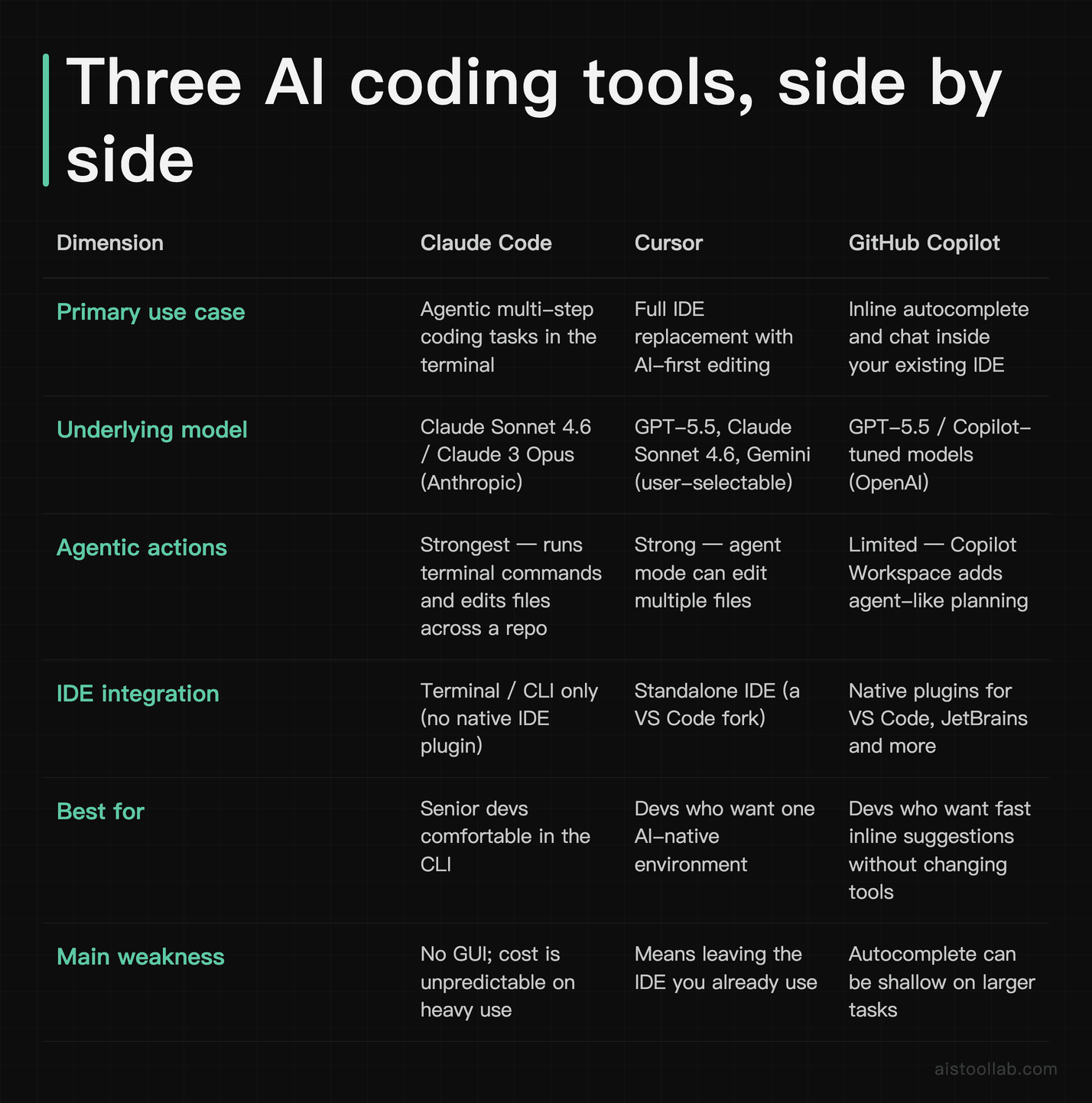
Pricing and context window (kept in text because both change): Claude Code bills usage-based through the Anthropic API; Cursor has a limited free tier plus paid Pro, Pro+, Ultra and Teams plans; GitHub Copilot has a limited free tier plus paid Individual and Business plans. On context, Claude Code reads across a whole repository, Cursor indexes the codebase, and Copilot’s chat context is narrower. Check each vendor’s own pricing and documentation pages for the current numbers — they move faster than this article does.
Explore more AI tools
👉 Browse the AI Tools Library to find the right tools for your workflow.
Cursor plan names and prices checked on 2026-07-26 in the raw markup of the official pricing page (cursor.com/pricing): the structured data lists Hobby $0, Pro $20, Pro+ $60, Ultra $200 and Teams $40 (currency USD), and the Teams card renders “$40 / user / mo.” No plan named “Business” appears on that page. Prices may change — treat the official page as the source of truth.