📌 Editor’s note (July 2026): This article reflects the AI models and versions current at the time of writing. The AI landscape moves quickly and newer model versions may have been released since. We’ve kept the original references as a snapshot from that period rather than rewriting the analysis.
This article contains affiliate links. If you buy through them I may earn a commission at no extra cost to you. All opinions are my own.
Update (July 2026): OpenAI has retired Canvas.
In late May 2026, OpenAI removed the separate Canvas side panel from its current models (GPT-5.5 Instant and GPT-5.5 Thinking). The work Canvas used to do now happens inline in the chat thread itself, through what OpenAI calls writing blocks and code blocks — editable blocks that sit in the conversation, so you edit the block and ChatGPT updates it in place. Canvas lingered for a while only on legacy models, but GPT-4.5 was retired from ChatGPT on June 27, 2026 and o3 is scheduled to follow on August 26, 2026, after which the classic Canvas panel effectively disappears. (These changes apply to the ChatGPT app, not the API.)
We’ve kept this guide up as a record of what Canvas was and how it worked, because the ideas behind it — treating AI output as an editable document, making targeted edits to one section, keeping a version history — all carried over into the inline writing/code blocks. Where the workflow has changed, we’ve noted how you’d do the same thing today. Source: OpenAI ChatGPT release notes and model retirement notices (May–June 2026).
Wait — Isn’t ChatGPT Just a Chat Box?
That’s what a lot of people thought for a long time. You type something in, it spits something back, you copy-paste it into your actual editor, tweak it, realize you wanted it slightly different, go back, ask again, copy-paste again. The loop gets old fast. If you’re a developer or writer doing this dozens of times a day, you know exactly what that felt like — like using a translation service as a pair programmer. Technically functional, but nobody was calling it elegant.
Canvas was OpenAI’s answer to that. When it launched inside ChatGPT it was easy to miss: it wasn’t a new product, it wasn’t a separate app, it wasn’t something you had to install. It was a panel that opened up alongside your chat and changed how you interacted with the model on longer, more structured work — documents, essays, code files, and anything else where you needed to see the full output and edit it like a real document rather than a reply in a thread.
It was one of the more underrated workflow improvements OpenAI shipped during its run. It wasn’t perfect, and there were things it never did. And as of mid-2026, OpenAI has folded that experience back into the chat thread (see the update note above). This guide walks through what Canvas was, how it worked, and — where the workflow has moved on — how you’d get the same result today with inline writing and code blocks.
What Was OpenAI Canvas?
Canvas was a collaborative editing interface built directly into ChatGPT ↗. When you were working on a piece of writing or a block of code, instead of receiving the output as a chat message, Canvas opened a side panel — a full document editor — where the content lived. From there, you could highlight specific sections, ask the model to rewrite only that part, adjust the overall tone or code style, and keep iterating without the original document getting buried under a thread of replies.
The key mental shift was that Canvas treated your output as a document, not a message. That sounds like a subtle distinction, but it changed everything about how the workflow felt. You were no longer in a back-and-forth conversation where context got messy. You were working on a shared artifact that both you and the model could see, reference, and modify together. That same idea lives on in today’s inline writing and code blocks — the difference is those blocks now sit in the chat thread instead of in a dedicated side panel.
During its run, Canvas was available to ChatGPT Plus, Team, and Enterprise subscribers, and OpenAI at times extended it to some free-tier users, with availability that varied by account. At the time, Canvas ran on GPT-4o: the interface appeared automatically when the model determined the task warranted it, or you could trigger it manually by asking for it in your prompt.
How Canvas Worked: The Interface Workflow
Getting Canvas to appear was straightforward. You opened a new chat in ChatGPT on GPT-4o (it didn’t trigger on other models), and either asked for something that was clearly a document or code task, or explicitly said something like: “Open Canvas and write me a Python function that parses JSON from a REST API response.”
The interface split into two columns. On the left: your chat history. On the right: the Canvas panel with your document or code. That split view was persistent — you could keep chatting with the model in the left column and watch the Canvas update in real time on the right. It was surprisingly fluid once you got used to it. Doing this today: you no longer open a separate panel — you just ask for a document or code task in the chat, and ChatGPT returns an editable writing block or code block inline, which you edit in place in the thread.
Step 1: Start a Canvas Session
You could kick off a Canvas session in two ways. The first was implicit — just ask for a writing or coding task of reasonable length and GPT-4o would often open Canvas automatically. The second was explicit — type something like “use Canvas to draft…” or “open Canvas and create…” in your prompt. On a fresh chat, the Canvas would appear as soon as the model started generating output.
For developers, the explicit trigger was the easier habit to build initially, just so you knew when you were working in Canvas mode versus regular chat mode. In today’s inline model there’s no separate mode to switch into — a long enough writing or coding request simply comes back as an editable block.
Step 2: Work With the Document Inline
Once your content was in Canvas, you had a few options for editing. You could directly type and edit in the Canvas panel itself — it was a real text editor, not a read-only display. You could select a specific piece of text or code block, and a small toolbar popped up with options to ask the model to rewrite, expand, shorten, or change the tone of just that selection. Or you could go to the chat panel on the left and give broader instructions that affected the whole document.
The selection-based editing was where Canvas really earned its keep. Say you had a 200-line Python script and the error handling in one particular function was weak. Select those 15 lines, hit the prompt that appeared, type “add proper exception handling with informative error messages,” and the model rewrote just that block. The rest of the file stayed untouched. No more copy-pasting partial code and hoping the model didn’t accidentally rewrite the parts you wanted to keep. This targeted-edit idea is exactly what carried into today’s inline blocks.
Step 3: Use the Toolbar Shortcuts
Canvas had a set of built-in toolbar actions on the right side of the panel that were worth knowing. For writing documents, these included options like adjusting reading level, changing the tone (more formal, more casual), making the piece longer or shorter, and adding final polish. For code, the shortcuts included adding comments, fixing bugs, adding logging, and translating the code to another language.
These one-click shortcuts were genuinely useful for the things you did repeatedly. If you wrote technical documentation, the “adjust reading level” button was a small miracle — you could take a draft written for engineers and dial it back for a non-technical audience in one click, without touching the structure. If you were a developer reviewing code before a PR, “add comments” would annotate your code with inline explanations, useful for onboarding teammates or your own future self.
Step 4: Track Changes and Navigate Versions
Canvas kept a version history of your document as you made edits. You could roll back to an earlier version if an edit went sideways — useful when experimenting with aggressive rewrites. The version controls were subtle (a back arrow at the top of the Canvas panel), but they were there and they worked.
This was particularly useful in coding sessions where you tried an approach, it didn’t work, and you wanted to return to where you were before. It was never as powerful as Git, obviously, but for a quick experimental session inside ChatGPT, having any version history at all was a meaningful improvement over the old “scroll up and find the previous code block, then manually copy it” workflow.
Use Cases: Who Benefited From Canvas?
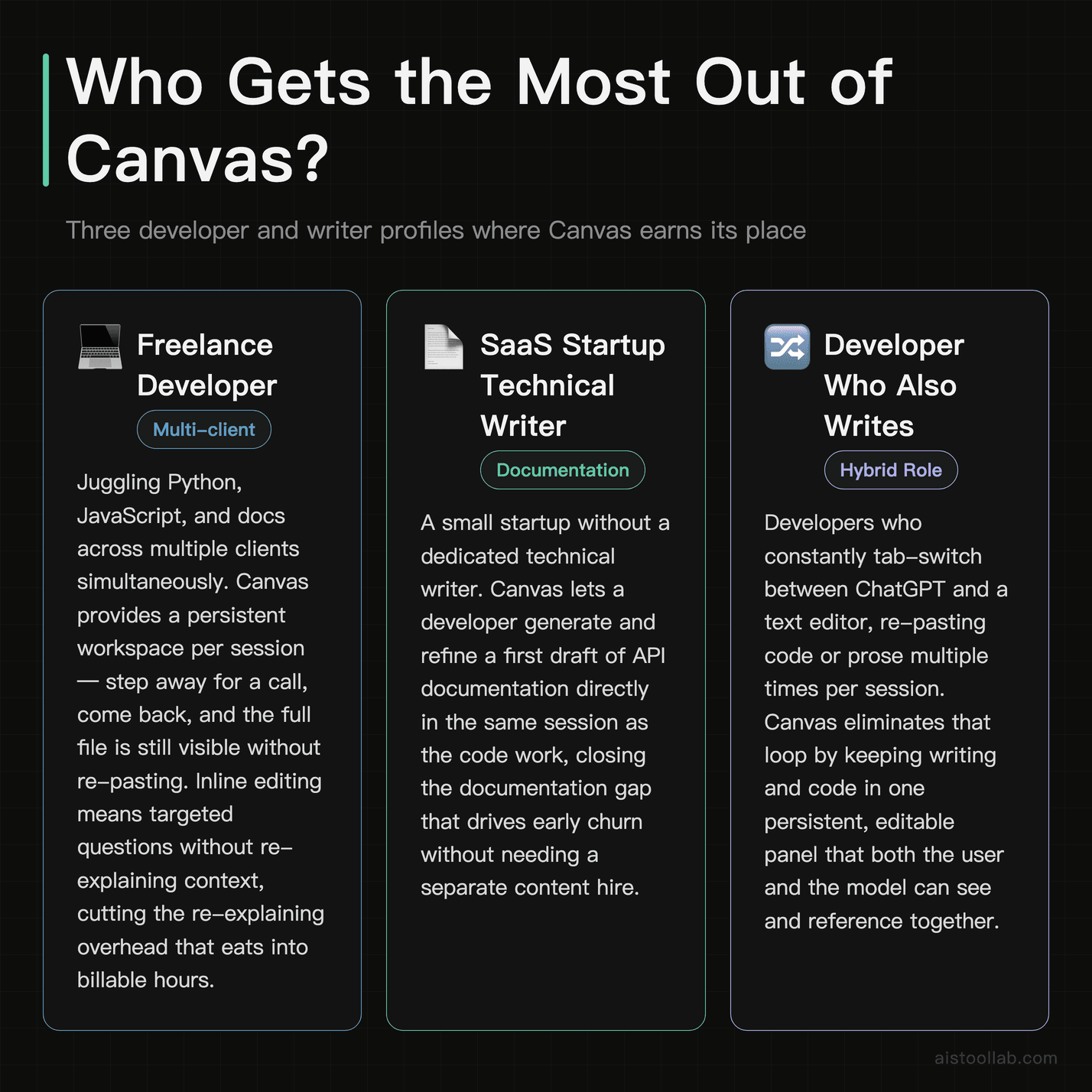
The profiles below are the ones Canvas fit best. They’re still worth reading as a map of who benefits from an “AI output as an editable document” workflow — which is exactly what today’s inline writing and code blocks offer, minus the separate panel.
1. The Freelance Developer Juggling Multiple Client Projects
If you’re a solo developer billing hourly across three or four client projects simultaneously, context switching is your nemesis. You’re working in Python for one client, JavaScript for another, and documentation for a third. Canvas gave you a persistent workspace per session that you could return to. You could have a Canvas open with a client’s API wrapper code, step away to take a call, come back, and immediately see the full file — not buried under 40 messages of back-and-forth. The inline editing meant you could ask targeted questions (“why is this function returning undefined here?”) with the full file visible to the model, without pasting the whole thing again. It cut down on the re-explaining overhead that eats into billable hours. The inline blocks in today’s ChatGPT keep the same benefit within the thread.
2. The SaaS Startup With a Small Technical Writing Team
A two-person startup doesn’t have the headcount for a dedicated technical writer, but shipping a developer product without good docs is a fast path to churn. Canvas was surprisingly good for this. A developer could generate a first draft of API documentation directly in Canvas from their code, then use the toolbar to adjust reading level and tone before handing it off to a non-technical co-founder for review. The co-founder could make edits in the Canvas panel and ask the model to clean up their additions. Both people worked on the same artifact, with the model acting as a real-time writing assistant throughout — a genuine improvement over Google Docs + ChatGPT tab-switching.
3. The Content Creator Who Also Codes Their Own Tools
YouTubers, newsletter writers, and independent creators who build their own automation scripts (Python for scraping, JavaScript for their website, shell scripts for video processing) often aren’t deep engineers — they’re functional coders who know enough to get things working. Canvas was excellent for this group because the bar to entry was low and the assistance was contextual. They could open Canvas with a half-working script, describe what was broken in plain English, and iterate without needing to understand everything about the model’s output before proceeding. The visual separation between the chat and the code also reduced cognitive load — no hunting for the latest version of the code in a 30-message thread.
Canvas for Code: A Closer Look at the Collaboration Features
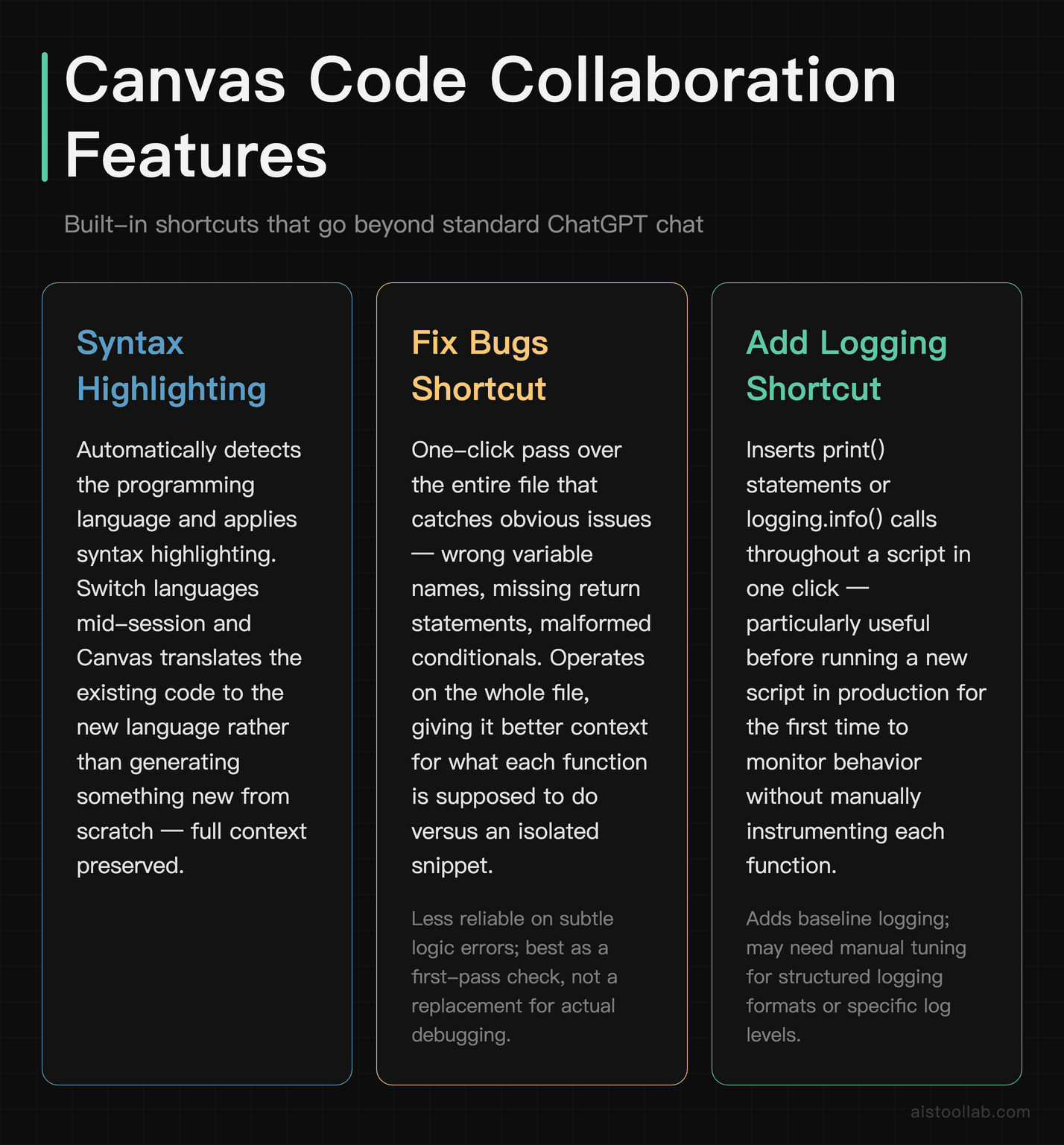
The code experience in Canvas deserves its own section because it was more capable than it first appeared. In a code Canvas, the model applied syntax highlighting automatically — it detected the language and formatted accordingly. You could switch languages mid-session by asking, and it would translate the existing code to the new language, not just generate something new.
The “fix bugs” shortcut was interesting. It generally caught obvious issues — wrong variable names, missing return statements, malformed conditionals. For subtler logic errors it was less reliable, which was expected. It worked best as a first-pass check, not a replacement for actual debugging. What it did better than standard chat was that it operated on the whole file, not just a snippet you’d pasted in, which gave it better context for what each function was supposed to do.
The “add logging” shortcut was underrated. If you had a script you were about to run in production for the first time, one click would add print() statements or proper logging.info() calls throughout, so you could see what was happening at each stage. It saved a few minutes of repetitive work per script, which added up if you did this regularly. If you’re evaluating coding tools today, our roundup of Best GitHub Copilot Alternatives in 2026: 6 AI Coding Tools Compared covers how this kind of assistance compares across tools.
Code comments were another area Canvas handled well. Ask it to comment a complex function and it didn’t just add # increments counter above every line — it wrote substantive explanations of what blocks were doing and why. That was useful for code reviews, for onboarding, and for your own future self when you revisited something six months later.
Canvas vs. Standard Chat: The Real Differences
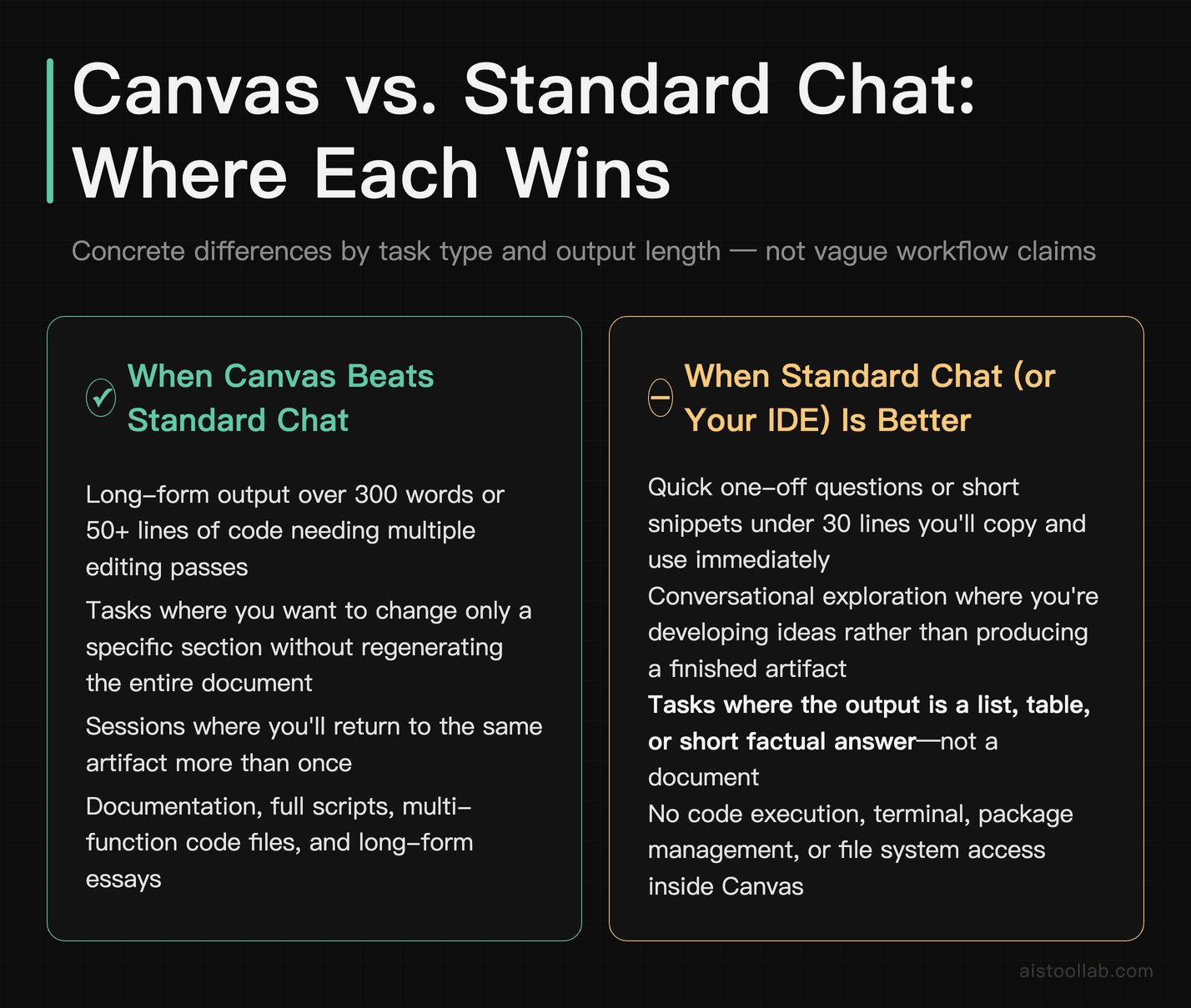
To be concrete rather than vague: here’s where Canvas genuinely beat the old-style standard chat, and where it didn’t. Most of the “where Canvas wins” points now describe when you’d want an inline writing/code block rather than a plain chat reply.
Where Canvas won: Long-form output that needed iterative editing. Anything over 300 words or 50 lines of code where you were going to make multiple passes. Tasks where you wanted to edit only a specific section without affecting the whole. Sessions where you’d come back to the same artifact more than once. Documentation, long-form essays, full scripts, multi-function code files.
Where plain chat was still fine: Quick one-off questions. Short code snippets under 30 lines you were going to copy and use immediately. Conversational back-and-forth where you were exploring an idea rather than producing something. Any task where the output was a list, a table, or a short answer rather than a document.
Where Canvas was genuinely limited: It was never a replacement for a proper IDE. You couldn’t run the code inside Canvas — no terminal, no package management, no file system access. It was a writing and editing surface, not a development environment. It also never had real-time collaboration with another human — the “collaboration” was between you and the model, not between you and a colleague. And the version history, while useful, was basic compared to anything resembling version control.
Comparison: Canvas vs. Alternatives for Code and Writing Assistance
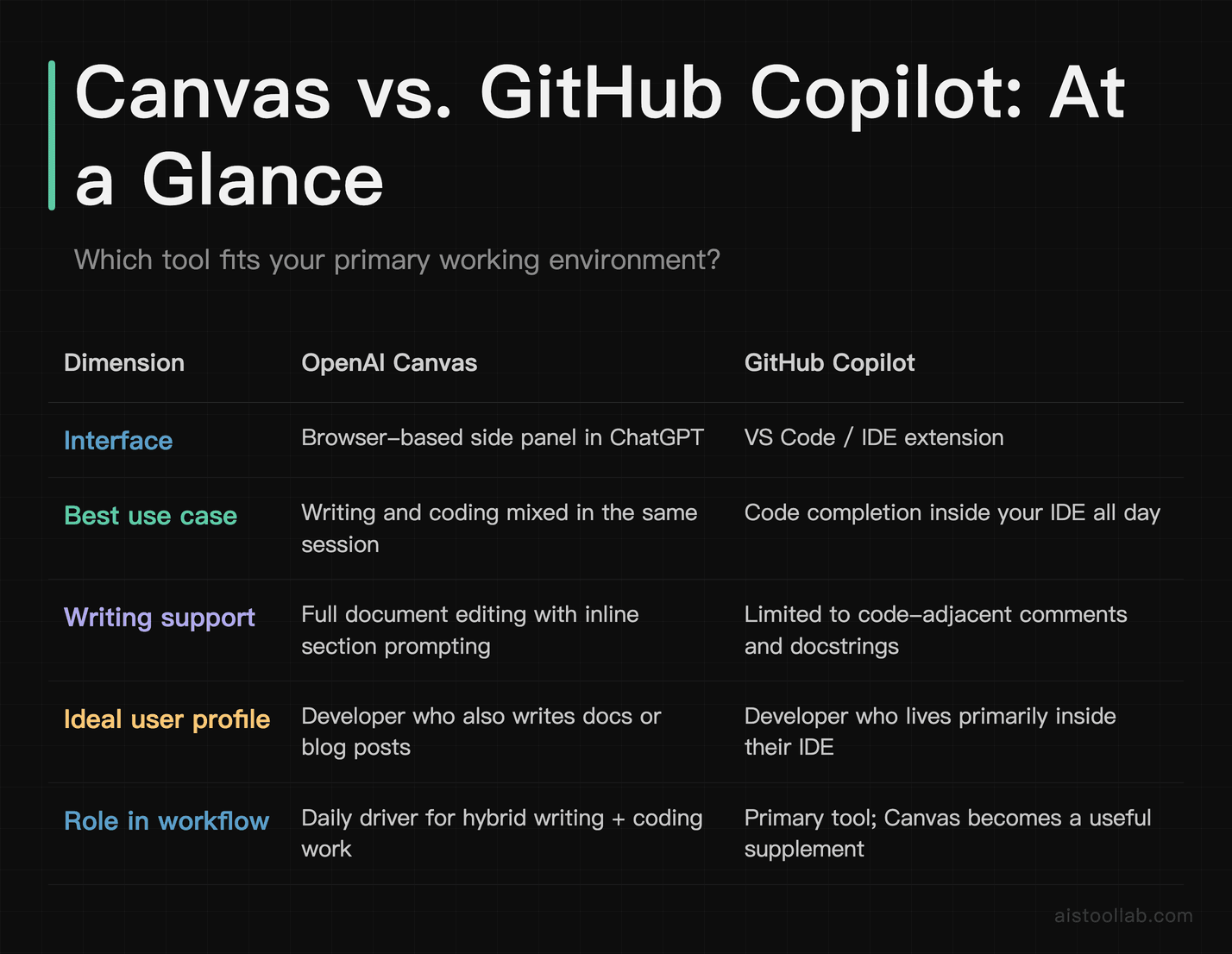
The takeaway from this comparison held for Canvas and largely still holds for the inline blocks that replaced it: the ChatGPT approach is strongest for people who don’t want to leave the browser or who need to mix writing and coding in the same session. If you live in VS Code all day, GitHub Copilot is still probably your primary tool, and ChatGPT becomes a useful supplement rather than a replacement. If you’re more of a technical writer or a developer who writes a lot of documentation, the browser workflow may be the better daily driver. We’ve also covered the broader developer tool landscape in Best AI Tools for Developers and Programmers in 2026 if you want a wider view.
Common Mistakes People Made With Canvas
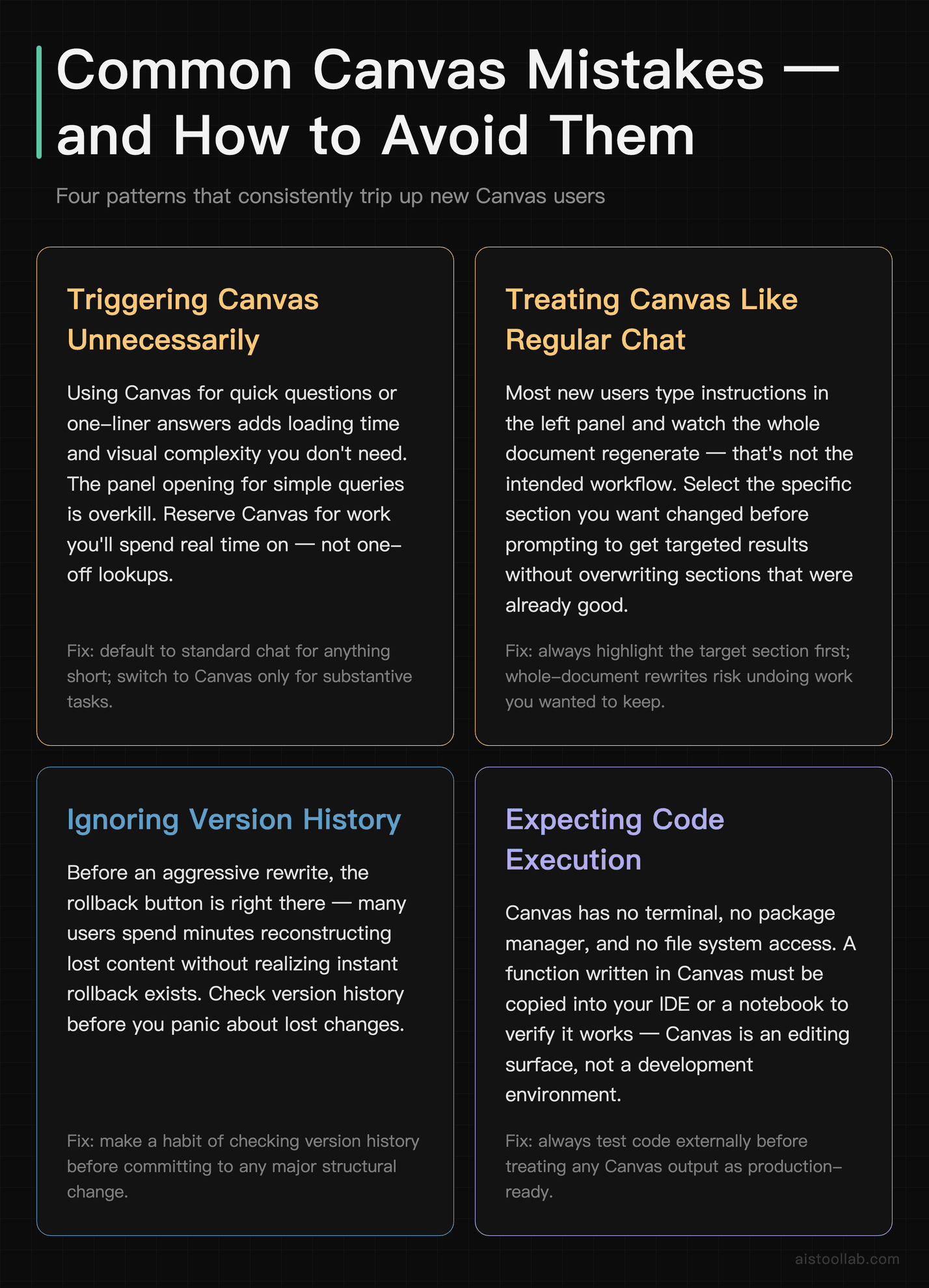
These were the recurring pitfalls with Canvas. Most of them map cleanly onto the inline writing/code blocks that replaced it, so they’re still useful habits.
Triggering Canvas when you didn’t need it. If you were asking a quick question or needed a one-liner, Canvas was overkill — the panel opening added a few seconds and visual complexity you didn’t need for simple queries. The same restraint applies to inline blocks: save them for work you’ll spend real time on.
Forgetting to use selection-based prompts. Many new Canvas users treated it like slightly fancier chat — they typed instructions in the left panel and watched the whole document regenerate. That wasn’t the intended workflow. The habit that paid off was selecting the specific section you wanted to change before prompting, for more targeted results and fewer unintended rewrites of sections that were already good.
Not using version history as a safety net. People would try aggressive rewrites, hate the result, and then spend five minutes trying to reconstruct what they had before — not realizing the rollback button was right there. The lesson: check the version history before you panic.
Expecting Canvas to run or test your code. It couldn’t. If you wrote a function in Canvas and wanted to verify it worked, you had to copy it into your IDE or a notebook and test it there. Canvas was for writing and editing code, not executing it — and the same is true of today’s inline code blocks.
Using it for confidential client code without checking your org’s policy. On a personal ChatGPT Plus account, code you paste in is processed by OpenAI’s servers. Check your team’s or client’s data-handling policies before pasting proprietary code. Enterprise and Team accounts have data-handling agreements that may be more appropriate for sensitive work. This point is timeless — it applies to anything you paste into ChatGPT.
Frequently Asked Questions
Is OpenAI Canvas still available?
Not on current models. In late May 2026 OpenAI removed the separate Canvas side panel from GPT-5.5 Instant and GPT-5.5 Thinking, replacing it with inline writing blocks and code blocks that live in the chat thread. Canvas remained for a while only on legacy models, but GPT-4.5 was retired from ChatGPT on June 27, 2026 and o3 is scheduled to retire on August 26, 2026, after which the classic Canvas panel effectively goes away. These changes apply to the ChatGPT app, not the API.
How did you open Canvas in ChatGPT? Was there a specific command?
While Canvas existed, there was no single magic command, but there were two reliable approaches. The easiest was to ask for it explicitly in your prompt: “Open Canvas and write me a blog post about…” or “Use Canvas to create a Python script that…” GPT-4o would pick up on that and open the Canvas panel. Alternatively, starting a clearly long-form task — a multi-function code file, a full essay, a detailed document — would often open Canvas on its own. Canvas ran only on GPT-4o, not older or lighter models. Today: there’s no Canvas panel to open — you just ask for a document or code task and ChatGPT returns an editable writing block or code block inline in the thread.
Could you use Canvas on the ChatGPT free tier?
While it existed, Canvas was primarily associated with paid plans — ChatGPT Plus (listed at $20/month during that period), Team, and Enterprise. OpenAI periodically extended GPT-4o access to free-tier users in limited capacity, and some free users reported seeing Canvas in certain situations, but consistent access generally required Plus or higher. Because Canvas has since been folded into inline blocks, this question is now historical — for current pricing and what each tier includes, check OpenAI’s plan page, since it changes over time.
Was Canvas useful for coding, or just for writing?
It was genuinely useful for both, though the experience differed. For writing, the reading-level adjustment, tone controls, and selection-based rewriting were the standout features. For coding, the one-click options for adding comments, fixing bugs, inserting logging, and translating between languages were the real value-adds. Canvas shone for developers working with longer files — anything over 50 lines where you wanted targeted edits rather than a full regeneration. Those strengths carried over to today’s inline code blocks. For short snippets, plain chat replies were (and are) fine.
How did Canvas compare to a normal ChatGPT chat?
The core difference was document persistence and targeted editing. In plain chat, your code or document lived inside a message bubble — it scrolled away, got buried, and to change one section you either pasted the whole thing back or hoped the model knew which part you meant. In Canvas, the document lived in a dedicated panel that stayed visible; you selected exactly the part you wanted to change and the rest stayed intact. Today’s inline writing and code blocks deliver that same targeted-editing benefit — the block stays editable in the thread instead of scrolling away as a plain reply.
Could multiple people collaborate on a Canvas document at the same time?
No. Canvas was a single-user experience — you and the AI worked on the document together, but you couldn’t invite a colleague to edit alongside you in real time the way Google Docs allows. To share the output, you copied the content into whatever collaborative tool your team used. The same limitation applies to the inline blocks that replaced Canvas — for team editing you still bring the content into a shared tool like Google Docs or Notion.
What types of code did Canvas support? Could it handle complex projects?
Canvas supported a wide range of languages — Python, JavaScript, TypeScript, HTML/CSS, SQL, Bash, Go, Rust, Ruby, and more — with automatic language detection and in-session translation between languages. It handled single-file scripts and modules well, up to several hundred lines. It struggled with multi-file projects, since it showed one document at a time and had no awareness of your file structure, dependencies, or imports it hadn’t seen. For full project architecture, standard chat (pasting relevant files) or an IDE tool like GitHub Copilot with workspace context was the better fit. That single-file-workshop framing still applies to today’s inline code blocks.
Was Canvas worth paying for if you already used GitHub Copilot?
It depended on how you used each. If you lived in VS Code or JetBrains and mainly needed autocomplete and in-editor code generation, Copilot was the better tool for that workflow — Canvas didn’t integrate into your IDE or see your codebase. Canvas justified its place alongside Copilot for tasks outside the IDE: technical documentation, client emails about code decisions, README files, test plans, or drafting a new script before bringing it into a real project. The same logic now applies to ChatGPT’s inline blocks versus an IDE assistant. For a broader view, see Best GitHub Copilot Alternatives in 2026: 6 AI Coding Tools Compared.
The Verdict, In Hindsight
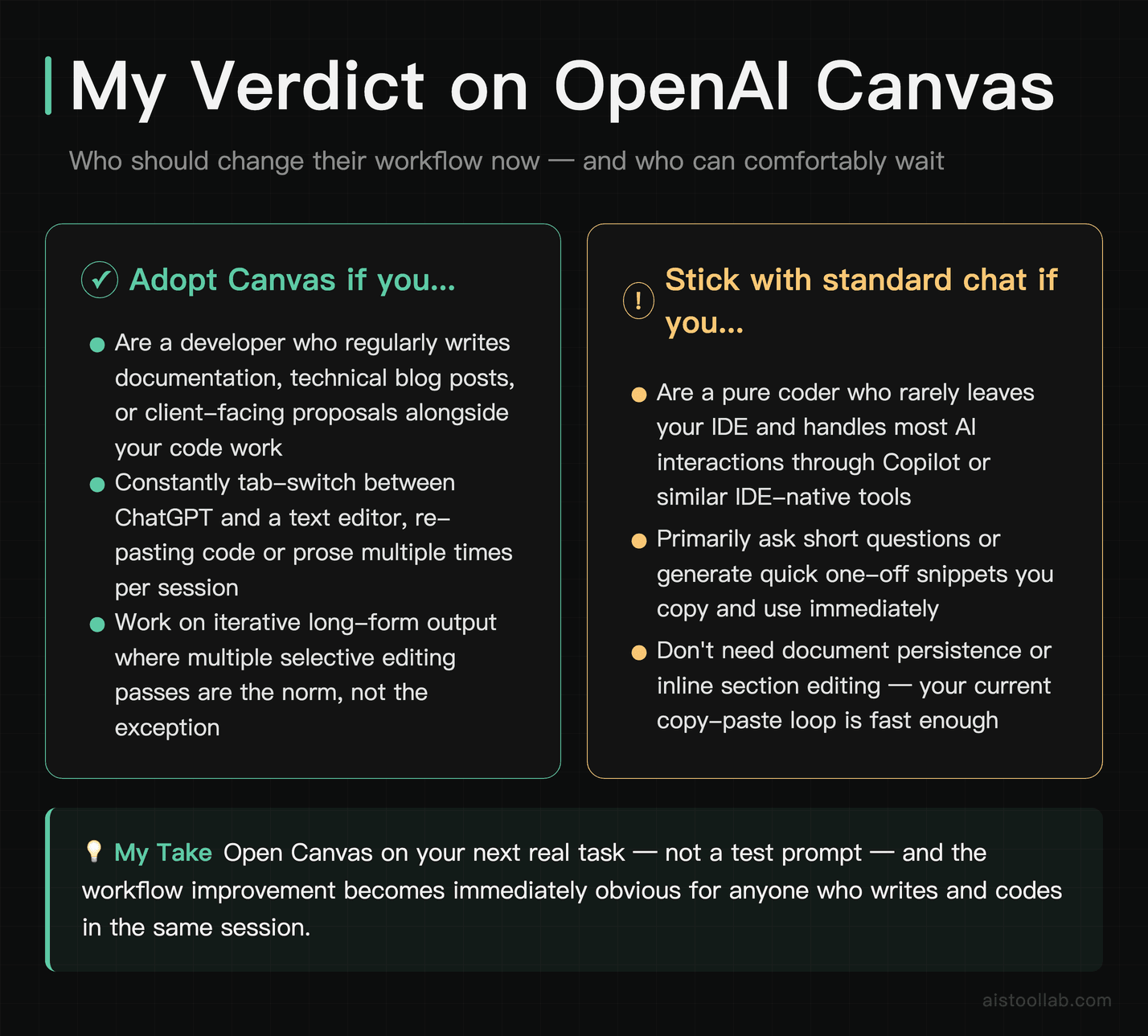
For developers who also wrote — documentation, blog posts, technical proposals, client-facing explanations of their code — Canvas was one of the more useful interface improvements ChatGPT shipped during its run. The split-panel layout, the inline selection prompting, and the one-click toolbar shortcuts combined into a genuinely better workflow for iterative work. It never tried to replace your IDE or Google Docs; it filled the gap in the middle, where you used a language model to produce and refine substantive output rather than just ask questions.
OpenAI ultimately decided that gap was better served inside the chat thread itself. The Canvas panel is gone, but the workflow it pioneered — treat the output as an editable document, make targeted edits to one section, keep a version of what you had before — lives on in the inline writing and code blocks that replaced it.
So the practical takeaway today isn’t “go turn on Canvas.” It’s this: next time you have a real document or coding task — a function you’ve been putting off, a README you owe your project — ask ChatGPT for it in the chat and work with the editable block it returns, using targeted, section-by-section prompts rather than regenerating the whole thing. That’s the same habit Canvas rewarded, and it’s still the fastest way to get good iterative output out of ChatGPT.
Last updated: 2026-07
Explore more AI tools
👉 Browse the AI Tools Library to find the right tools for your workflow.