
📌 Editor’s note (July 2026): This article reflects the AI models and versions current at the time of writing. The AI landscape moves quickly and newer model versions may have been released since. We’ve kept the original references as a snapshot from that period rather than rewriting the analysis.
The Developer’s AI Tool Problem Is Real — and It’s Not What You Think
You’ve probably already tried one or two AI coding tools. Maybe you pasted a function into ChatGPT, got something that looked plausible, and then spent 45 minutes debugging why it was calling an API endpoint that doesn’t exist. Or you installed GitHub Copilot, loved it for two weeks, then started wondering whether you were actually getting faster or just more confident about writing broken code. The problem isn’t that AI coding tools don’t work — it’s that the wrong tool for your workflow actively slows you down, and the right one genuinely changes how many tickets you close in a week.
The developer AI tool market in 2026 is legitimately crowded. There are tools built for autocomplete, tools built for chat-driven development, tools that live inside your IDE, and tools that want to replace your IDE entirely. Some are priced for solo developers billing by the hour; others are structured for enterprise procurement teams. Most comparison articles just list features. This one doesn’t — it tells you which tool wins for your specific situation, what each one is genuinely bad at, and where you’ll hit the pricing wall that makes you cancel.
This guide covers seven tools that actually matter for developers in 2026: Cursor, GitHub Copilot, Claude, ChatGPT, Windsurf (now called Devin Desktop; verified 2026-08-02, source: devin.ai/desktop official page), Amazon Q Developer, and Sourcegraph Cody. We’re focusing on the tasks that eat your time — code generation, debugging, code review, refactoring, and writing documentation that doesn’t read like it was written by a bot. By the end, you’ll know exactly which one to open tomorrow morning.
How We Picked These Tools
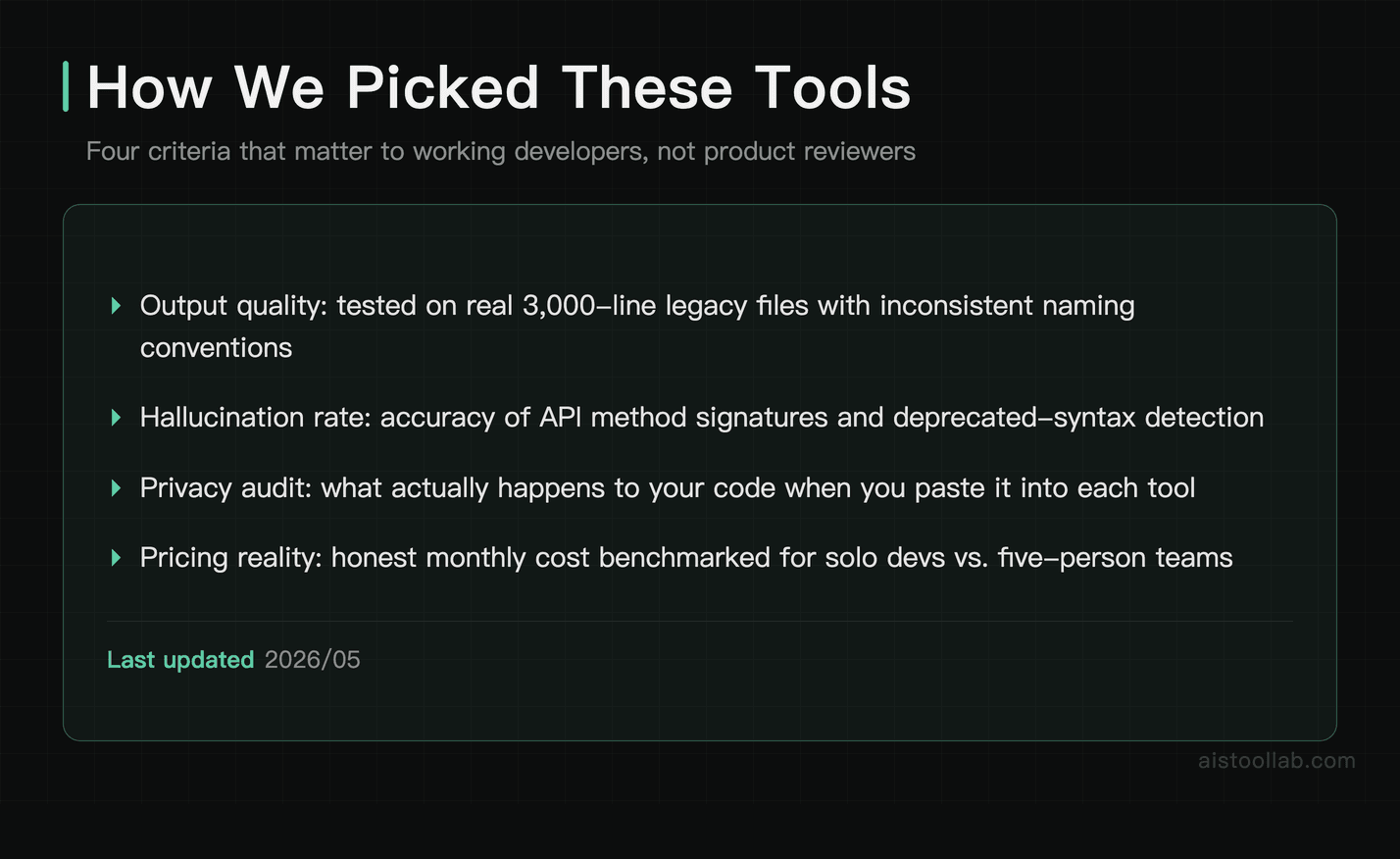
Every tool on this list was evaluated against four criteria that matter to working developers, not product reviewers:
- Output quality for real codebases: Not toy examples. How does each tool perform when the context is a 3,000-line legacy file with inconsistent naming conventions?
- Hallucination rate on APIs and libraries: Does it confidently invent method signatures? How often does it reference deprecated syntax?
- Privacy and code exposure: What actually happens to your code when you paste it in? This matters enormously for proprietary codebases.
- Pricing reality: What tier do you actually need to get useful output, and what’s the honest monthly cost for a solo dev versus a five-person team?
#1. Cursor — Best for Full-Stack Developers Who Want AI Woven Into Every Step
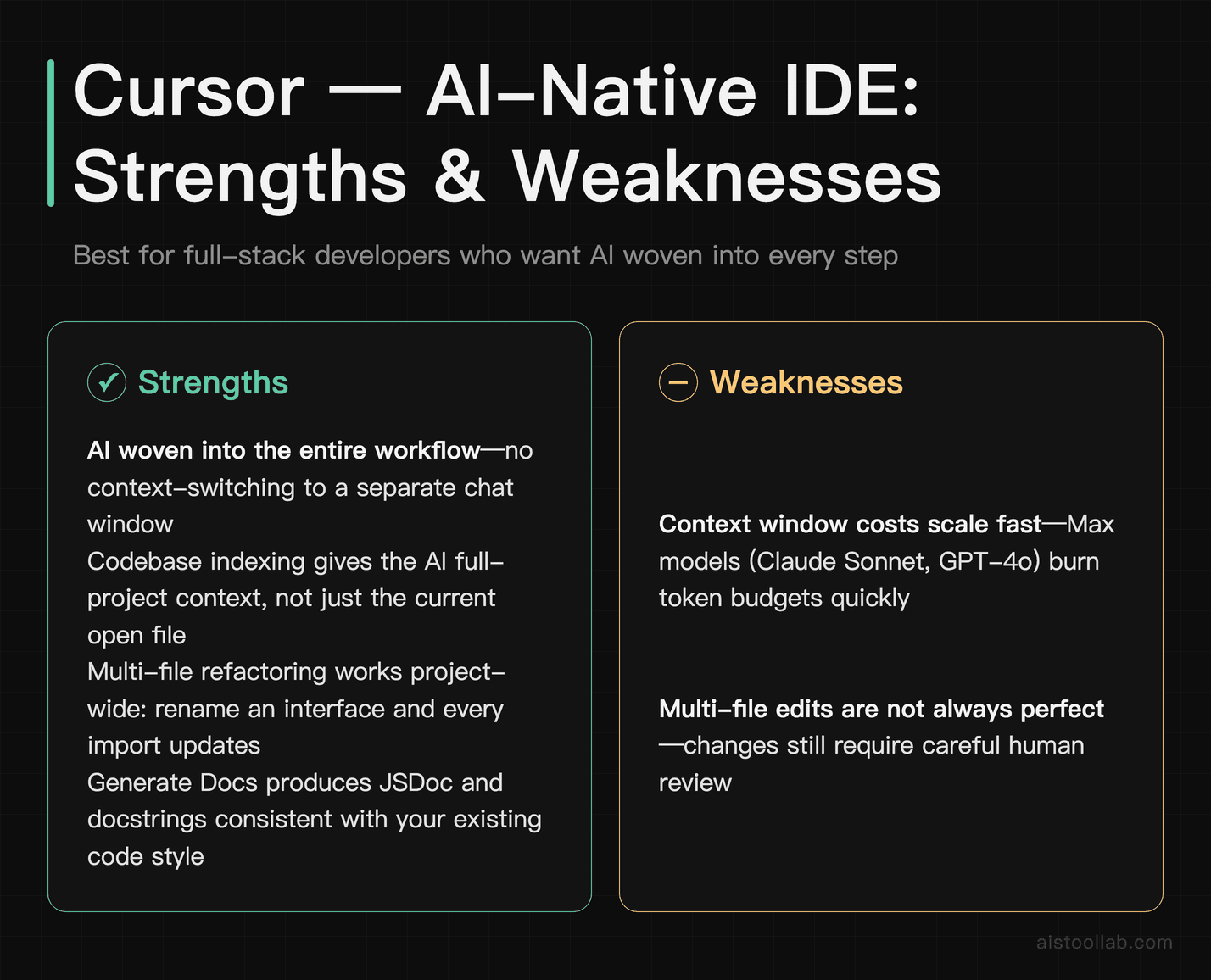
Cursor is a VS Code fork that puts AI at the centre of the entire development experience, not bolted on as a sidebar. The reason it tops this list is that it doesn’t make you context-switch. You’re writing, you hit a wall, you press Cmd+K or open the chat panel, you get a fix inline — and the AI already knows what’s in the file you’re editing, what’s in the files you’ve got open, and (with the codebase indexing feature) what’s in your whole project. That last part is what separates Cursor from most competitors for complex debugging tasks.
Where Cursor genuinely earns its keep is multi-file refactoring. Tell it “rename this interface and update every file that imports it” and it does it — not perfectly every time, but well enough that you’re reviewing changes rather than making them. For documentation, the Generate Docs workflow reads your function signatures and existing comments, and produces JSDoc or docstrings that are actually consistent with your existing style.
Real limitation: Cursor’s context window can get expensive fast. The “Max” models it routes to (Claude Sonnet, OpenAI GPT-5-generation models) burn through token budget quickly on large codebases, and if you’re on the free tier you’ll hit rate limits mid-session in a way that is genuinely disruptive. The Pro tier at $20/month is essentially required for daily use.
Pricing: Free tier available (limited completions). Pro is $20/month. Business tier is $40/user/month with privacy mode enabled by default — this is the tier you need if your code can’t leave your infrastructure.
Verdict: The single best tool for full-stack developers who want AI embedded in their workflow rather than running alongside it. If you only try one tool from this list, try Cursor.
#2. GitHub Copilot — Best for Teams Already Inside the GitHub Ecosystem
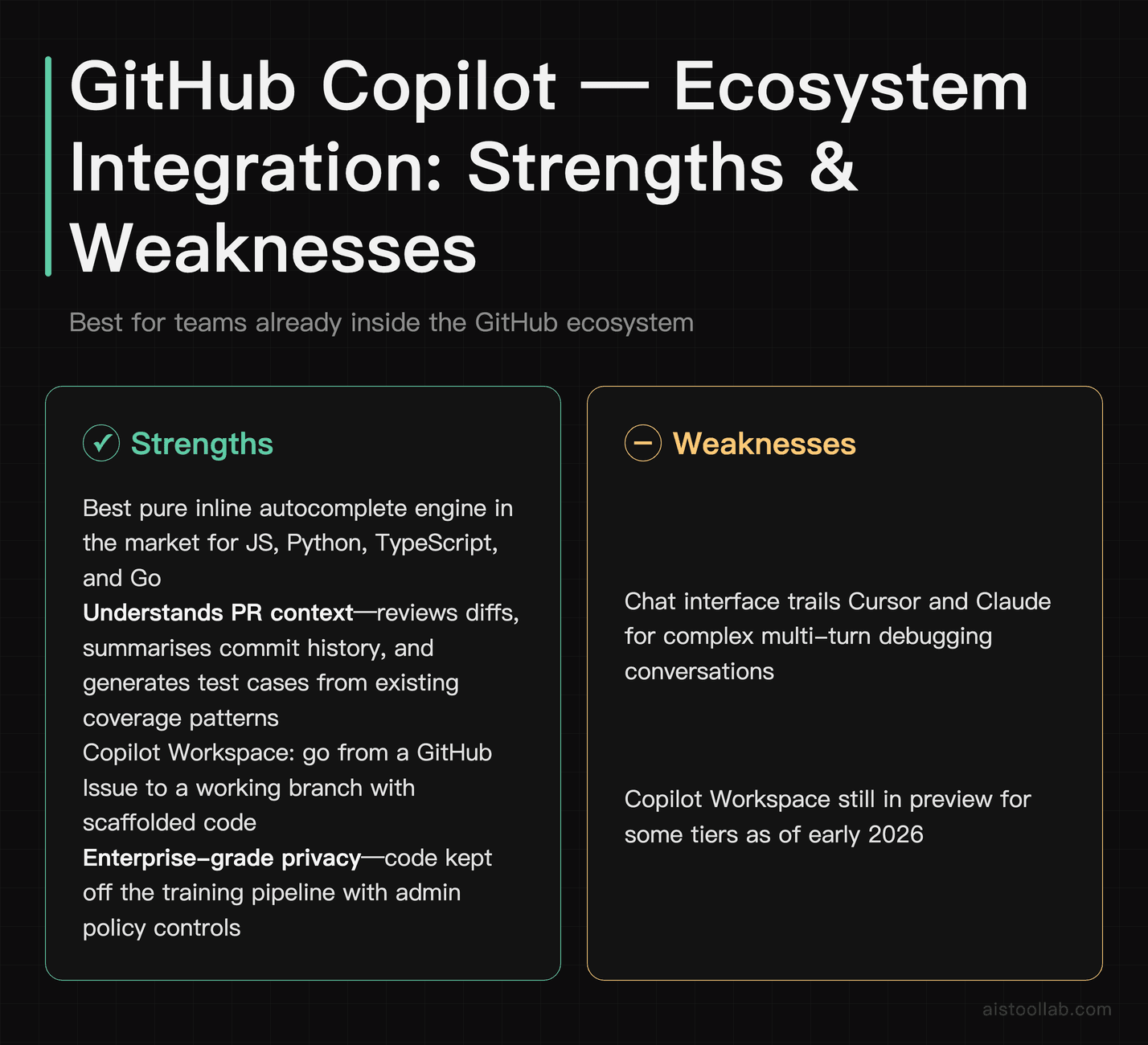
GitHub Copilot has had three years to mature since it launched, and the 2025–2026 version is substantially better than what most developers remember from their first trial. The autocomplete has always been strong — it’s still the best pure inline suggestion engine in the market, particularly for common patterns in JavaScript, Python, TypeScript, and Go. What’s changed is the chat experience and the integration depth: Copilot now understands your pull request context, can review diffs, summarise commit history, and generate test cases from your existing coverage patterns.
For teams, the GitHub integration is genuinely the selling point. Code review suggestions appear directly in PRs. Copilot Workspace (still in preview for some tiers as of early 2026) lets you go from a GitHub Issue to a working branch with scaffolded code — which is a real time-saver for teams triaging a backlog. The privacy story for enterprise teams is also mature: GitHub Enterprise Cloud with Copilot Business keeps your code off the training pipeline and gives admins policy controls.
Real limitation: Copilot’s chat interface trails Cursor and Claude for complex multi-turn debugging conversations. It’s excellent at “write me a function that does X” and noticeably weaker at “here’s a stack trace, walk me through exactly why this is happening and what I’m missing.” It also hallucinates library APIs more than Claude does on less-common frameworks — if you’re working with niche SDKs, verify everything.
Pricing: The official plans page lists Copilot Pro at $10 per month and Copilot Pro+ at $39 per month, and publishes no annual price anywhere on that page (checked 2026-07-26). Copilot Business is $19/user/month. Enterprise is $39/user/month. There’s a free tier for verified students and open source maintainers.
Verdict: The default choice for backend and full-stack developers whose team already runs on GitHub Actions, GitHub Issues, and GitHub PRs. The ecosystem lock-in is a feature, not a bug, if you’re already locked in.
#3. Claude (Anthropic) — Best for Code Review, Debugging Complex Logic, and Technical Documentation
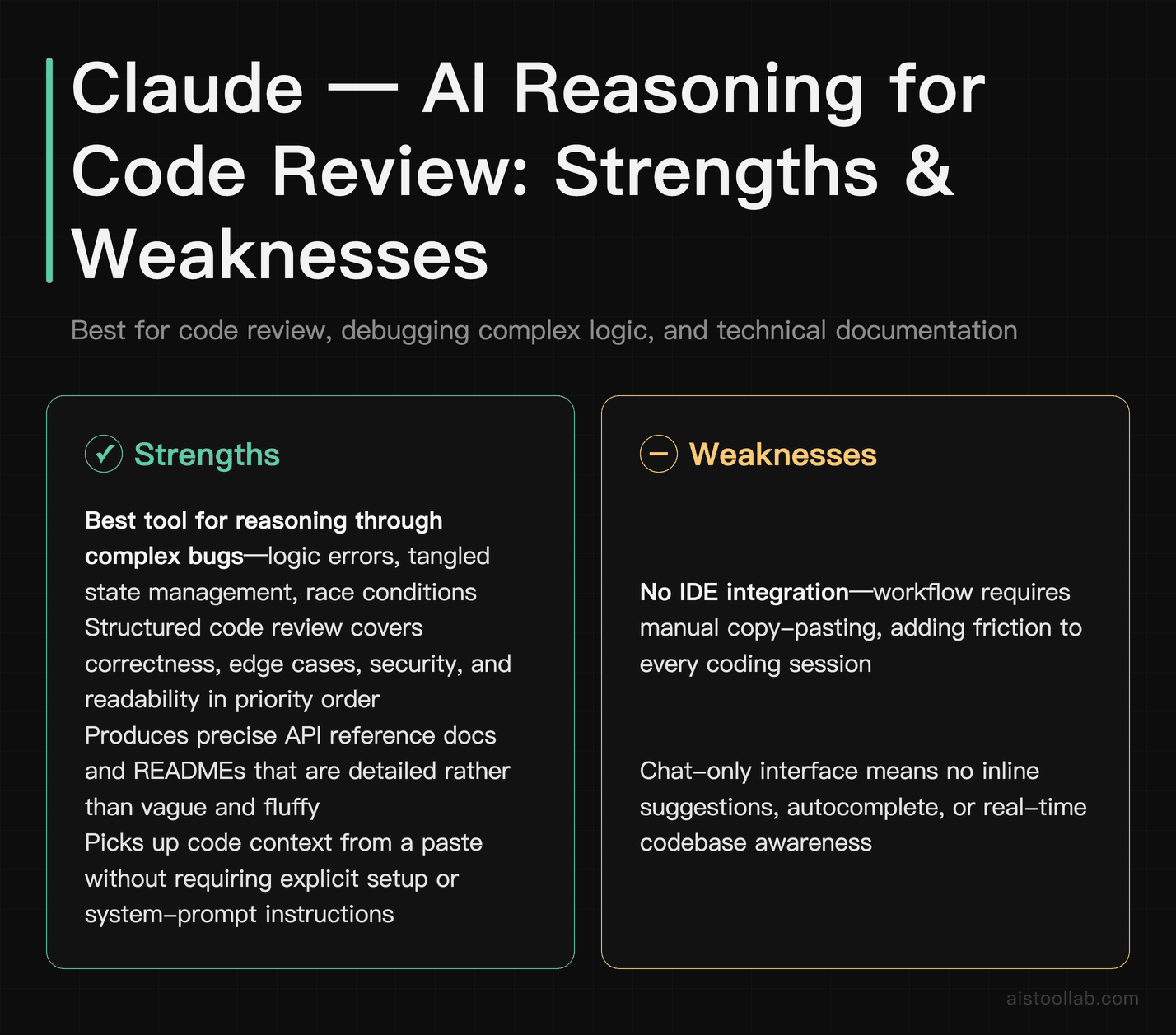
Claude isn’t an IDE tool — it’s a chat interface. But calling it “just a chatbot” dramatically undersells what it does for developers. Claude’s strength is reasoning through complexity. When you have a gnarly bug that isn’t a syntax error or a missing import — when the logic itself is wrong, the state management is tangled, or you’re staring at a race condition you can’t reproduce consistently — Claude is the tool that actually helps you think it through rather than generating plausible-looking nonsense.
For code review, Claude’s flagship models (depending on which tier you’re on) will read a 500-line function and give you a structured critique that covers correctness, edge cases, security considerations, and readability — in that order of priority, not as a bulleted list of vague “improvements.” For technical documentation, it writes API reference docs and README sections that are precise rather than fluffy, and it picks up context from whatever code you paste without needing explicit instructions.
Real limitation: Claude has no IDE integration. You’re copying and pasting code, which creates friction for any workflow that involves frequently switching between your editor and a browser tab. For pure autocomplete or inline suggestions, it’s not the right tool. Claude also has a file size limit on what you can paste in a single message, which becomes a problem when reviewing large files.
Pricing: Free tier is available but rate-limited. Claude Pro is $20/month and gives you access to Sonnet models with higher rate limits. Claude Max starts at $100/month for heavy users who need Opus access and extended context. The API is priced separately per token — relevant if you’re building tooling around it.
Verdict: The best tool for any developer who does code review or debugging work where thinking-through-the-problem matters more than autocomplete speed. Pair it with Cursor or Copilot for inline suggestions.
#4. ChatGPT (OpenAI) — Best for Developers Who Need a Generalist Tool Beyond Just Code
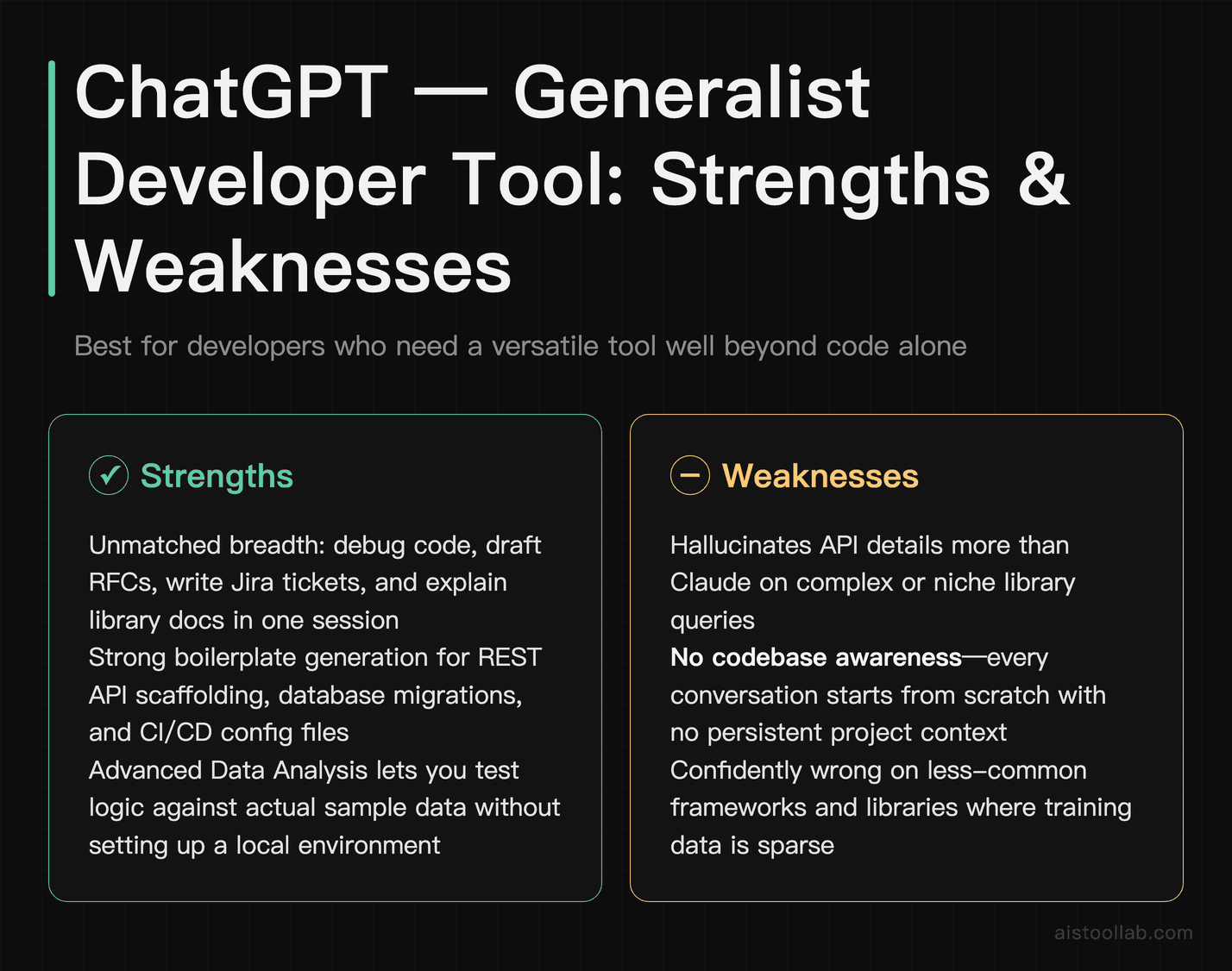
ChatGPT’s advantage for developers is breadth. In a single session, you can debug a Python function, draft the RFC for the architecture decision you’re trying to get buy-in on, write the Jira ticket description for a feature, and then ask it to explain a concept from a library’s documentation in plain English. No other tool on this list does all of that as smoothly.
For code generation specifically, ChatGPT is strong on well-documented languages and frameworks. It’s particularly good at generating boilerplate — REST API scaffolding, database schema migrations, CI/CD config files — where the patterns are well-established and hallucination risk is lower. The code interpreter feature (now called Advanced Data Analysis) is genuinely useful for data engineers and backend developers who need to test logic against actual sample data without setting up a local environment.
Real limitation: ChatGPT hallucinates API details more than Claude does on complex queries, and its code output on less-common frameworks can be confidently wrong. It also doesn’t maintain awareness of your broader codebase — every conversation starts from scratch unless you’re using Projects and have manually added context files. For deep, codebase-aware work, it’s outgunned by Cursor.
Pricing: Free tier is available. ChatGPT Plus is $20/month, and ChatGPT Pro is $200/month for its top tier and extended limits — genuinely hard to justify for most individual developers unless you’re doing heavy AI-augmented research work.
Verdict: Best for solo developers and freelancers who want one subscription that covers coding help, writing, planning, and research — rather than paying for multiple specialised tools.
#5. Windsurf (Codeium) — Best for Developers Who Want Cursor’s Approach Without the Price Tag
Windsurf is Codeium (folded into Windsurf, now called Devin Desktop; verified 2026-08-02, source: devin.ai/desktop official page)’s answer to Cursor: a full IDE built around AI, with multi-file awareness and a chat interface that understands your project structure. For developers who tested Cursor, liked the concept, but hit the rate limits on the free tier and balked at $20/month, Windsurf is the serious alternative.
The standout feature is Cascade, Windsurf’s agentic coding mode. Tell it to implement a feature, and it will plan the steps, make edits across multiple files, run terminal commands (with your permission), and report back when it’s done or when it needs clarification. For scaffolding new features or setting up a new module within an existing codebase, this genuinely competes with Cursor’s equivalent workflow. The free tier is meaningfully more generous than Cursor’s — you get a real number of daily AI completions without hitting a wall after an hour.
Real limitation: Windsurf’s underlying models are a mix of Codeium’s own models and frontier models depending on your tier. At the free and lower Pro tiers, output quality on complex reasoning tasks — particularly debugging tricky logic — is noticeably below what you’d get from Cursor routing to Claude Sonnet. The tool is also newer and less polished than Cursor in edge cases; extension compatibility and some keybinding settings can feel rough.
Pricing: Free tier is generous for individual developers. Pro is $15/month. Teams pricing is available on request. This is meaningfully cheaper than Cursor for teams.
Verdict: The best pick for budget-conscious developers who want an AI-native IDE experience. Particularly good for frontend developers doing component and feature work where Cascade’s agentic mode shines.
#6. Amazon Q Developer — Best for Teams Working in AWS Environments
Amazon Q Developer (formerly CodeWhisperer, substantially expanded) is the tool that makes the most sense if your team lives in AWS. It’s deeply integrated with the AWS console, AWS CLI, and common AWS SDKs — which means its suggestions for Lambda functions, CloudFormation templates, CDK constructs, and IAM policy definitions are more accurate and less likely to hallucinate than any general-purpose tool on this list. If your backend is AWS infrastructure, that specificity is genuinely valuable.
Beyond code generation, Amazon Q’s security scanning feature flags common vulnerabilities (hardcoded credentials, SQL injection risks, insecure deserialization) inline as you write. For enterprise teams where a security audit is a production requirement, having that feedback in the IDE rather than at PR review is a real workflow improvement. The integration with AWS IAM means enterprise teams can manage access centrally, which simplifies procurement.
Real limitation: Outside AWS-specific contexts, Amazon Q is average at best. General-purpose code generation, complex debugging conversations, and documentation writing are all weaker than Cursor or Claude. If your team works across multiple cloud providers or primarily with non-AWS services, you’ll find the tool feels narrow. The chat interface is also less capable than Claude or ChatGPT for reasoning-heavy debugging sessions.
Pricing: Free tier available for individuals (with some feature limits). Amazon Q Developer Pro is $19/user/month. This is competitive with GitHub Copilot Business and includes the security scanning features that would otherwise cost extra elsewhere.
Verdict: The obvious choice for backend and DevOps engineers at companies running primarily on AWS. If your day involves CloudFormation, CDK, or Lambda, this is worth the subscription over a general-purpose tool.
#7. Sourcegraph Cody — Best for Enterprise Teams Working Across Large, Multi-Repo Codebases
Cody solves a problem that none of the other tools on this list fully address: understanding a massive existing codebase. Where Cursor and Windsurf index your local project, Cody is built around Sourcegraph’s code intelligence platform — which means it can search and reason over your entire codebase across multiple repositories, including code that isn’t open in your editor right now.
For enterprise development teams working on monorepos or multi-service architectures, this context depth is transformative for tasks like: “How is this authentication pattern implemented across all our services?”, “Which teams are calling this deprecated endpoint?”, or “Generate a migration guide for any code using the old payment SDK.” These are questions that general-purpose AI tools either refuse or get wrong because they lack the full-codebase context. Cody, sitting on top of Sourcegraph’s indexed graph, actually answers them.
Real limitation: Cody is an enterprise-grade tool with enterprise-grade setup requirements. For a solo developer or a small team without Sourcegraph already deployed, the onboarding investment doesn’t make sense. The free version (via the VS Code extension) is much more limited than the full platform and doesn’t deliver the multi-repo magic that makes Cody compelling.
Pricing: Free tier available via VS Code/JetBrains extension. Sourcegraph’s pricing page does not mention Cody at all — the only price shown there is “Starting at $16K” for the Enterprise plan, and sourcegraph.com/cody now redirects to the Cody documentation (checked 2026-07-26). Enterprise pricing (which is where the full Sourcegraph integration lives) is custom — you need to contact sales. Realistically, this is a product for teams with an existing or planned Sourcegraph budget.
Verdict: The strongest option for senior engineers and architects at companies with large, complex codebases who need AI that genuinely understands the whole system, not just the file they’re editing.
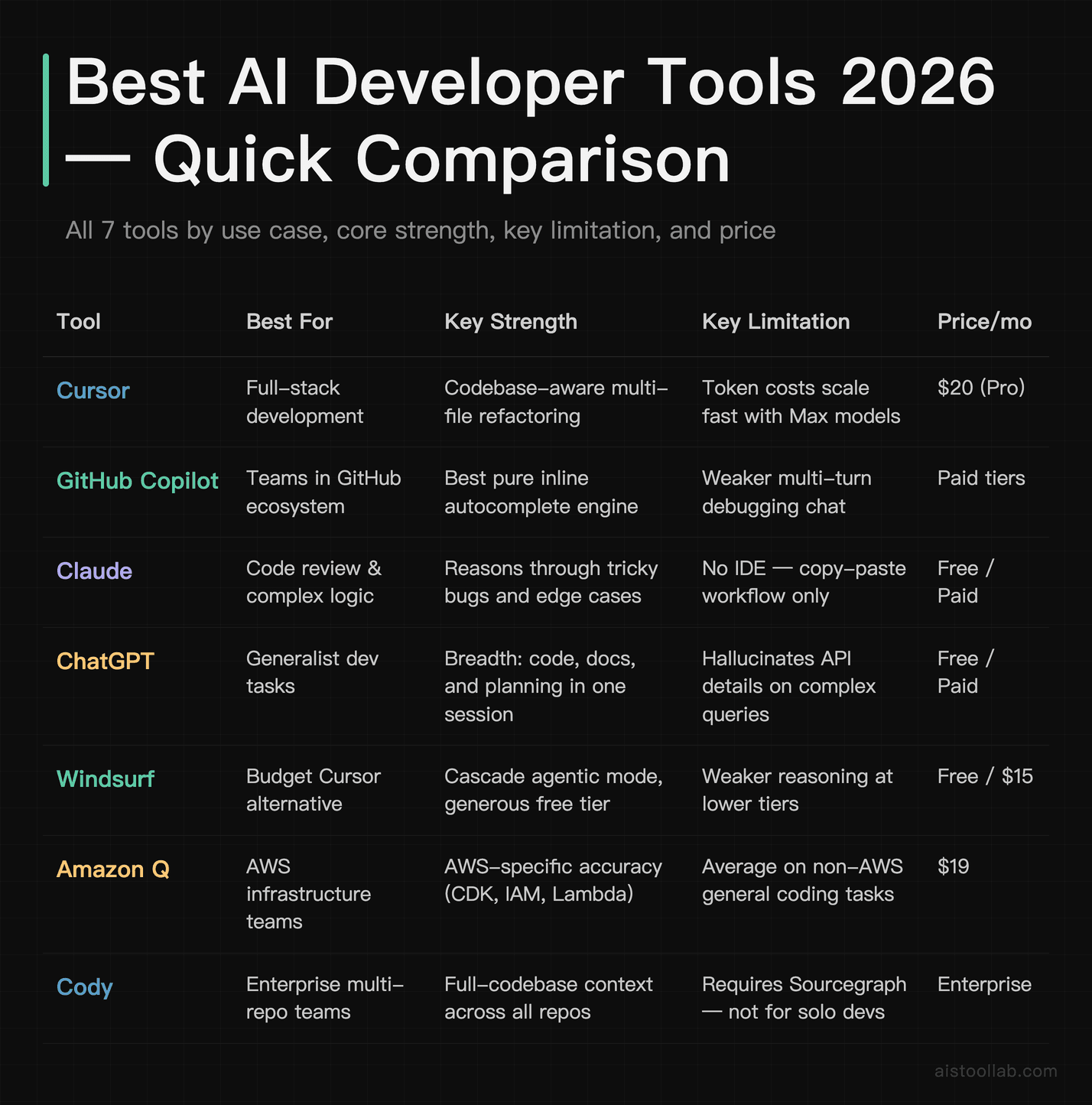
Quick Comparison Table
How to Choose the Right Tool for Your Situation
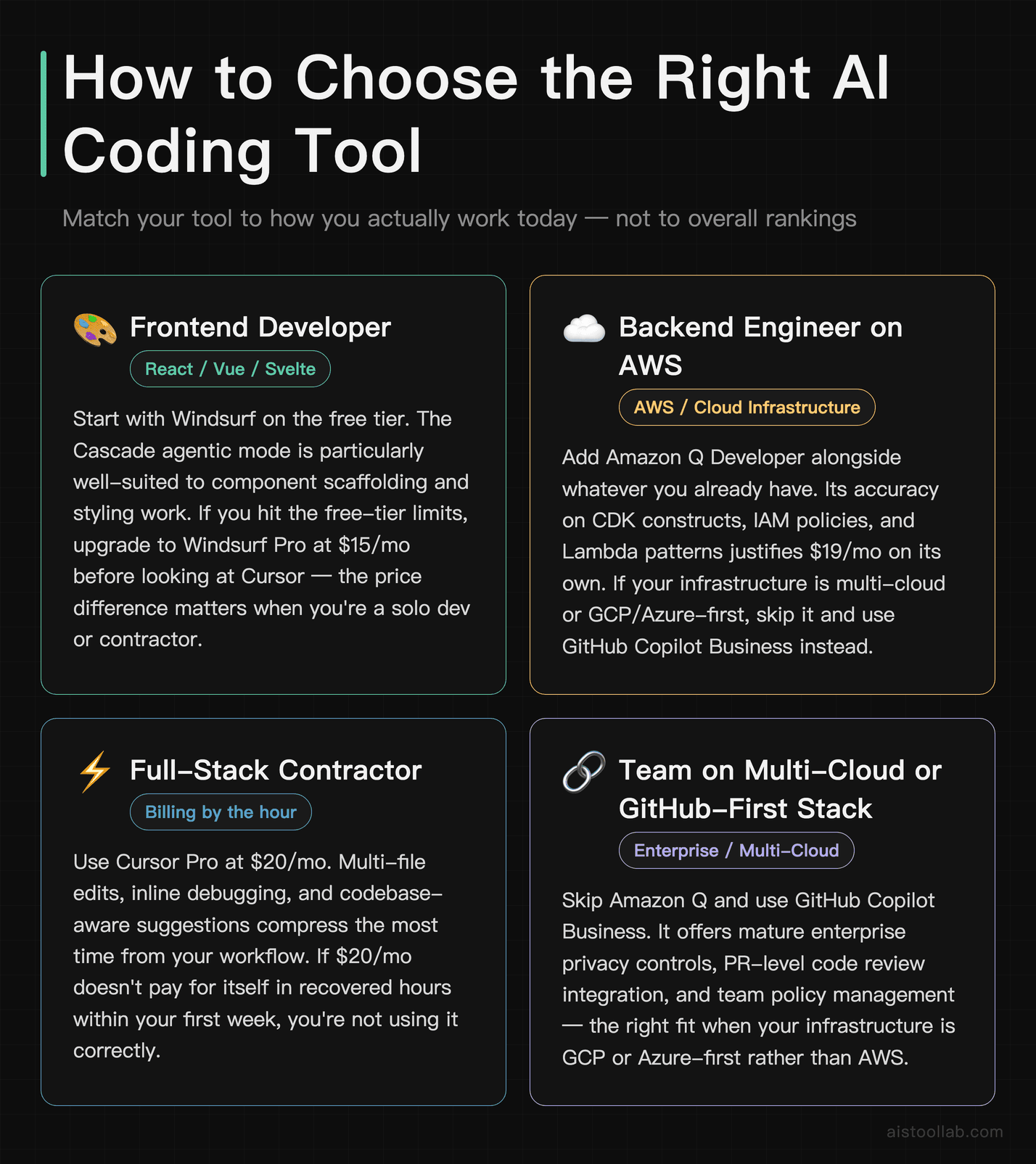
Rather than picking the highest-rated tool overall, pick the one that matches how you actually work today.
If you’re a frontend developer building React, Vue, or Svelte components
Start with Windsurf on the free tier. The Cascade agentic mode is particularly well-suited to component scaffolding and styling work. If you hit the free tier limits and want more, note before looking at Cursor that windsurf.com now returns a redirect to devin.ai/desktop and windsurf.com/pricing redirects to devin.ai/pricing, whose page displays $0 / $20 / $40 / $80 / $200 per month (checked 2026-07-26). The price difference matters when you’re a solo dev or contractor.
If you’re a backend engineer and your stack lives on AWS
Use Amazon Q Developer alongside whatever you already have. The AWS-specific accuracy on CDK constructs, IAM policies, and Lambda patterns justifies $19/month on its own. If your infrastructure is multi-cloud or GCP/Azure-first, skip it and use GitHub Copilot Business instead.
If you’re a full-stack developer and you bill by the hour
Use Cursor Pro at $20/month. This is the tool that compresses the most time from your workflow — multi-file edits, inline debugging, codebase-aware suggestions. If $20/month doesn’t pay for itself in recovered hours within your first week, you’re not using it correctly. Check the keyboard shortcuts; most of the time-savings are in Cmd+K and Cmd+L.
If you’re on an enterprise team with a large existing codebase
Evaluate Sourcegraph Cody if you don’t already have Sourcegraph. If you’re already paying for GitHub Enterprise, add GitHub Copilot Enterprise first — the PR integration and policy controls are mature and the procurement path is simple. For teams where code privacy is a hard requirement, verify that any tool you choose has an explicit no-training data policy (Copilot Business, Cursor Teams, and Amazon Q Pro all offer this).
If you don’t have an IDE preference and want the best AI reasoning for debugging
Subscribe to Claude Pro at $20/month and use it as your debugging and code review partner. It’s not an IDE tool, but for the class of problems where you need to think through logic rather than just generate boilerplate, it’s the strongest model available for developers. Pair it with any free-tier IDE tool for autocomplete.
If you’re just starting with AI development tools and want to experiment before paying
Start with the Windsurf free tier for in-IDE AI, and the Claude or ChatGPT free tier for chat-based help. Both give you enough real usage to figure out which workflows you’ll actually pay for. Avoid paying for multiple subscriptions in month one — most developers find they need one IDE tool and one chat tool, not five.
On top of your AI assistant, these free browser-based utilities save time on recurring developer tasks: JSON Formatter for validating and prettifying API responses, Regex Tester for testing patterns without switching to a terminal, and Base64 Encoder/Decoder for encoding tokens and payloads.
Official pricing sources
Prices move faster than articles do, so every figure below was re-read directly from the vendor’s own pricing page on 26 July 2026. Links open the official page.
- Cursor — official pricing. Checked 26 July 2026: Pro is $20/month. Note that the $40/user/month tier is now listed as Teams, not Business as this article describes it.
- GitHub Copilot — official plans. Checked 26 July 2026: Pro $10/month, Business $19/user/month, Enterprise $39/user/month.
- Claude — official pricing. Checked 26 July 2026: Pro $20/month billed monthly ($17/month equivalent on the annual plan), Max from $100/month.
- Amazon Q Developer — official pricing. Checked 26 July 2026: the Pro tier is $19/user/month.
Three tools in this article are not in the list above because their pricing could not be read on 26 July 2026: OpenAI and Windsurf blocked the request or redirected away from the pricing page, and Sourcegraph no longer publishes an individual Cody price. Those figures are as originally published and are not claimed as re-verified — check the vendor page before buying. Plans and fees change; the official page is always the authority.
Frequently Asked Questions
What’s the best free AI tool for developers in 2026?
For in-IDE use, Windsurf’s free tier is the most generous — you get real AI completions and a meaningful number of Cascade (agentic) interactions per day without hitting a wall in the first hour. For chat-based debugging and code review, Claude’s free tier provides access to Sonnet-level reasoning, though you’ll hit rate limits if you’re using it heavily throughout the day. If you’re a verified student or open source maintainer, GitHub Copilot is free and arguably the strongest pure autocomplete tool available at any price.
How worried should I be about pasting proprietary code into AI tools?
This is a legitimate concern, not paranoia. Most consumer-tier AI tools (ChatGPT free, Claude free) may use your inputs to improve their models — you should read the data usage policy for any tool before pasting code that contains business logic, customer data, or unreleased intellectual property. For enterprise teams, the safeguard is a Business or Enterprise tier with an explicit no-training-on-your-data policy. Cursor Teams, GitHub Copilot Business, Amazon Q Developer Pro, and Claude’s API with appropriate enterprise agreements all offer this. If you’re a solo developer working on proprietary projects, using these business tiers or keeping sensitive logic out of AI prompts is the pragmatic approach until you’ve confirmed what applies to your account.
Do AI coding tools actually reduce hallucinated API calls?
They’re getting better, but the problem hasn’t been solved. The tools most prone to hallucinating API details are general-purpose chat tools (ChatGPT, Claude) when asked about less-common frameworks or recent SDK versions — they may confidently cite method signatures that don’t exist or have changed. IDE-integrated tools (Cursor, Copilot) that can read your actual imported packages and local type definitions do noticeably better on this, because they can infer from your codebase rather than relying purely on training data. The practical approach: use AI to generate the structure and logic, then verify any method call you’re not personally familiar with against the official documentation before shipping. Treat AI output on API calls like you’d treat advice from a very fast senior developer who hasn’t used that specific library in 18 months.
Is it worth paying for two AI tools at the same time?
For most developers, yes — but not three or four. The most productive combination we see is one IDE-native tool (Cursor or Windsurf) for autocomplete and inline editing, and one chat-based reasoning tool (Claude or ChatGPT) for debugging sessions, code review, and documentation. These two use cases don’t overlap as much as they look like they should. The IDE tool saves time when you know what you’re building; the chat tool saves time when you don’t know why something is broken. Total cost for that combination runs $30–$40/month at the paid tiers, which is easier to justify once you’ve tracked how much time each tool saves you per week.
Which AI tool is best for writing code documentation?
Claude is the strongest tool for documentation writing. It produces technically precise prose rather than padded filler, picks up your terminology from the code you paste, and structures API documentation in a way that’s actually useful to someone reading it cold. For inline docstring generation (JSDoc, Python docstrings, Go comments) directly in your editor, Cursor does this well as part of its normal editing flow — highlight a function, ask it to add documentation, and it writes something consistent with whatever style is already in the file. GitHub Copilot also generates docstrings competently, though the output is more templated and less nuanced than Claude for complex functions.
Last updated: 2026