
Here’s a myth worth killing early: a “smooth” AI video is not just a video with more frames crammed into it. You can push the frame count up and still end up with something that behaves like a flipbook drawn by three different people — a coffee mug that changes shape mid-pour, a shadow that jumps sides between shots, a face that quietly rearranges itself while nobody’s watching.
Smoothness in generated video is really two problems wearing the same coat. One is motion: how naturally things travel from one instant to the next. The other is consistency: whether the objects, the lighting, and the space stay believably the same while all that movement happens. Nail the first and miss the second and you get gliding blobs. Nail the second and miss the first and you get a stiff slideshow with good production values.
Pika AI sits right in the middle of this problem, and its public materials describe an approach built to handle both sides at once. What follows is a breakdown of that approach — motion prediction, scene understanding, the output settings that decide how a clip fits your platform, and the credit economics that quietly govern how much you can afford to experiment. Everything here is compiled from Pika’s official pages (checked 2026-08-09), not from hands-on testing.
Understanding Why AI Video Stutters — and What Pika Tackles First
In a still image, the model only has to be right once. In a video, it has to be right dozens of times per second and keep every one of those moments agreeing with the ones on either side. A frame that looks gorgeous on its own is worthless if the next frame decides the sofa should be a slightly different colour.
Two general techniques from the wider world of video processing are worth knowing here, because they explain what “smooth” even means. Motion interpolation is the practice of generating plausible in-between states so movement reads as continuous rather than as a series of jumps — it’s the same family of idea that TVs use to smooth fast sport, and that editors use for slow motion. Frame blending is the cruder cousin: mixing adjacent frames together to soften transitions, which reduces obvious stutter but can introduce ghosting if it’s leaned on too hard. Neither is unique to Pika; they’re the vocabulary the whole field shares.
Where Pika’s own description comes in is the architecture layer. Pika’s approach, as the company frames it, addresses temporal consistency by combining motion prediction at the pixel level with higher-level scene understanding that maintains object and environmental coherence. That combination is the interesting part. Pixel-level motion prediction is about the tiny stuff — how each patch of the image should shift frame to frame. Scene understanding is about the big stuff — knowing that the thing moving is a dog, and dogs don’t suddenly grow a second tail halfway across the yard. Solving only the pixel problem gives you motion without meaning; solving only the scene problem gives you meaning without movement. Pika’s stated design tries to run both together so they check each other.
Where Scene Understanding Earns Its Keep
If motion prediction is what makes a clip move, scene understanding is what stops it from falling apart while it does. Pika applies computer vision models to track objects, lighting, and spatial relationships throughout generation, with the goal of preventing the object deformation or sudden appearance changes that break immersion. In plain terms: the system is trying to remember what’s in the shot and where it belongs, frame after frame.
This matters more than it sounds. The failures that make AI video look “off” are rarely about a single ugly frame — they’re about continuity. A jacket that shifts from denim to leather over two seconds. A window that drifts across a wall. A light source that can’t decide which side of a face it’s on. Those are all consistency failures, and they’re exactly what an object-and-lighting tracking system is built to suppress. When the model holds spatial relationships steady, movement can happen inside a stable world instead of dragging the whole world along with it.
It’s worth being honest about the limits of this framing, though. Tracking objects and lighting is the stated intent of the design; it is not a guarantee that every clip comes out flawless, and I’ve seen no independent benchmark in the material I checked that measures how often Pika holds consistency versus how often it slips. Treat scene understanding as the mechanism Pika is betting on, not as a promise of perfection. The mechanism is sound and well-motivated; the per-clip result still depends on your prompt, your subject, and a fair amount of luck — as it does with any generator in this class, including the image tools you might already use like Midjourney.
The Moving Parts, Side by Side
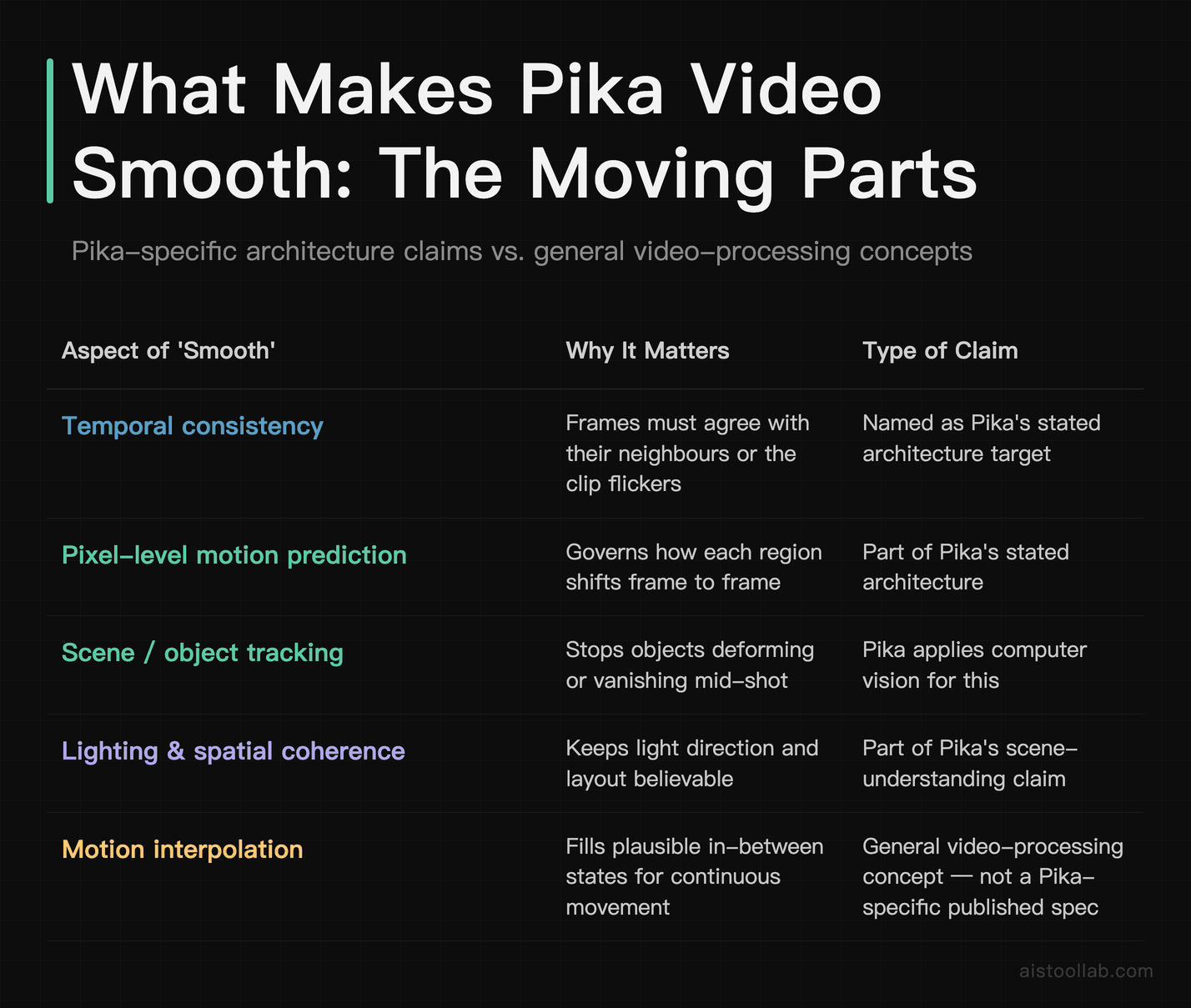
Before the scenario-by-scenario advice, here’s a map of what actually contributes to “smooth” output and where each piece comes from. The two rightmost columns separate a general video-processing concept from something Pika specifically publishes, so you can see which is which. Cells I couldn’t confirm from an official page are marked as such rather than guessed.
- Temporal consistency — Why it matters: Frames must agree with their neighbours or the clip flickers; What kind of claim this is: Named as the challenge Pika’s architecture targets; Source: Pika, subject to check on official materials (2026-08-09)
- Pixel-level motion prediction — Why it matters: Governs how each region shifts frame to frame; What kind of claim this is: Part of Pika’s stated architecture; Source: Pika (2026-08-09)
- Scene / object tracking — Why it matters: Stops objects deforming or vanishing mid-shot; What kind of claim this is: Pika applies computer vision for this; Source: Pika (2026-08-09)
- Lighting & spatial coherence — Why it matters: Keeps light direction and layout believable; What kind of claim this is: Part of the same scene-understanding claim; Source: Pika (2026-08-09)
- Motion interpolation — Why it matters: Fills plausible in-between states for continuous movement; What kind of claim this is: General video-processing concept, not a Pika-specific published spec; Source: General field knowledge
- Frame blending — Why it matters: Softens transitions; risks ghosting if overused; What kind of claim this is: General video-processing concept, not a Pika-specific published spec; Source: General field knowledge
- Output resolution & aspect ratio — Why it matters: Decides whether a clip fits vertical or horizontal placement; What kind of claim this is: Pika offers configurable resolutions and aspect ratios; Source: Pika (2026-08-09)
- Model / mode choice — Why it matters: Which model you run affects cost and behaviour; What kind of claim this is: Pika 2.5, Turbo model, and Pika Agent exist; Source: pika.art & pika.art/pricing (2026-08-09)
Read the table as a checklist for what to look for in your own output rather than as a scoreboard. The first four rows are the pieces Pika describes as its own; the two “general field knowledge” rows are concepts you’ll hear cited across the whole category, so don’t assume a specific implementation of them just because the words appear in the title.
If You’re Cutting Vertical Shorts vs. Building Widescreen Explainers
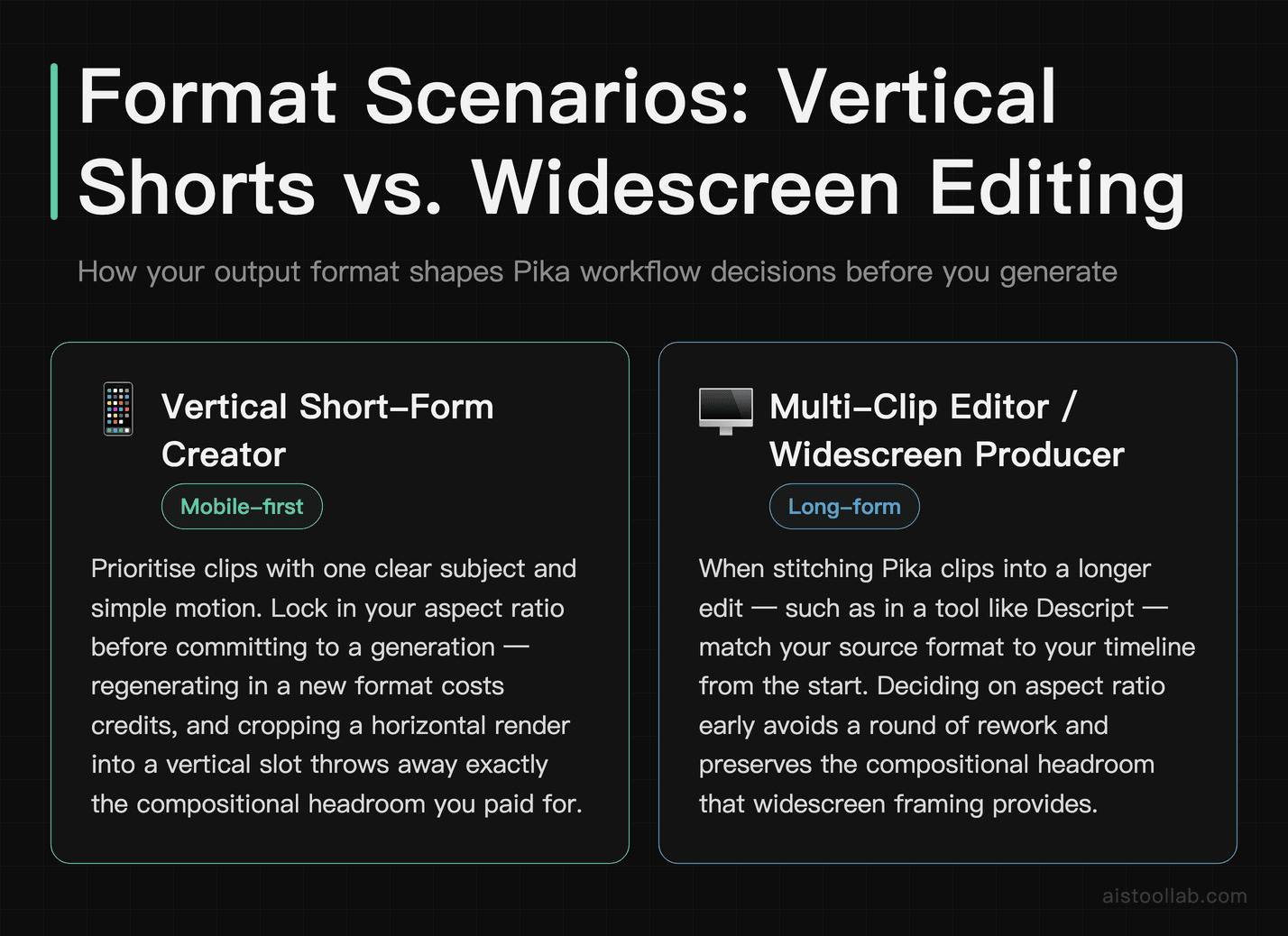
Say you run a short-form account and everything you post lives in a phone-shaped frame. That sounds mundane next to motion prediction, but it’s the setting that decides whether your clip gets cropped into oblivion or drops in clean.
The distinction matters because smoothness and framing interact. If you’re producing vertical, prioritise clips with one clear subject and simple motion;
Either way, pick your aspect ratio before you fall in love with a generation, not after. Regenerating a clip in a new format costs credits, and reframing a horizontal render into a vertical slot by cropping throws away exactly the compositional headroom you paid for. This is the sort of workflow discipline that also pays off if you’re stitching Pika clips into a longer edit in a tool like Descript — matching your source format to your timeline up front saves a round of rework.
If You’re Iterating Cheaply vs. Committing to a Final Cut
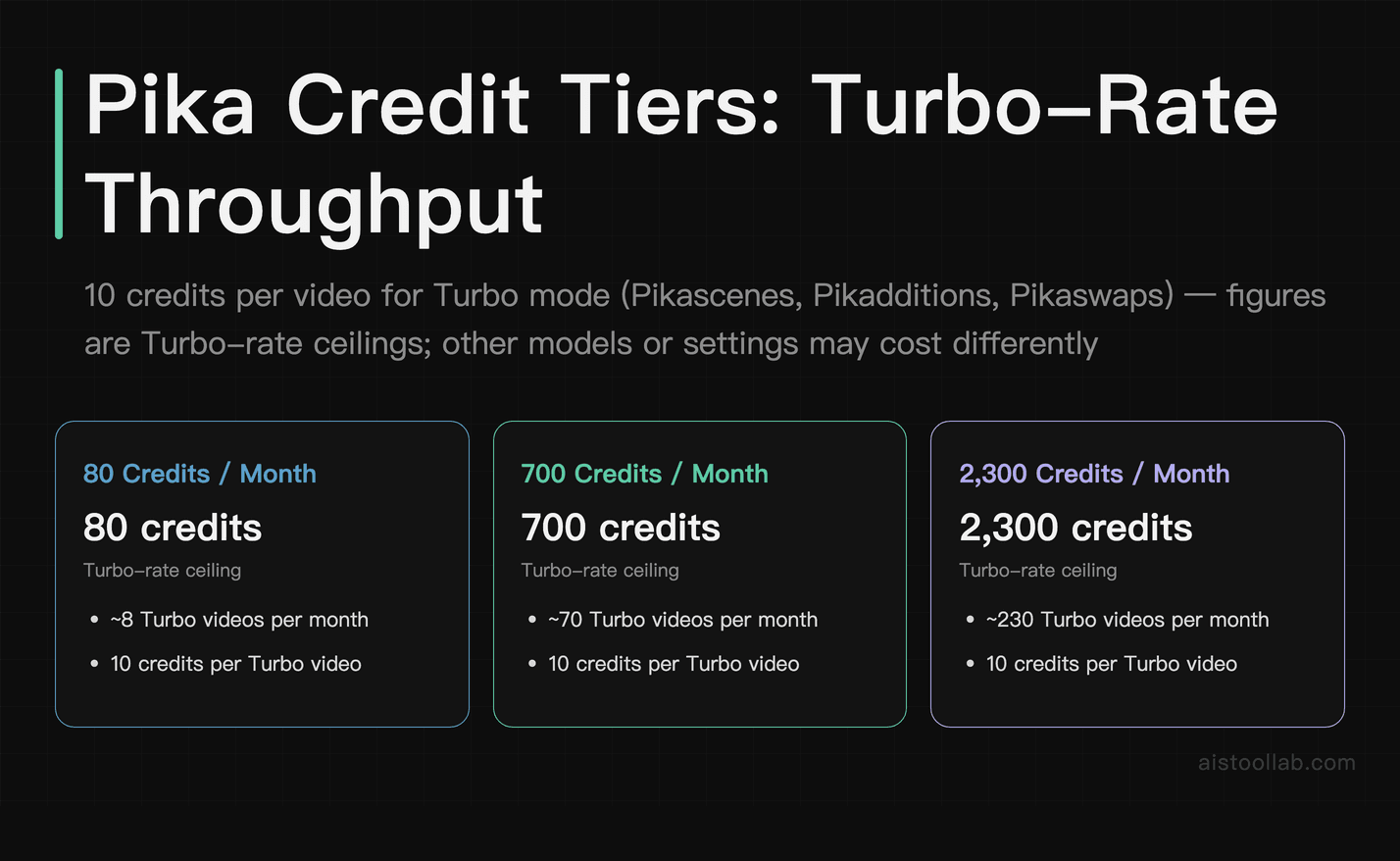
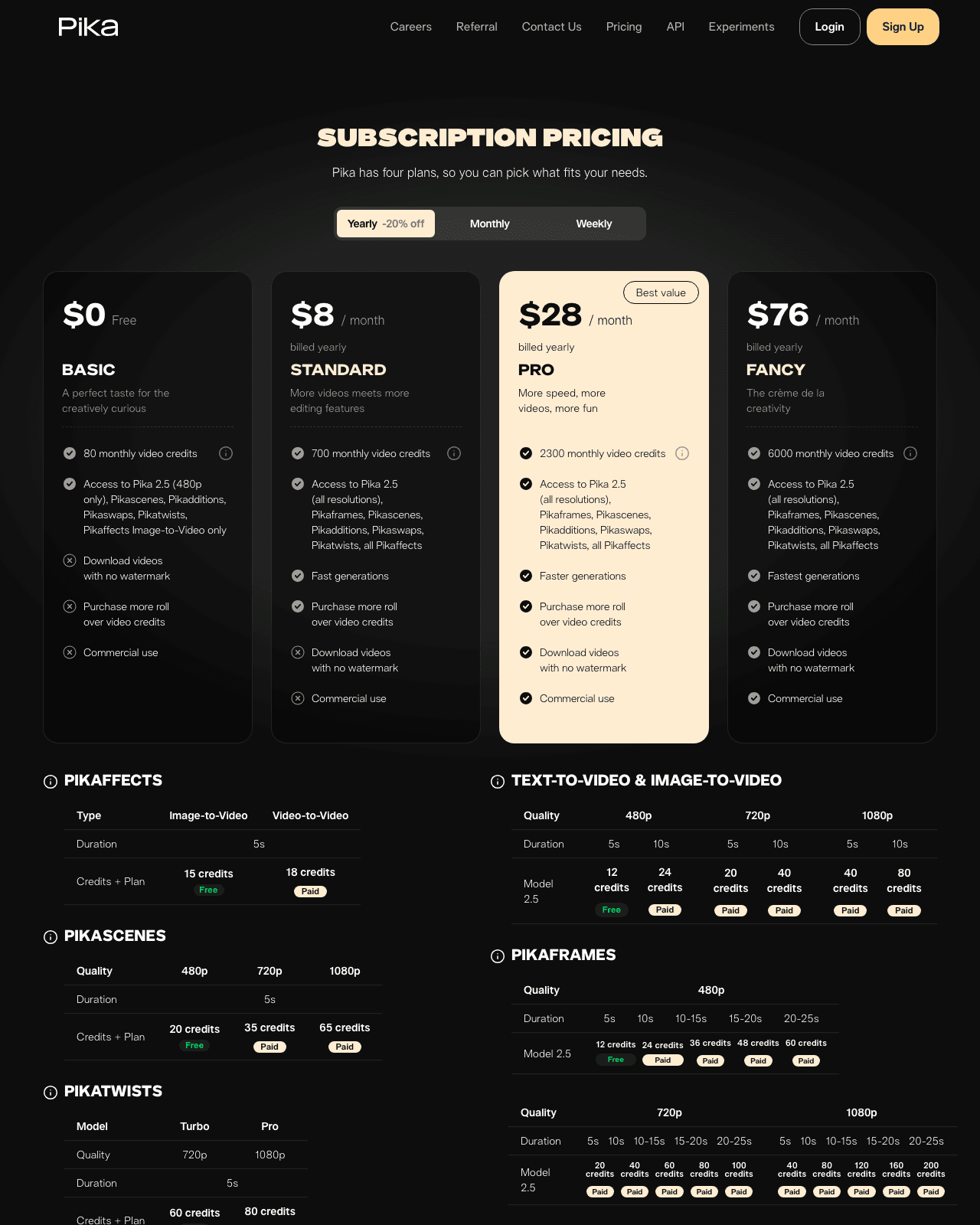
Generation isn’t free, and the credit system is where the “how smooth can I make this” ambition meets the “how many tries can I afford” reality. Pika’s paid tiers publish their monthly video credits: one tier includes 80 monthly video credits, another 700, and another 2,300 (per Pika’s official pricing page, checked 2026-08-09). Those are credit allowances, not dollar figures — I’m deliberately not quoting a price here, because the pricing page’s monetary amounts weren’t part of what I could confirm cleanly, and a stale or guessed number is worse than none.
What you can reason about is throughput, because Pika also publishes a per-video cost for one mode: the Turbo model — used with Pikascenes, Pikadditions, or Pikaswaps — runs at 10 credits per video (per pika.art/pricing, checked 2026-08-09). That single rate lets you do the arithmetic yourself. Divide the credits by 10 and, at the Turbo rate, 80 credits works out to 8 videos, 700 to 70, and 2,300 to 230 in a month. Other models or settings may cost differently — Pika doesn’t publish a single flat rate for everything — so treat those figures strictly as “Turbo-rate ceilings,” not a promise about every generation you’ll run.
The strategic point: iteration and finishing are different spending modes. Early on you’re hunting — running many cheap variations to find a motion and a look that hold together. That’s a job for the lowest-cost mode you have, because most of those attempts are throwaways. Later you’re finishing — spending confidently on the handful of clips you actually intend to publish. If you treat every generation like a final render, you’ll burn a month’s credits chasing a look; if you treat the cheap mode as your sketchpad and reserve the rest for keepers, the same allowance stretches a lot further.
If You’d Rather Direct It Yourself vs. Hand It to an Agent
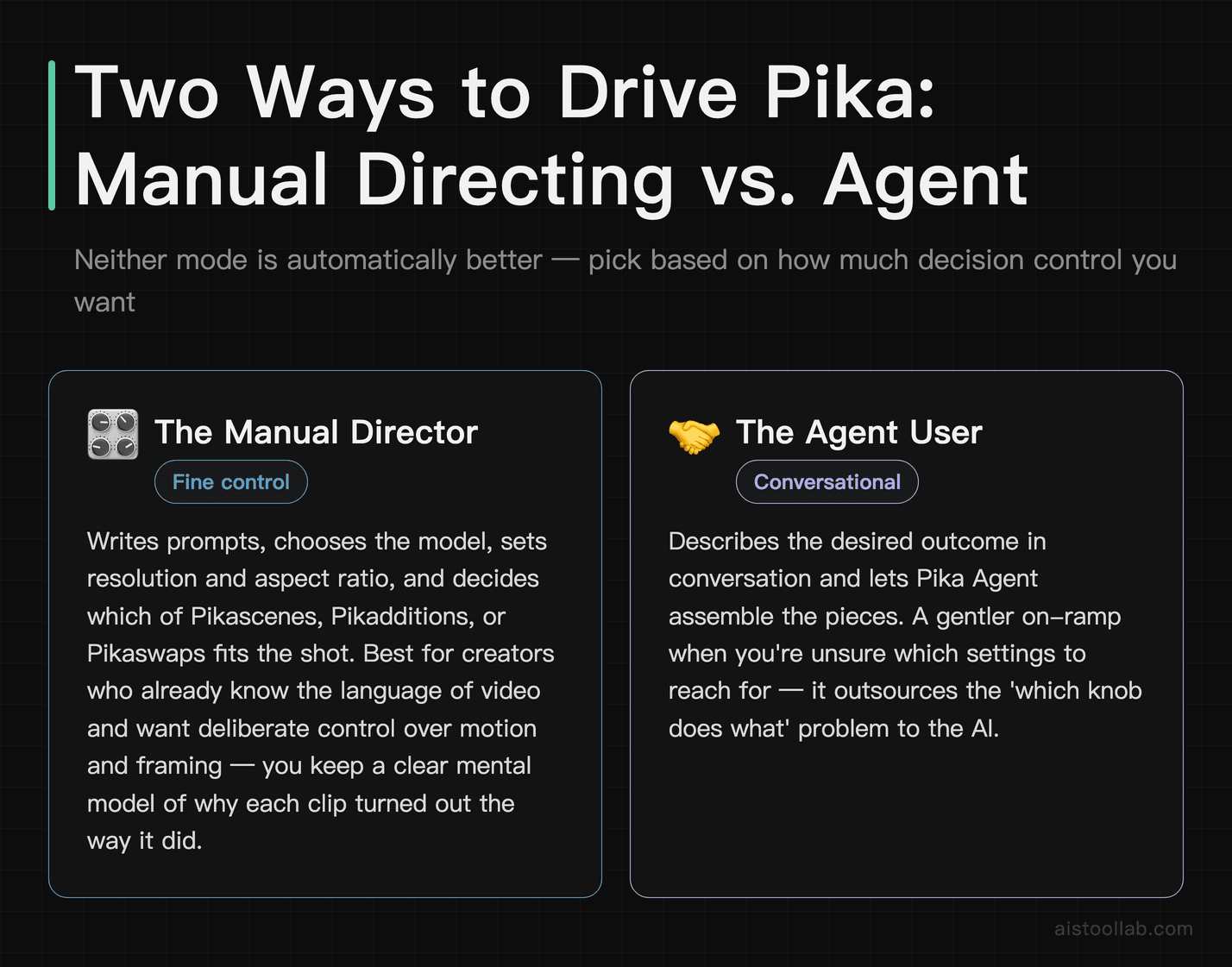
Pika’s interface currently centres on the Pika 2.5 model (per pika.art, checked 2026-08-09), which is the engine most creators will actually be driving. But the more interesting fork in the road is how you drive it. Pika offers Pika Agent, described as a way to collaborate on your project with an AI — the framing on Pika’s site is that the models are all there and you just have a conversation with it (per pika.art, checked 2026-08-09).
Those are two genuinely different working styles, and neither is automatically better. Directing it yourself — writing prompts, choosing the model, setting resolution and aspect ratio, deciding which of Pikascenes, Pikadditions, or Pikaswaps fits the shot — gives you fine control and a clear mental model of why a clip came out the way it did. That’s the mode I’d lean toward if you already know the language of video and want to steer motion and framing deliberately, because you’re not handing off the decisions that most affect consistency.
If you’re less sure what settings you even want, describing the outcome in conversation and letting the agent assemble the pieces is a gentler on-ramp — you’re outsourcing the “which knob does what” problem. Pick the mode that matches how much you want to understand your own output.
When Pika’s Smoothing Isn’t the Right Tool for the Job
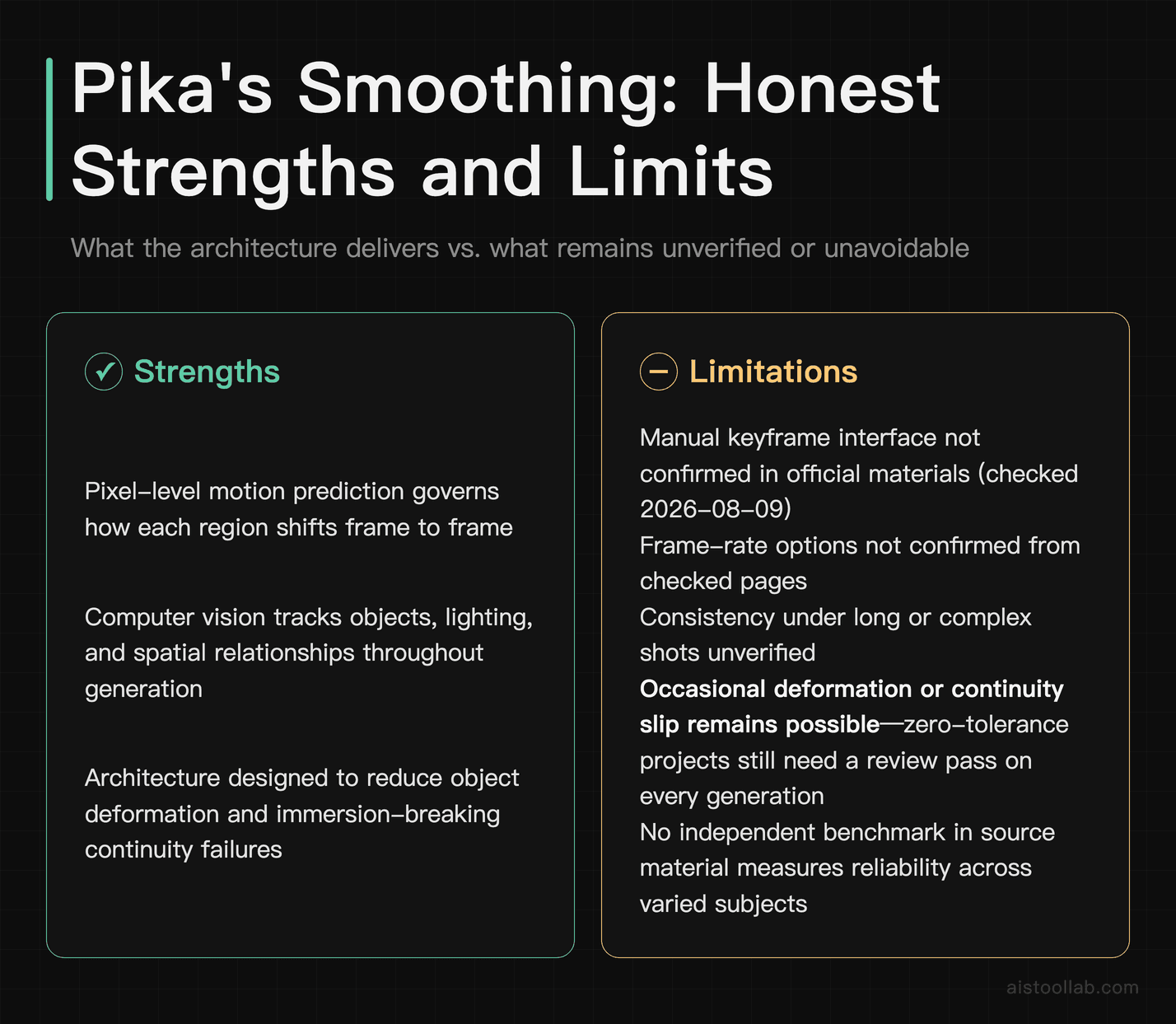
A deep feature breakdown owes you the honest ceiling as well as the sales pitch. A few things I could not confirm from the pages I checked, and which you should verify for yourself rather than assume: whether Pika exposes a manual keyframe interface for you to pin specific motion states, what frame-rate options it offers, and how consistency holds up under long or complex shots. Those weren’t available at the time of checking. If any of them is a hard requirement for your work, treat it as an open question to test before you commit, not a settled capability.
There’s also a category-wide limit worth naming. Scene-understanding and motion-prediction architectures are built to reduce the failures that break immersion, not to eliminate them — and no independent benchmark in my source material measures how reliably Pika does so across varied subjects. If your project cannot tolerate the occasional deformation or continuity slip — think a client deliverable with zero margin for a melting logo, or a shot where a specific object must stay pixel-perfect — you’ll want a review pass on every generation regardless of how good the architecture sounds on paper. The strength here is a coherent, well-motivated approach to smoothness; the responsibility for catching the misses stays with you.
For most creators the trade is a reasonable one. If your work demands guaranteed consistency on named objects, treat that requirement as unmet until you’ve tested it — and keep a human in the loop either way.


Frequently Asked Questions
Do more monthly credits make my videos look smoother?
No — and it’s an easy thing to misread. The 80, 700, and 2,300 monthly video credit tiers (per Pika’s official pricing page, checked 2026-08-09) all decide how many generations you can run in a month, not how good any single one turns out. Smoothness comes from the model and the architecture — the pixel-level motion prediction and scene understanding described above — plus your prompt and settings, none of which change because you bought a bigger allowance. What extra credits genuinely buy you is more attempts, and that’s not nothing: because generation is partly a numbers game, being able to run more variations does raise your odds of landing a clip that holds together. So a larger tier can indirectly help you find a smooth result faster, but it doesn’t make the underlying generation any better.
Can I set my own keyframes in Pika to control the motion directly?
This is the question the title practically begs, so here’s the straight answer: I could not confirm a manual keyframe interface in the official material I checked (2026-08-09), so I’m not going to claim one exists or describe how it would work. What Pika does publicly document is the Pika 2.5 model, the conversational Pika Agent, and the Turbo model used with Pikascenes, Pikadditions, or Pikaswaps at 10 credits per video (per pika.art and pika.art/pricing, checked 2026-08-09). Those are the controls I can actually point at. The architecture-level description talks about motion prediction and scene understanding happening inside the generation process, which is a different thing from you hand-placing keyframes on a timeline. If keyframe control specifically is a dealbreaker for your workflow, don’t take my silence as either a yes or a no — check Pika’s current interface and documentation directly, because interface features change faster than any article can track, and this is exactly the kind of detail worth confirming with your own eyes before you subscribe.
Which credit tier makes sense if I mostly want to experiment?
The 80-credit tier, at the published Turbo rate of 10 credits per video (per Pika’s official pricing page, checked 2026-08-09), gives you 8 Turbo generations a month — 80 divided by 10. That’s enough to run several genuine experiments, test how the format options and scene consistency behave on your kind of subject, and decide whether the output is worth scaling. My reasoning is purely about scope-matching: for an experimentation phase you want the smallest commitment that still lets you learn something, and 8 tries clears that bar without over-buying. Only step up to the 700- or 2,300-credit tiers once you actually know you’ll use them — for example when you’ve confirmed a repeatable look and you’re generating regularly. Note that non-Turbo models or heavier settings may cost more per video, so treat “8 videos” as the Turbo-rate ceiling, not a fixed guarantee for every generation you run.
Last updated: 2026
Looking for other options in this category?
👉 Browse the AI Tools Library and compare more tools side by side.