
I fed Descript’s free plan a 20.8-second voice clip deliberately stuffed with “ums” and “you knows,” clicked one button, and got back a clean 15.0-second cut — about 28% shorter — in under a minute. That one action, more than any feature list, is what tells you whether Descript is for you. This review is the result of actually running the free plan (no credit card, a real recorded clip) through everything it can do, so you can decide in a few minutes whether the free tier is enough or whether you’ll need to pay.
This article contains affiliate links. If you buy through them I may earn a commission at no extra cost to you. All opinions are my own.
The short verdict: who the free plan is for
If you edit audio or video by wrestling with a timeline, Descript’s pitch is that you shouldn’t have to — you edit a transcript like a Word document and the media is cut to match. On the free plan, that core magic is fully available. Here’s the honest bottom line before the details:
- Great for: trying the transcript-based workflow with zero commitment, and editing the occasional short podcast, voiceover, or interview clip — right up to lossless audio export, no watermark on audio.
- You’ll outgrow it if: you publish on a schedule, need watermark-free 1080p/4K video, or process more than ~60 minutes of media a month. That’s when the credits and time cap turn from a non-issue into a wall.
- The main catch: the headline AI features (transcription, filler removal, Studio Sound) all spend “credits,” and the free 100 credits drain faster than you’d expect — more on the math below.
To make that concrete: a hobbyist podcaster releasing one short episode a month can likely live on free indefinitely. A weekly-show host will burn the 60-minute media cap almost immediately. A student cleaning up a single lecture recording, or a marketer testing whether transcript-based editing fits their process, is squarely in the free tier’s sweet spot. A YouTuber who needs clean 1080p output is not — the watermark alone rules it out. The free plan isn’t crippled; it’s scoped for evaluation and light use, and it’s honest about where that scope ends.
The feature that sells it: one-click filler removal
Start here, because this is the feature most likely to make you a believer. Under Tools → Remove filler words, Descript scanned my clip and flagged 10 filler words in yellow for review before cutting anything.
All the screenshots in this walkthrough come from the same hands-on session as the Chinese version of this review — the same batch of Descript free-plan screenshots, logged in our screenshot record on 2026-07-10, also used in our meeting-transcription roundup.
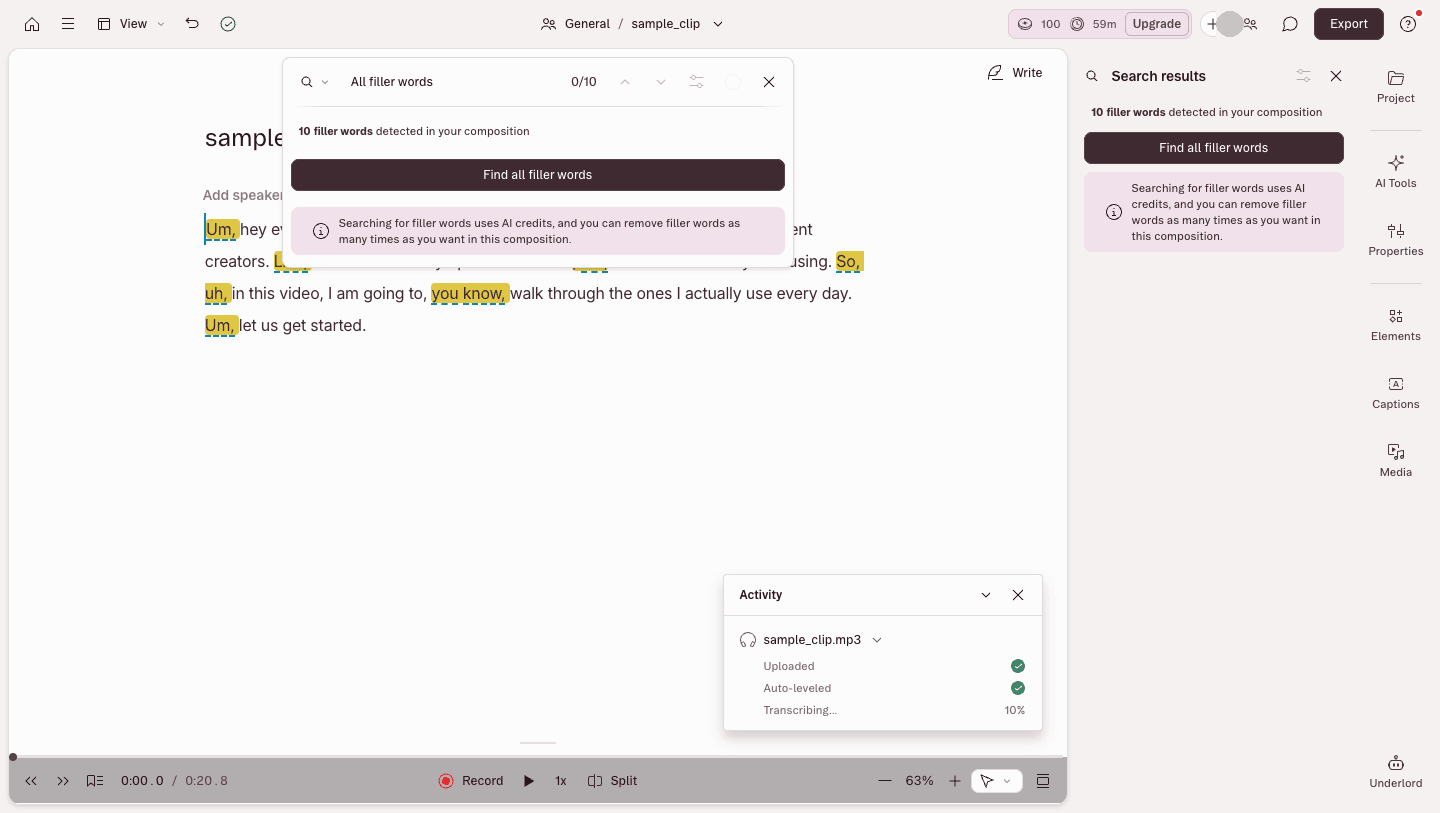
Two things stood out. First, the panel says plainly that “Searching for filler words uses AI credits” — this isn’t free, it spends from your balance. Second, there’s an “Avoid harsh cuts” option so the edits don’t sound clipped. I hit Remove all, and every filler was gone in one pass, with each join marked by a small ┊.
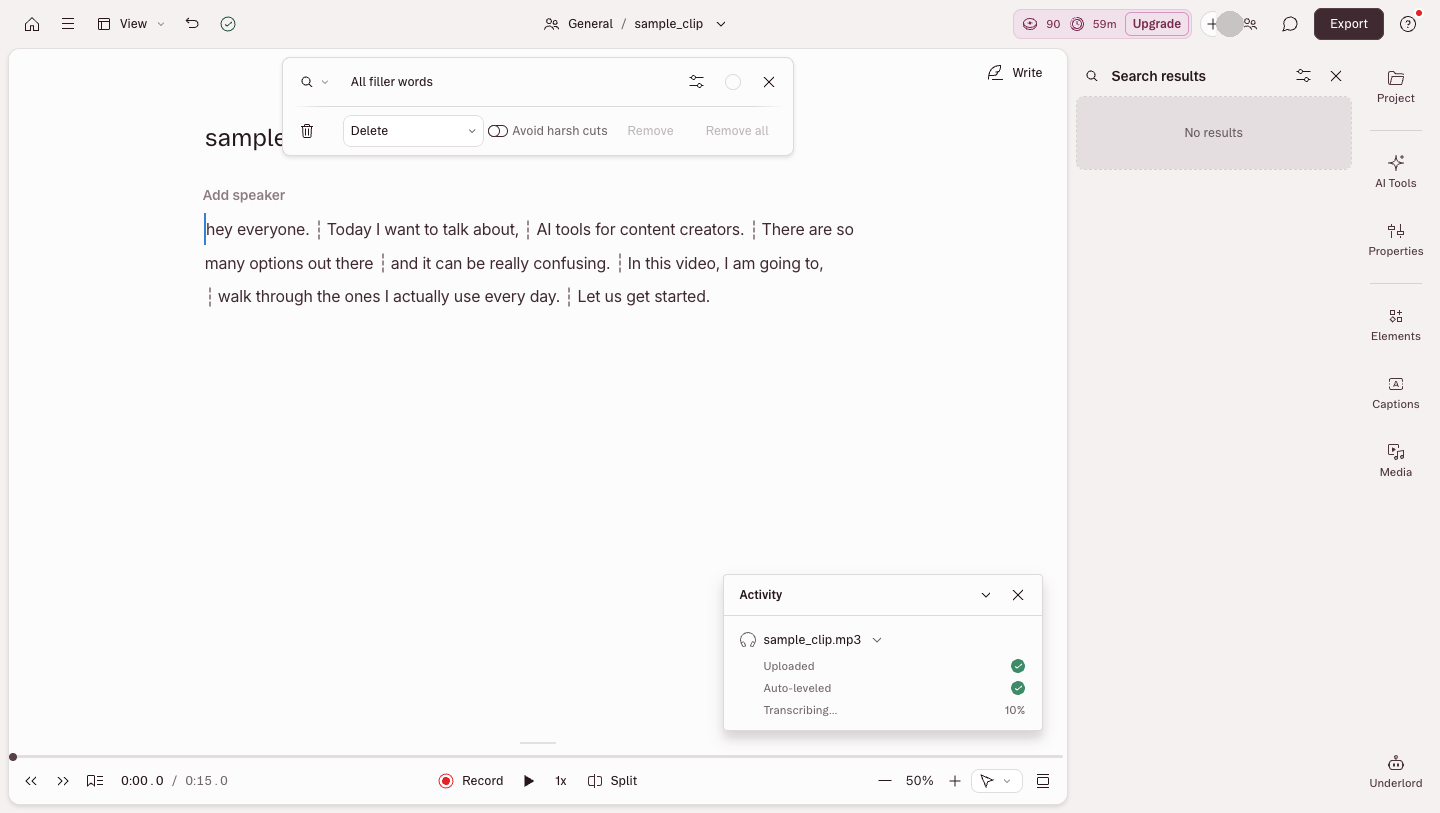
The measurable result: 0:20.8 became 0:15.0, and my credit balance dropped from 100 to 90 — so that single pass cost 10 credits. In my clip, a noticeable share of the runtime was just filler, and clearing it in one click genuinely saved time. It also quietly previews the free tier’s main limit, which brings us to the math.
The credit math worth understanding up front
The moment you log in, the top-left corner shows your limits: Free plan, 100 credits, 60 minutes of media time. Credits are the currency for AI features; media time is how much audio/video you can process per month.
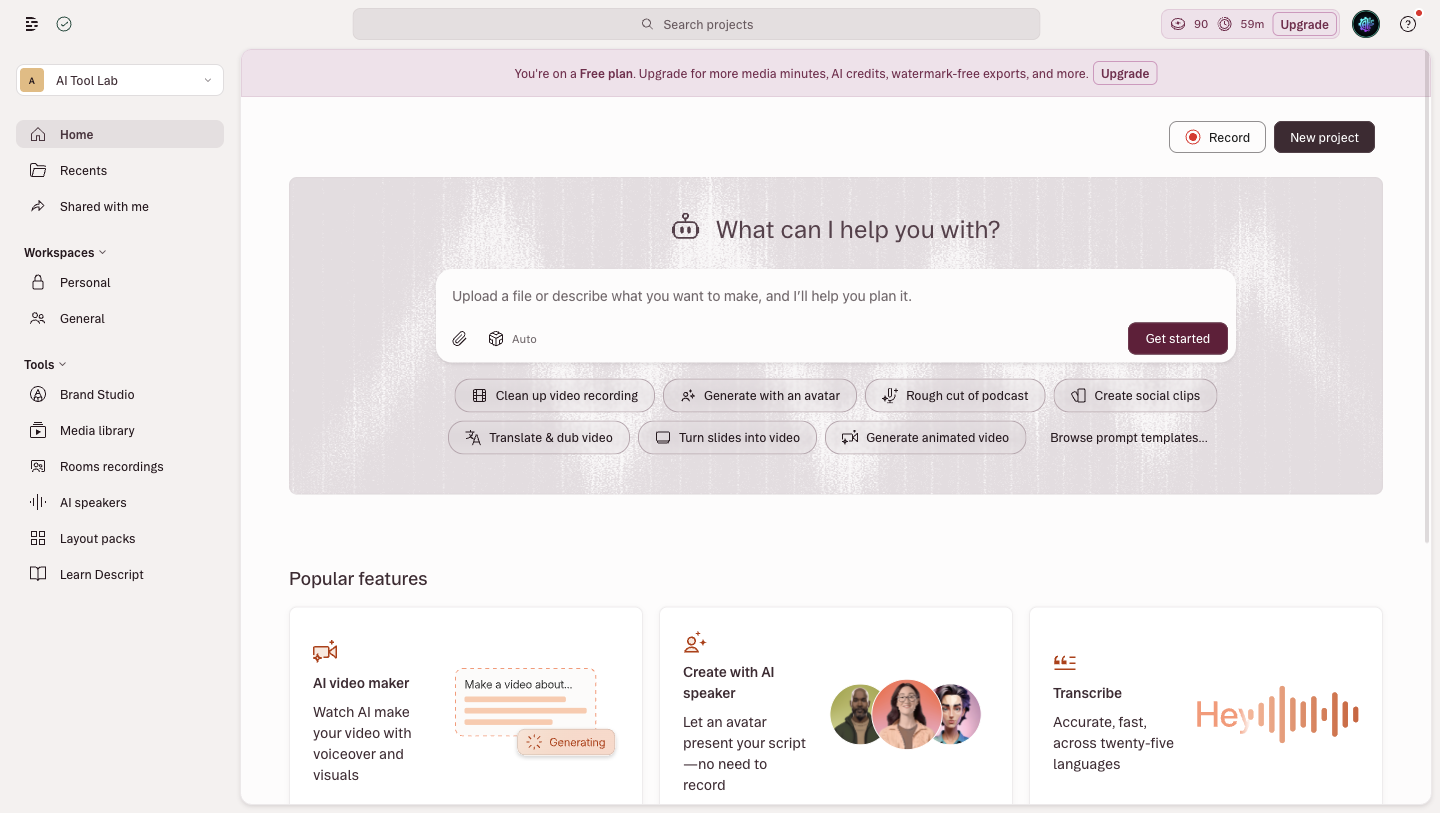
Here’s why that matters. If one filler-removal pass is 10 credits, and other AI features draw down the same balance, then 100 credits is realistically “enough to run the full workflow a couple of times,” not a monthly supply you can lean on. The 60-minute media cap is the other ceiling: fine for an occasional short edit, gone in one or two episodes of a weekly show.
Put it into a worked example. Say you record a 25-minute interview: transcribing it, running one filler-removal pass, and cleaning up with a couple of AI actions could plausibly consume a meaningful chunk of your 100 credits in a single project, and that 25 minutes already eats nearly half your monthly media time. Do two such projects and you’re effectively out for the month. That’s not a criticism — it’s just the shape of the free tier, and it explains why free Descript fits short, occasional work better than steady production. Neither limit is hidden, but neither is advertised loudly either, and knowing the numbers up front is the difference between “free is plenty” and “why am I already blocked.”
How it actually works: you edit words, not waveforms
The reason any of this is fast is the core idea: the transcript is the editor. Open a new Audio project and the main area is just a drop zone — drag a file in, record directly, or import from your media library or Zoom.
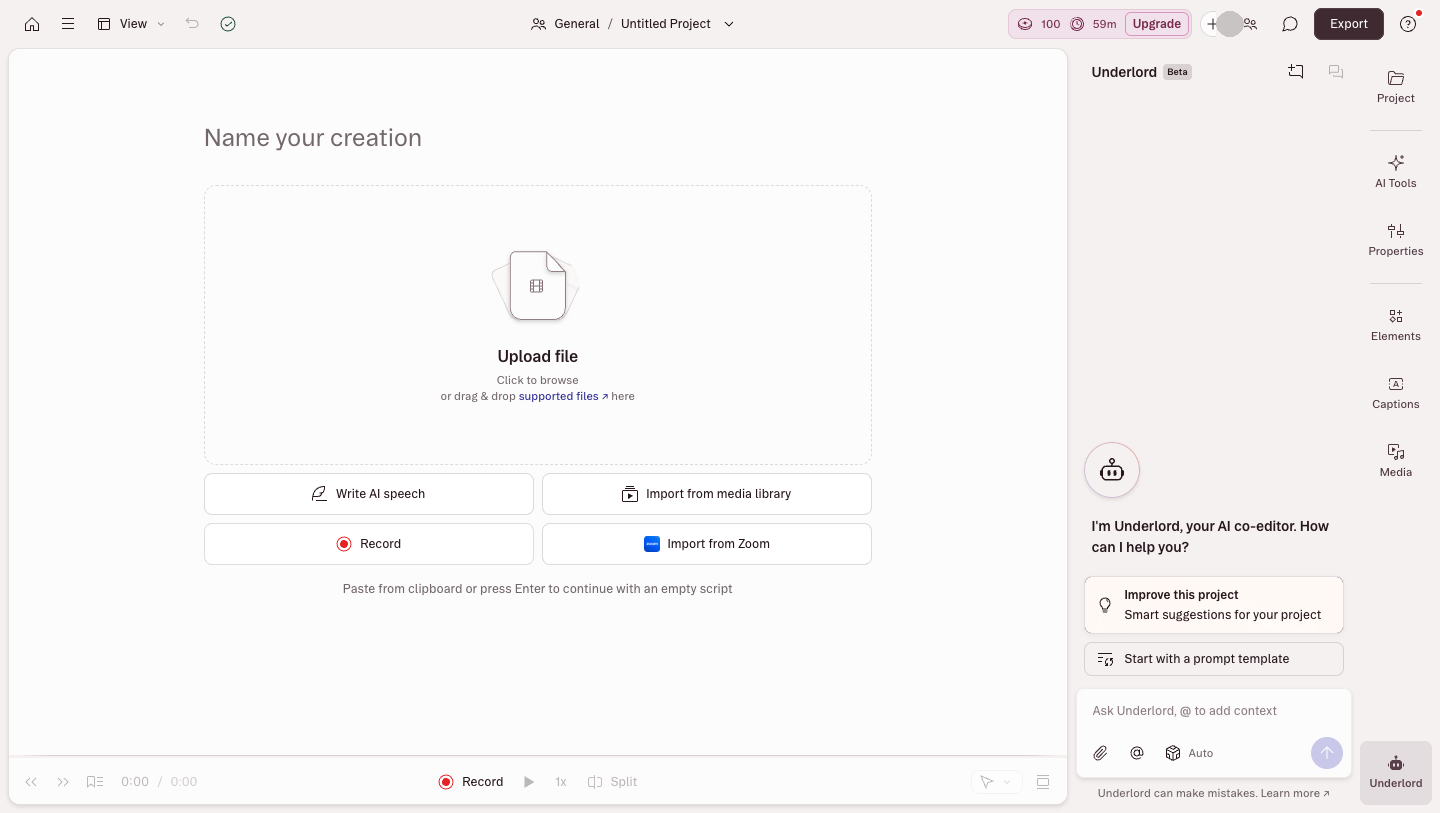
Upload, and it transcribes automatically. My 20.8-second clip was done in under a minute, and it correctly caught specific terms like “AI tools” and “content creators.” Filler words get underlined during transcription, so the stuff you’ll want to cut is flagged before you touch anything. (One small friction point: a modal recommending Studio Sound and captions pops up first; you Skip it to reach the transcript.)
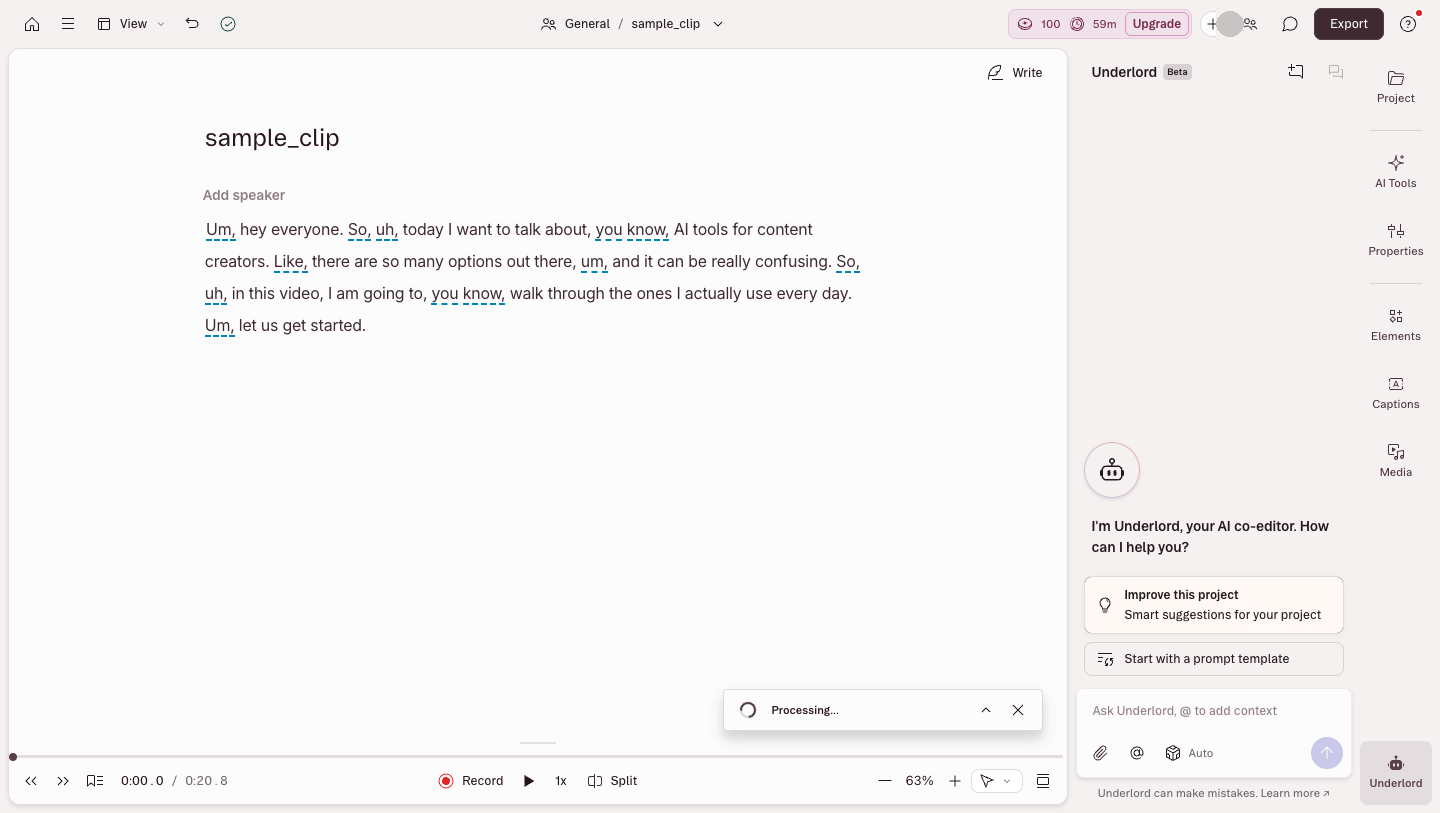
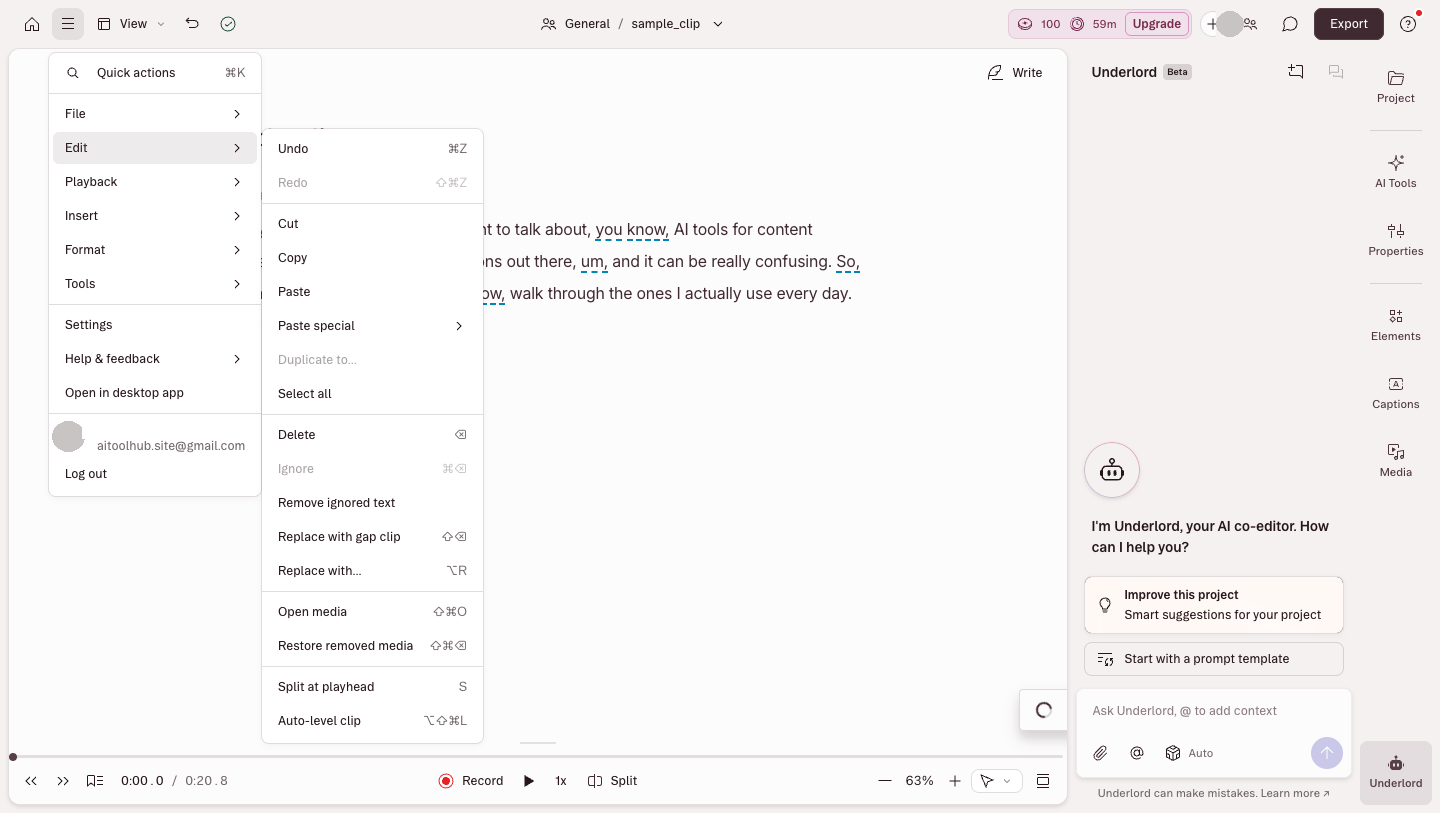
From there, editing is proofreading. Select a sentence, delete it, and the audio for that sentence disappears too. The Edit menu has Cut, Copy, Delete, Ignore, Remove ignored text, and Split — and “Ignore” hides a section non-destructively, so an over-aggressive cut is easy to walk back. If you type faster than you scrub a timeline, this is a different sport. There’s no separate render step to hear your changes, either — playback reflects the edit immediately, so the loop of “cut a rambling answer, listen back, tighten it further” happens at the speed of reading rather than the speed of dragging clips. For anyone who has spent an evening nudging waveform boundaries a few milliseconds at a time, that alone is the selling point, and it’s fully intact on the free plan.
Getting your audio out
Export is split into Audio, Timeline, Transcript, and Subtitles tabs. Audio goes up to Lossless WAV, you can export just the transcript or subtitle files, and Local export needs no extra setup or upsell.
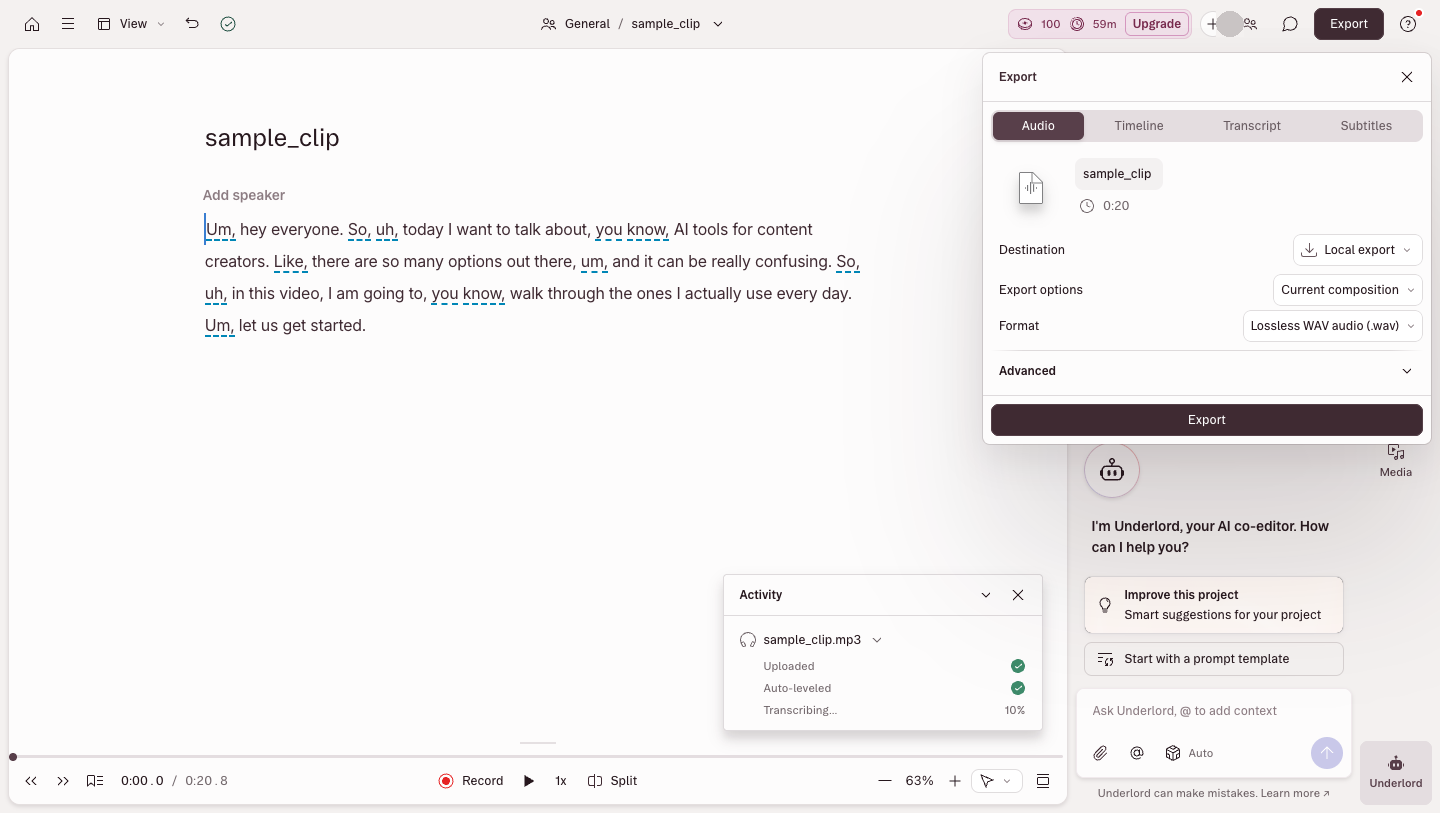
This is where the free tier is more generous than expected for audio: no forced lossy format, no watermark. If your deliverable is a podcast episode, a voiceover file, or audio destined for another app, free Descript can genuinely take you from raw recording to finished export. Video is the exception — free video export is capped at 720p with a watermark (per the official pricing page), which is the single limit most likely to push a video creator to upgrade. It’s a clean way to draw the free/paid line: audio people get a real tool, video people get a capable trial.
When free isn’t enough: the paid tiers (official info, not tested)
I did not subscribe to the paid plans, so the table below is compiled from Descript’s official pricing page and may change; treat that page as the source of truth.
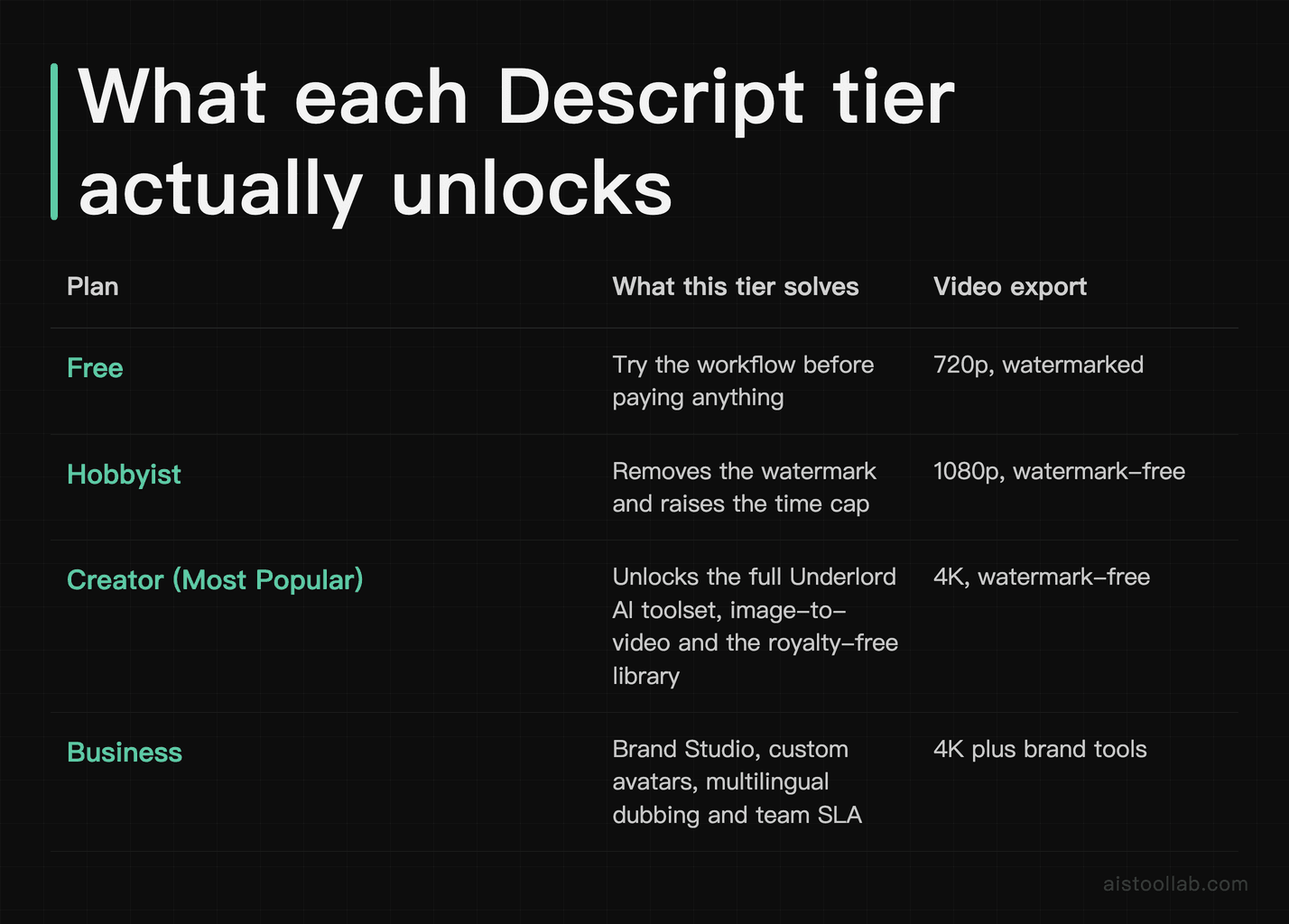
Pricing and usage (from the official pricing page, checked 2026-07-27): Descript lists both annual and monthly rates, with annual billing working out cheaper per month. Hobbyist is about $16/month billed annually or $24 month-to-month; Creator is about $24 annually or $35 monthly; Business is about $50 per person/month annually or $65 monthly; Free is $0. On media time, the free workspace I logged into showed 60 minutes per month and 100 credits; the paid tiers each raise both the monthly media allowance and the AI credit balance, and the exact per-tier figures are listed on the official pricing page — read them there rather than from this article, because they have changed before. An Enterprise plan is quoted individually. Check the official pricing page for the current numbers.
Reading the tiers (all official prices from the pricing page): Hobbyist (official: about $16/mo billed annually, $24 month-to-month) exists mainly to kill the watermark and raise the time cap — the pick if video output is your only blocker. Creator (official: about $24/mo billed annually, $35 month-to-month) is the one that unlocks the full Underlord AI toolset, image-to-video, a royalty-free library, and 4K; if you’re a solo creator paying for the AI tools rather than just more minutes, that’s the tier I’d look at. Business (official: about $50/mo billed annually, $65 month-to-month) adds team and brand features. If you just want to try the workflow, none of this is required — free covers it. When you do want to start an account or compare the plans yourself, you can go through Descript ↗.
What actually using it changed my mind about
A few things only became obvious once I ran a real clip through, rather than reading the feature page. The filler detection is more useful than the “remove fillers” headline suggests, because it underlines the fillers during transcription — so even if you never click Remove all, you get a free visual map of your verbal tics to edit by hand. The “Ignore” command turned out to be the feature I reached for most: being able to mute a section without deleting it made me edit far more aggressively than I would in a timeline, because mistakes were one click to undo. And the thing that genuinely surprised me was how much the credit meter shapes behavior — once you can see 100 → 90 after a single action, you naturally start rationing the AI features and doing more manual text editing, which is free. That’s arguably good discipline, but it’s also the clearest signal that the free tier is a doorway, not a destination.
The flip side: the post-upload recommendation modal and the credit accounting add small amounts of friction that a paid user simply doesn’t think about. None of it is dishonest, but it’s the texture of a free plan built to convert, and it’s worth going in with eyes open.
Where Descript fits with other tools
Descript is strongest on the talking parts of your content. If your work is voice-heavy, it’s worth seeing how the dedicated voice tools compare: ElevenLabs for AI voices and Murf for voiceover each cover ground Descript doesn’t. For the wider landscape, see our roundup of AI tools.
FAQ
Do I need a credit card for the free plan?
No. I ran this entire test on a free account with no card attached, and was never prompted for payment details. The free tier is limited by credits (100) and media time (60 minutes/month), not by a countdown trial, so when you run out you’re simply capped — nothing auto-charges. One detail worth getting right before you plan around it: on the official pricing table (checked 2026-08-01) the free tier’s AI credits are listed as 100 (one-time) — they are not a monthly allowance. Only the paid tiers show credits per month (400 / 800 / 1500). Media minutes are the opposite: the free tier is listed as 60 minutes (1 hr) / month, so that part does reset.
Exactly how much does filler removal cost?
In my test, one full pass took my balance from 100 to 90 credits — 10 credits — and the panel states outright that searching for filler words uses AI credits. Because it’s one of the pricier free actions relative to your 100-credit budget, it’s worth saving for clips you actually intend to publish rather than every rough take.
Can the free plan export video, or just audio?
Both, but with a difference: audio export is unrestricted (up to Lossless WAV), while free video export is limited to 720p with a watermark according to the official pricing page. Watermark-free 1080p requires Hobbyist and 4K requires Creator or above, so audio-only creators get far more mileage from the free tier than video creators do.
How accurate is the transcription, and does it do other languages?
On my English clip it was fast and accurate, correctly handling specific terms without obvious errors. Descript supports multiple languages, but I only tested English here, so for another language I’d run a short sample on the free credits to check accuracy before committing your workflow.
Is it worth learning if I already use a normal video editor?
For speech-driven content — podcasts, interviews, tutorials, voiceover — the transcript-based approach is genuinely faster, because cutting is just editing text. For frame-precise motion graphics or heavy effects, a traditional editor still wins, and plenty of creators use Descript for the talking segments and a conventional editor for the rest.
What’s the single biggest reason free users end up upgrading?
From what the limits show, it’s one of two walls: the 60-minute monthly media cap if you publish regularly, or the 720p watermark if you output video. Casual audio editors can genuinely stay on free; scheduled publishing is what turns the caps into a reason to pay. Worth noting the upgrade you’d choose depends on which wall you hit first — if it’s the watermark, Hobbyist solves it cheaply; if it’s the AI features and 4K you’re after, Creator is the tier that actually changes what you can do, and it’s the one Descript marks as most popular.
Last updated: 2026-07-10. The free-tier findings here are from our own hands-on session on a no-card free account; the paid plans are compiled from the official pricing page and were not tested via a paid subscription.