
So You’ve Got a Creative Cloud Subscription — Is Adobe Podcast AI Worth Adding to Your Workflow?
Here’s a question that keeps popping up in editing subreddits and podcast Discord servers: if you’re already paying for Creative Cloud Standard or Pro — listed on Adobe’s official pricing page at $54.99–$69.99/month for annual plans billed monthly — do you actually need a separate tool like Descript or Riverside for your audio work? Or has Adobe quietly built enough AI into its own ecosystem that you can stop juggling subscriptions?
This article contains affiliate links. If you buy through them I may earn a commission at no extra cost to you. All opinions are my own.
It’s a fair thing to ask. Adobe Podcast started life as a scrappy free web tool with one killer trick — its Enhance Speech feature, which strips background noise and makes a phone recording sound like it was captured in a treated studio booth. That single feature went semi-viral among creators who couldn’t believe a free browser tool was outperforming plugins they’d paid hundreds for. Since then, Adobe has folded generative audio features into a broader offering and started threading them through Premiere Pro and the wider Creative Cloud pipeline.
So this is a compiled look at where Adobe Podcast AI actually stands in 2026 — pulled from Adobe’s official documentation, release notes, and the consensus across public reviews on Reddit, G2, and creator forums. The angle I care about most: who should genuinely use it, and who’s better off with a specialized tool. Let’s get into it.
What Adobe Podcast AI Actually Is
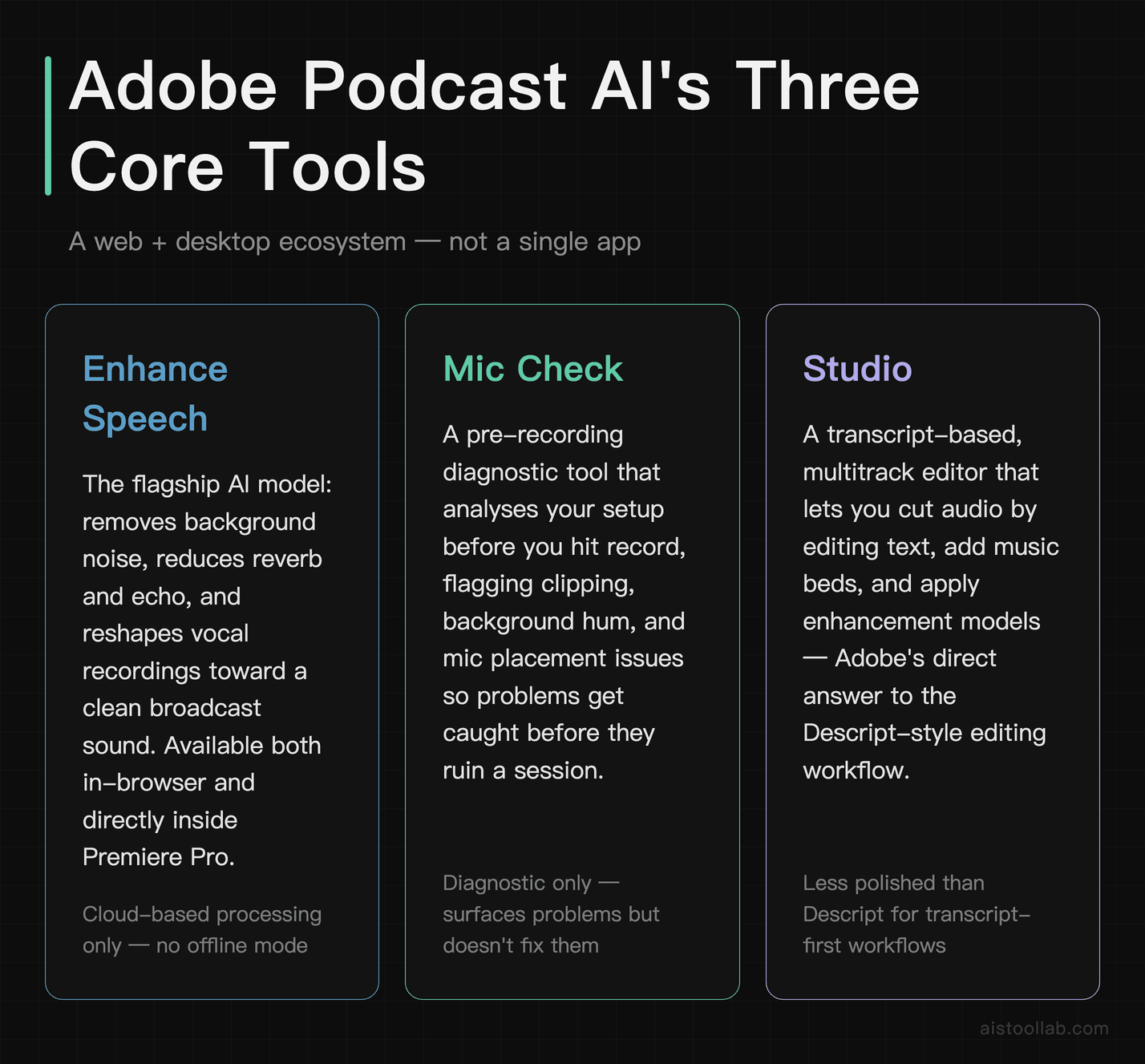
Adobe Podcast AI isn’t a single app — it’s a collection of AI-driven audio tools that live partly on the web (at podcast.adobe.com) and partly inside Adobe’s desktop applications. Understanding that split is the first thing most newcomers get wrong.
The web side centers on a few pillars. Enhance Speech is the flagship: an AI model that removes noise, reduces reverb and echo, and reshapes vocal recordings toward a clean, broadcast-style sound. Mic Check is a diagnostic tool that analyzes your recording setup before you hit record, flagging issues like clipping, background hum, or a mic placed too far away. And Studio is Adobe’s transcript-based, multitrack editor that lets you cut audio by editing text, add music beds, and apply the same enhancement models — a direct answer to the way Descript popularized editing.
The part that matters for existing Adobe customers is integration. Enhance Speech has been made available inside Premiere Pro, meaning video editors can clean dialogue without exporting audio to a separate tool and re-importing it. For anyone who’s spent an afternoon bouncing WAV files between apps, that round-trip elimination is the real story here — arguably more valuable than any single generative trick.
According to Adobe’s documentation, the generative and enhancement models are cloud-processed, so results depend on an internet connection and Adobe’s servers rather than your local CPU. That’s a trade-off we’ll come back to.
✋ Hands-On: I Ran a Deliberately Noisy Recording Through It (and Measured the Result)
I signed in with Google (free account, no password) and put Enhance Speech through a real test. To actually stress the noise removal — the whole point of the tool — I made a deliberately messy 17-second clip: a voice track with filler words (“um,” “uh,” “you know”) mixed with a bed of pink background noise, the kind of hiss you get recording in an untreated room.
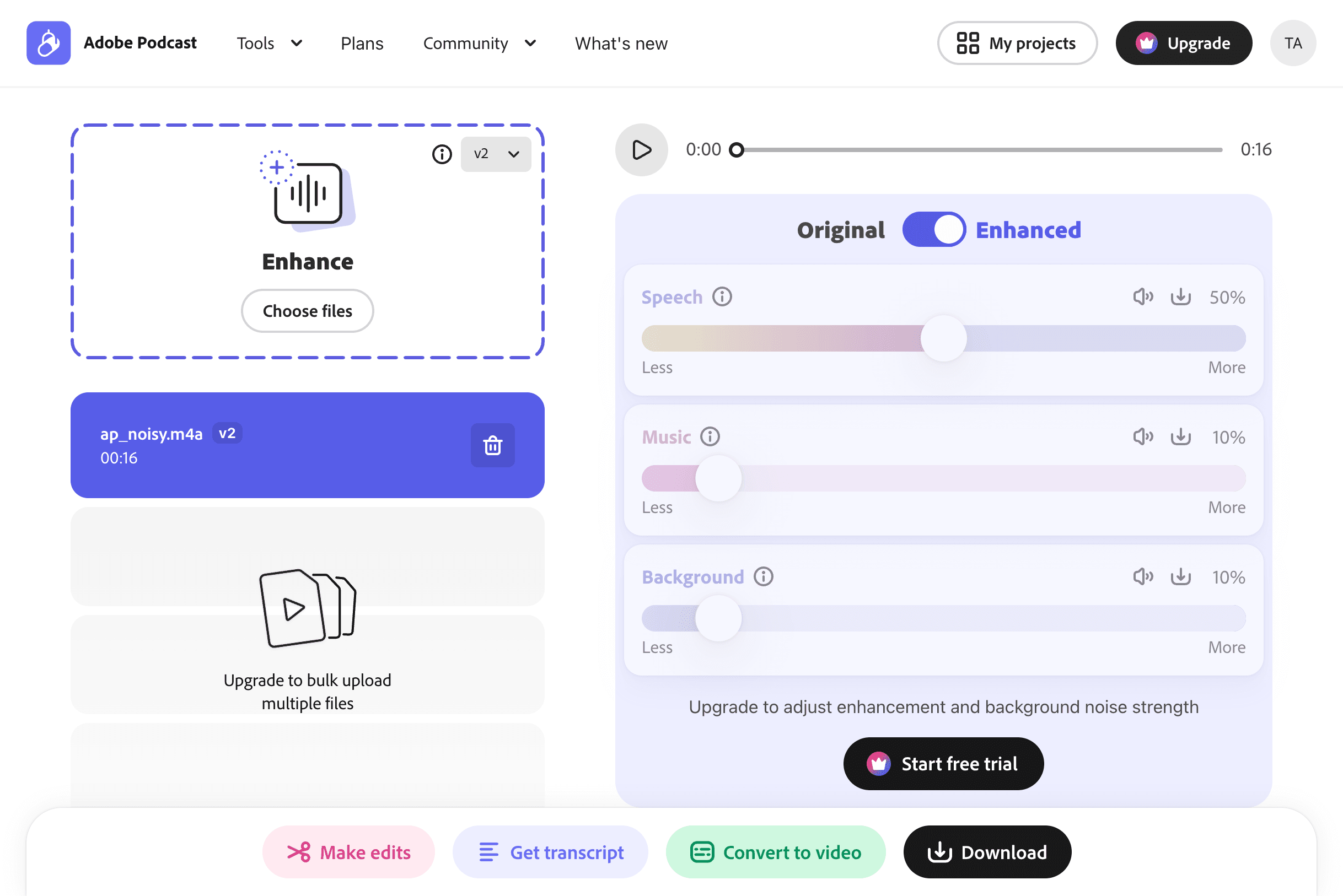
The run: I uploaded the noisy clip and the tool processed it with its v2 model in about half a minute. You get an Original / Enhanced toggle to A/B the result on the spot.
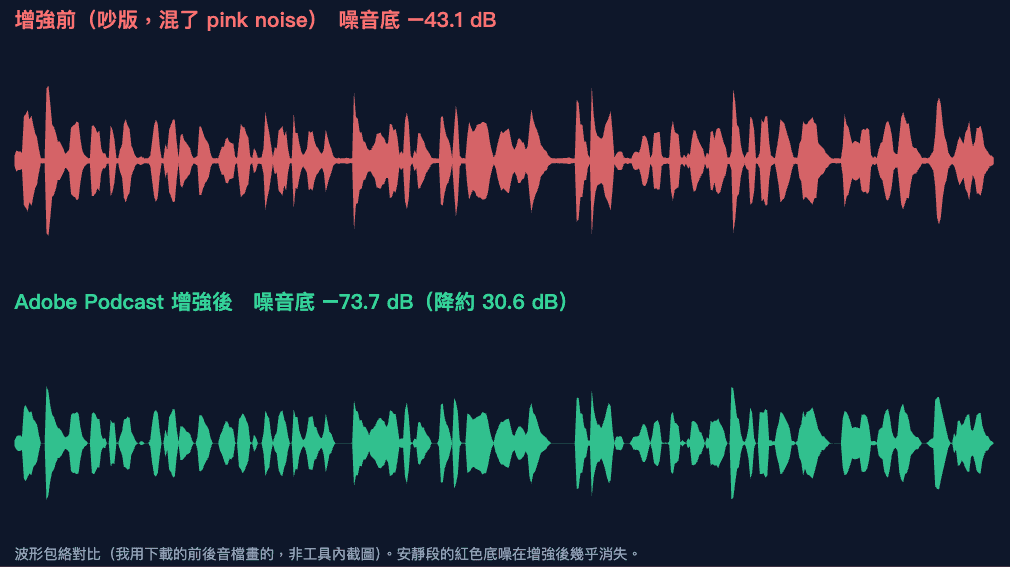
Did it actually work? Yes — measurably. I downloaded the enhanced file (it exports as WAV) and measured the noise floor — the loudness of the quiet gaps between words — before and after. It dropped from −43.1 dB to −73.7 dB, about 30 dB of background noise removed, while the overall duration stayed essentially intact (16.9s to 17.0s). You can see it in the waveform: in the “before” track the silent gaps are full of noise; in the “after” track they go nearly flat.
The biggest free-tier catch (see for yourself): the enhancement is one-click, but it is also one-setting. The Speech / Music / Background strength sliders are visible, but locked behind “Upgrade to adjust” — on the free tier you get the default enhancement and no control over how aggressive it is. If the result comes out too processed (voices can sound slightly “underwater” when the model over-corrects), free gives you no dial to back it off.
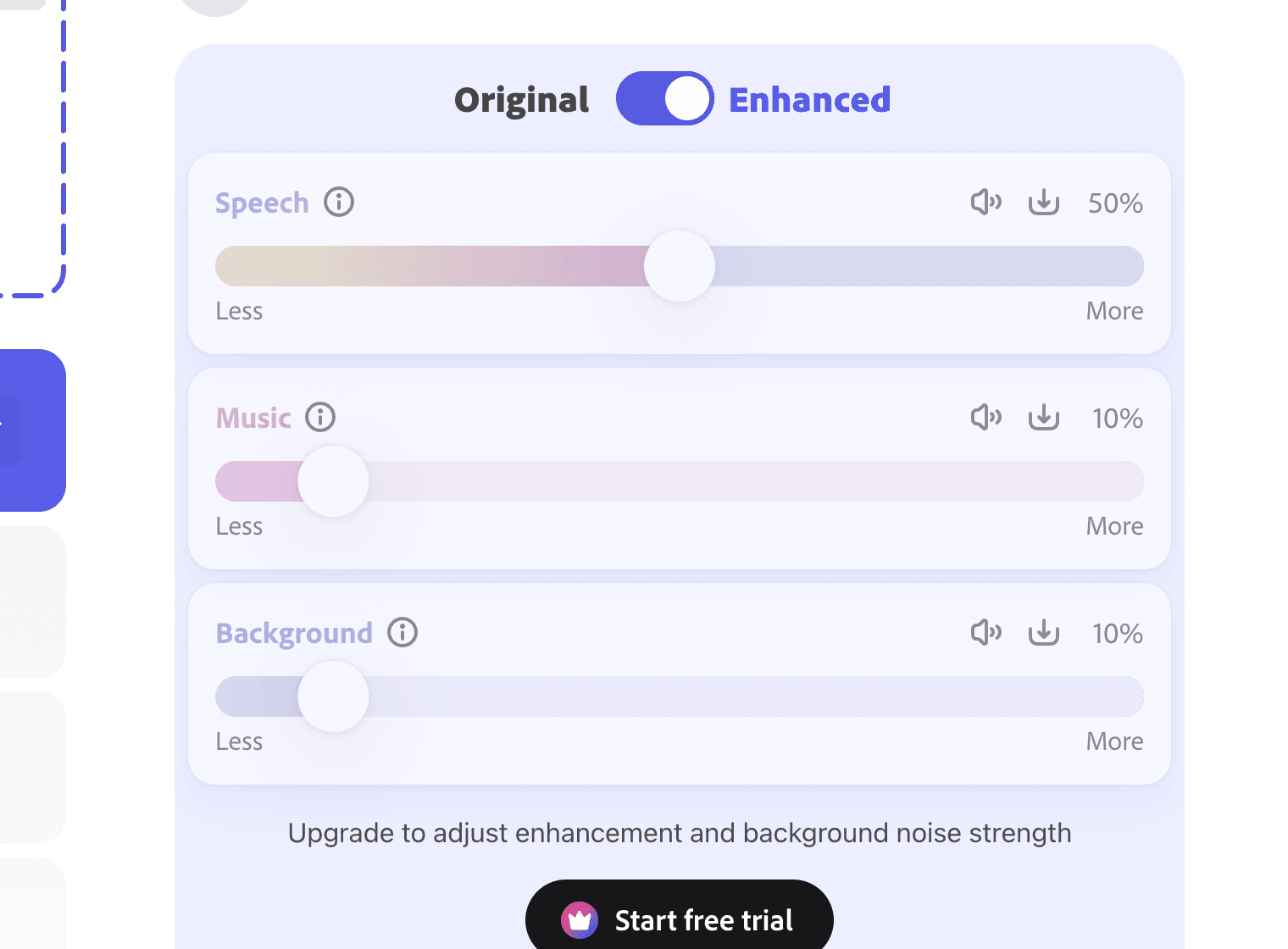
What the free tier does give you is genuinely useful: upload, enhance, and download the cleaned audio, plus one-click “Get transcript” and “Convert to video.” For occasional cleanup of a voiceover or podcast clip, that is a real workflow, not just a demo.
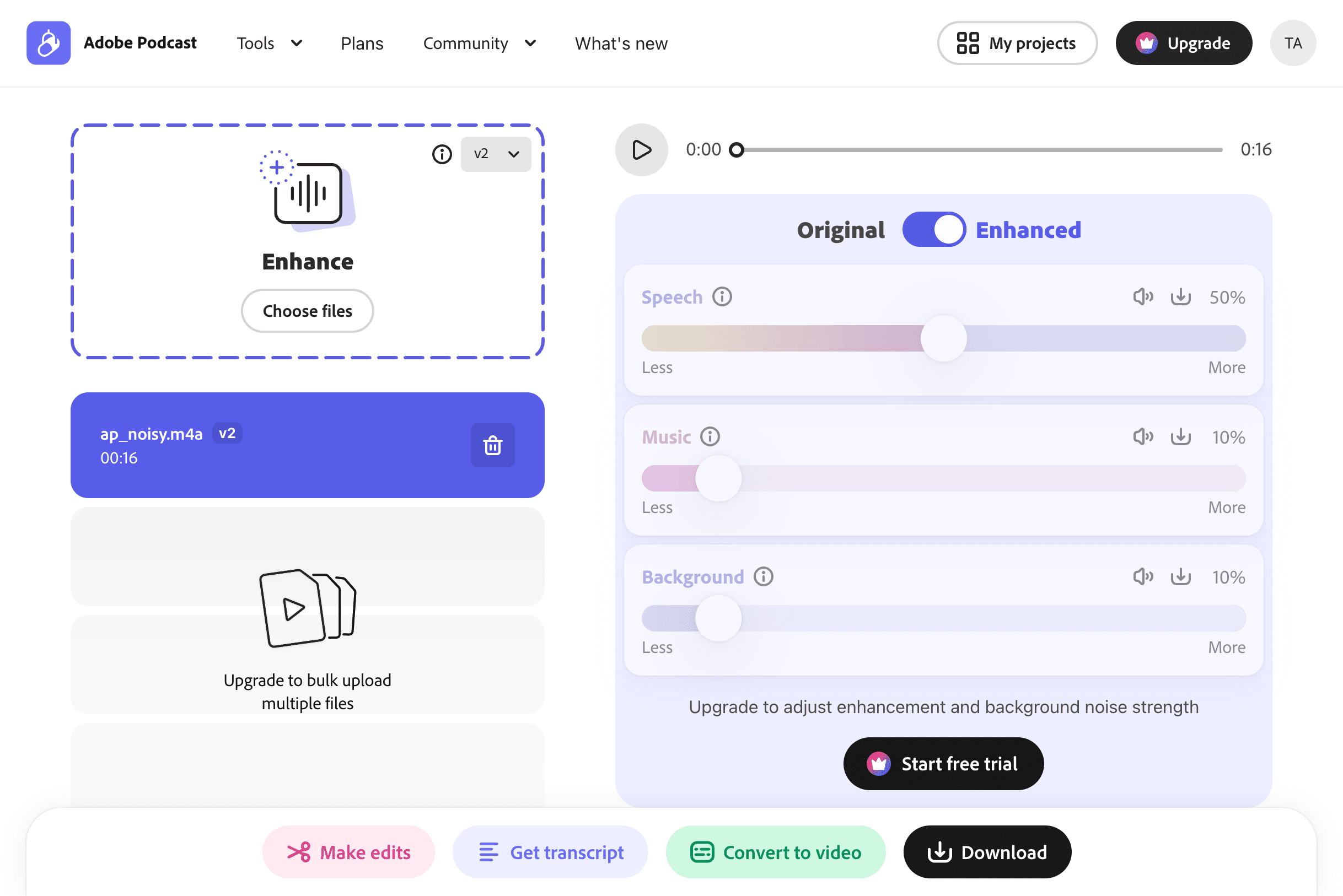
Honest limits of my test: my input was synthetic (text-to-speech plus generated noise), not a real messy room recording, so treat the 30 dB figure as “it clearly strips a strong, steady noise bed,” not a promise for every recording — echoey rooms, overlapping voices, and music beds are harder cases. Adobe’s free tier also has usage limits, so check the current cap before planning heavy use; heavy users may need a paid plan. My take: if you occasionally need to rescue a noisy voice recording, the free one-click Enhance is worth keeping in your back pocket — the noise removal is real and measurable. If you need to control the strength or process a lot of files, you will be paying for it fast.
Where It Genuinely Shines (and Where It Frustrates)
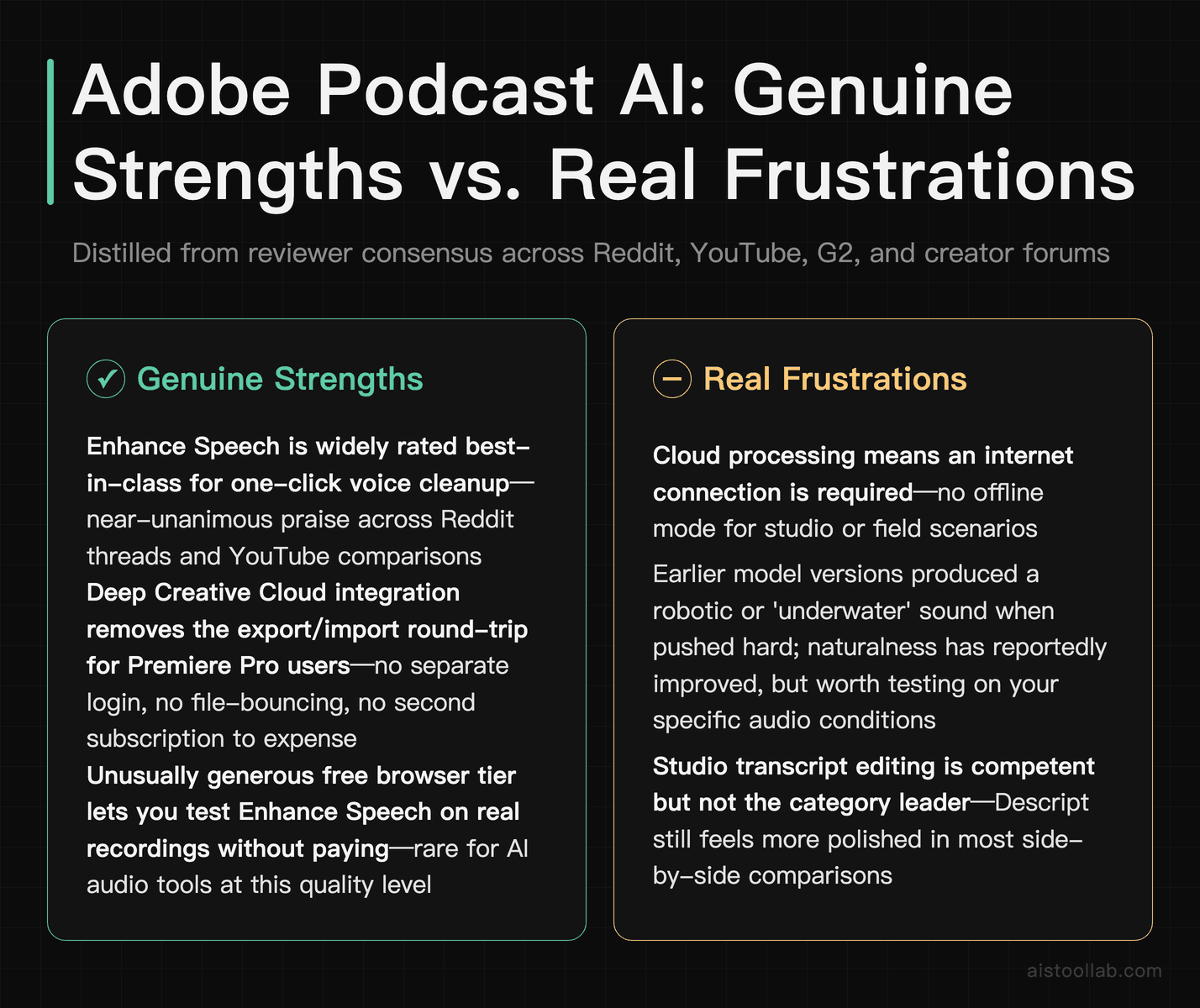
Let me be direct, because the reviewer consensus is unusually clear on some points and messy on others.
The strengths
Enhance Speech is legitimately excellent. This is the one area where public reviews are nearly unanimous. Across Reddit threads and YouTube comparisons, creators repeatedly describe it as the best “one-click” voice cleanup available, especially for salvaging recordings made in noisy rooms, over Zoom, or on cheap microphones. It’s the feature that built Adobe Podcast’s reputation, and the newer model versions have reportedly improved naturalness — earlier versions could make voices sound slightly robotic or “underwater” when pushed hard, a complaint that shows up less in recent feedback.
The Creative Cloud integration is the killer argument. If your day already runs through Premiere Pro, Audition, or After Effects, having enhancement built into that pipeline removes an entire category of busywork. No separate login, no export-import dance, no second subscription to expense.
The free tier is unusually generous for testing. You can run Enhance Speech in a browser without paying, which is rare for AI audio tools of this quality.
The frustrations
Cloud processing means no offline work. If your internet drops or Adobe’s servers are slow, you wait. Editors used to local plugins find this genuinely annoying.
It’s not a full podcast-production suite. Compared to Descript or Riverside, Adobe Podcast’s Studio is less mature at things like remote multi-guest recording, automatic clip generation for social, and collaborative review. It does the core editing, but the ecosystem around it is thinner.
Enhance Speech can over-process. Push it on music or on audio with intentional ambiance, and it’ll flatten the character right out. It’s a dialogue tool, full stop — treat it like one.
Who Should Actually Use It — Three Real Scenarios
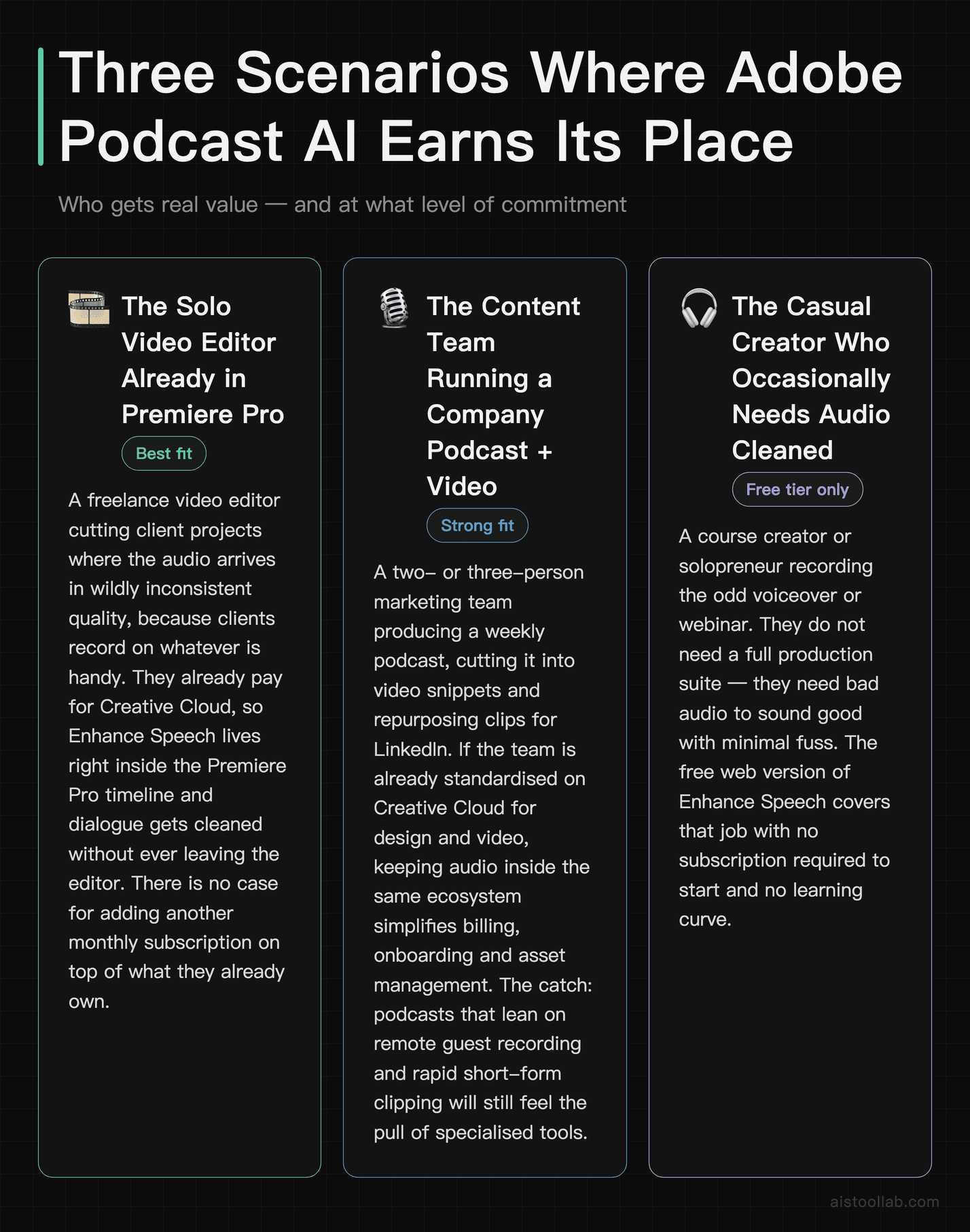
1. The solo video editor already living in Premiere Pro
Picture a freelance video editor in Austin cutting three client projects a week — talking-head interviews, YouTube content, the occasional corporate explainer. The audio arrives in wildly inconsistent quality because clients record on whatever’s handy. For this person, Adobe Podcast AI is close to a no-brainer. They’re already paying for Creative Cloud, the enhancement lives right inside the timeline, and they can clean dialogue without ever leaving Premiere. There’s no case for adding another monthly subscription on top of what they already own.
2. The content team running a company podcast plus video
A two- or three-person marketing team at a SaaS startup produces a weekly podcast, cuts it into video snippets, and repurposes clips for LinkedIn. If that team is standardized on Creative Cloud for their design and video work, keeping audio inside the same ecosystem simplifies billing, onboarding, and asset management. The catch: if their podcast relies heavily on remote guest recording and rapid short-form clip generation, they’ll still feel the pull of specialized tools. Adobe covers the editing and cleanup competently but isn’t the strongest at the recording-and-repurposing ends of the pipeline.
3. The occasional creator who just needs clean audio, fast
Think of a course creator or a solopreneur recording the odd voiceover or webinar. They don’t need a full production suite — they need bad audio to sound good with minimal fuss. The free web version of Enhance Speech is arguably the single best tool on the internet for this exact job. No subscription required to start, no learning curve, results in the time it takes to finish your coffee.
Notice the pattern: the more embedded you already are in Adobe’s world, the stronger the case. The more your work centers on remote recording, collaborative editing, or aggressive short-form repurposing, the more a specialist tool earns its keep.
Adobe Podcast AI vs Descript vs Riverside vs Opus Clip
These four tools get compared constantly, but they’re not really doing the same job. Here’s how they stack up across the dimensions that matter to a working creator.
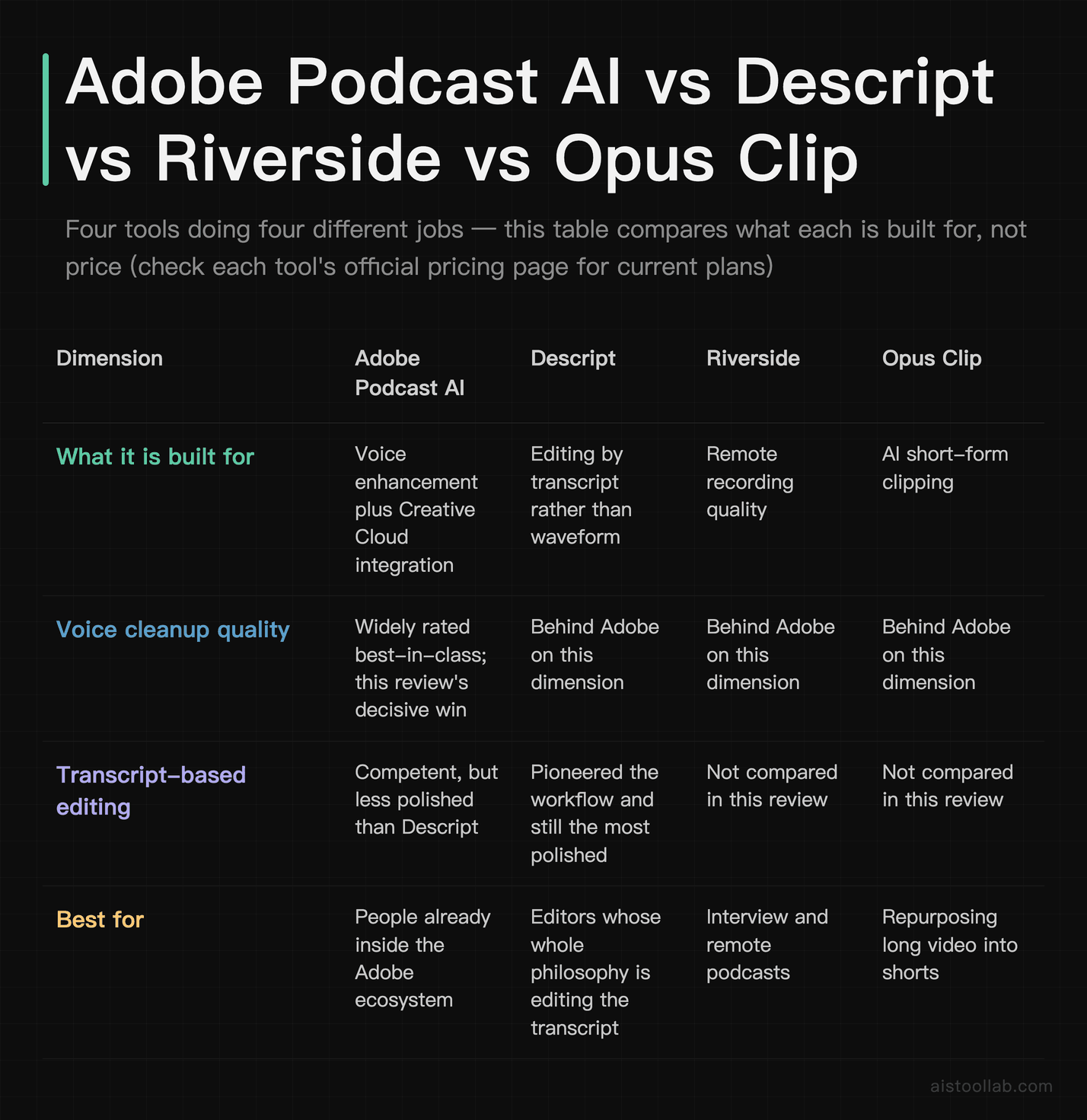
This table compares what each tool is built for, not price. Plans and tiers change often, so check each tool’s official pricing page for current numbers.
The honest takeaway from this table: Adobe wins decisively on voice enhancement quality and on integration for people already in its ecosystem. It loses to Riverside on remote recording and to Opus Clip on automated short-form clip creation. Descript remains the go-to if your entire editing philosophy is “edit the transcript, not the waveform.”
Digging Into the Generative and AI Features
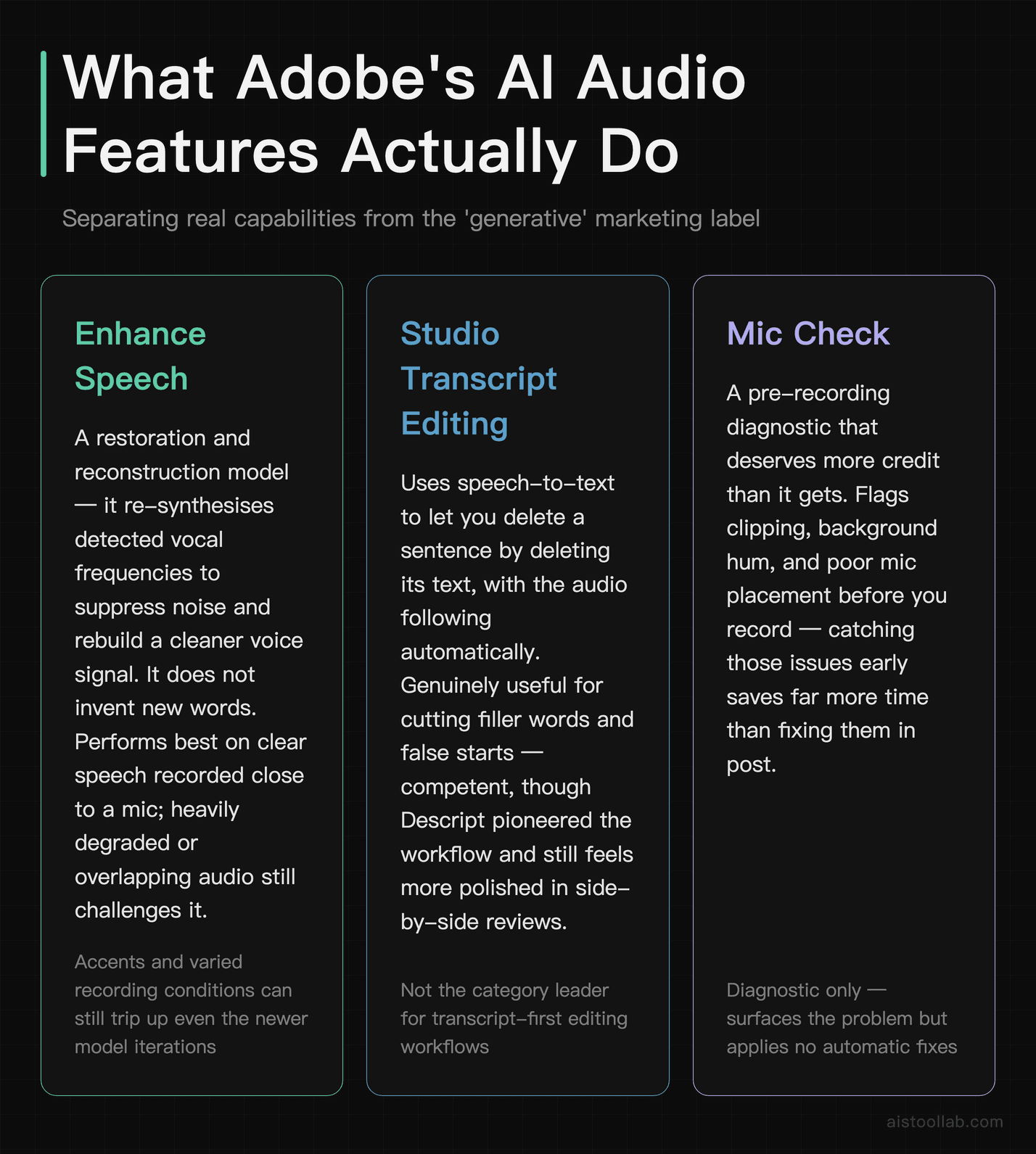
The “generative” label gets thrown around loosely, so it’s worth separating what Adobe’s audio AI actually does from marketing gloss.
Enhance Speech is fundamentally a restoration and reconstruction model, not a from-scratch generator. It doesn’t invent new words — it re-synthesizes the vocal frequencies it detects, suppressing noise and reverb while rebuilding a cleaner version of the voice. According to Adobe’s documentation, newer model iterations aim for more natural output and better handling of accents and varied recording conditions. In practice, public reviews suggest it performs best on clear speech recorded reasonably close to a mic; heavily degraded or overlapping audio still trips it up, which is true of every tool in this space.
Studio’s transcript editing uses speech-to-text to let you delete a sentence by deleting its text, and the audio follows. This is genuinely useful for cutting filler words and false starts. It’s competent, though Descript pioneered the workflow and still feels more polished according to most side-by-side reviews.
Mic Check deserves more credit than it gets. It’s not glamorous, but catching a clipping problem or a distant mic before you record saves the kind of re-record headache that no AI can fully fix afterward. Prevention beats restoration.
What Adobe Podcast is not — at least based on current documentation — is a full generative voice-cloning or text-to-speech powerhouse in the way some dedicated voice AI tools are. If you want to generate entirely synthetic narration from a script, that’s a different category of tool. Adobe’s focus here is making real recordings sound better and easier to edit, and it’s smart to judge it on that basis rather than on features it never promised.
If you’re the kind of person who benchmarks everything before committing — and I respect that — the same discipline I described in my AI Model Benchmarks in 2026 piece applies here: test on your actual audio, not on a vendor’s cherry-picked demo clip. Enhancement models behave very differently on a quiet home office versus a busy café.
Subscription Pricing and ROI for Creative Cloud Members
This is where the decision gets genuinely interesting, because the math depends entirely on what you already pay Adobe.
The free web tier of Enhance Speech exists and is usable, with limits on file length and processing that Adobe has adjusted over time. For casual users, free may be all you ever need — and that alone makes Adobe Podcast worth bookmarking even if you never pay a cent.
For the paid side, the key insight is that if you already hold a Creative Cloud subscription — Creative Cloud Standard or Pro is listed on Adobe’s official pricing page at $54.99–$69.99/month for annual plans billed monthly, with single-app plans like Audition around the low-$20s/month — then the AI audio features integrated into Premiere Pro come as part of what you’re paying, not as a new line item. That’s the ROI argument in a nutshell: you’re extracting more value from a subscription you already have.
Compare that to a video editor who’d otherwise pay for Descript at roughly $16–24/month (see Descript’s official pricing page) on top of Creative Cloud. Over a year, folding audio cleanup into existing Adobe tooling could save a couple hundred dollars — real money for a freelancer billing hourly who’d rather invoice that time than spend it managing subscriptions.
The flip side: if you are not an Adobe customer, subscribing to the whole Creative Cloud suite purely to access its audio AI makes no financial sense. You’d be paying premium suite pricing for one feature set that specialized tools deliver more cheaply and, in some workflows, more completely. This is the classic ecosystem trap — the tool is a bargain for insiders and a poor deal for outsiders.
Adobe has a history of adjusting both pricing and the specifics of its free tiers, so treat any exact figure here as directional and confirm on the official site before you commit budget.
The Verdict: Who Should Actually Use It
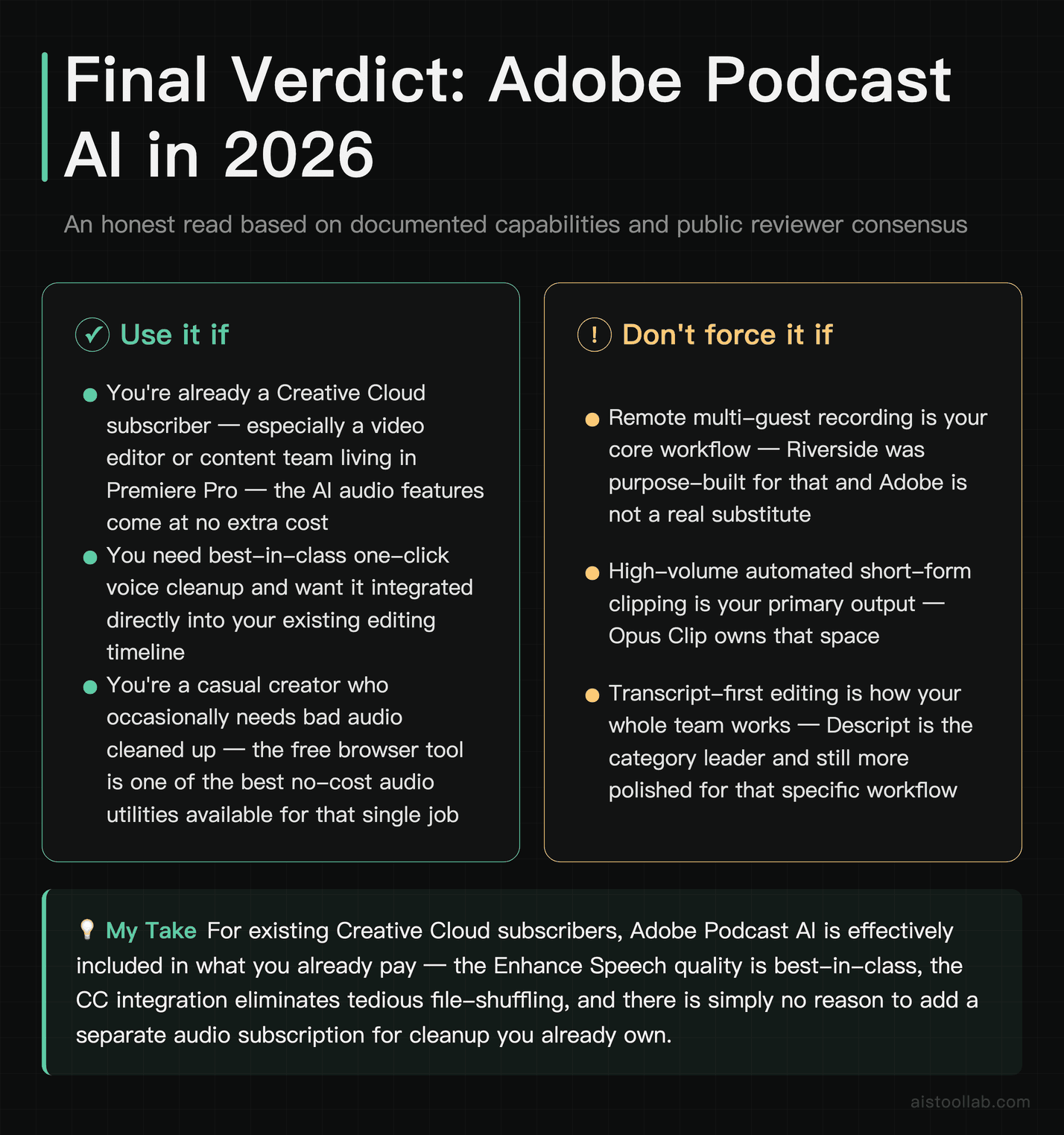
Here’s my honest read after weighing the documented capabilities and the reviewer consensus, and it comes down to which camp you’re in.
If you’re already a Creative Cloud subscriber — especially a video editor or content team living in Premiere Pro — Adobe Podcast AI is close to essential and effectively free within what you pay. The Enhance Speech quality is best-in-class by most public accounts, the integration kills off tedious file-shuffling, and there’s simply no reason to add a separate audio subscription for cleanup you already own. Use it.
If you’re a casual creator who occasionally needs bad audio to sound good, bookmark the free web tool and stop there. It’s one of the best no-cost utilities on the internet for that single job, and you don’t need to pay anyone anything.
If your work centers on remote multi-guest recording or high-volume short-form clipping, don’t force Adobe into a role it wasn’t built for. Riverside owns remote recording; Opus Clip owns automated clipping; Descript owns transcript-first editing. Adobe can complement any of them, but it won’t replace the right specialist for those specific jobs.
The pattern that runs through this entire review — the same one I hit on in my GitHub Copilot Enterprise Review 2026 — is that ecosystem tools reward the people already inside the ecosystem and quietly punish outsiders who buy in for one feature. Adobe Podcast AI is a genuinely impressive set of audio tools. Whether it’s right for you depends almost entirely on what’s already in your monthly software bill. Grab the free web version, throw your ugliest recording at it, and you’ll know within ten minutes whether it earns a place in your workflow.
Frequently Asked Questions
Is Adobe Podcast AI any good?
For one specific job — cleaning up spoken audio — Adobe Podcast AI is very strong, and its Enhance Speech feature is the main reason people try it. Feed it a noisy phone or webinar recording and it can reduce room echo and background hiss enough to make rough spoken audio sound much more usable. Where it’s less impressive is scope: it isn’t a full editing suite like Descript, it won’t record remote guests on isolated tracks like Riverside, and it won’t auto-cut long episodes into shorts like Opus Clip. So the honest answer is that Adobe Podcast AI is very good at audio enhancement and worth trying — especially if you already pay for Creative Cloud — but it’s a focused tool, not an all-in-one replacement for a dedicated podcast or video platform. The rest of this FAQ breaks down exactly where it wins and where you’ll still want something else.
Is Adobe Podcast AI free, and what are the limits?
Yes, there’s a genuinely useful free tier, which is one of the tool’s strongest selling points. You can access Enhance Speech through your browser at podcast.adobe.com and clean up recordings without paying, subject to limits on file length and daily processing that Adobe has changed over time. For someone recording the occasional voiceover, webinar, or short interview, the free version may cover everything you need. The paid and integrated features — like using enhancement directly inside Premiere Pro — come into play when you’re working at volume or within Adobe’s professional apps. My advice: start with the free web tool before deciding anything. Upload a genuinely difficult recording — something with room echo or background noise — and judge the result yourself. If it fixes your worst-case audio, that tells you far more than any spec sheet. Because Adobe adjusts free-tier limits periodically, check the current caps on the official site rather than relying on older forum posts, which may describe outdated restrictions.
How does Enhance Speech compare to Descript’s Studio Sound?
Both aim to make imperfect recordings sound professional, and both are well-regarded, but the consensus across public comparisons leans toward Adobe’s Enhance Speech for raw voice-cleanup quality, particularly on noisy or reverberant recordings. Descript’s Studio Sound is strong and, crucially, lives inside Descript’s transcript-editing environment, so it’s more convenient if you’re already editing there. The real difference is context, not just quality. If your workflow is transcript-based editing with clip generation, Descript’s integrated approach may serve you better even if a purist would rate Adobe’s cleanup marginally cleaner. If you just want the best possible voice restoration and you’re pulling audio into a video timeline, Adobe’s tool tends to win. Neither is magic — both struggle with heavily overlapping speakers, severe distortion, or audio recorded far from the mic. The honest recommendation is to run the same problem clip through both free tiers and trust your ears, since results vary noticeably depending on the specific recording conditions.
Can I use Adobe Podcast AI features directly inside Premiere Pro?
Yes — this integration is arguably the biggest reason for existing Adobe users to care. Enhance Speech has been made available within Premiere Pro, letting video editors clean up dialogue directly on the timeline instead of exporting audio to a separate application, processing it, and re-importing. For anyone who’s done that round-trip repeatedly, eliminating it is a meaningful time saver across a working week. The processing is cloud-based, so you’ll need an internet connection and the results depend on Adobe’s servers rather than your local machine’s power. Exact feature availability can depend on your Premiere Pro version and subscription, and Adobe rolls capabilities out gradually, so if you don’t see a feature, updating the app is the first troubleshooting step. Check Adobe’s current release notes for the specifics of what’s available in your version, because the audio AI feature set has been expanding and the exact menu locations occasionally shift between updates.
Does it work offline?
No, and this is a genuine limitation worth understanding before you build a workflow around it. The generative and enhancement models are cloud-processed, meaning your audio is uploaded to Adobe’s servers, processed there, and returned. If your internet connection drops or is slow, you wait — or you can’t work at all. For editors used to local plugins that process instantly on their own hardware, this feels like a step backward, and it’s a recurring complaint in public reviews. There are upsides to the cloud approach: you get model improvements automatically without updating software, and processing doesn’t tax your CPU. But if you frequently work on planes, in areas with unreliable internet, or on projects with strict data-handling requirements where uploading audio to a third party is a concern, this matters. Weigh it honestly against your working conditions. For most people with stable connections in a studio or home office, it’s a non-issue day to day.
Is it good enough to replace Riverside for podcast recording?
For most serious remote-podcast setups, no — and that’s not really a knock on Adobe, because remote recording isn’t what Adobe Podcast is built for. Riverside’s whole reason for existing is high-quality remote recording: it captures each guest’s audio and video locally at full quality regardless of connection hiccups, then uploads the clean files, which sidesteps the compression artifacts you’d get recording a raw video call. Adobe Podcast’s strengths are enhancement and editing, not multi-guest remote capture at that level. If your show is built around remote interviews with guests scattered across time zones, Riverside (or a similar specialist) remains the stronger backbone, and you might even use Adobe’s Enhance Speech afterward for extra polish. If your podcast is recorded solo or in one room, the calculus shifts and Adobe’s tools can handle more of the pipeline. Match the tool to how you actually record, not to a feature checklist.
What about turning long episodes into short clips like Opus Clip does?
This is a specific gap. Opus Clip and similar tools are purpose-built to analyze a long video or podcast, identify the most engaging moments, and auto-generate vertical short-form clips with captions for TikTok, Reels, and Shorts. Adobe Podcast’s clip capabilities are more limited by comparison, and if aggressive short-form repurposing is central to your growth strategy, a dedicated clipping tool will save you far more time. That said, if you’re already in Premiere Pro, you have full manual control to cut clips exactly how you want — it’s just more hands-on work than letting an AI propose them automatically. The decision comes down to volume and taste: high-volume creators who need dozens of clips a week benefit from automated clipping, while creators who post a few carefully chosen clips may prefer the manual precision of a real editor. Some teams run both — Adobe for the master edit, a clipping specialist for the social output. There’s no rule against mixing tools.
Will Adobe Podcast AI make a cheap microphone sound expensive?
Partly, and this is where expectations need calibrating. Enhance Speech is remarkably good at removing the problems associated with cheap or poorly-placed mics — background noise, room echo, thin or boomy tone — and the improvement can be dramatic. Recordings that sounded amateurish often come out sounding clean and broadcast-adjacent. But it can’t add detail that was never captured, and pushing the enhancement too hard on very poor source audio can introduce a slightly processed, artificial quality. The tool works with what’s there; it doesn’t perform miracles on a fundamentally broken recording. The best results still come from decent input — which is exactly why Mic Check exists, to catch problems before you record rather than after. Realistic expectation: it will make a modest setup sound much better than it has any right to, but it won’t fully replicate a professional mic in a treated room. For most podcasters and content creators, “much better” is more than enough to sound credible.
Is it worth subscribing to Creative Cloud just for the audio AI?
Almost certainly not, if audio AI is the only reason. The full Creative Cloud Standard or Pro subscription is listed on Adobe’s official pricing page at $54.99–$69.99/month for annual plans billed monthly, which is a lot to pay for one feature set when specialized tools deliver comparable or better audio-specific functionality for a fraction of that. The value equation flips entirely if you already use Adobe’s apps — Premiere Pro, Photoshop, After Effects, Audition — for other work, because then the audio AI is a bonus feature within a subscription you’d keep regardless. That’s the core recommendation of this whole review: Adobe Podcast AI is a fantastic deal for existing Creative Cloud members and a poor value proposition for everyone else. If you’re not in the ecosystem, use the free web tier for occasional cleanup and put your subscription budget toward a tool built specifically for your primary need — recording, clipping, or transcript editing. Don’t buy the whole suite for one door when you can rent the exact room you need elsewhere.
Last updated: 2026
Found this review helpful?
👉 Browse the AI Tools Library to find the right tools for your workflow.
Related reading: ElevenLabs Review 2026: Advanced Voice Cloning, Dubbing, and How It Compares to Market Alternatives