
Transparency note: ✋ Hands-on marks what I personally did and heard inside Murf. 📋 Researched marks features and pricing compiled from Murf’s official site and public sources — I only tested basic text-to-speech on the free plan, and I flag everything beyond that as researched.
This article contains affiliate links. If you buy through them I may earn a commission at no extra cost to you. All opinions are my own.
Murf AI is one of the better-known AI voice generators in 2026 — a text-to-speech studio aimed at creators who want a voiceover without hiring a voice actor or owning a mic. I opened the free plan and actually generated speech with it, then compiled the full feature and pricing picture from Murf’s site. Here’s the honest result, including where it genuinely impressed me and where it clearly didn’t.
AI text-to-speech in 2026 has gotten good enough that synthetic English narration can pass for a real person in many contexts — which is exactly why creators reach for tools like Murf to skip recording sessions entirely. The two questions that actually matter are: does it sound natural in the language you need, and what does it cost to use the output for real? This review answers both from a hands-on test plus the official details.
Who this is for: podcasters, course creators and marketers working out whether free voice minutes cover a real project before paying for more. If you are shopping for an AI writer instead, the same free-plan treatment is here: the Rytr review.
✋ Hands-On: Generating Speech on the Free Plan
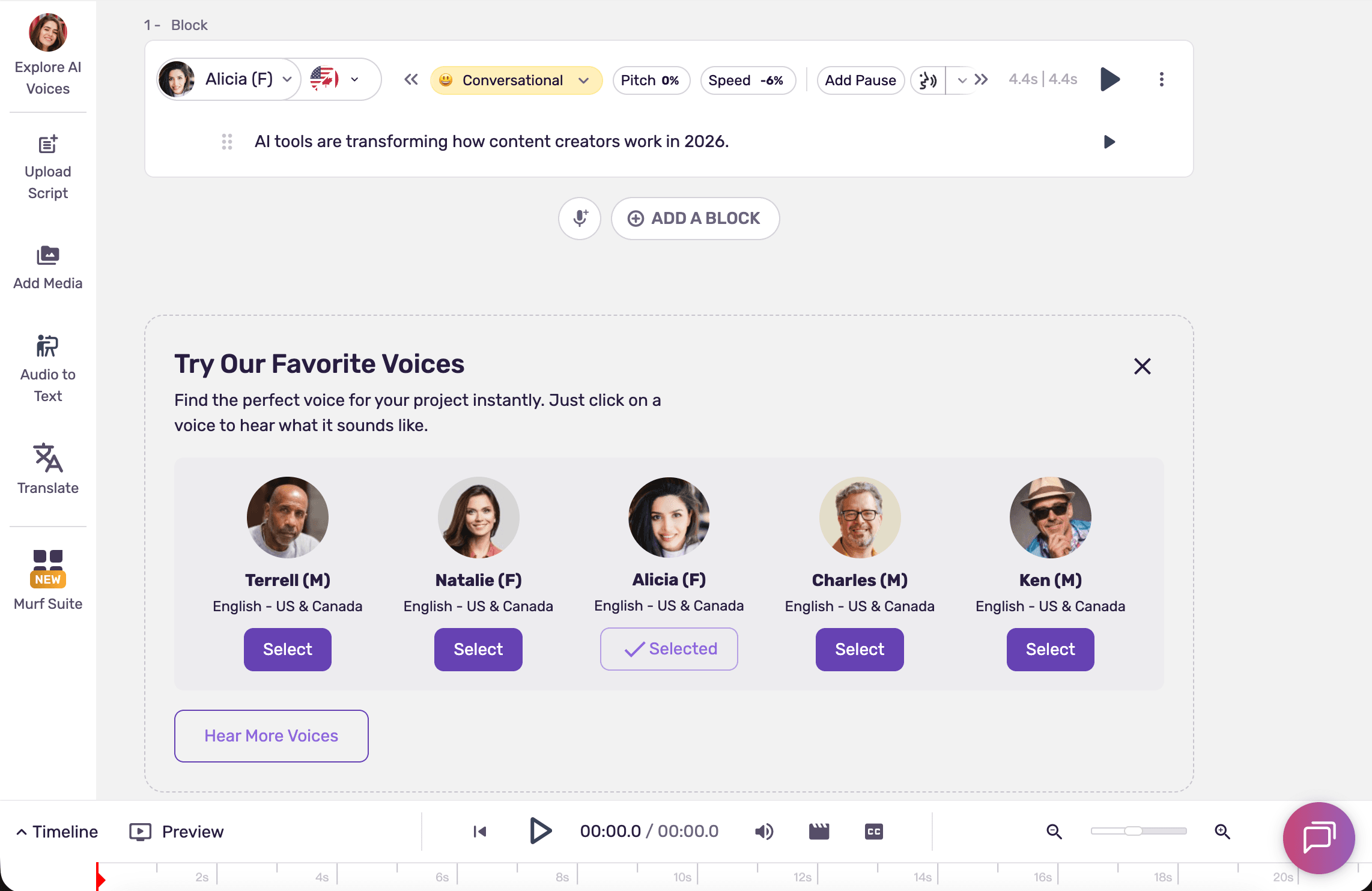
What I actually did: on Murf’s free plan (which gives 10 minutes of voice generation), I opened Murf Studio, typed one English line — “AI tools are transforming how content creators work in 2026.” — picked the Alicia voice, switched the style to Conversational, nudged the pitch and speed, and hit play to generate a preview. It generated successfully. The screenshot below comes from the same batch captured during that single 2026-07-10 free-plan session, and the same batch also appears in the Chinese-language Murf review on this site — it was not re-tested for this article.
My honest impressions (basic TTS only):
- The English voice sounded close to a real human. With the Conversational style on, the Alicia voice read my line naturally enough that I wouldn’t immediately flag it as synthetic.
- English is all I ran, so English is all I’ll claim. My script and the voice I picked (Alicia) were both English, and I kept no recording in any other language — so I’m not going to tell you how Murf’s Chinese, Japanese or Spanish hold up. If your work is non-English, that is exactly the thing to judge for yourself on the free plan.
- The controls were straightforward — picking a voice, changing the style, and adjusting pitch/speed were all right there, and generating a preview took one click.
Scope: I only tested basic text-to-speech on the free tier. I did not test voice cloning, dubbing/translation, or any paid feature — so everything on those below is researched, not hands-on.
✋ Back on the free plan, 2026-07-26: the quota counter, the voice library, and where free actually stops you
The shot above was taken on 2026-07-10. The three screenshots below all come from the same batch captured in a single 2026-07-26 free-plan session, and that same batch also appears in the Chinese version of this review — none of it was re-tested for this article. The two batches are not the same session, so each caption carries its own date.
The 10-minute free quota is visible inside the editor after all. I previously wrote that the editor showed no remaining-quota counter. That was wrong, and here is the correction: Murf Studio puts a remaining-time counter right in the top bar. (The 2026-07-10 screenshot had the top bar cropped off, which is why there was no picture to back it up at the time.) My log for this session: it read 00:09:55 of 10 mins available when I opened the project. I added a second block, pasted a new English line — “Murf keeps a running counter of how much free generation time is left.” — and generated it; the result came out at 4.3 seconds. The counter did not move straight away: I waited around 40 seconds and it still said 00:09:55. Only after a page reload did it drop to 00:09:51. In this one session, then, the counter differed by 4 seconds either side of that 4.3-second clip, and I only saw the new number after reloading. That is what I recorded once; I am not claiming the meter behaves that way every time. The screenshot below is the state after that reload.

What the voice library actually looks like. I opened it from the Explore AI Voices item in the editor’s left rail, which sits outside the crop below. The library filters by use case — E-Learning & Presentations, Advertisements, Audiobooks, Youtube, IVR, Games, Podcasts/Blogs, Documentary and Explainers are all preset tabs — plus language, gender, age group and style, with a Reset All on the right and a “Listen to your custom text” field on top. The voice selected on screen, Natalie, is tagged Gen 2 and MultiNative, and her language dropdown is labelled Language (41 supported); the panel on the right lets you preview styles like Promo, Narration, Conversational, Terrified and Sorrowful one at a time. I am not vouching for either number here. What the screen shows is Language (41 supported) inside Natalie’s own voice panel, and nowhere on this screen is there a site-wide language total to compare it against. The “30+ languages” figure in the researched section further down this review is something I took from Murf’s own materials, not something this screenshot can prove. Whether the two are counted the same way, I don’t know — so both numbers stay as they are.

Export is where the free plan actually stops you. This was the most instructive part of the session. Murf’s Select Export Format dialog lists the whole configuration — Video, Voice Only, Voice + Music or Script; Single file, Split by Blocks or Split by Sub-Blocks; .MP3, .WAV, .FLAC, a-LAW, μ-LAW or .OGG; Low, Medium or High quality (High is labelled 48KHz, 16bit); Stereo or Mono. And nowhere in that dialog is there a download or confirm-export button. Instead there is a panel headed Unlock unlimited downloads, reading “You are on free plan. Upgrade to one of the paid plans to export your projects and much more”, with a single Upgrade Plan button under it. So “the free plan can’t download” is no longer just a line in Murf’s plan comparison for me — it is a wall I walked into. Letting you configure everything and only blocking at the last step is a slightly deflating order of operations.

The scope has not widened: this follow-up session was still English only. I generated no non-English audio and listened to none, so while the language dropdown does list Mandarin and plenty of others, “listed” and “sounds natural” are different claims and I am making neither about any language except English here. Voice cloning and dubbing/translation remain untested paid features.
📋 Murf Pricing in 2026
From murf.ai’s official pricing page, 2026-06 (monthly and annual shown side by side). The free plan lists a 10-minute generation cap — and on 2026-07-26 I matched that against my own screen: the editor’s top-bar counter literally reads “of 10 mins available”. See the hands-on section above.
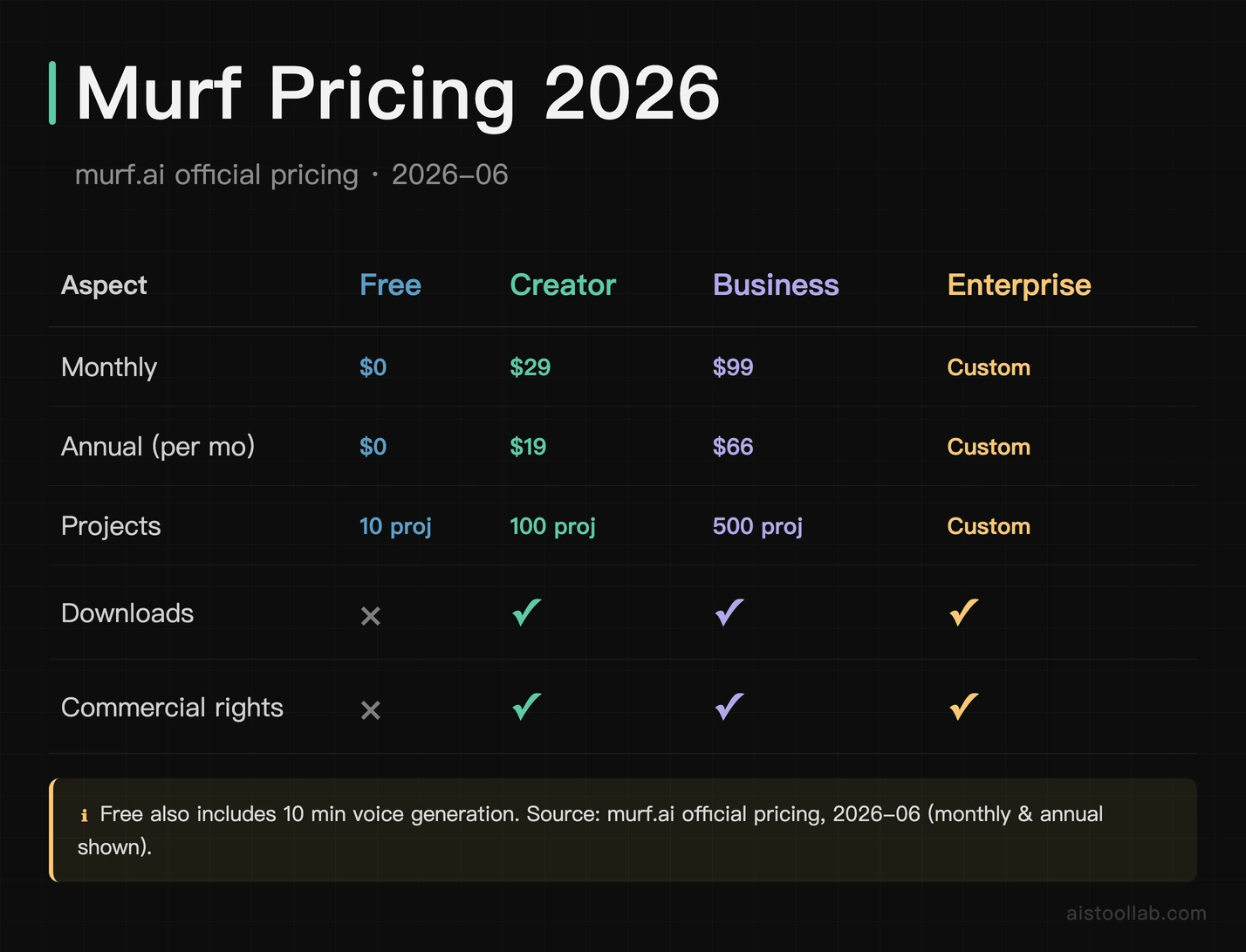
- Free — $0/month. 10 minutes of voice generation, 10 projects, no downloads, no commercial rights. Enough to evaluate the voices — it’s what I tested on.
- Creator — $19/month, or $19/month billed annually ($228/year). 100 projects, unlimited downloads, and commercial rights for one user. The realistic entry point if you’ll actually publish.
- Business — $66/month, or $66/month billed annually ($792/year). 500 projects, collaboration, and priority support for teams.
- Enterprise — custom (Contact Sales). Higher limits, voice cloning, and compliance (SOC 2 / ISO).
📋 Two other Murf product lines (priced separately): Murf Dub (dubbing/translation) — 100 free credits, then pay-as-you-go at $0.25/credit; and the Murf API — a free tier with a $10/month allowance, then pay-as-you-go from $0.01 per 1,000 characters (Falcon model). I didn’t test either.
The key gotcha: the free plan can’t download or be used commercially — it’s for evaluation only. ✋ I hit the download half myself: Export just hands you an Upgrade Plan button. 📋 The commercial-rights half is Murf’s licensing, which I have no way to test. To actually use Murf audio in your work you need at least Creator.
Which plan should you pick? Use Free purely to audition the voices in your target language — as my test showed, that’s what it’s for. If the voice quality works for you and you’ll publish, Creator (cheaper billed annually) is the realistic starting point because it unlocks downloads and commercial rights. Business only makes sense for teams needing collaboration and higher volume; voice cloning and the deepest limits sit at Enterprise.
📋 The Voice Library, and What You Can Do With It
Compiled from murf.ai, 2026-06. Murf is a full voiceover studio rather than a one-box generator:
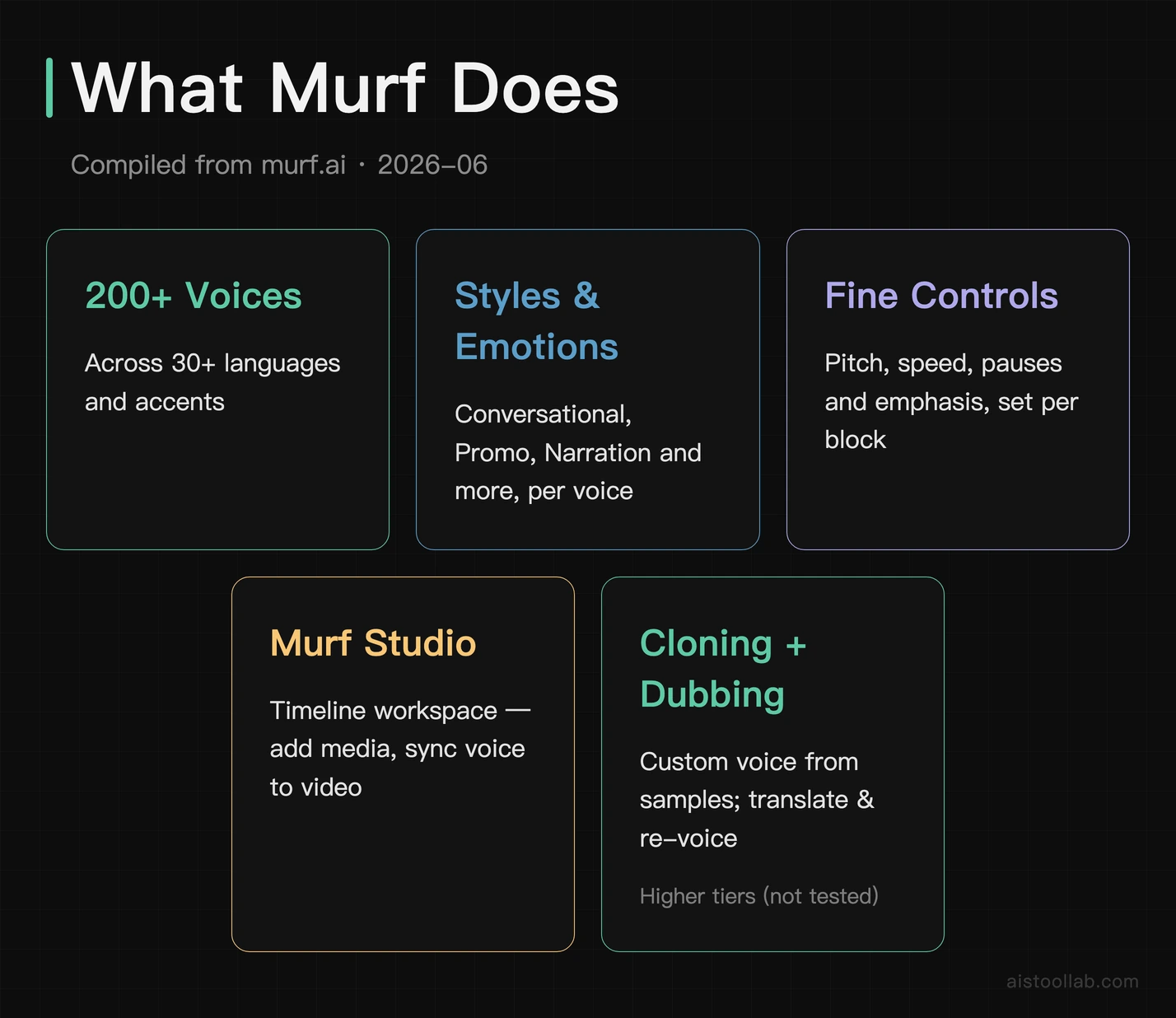
- 200+ AI voices across 30+ languages and accents — the library I picked Alicia from.
- Styles & emotions — voices can be set to tones like Conversational, Promo, Narration, etc. (the Conversational setting I used).
- Fine controls — pitch, speed, pauses, and emphasis per block, so you can shape delivery line by line.
- Murf Studio — a timeline workspace where you can add media and sync voice to video, not just export a bare audio file.
- Voice cloning — create a custom voice from samples (higher tiers; I did not test it).
- Dubbing & translation — translate and re-voice content into other languages (paid; not tested).
📋 What you can actually make with Murf
Compiled from murf.ai use cases. Because Murf is a studio rather than a bare API, it’s aimed at finished voiceover work:
- Video voiceovers — narrate YouTube videos, explainers, and product demos by syncing voice blocks to a timeline.
- E-learning & training — turn course scripts into narration you can re-generate whenever the script changes, instead of re-recording a presenter.
- Ads & marketing — produce promo and ad voiceovers in different voices and styles at volume.
- Podcasts & audiobooks — generate long-form narration, or fill gaps without re-booking a voice actor.
- Phone systems / IVR — consistent, on-brand prompts for support lines and menus.
The common thread: repeatable, script-driven audio where editing text beats re-recording a human — which is where AI voice earns its keep.
📋 Getting natural delivery: the controls that matter
The difference between robotic and believable AI voiceover usually comes down to the per-block controls, and Murf exposes the ones that count. Style/emotion is the biggest lever — the same voice reading in “Conversational” versus a flat default sounds markedly different (switching Alicia to Conversational is what made my test line sound natural). Speed and pitch let you slow a line down or lift its energy; in my test, nudging speed slightly changed how rushed the read felt. Pauses and emphasis let you break up sentences and stress specific words so the delivery isn’t monotone, and Murf also offers pronunciation adjustments for names and acronyms that TTS engines commonly mangle. None of this requires audio skills — you’re editing a script and dragging sliders, not mixing waveforms. The practical takeaway from my hands-on: out of the box the English was already good, and in my view these are the controls you’d reach for to push a draft from “good” to “publish-ready”. What a slider can’t change is which language a voice was built for — so if you need a non-English voiceover, judging that language on the free plan matters more than any amount of fine-tuning.
📋 Murf Next to ElevenLabs and the Budget TTS Tools
General positioning from public information — I did not run a head-to-head test. Murf’s niche is a polished, all-in-one voiceover studio (voices + video timeline + controls) rather than a raw API-first engine. Tools like ElevenLabs are often praised for ultra-realistic English and voice cloning depth, while Murf leans on its studio workflow and breadth of business-friendly voices. Based on my own limited test, Murf’s English was genuinely strong; I didn’t test any non-English voice at all — so if your work is non-English, test that specific language yourself before committing.
What Murf Does Well, and Where It Bites
Pros
- Natural English voices — ✋ the Alicia/Conversational read sounded close to human in my test.
- Simple, visual studio — ✋ choosing a voice and adjusting pitch/speed was easy and fast.
- Broad voice & language library — 📋 200+ voices across 30+ languages.
- Real free plan to evaluate — ✋ I generated speech without paying, and the editor’s counter read 00:09:51 of 10 mins available on 2026-07-26.
Cons
- Non-English realism is unverified here — 📋 the library spans 30+ languages, but my hands-on covered English only, so treat every other language as untested in this review.
- Free plan can’t download or be used commercially — ✋ the export dialog ends in an “Unlock unlimited downloads” upgrade wall; 📋 commercial rights are a licensing term I didn’t test.
- The strongest features are gated — 📋 voice cloning and dubbing sit on higher tiers (I didn’t test them).
- Voice generation is quota-based — 📋 plans cap minutes/hours, so heavy users should check the limits.
Who Murf Is For (and Who Should Skip It)
A good fit if you’re a creator, marketer, course-maker, or small business who needs English voiceovers for videos, explainers, ads, or e-learning without hiring talent — and you want a simple studio rather than code. The free plan lets you judge the voices before paying.
- YouTubers / course creators turning scripts into narration quickly.
- Marketing teams producing ad and promo voiceovers at volume.
- L&D / e-learning teams who re-record often and want to edit a script instead of re-recording a person.
Probably not for you if your work is primarily in a language where the realism falls short (test it first), you need broadcast-grade emotional acting, or you want a developer-first API engine above a studio UI.
Is Paying for Voice Minutes Worth It?
Murf is a clean, approachable voiceover studio that does its core job well — ✋ in my free-plan test the English voice was genuinely close to human and the controls were easy — English being the only language I tested. 📋 The catch is that the free plan is evaluation-only (no downloads, no commercial use), so real use starts at Creator. If you need English voiceovers and want a simple studio, it’s worth testing the voices yourself first — which costs nothing, and takes only a minute to hear whether a voice fits your script and your language.
You can try Murf’s text-to-speech free ↗ and hear the voices before deciding.
All prices in this article were verified against official pricing pages in July 2026; plans and fees may change, so please refer to the official page for current details.
Frequently Asked Questions
Is Murf’s free plan actually usable?
✋ Yes for evaluation — I generated speech on it and watched the editor’s counter tick down against the 10-minute cap. But ✋ exporting is blocked (you get an Upgrade Plan button instead), and 📋 commercial rights sit on the paid tiers, so you can’t publish its output.
How natural do Murf voices sound?
✋ In my test the English (Alicia, Conversational) sounded close to human. English is the only language I ran, so I can’t speak for the others — realism tends to vary a lot by language, which is exactly why the free plan is worth spending on yours.
How much does Murf cost?
📋 Free ($0, 10 min), Creator ($19/mo or $19/mo annual), Business ($66/mo or $66/mo annual), and custom Enterprise — per murf.ai/public sources, 2026-06.
Does Murf support voice cloning?
📋 Yes, on higher tiers — create a custom voice from samples. I did not test it (my hands-on was basic TTS on the free plan).
Can Murf dub or translate videos?
📋 Murf offers dubbing/translation features on paid plans. Not tested here.
How many voices and languages does Murf have?
📋 200+ voices across 30+ languages and accents, per murf.ai.
Can I use Murf audio commercially?
📋 Only on paid plans — the free plan excludes commercial rights and downloads.
Is Murf good for non-English voiceovers?
📋 Murf lists 30+ languages, but I tested none of them — my hands-on was English only. Test your target language on the free plan before committing.
Can Murf sync voice to video?
📋 Yes — Murf Studio is a timeline workspace where you can add media and align voice blocks to visuals, not just export a standalone audio file.
Murf vs ElevenLabs — which is better?
📋 I did not run a head-to-head test. In general, ElevenLabs is often cited for ultra-realistic English and deep voice cloning, while Murf emphasizes an all-in-one studio workflow and a broad library of business voices. Pick by your priority — raw realism vs. studio convenience — and test both free tiers in your language.
Does Murf have an API or integrations?
📋 Murf offers an API and integrations for teams that want to generate voice programmatically or plug it into other tools, alongside the Studio UI. I tested only the Studio (free plan), so I can’t speak to the API from experience — check murf.ai for current API plans and limits.
Is the free plan a trial or permanent?
📋 The free plan is a standing free tier (not a time-limited trial) with a 10-minute generation cap — ✋ I used it without entering payment details — but remember it has no downloads or commercial rights, so it’s strictly for auditioning the voices.