

The real question isn’t “which color tool is best” — it’s “which one fits the job in front of you”
Picture the tabs open in your browser right now: a random palette generator spitting out five swatches, a separate page where you’re pasting a hex code to find out what to actually call that muddy teal, and a contrast checker you keep bouncing back to because the client’s brand blue fails on white text. That’s the color-tooling reality for most designers and developers — not one magic app, but a small pile of single-purpose utilities each doing one thing.
So the “best random color generator” or “best color name finder” framing is a bit of a trap. A tool that’s brilliant for brainstorming a moodboard can be useless when you need a REST endpoint that returns a color name inside your build pipeline. And the crowdsourced naming database that’s fun for hobby projects is not the thing you reach for when you’re chasing WCAG compliance before a launch.
Instead of crowning a winner, this piece maps the main color name finders and random color generators to the workflows people actually run: picking web colors, building a brand palette, checking accessibility, and wiring colors into code. Find your scenario, grab the tool that fits it, close the other twelve tabs.
Contents
The scenarios that actually decide which tool you need
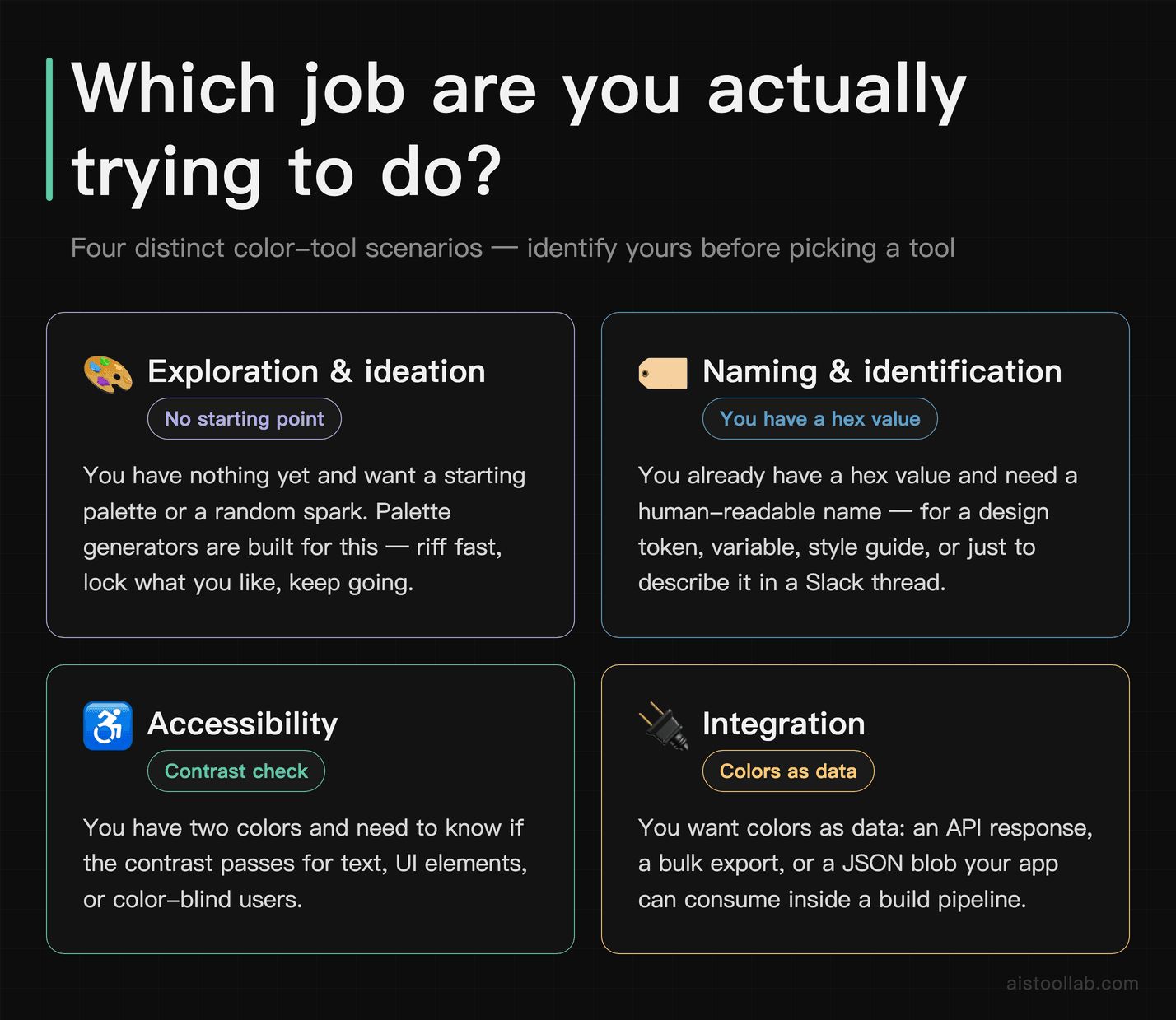
Before the comparison table, it helps to separate what these tools are for, because “color tool” hides at least four different jobs:
- Exploration / ideation — you have nothing yet and want a starting palette or a random spark. This is where generators shine.
- Naming / identification — you already have a hex value and need a human-readable name (for a design token, a variable, a style guide, or just to describe it in a Slack thread).
- Accessibility — you have two colors and need to know if the contrast passes for text, UI, or color-blind users.
- Integration — you want colors as data: an API response, a bulk export, a JSON blob your app can consume.
Almost every “which color tool should I use” debate is really an argument between people standing in different scenarios. Sort out which one you’re in and the choice mostly makes itself.
Side-by-side: what each tool focuses on
The table below describes each tool’s focus and feature set — the objective facts (what it does, whether it has an API, whether it’s free to use) plus a plain-language read of its design leaning. There are no scores or rankings here on purpose: “which is best” depends entirely on your scenario above. Feature notes reflect what each tool’s own site and documentation describe as of July 2026; treat volatile details (especially anything paid) as “check the current official page.”
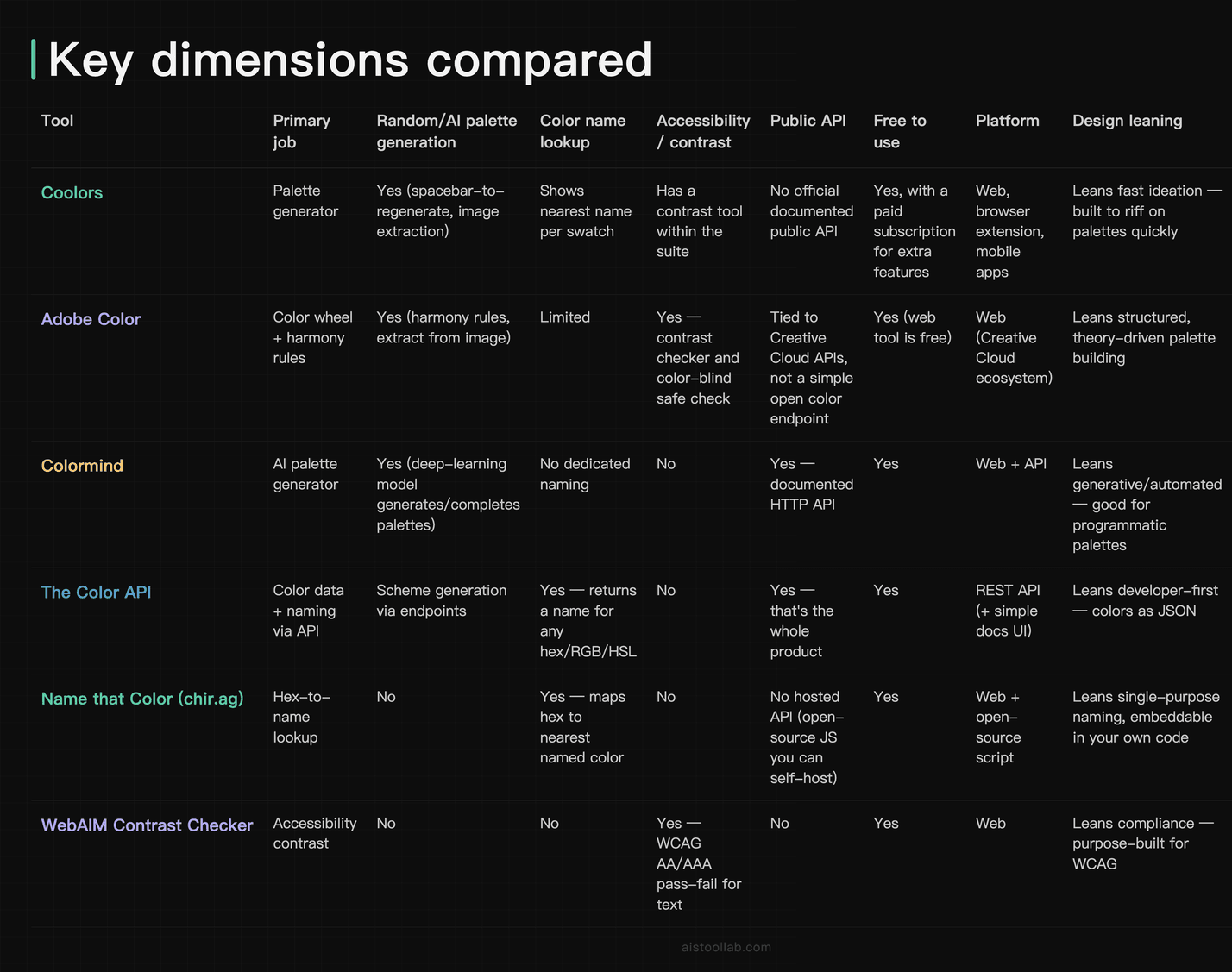
A quick honest caveat on the naming column: color naming is inherently an algorithmic best-guess, not a fact of nature. Tools like Name that Color and The Color API compare your hex value to a fixed dictionary of named colors and return the closest match. Different dictionaries produce different names for the same swatch, so “accuracy” here means “consistent and sensible,” not “objectively correct.” More on that in the FAQ.
Real-world workflows and which tool fits each
Web design color selection: you’re starting from scratch
Say you’re a freelance web designer kicking off a landing page and you’ve got nothing but a vague “make it feel calm and trustworthy” brief. This is pure ideation. A random/AI generator earns its keep here because the whole point is to break your own habits and see combinations you wouldn’t have typed by hand.
For this, Coolors fits the “spacebar until something clicks” workflow — regenerate, lock the swatches you like, keep going. Colormind fits if you’d rather let a model complete a palette around one or two colors you already committed to. Both are exploration tools; neither includes accessibility finalization. Once you’ve locked a direction, copy the hex values out and move to the naming and contrast steps below.
Brand palette building: you need names and consistency
Imagine you’re the sole designer at a small SaaS startup formalizing a brand. Now the job shifts from “find pretty colors” to “define and document them.” You want a primary, secondary, a couple of neutrals, and semantic names everyone on the team can reference without pasting hex codes into every conversation.
Adobe Color fits the structured side — harmony rules help you build a coherent set rather than a random grab-bag, and it lives in the ecosystem your visual team may already use. For the naming layer, a hex-to-name tool like Name that Color gives you a starting vocabulary (“okay, this is roughly ‘Cerulean’ — let’s call the token that”). The value isn’t that the machine name is authoritative; it’s that it seeds a consistent naming convention you then lock into your design system.
Accessibility compliance checking: you can’t ship until it passes
You’ve got a brand blue and someone wants white text on it. Before that ships, it needs to clear WCAG contrast thresholds — this is non-negotiable for public-facing UI in a lot of contexts, and it’s a step generators typically don’t cover.
The WebAIM Contrast Checker is purpose-built for exactly this: enter foreground and background, get the ratio and a clear AA/AAA pass or fail for normal and large text. Adobe Color also includes a contrast checker plus a color-blind-safe check if you want to stay inside one tool. The workflow: never treat a palette as “done” until every text/background pair you’ll actually use has been run through a contrast check. Pretty and inaccessible is still a redo.
Developer integration: you want colors as data, not a webpage
Now say you’re a developer building a feature that needs to name colors on the fly — a tagging system, an e-commerce filter, a design-token generator in your CI. You don’t want to click a website; you want an endpoint. This is where most of the pretty front-end tools drop out and the API-first ones take over.
The Color API is built for this — send it a hex, RGB, or HSL value and it returns a name plus scheme data as JSON, no account gymnastics for basic use. Colormind exposes an HTTP API for generating or completing palettes programmatically, which is handy if you want fresh palettes generated server-side. And if you’d rather not depend on a third-party service at all, Name that Color is open-source JavaScript you can drop straight into your own codebase and run offline — no rate limits, no network call, no dependency on a third-party service. I dug into the broader trade-offs of self-hosting small utilities like this in the AI Developer Utility Tools comparison.
Free tiers and paid plans: individuals vs teams
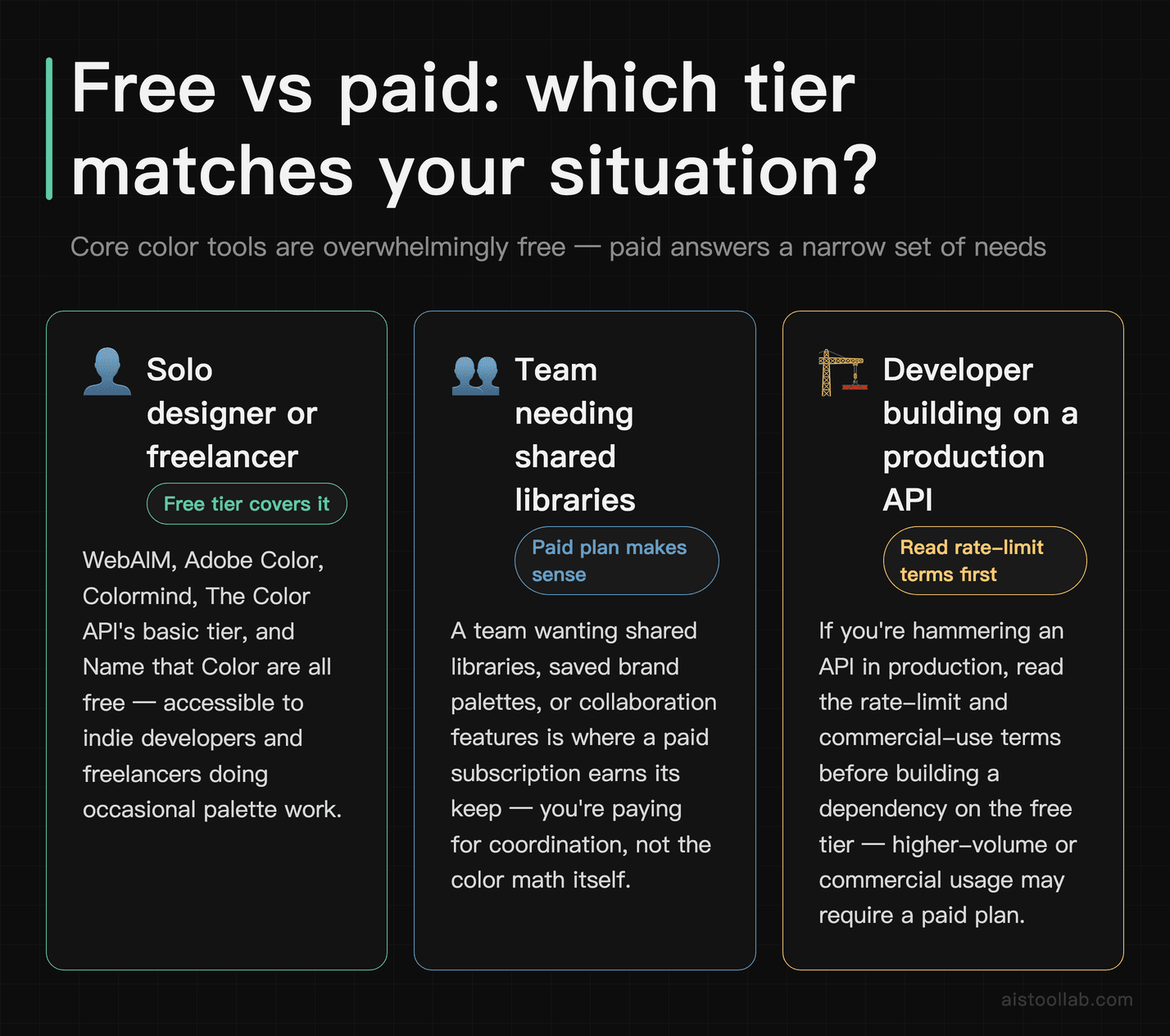
The good news for the color-tool space: the core stuff is overwhelmingly free. WebAIM’s checker, Adobe Color’s web app, Colormind, The Color API’s basic use, and Name that Color are all usable at no cost, which makes them accessible to indie developers and freelancers.
The paid conversation is narrower. Coolors offers a free experience plus a paid subscription that unlocks additional features — check its current official pricing page for exact figures and what each tier includes, since that’s the kind of detail that changes. For a solo user doing occasional palette work, the free layer of these tools generally covers the job. Where a paid plan starts to make sense is a team that wants shared libraries, saved brand palettes, or higher-volume/commercial API usage — at that point you’re paying for collaboration and reliability, not for the color math itself. If your usage is a handful of lookups a week, resist the upsell; if you’re hammering an API in production, read the rate-limit and commercial-use terms before you build a dependency on the free tier.
Frequently Asked Questions
What’s the difference between a random color generator and a color name finder?
They solve opposite ends of the same problem. A random color generator (Coolors, Colormind, Adobe Color’s generative modes) creates colors or palettes — you start with nothing and it hands you options, often using harmony rules or an AI model so the results feel coherent rather than truly chaotic. A color name finder (Name that Color, The Color API) goes the other direction: you already have a specific color, usually a hex value, and it tells you the closest human-readable name. In practice you use both in sequence. You generate a palette to explore, lock the swatches you like, then run those hex codes through a name finder so you can label them consistently in a design system, a style guide, or code variables. Thinking of them as “ideation tools” versus “identification tools” is one straightforward mental model, and it’s why many people end up with one of each in their toolkit rather than expecting a single app to do everything well.
Are these color tools actually free?
Mostly, yes — and that’s genuinely one of the nicer things about this category. WebAIM’s Contrast Checker, Adobe Color’s web app, Colormind, The Color API for basic use, and the open-source Name that Color are all free to use for typical individual work. That covers a wide range of use cases: exploring palettes, checking contrast, naming a color, or making a few API calls. The paid layer shows up mainly around convenience and scale. Coolors, for instance, has a free experience alongside a paid subscription that unlocks extra features — for exact current pricing and what’s included, check its official pricing page, because those details shift over time. As a rule of thumb: solo designers and hobby projects rarely need to pay anything, while teams wanting shared/saved brand assets or heavy production API traffic are the ones who eventually hit a paywall or a commercial-use clause. Always confirm rate limits and licensing terms before wiring a “free” API into something you ship.
Do any of these offer an API for developers?
Yes, and this is a clear dividing line in the category. The Color API is API-first by design — send it a hex, RGB, or HSL value and it returns a color name plus scheme data as JSON, which makes it a natural fit for tagging systems, filters, or design-token pipelines. Colormind exposes a documented HTTP API for generating and completing palettes programmatically, useful if you want server-side palette generation. Name that Color isn’t a hosted service, but it’s open-source JavaScript, so you can embed it directly in your own codebase and run naming locally with no network call, no rate limit, and no third-party dependency. On the other side, front-end-focused tools like Coolors and Adobe Color are primarily interactive web apps; they’re built for hands-on work but aren’t designed as simple drop-in color endpoints. If your workflow lives in code, the API-first and open-source options integrate directly, while the visual tools can serve as ideation aids.
How accurate are color name finders?
This is where expectations matter: color naming is an algorithmic best-guess, not an objective fact. Tools like Name that Color and The Color API work by comparing your input color to a fixed dictionary of pre-named colors and returning the nearest match by distance in a color space. Because different tools use different dictionaries and different distance calculations, the exact same hex can come back as slightly different names from different services — and none of them is “wrong.” So “accuracy” really means internal consistency and sensibleness rather than correctness against some universal truth. For most practical purposes that’s fine: you’re using the name as a memorable label for a token or variable, not as a legal specification. If you need naming to be deterministic across your whole team, pick one tool (or one embedded library) and standardize on it, rather than mixing sources and wondering why the same blue is “Cerulean” in one place and “Curious Blue” in another. Consistency helps more than chasing a perfect name.
Can I check accessibility and contrast with these tools?
Some, but not all — and this is a common blind spot. WebAIM’s Contrast Checker is purpose-built for this: enter a foreground and background color and it returns the contrast ratio with a clear pass/fail against WCAG AA and AAA for both normal and large text. Adobe Color also includes a contrast checker plus a color-blind-safe check, which is convenient if you want to stay inside one tool for palette building and accessibility. The generators, though, largely don’t gate you on accessibility — Coolors and Colormind will happily hand you beautiful combinations that fail contrast for body text, because their job is ideation, not compliance. The practical takeaway: never let a palette reach “final” status until you’ve run every text-on-background pair you actually intend to use through a dedicated contrast check. Doing it late, after layouts are built, is how you end up in a painful redo where a signature brand color turns out to be unreadable on your chosen surface.
Which tool fits building a brand palette?
For brand work, the priority shifts from “generate something pretty” to “define something coherent and documentable,” so structured tools tend to fit this better than pure randomizers. Adobe Color’s harmony rules help you build a palette that hangs together — primary, secondary, neutrals — rather than a random assortment, and it sits in an ecosystem many visual teams already touch. Once you’ve settled the colors, add a naming layer with a hex-to-name tool so your tokens get consistent, human-friendly labels instead of bare hex strings scattered through Slack and Figma. The step people skip is accessibility: run your text/background pairs through a contrast checker before you lock anything, because a brand color that fails on white is a headache you’ll pay for repeatedly. So a realistic brand workflow chains three tools — a structured generator to build, a name finder to label, a contrast checker to validate — which reinforces the theme of this whole piece: it’s a pipeline, not a single app.
Can I generate colors in bulk?
It depends on what “bulk” means for you. If you want a lot of full palettes fast for browsing, Coolors’ regenerate-and-lock flow lets you churn through options quickly by hand, and Colormind can produce palette after palette. But if “bulk” means programmatic — thousands of colors named or generated automatically — you want the API-first route. The Color API can be scripted to name or scheme large sets of inputs, and Colormind’s API can generate palettes in a loop server-side. For truly high volume, embedding the open-source Name that Color library locally runs on your own machine, so you’re not subject to a hosted service’s rate limits and there’s no per-call network latency. Before you build a batch job against any hosted free API, read the rate-limit and fair-use terms — running a tight loop against a free endpoint can get you blocked or surface a commercial-use clause you didn’t budget for. For repeatable, large-scale work, local or clearly-licensed API access gives you a stable, terms-compliant path rather than scraping an interactive web tool.
Do these integrate with design tools like Figma?
Integration varies a lot and I’d check current specifics before relying on it, because plugin ecosystems change. In broad terms: Adobe Color connects naturally into Adobe’s own Creative Cloud apps, which matters if your team already lives there. Coolors provides export options and has had various ways to move palettes out into other tools. For Figma specifically, the community plugin marketplace tends to be where color-tool integrations actually live, and those come and go independently of the tools themselves, so search the current Figma plugin directory rather than assuming a given tool ships an official bridge. For developers, the cleaner “integration” is often just data: pull colors as JSON from an API and feed them into whatever generates your design tokens, so your source of truth is code rather than a plugin that might get abandoned. If tight Figma integration is a hard requirement, verify it directly in the plugin marketplace today instead of trusting a feature list that may be out of date.
Are AI-generated palettes better than random ones?
“Better” is doing a lot of work in that question, so here’s the honest version: AI-driven generators like Colormind use a trained model to produce palettes that tend to feel more intentional than pure randomness, because the model has effectively learned patterns from lots of existing palettes. True random color output, by contrast, will happily give you clashing combinations. But “more coherent-feeling” isn’t the same as “right for your brand” — a model doesn’t know your audience, your accessibility constraints, or the emotional read you’re going for. I’d frame it as: AI generation is a stronger starting point when you want plausible palettes fast, while a harmony-rule tool like Adobe Color gives you more deliberate control if you already have a direction. Neither removes the human judgment step, and neither handles accessibility for you. Use whichever gets you to a workable draft quickest for how you think, then validate contrast and fit yourself. There’s no public head-to-head I’d trust to declare one approach universally superior — it’s a workflow-fit call, not a leaderboard.
My take: match the tool to the tab you’re stuck on
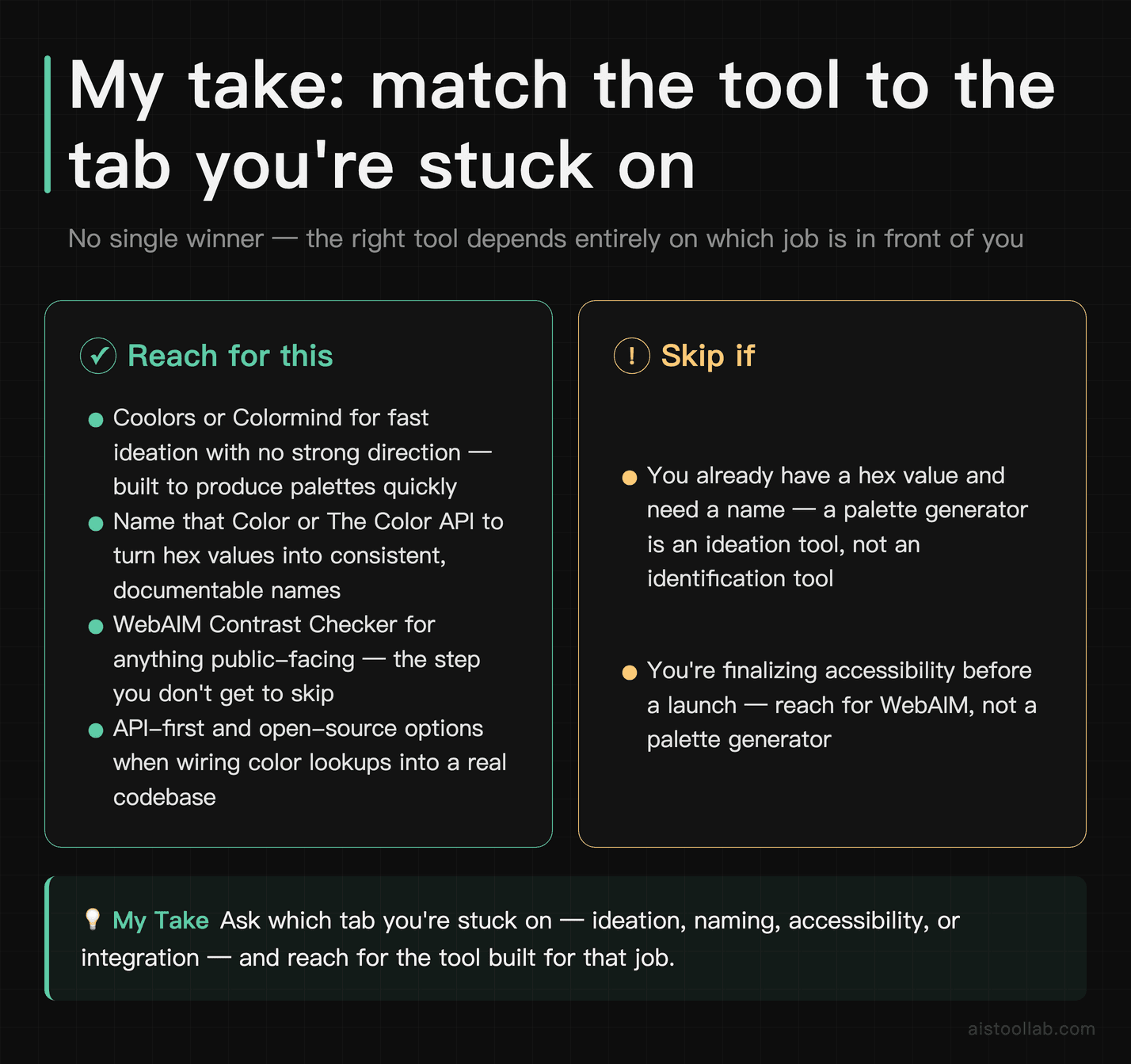
If you take one thing from this, let it be that “color tool” isn’t a single category you win by finding the top-ranked app. It’s a small pipeline. For fast ideation with no strong direction, a generator like Coolors or Colormind is built for producing palettes quickly. For turning hex values into consistent, documentable names, a dedicated finder like Name that Color or The Color API is the fit — and for developers, the API-first and open-source options are designed to plug into a real codebase. For anything public-facing, WebAIM’s Contrast Checker is the step you don’t get to skip.
So rather than asking “which is best,” ask which tab you’re stuck on right now — ideation, naming, accessibility, or integration — and reach for the tool built for that job. That’s the honest answer, and it’s also the one that closes the most browser tabs. If you’re wiring any of this into a build process, the Hash Identifier and broader utility-tool breakdowns on this site follow the same “pick by scenario, verify before you depend on it” logic.
Last updated: 2026
Found this review helpful?
👉 Browse the AI Tools Library to find the right tools for your workflow.