
Runway Gen-3 for Content Teams — What to Expect
Editor’s note (updated 2026-08-02): Gen-3 is no longer available. Runway’s own documentation states that Gen-3 Alpha was retired on July 8, 2026 and Gen-3 Alpha Turbo on July 30, 2026, with text-to-video and image-to-video now handled by Gen-4.5, keyframes by the Animate Frames app, and video-to-video by Edit Studio Aleph 2.0. The observations below were written while Gen-3 was the current model and are kept as a record of it — they are not a description of what you get if you sign up today. Plan names, prices and credit figures in this article were re-checked against Runway’s official pricing page and published model rates on 2026-08-02.
For plenty of freelance video producers, B-roll quietly eats up to two full days per week. Hunting stock footage, licensing clips, color-matching everything to primary footage — the kind of invisible labor that clients never see on the invoice but absolutely eats your margin. AI video generators promise a way out, but the skepticism around them is well-earned: they can look like fever dreams — weird hands, melting faces, physics that make no sense.
This article contains affiliate links. If you buy through them I may earn a commission at no extra cost to you. All opinions are my own.
That criticism was fair — at least for earlier generations of AI video tools. The gap between the demo reel and real-world output was often embarrassing. So when Runway dropped Gen-3 Alpha with noticeably stronger temporal consistency and prompt fidelity, it stood out as worth a closer look across multiple content workflows: short-form social, long-form YouTube, branded explainer videos, and motion graphics for presentations.
The reality is more nuanced than the hype suggests — and honestly more useful than expected. Gen-3 isn’t magic, and it’s not going to replace a cinematographer. But for specific workflows, it’s quietly become one of the more practical AI video tools available. Let me show you exactly where it earns its keep and where it still falls short.
What Is Runway Gen-3, and What’s Actually New?
Runway Gen-3 is the third major iteration of Runway ML’s text-to-video and image-to-video generation model. Runway ML, the New York-based AI research company, has been in this space since the early days — their Gen-1 and Gen-2 models were genuinely pioneering, even if the output quality was often too rough for professional use.
Gen-3 Alpha — the model this review was written against, and which Runway retired on July 8, 2026 — represented a significant architectural step forward. The key improvements Runway has highlighted include better motion coherence across frames, stronger adherence to text prompts, and more realistic physics — especially for things like fabric, water, and hair movement, which have historically been nightmare fuel for AI video generators.
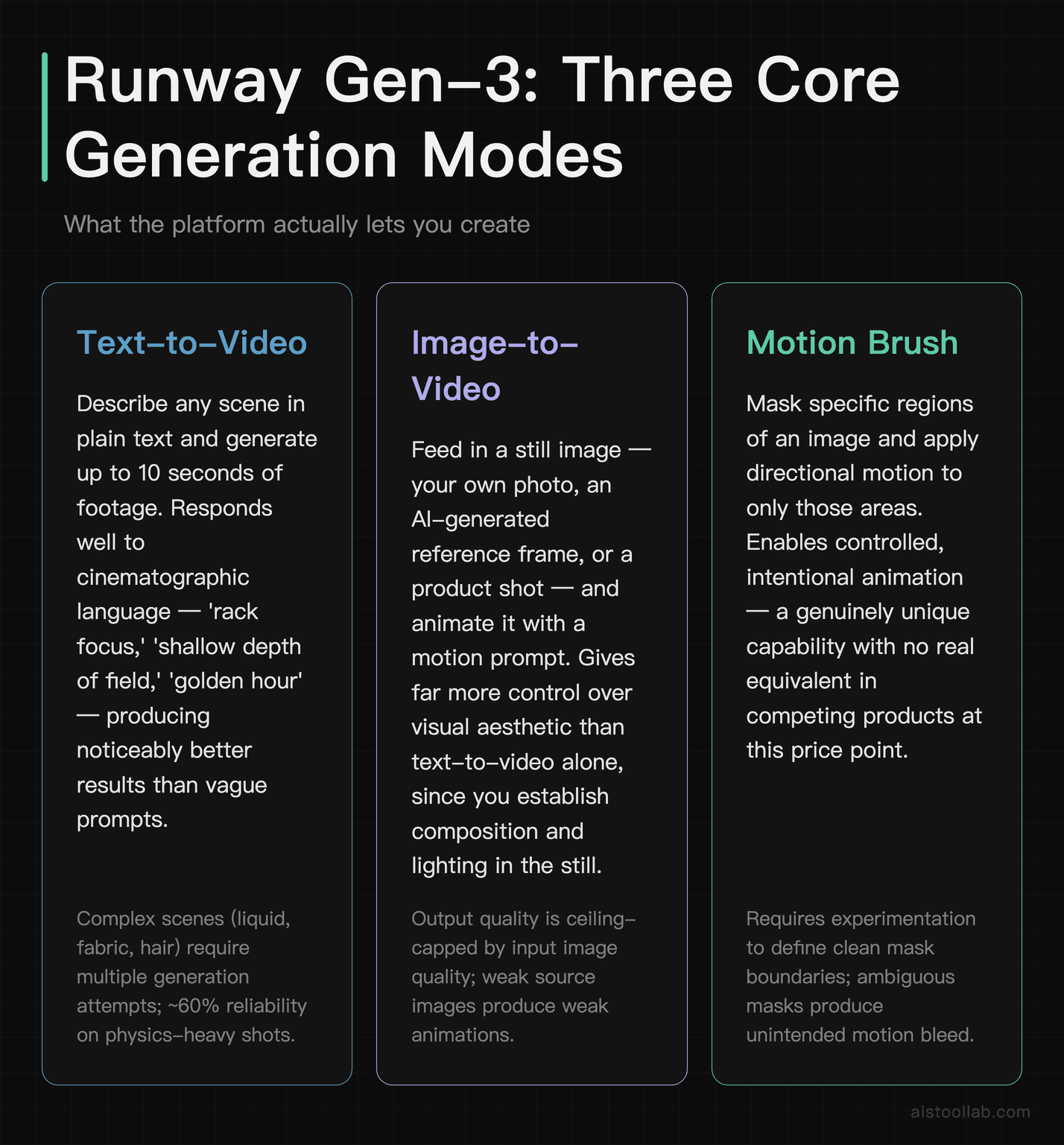
The core product offers two main generation modes. Text-to-Video lets you describe a scene and generate up to 10 seconds of footage. Image-to-Video takes a still image — your own photo, an AI-generated image, or a reference frame — and animates it according to a motion prompt. There’s also a motion brush feature that lets you mask specific areas of an image and apply directional motion to just those regions, which is genuinely clever for more controlled outputs.
Runway also offers tools beyond video generation: a video editor, background removal, inpainting, and audio tools. But let’s be honest — in 2026, you’re probably here for the video generation specifically. That’s what I’ll focus on.
What Runway Gen-3 Can Do: Three Common Use Cases
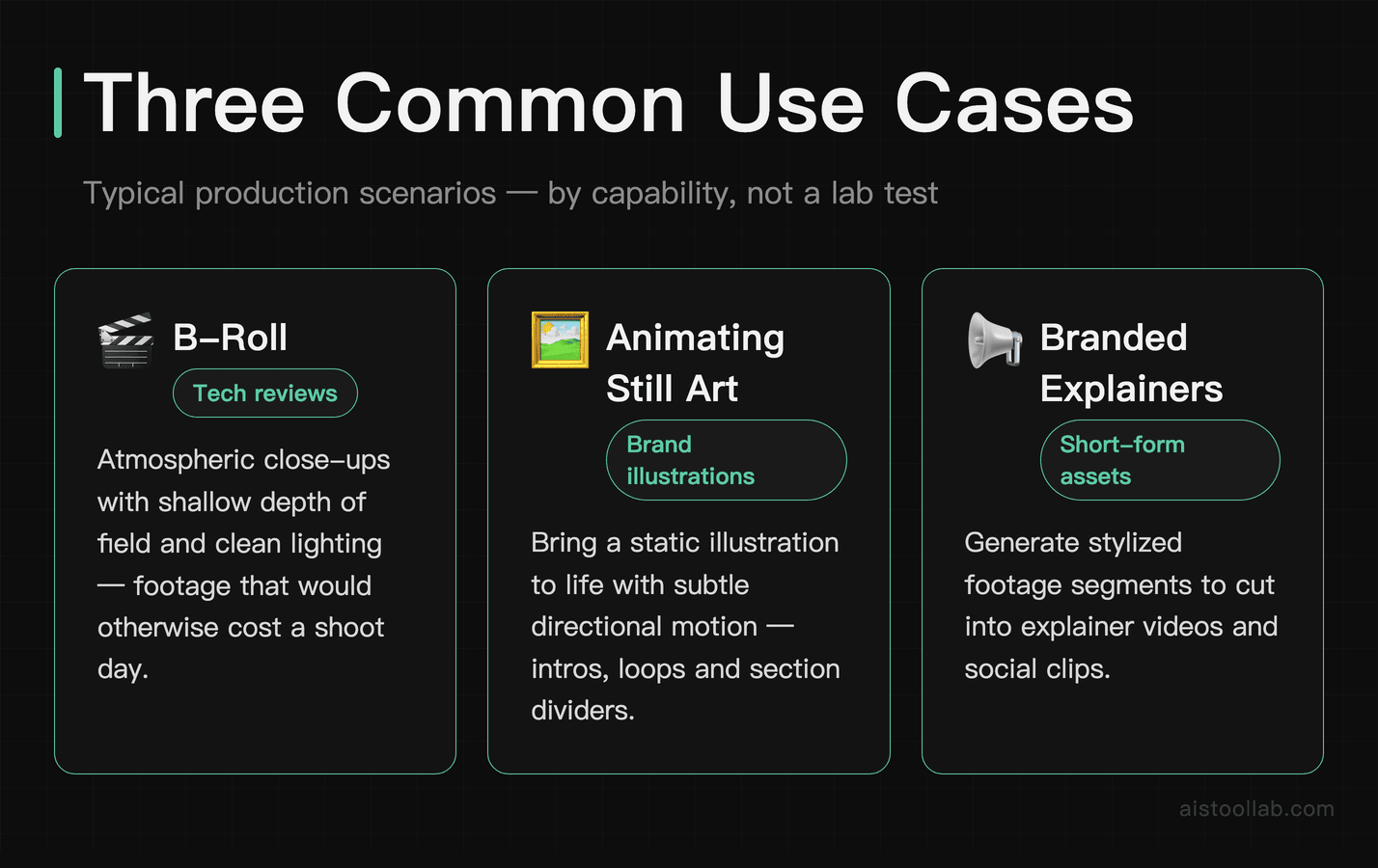
Use Case 1: Generating B-Roll for a YouTube Tech Review
One practical, unglamorous use case is generating atmospheric B-roll for a tech review video — close-up product shots with cinematic depth of field, minimal camera movement, clean lighting. The kind of footage that costs real money to shoot properly or looks cheap when pulled from generic stock sites.
With text-to-video prompts like “macro close-up of circuit board, slow rack focus, cinematic color grading, shallow depth of field, cool blue ambient lighting”, Gen-3 can produce usable clips, often keeping lighting consistent across frames and rendering focus pulls that read as intentional rather than glitchy, with less of the characteristic AI “shimmer” that earlier models showed on static surfaces.
More complex scenes are less consistent. A prompt like “coffee being poured into a glass mug, slow motion, cafe window light” — a classic B-roll staple — can be hit or miss: some generations handle the pour physics well, while others produce liquid that behaves more like gel, so getting a clip clean enough to cut into a video may take several attempts. At Gen-4.5’s published rate of 12 credits per second — 120 credits for a single ten-second take — a few retries eat a meaningful share of the Standard plan’s 625 monthly credits.
Overall verdict: genuinely useful, but budget for the iteration cost.
Use Case 2: Animating a Static Brand Illustration
This is where Gen-3’s image-to-video mode stands out. Starting from a flat-design brand illustration — the kind of thing a freelance designer would deliver as a PNG — you can use motion prompts to bring it to life for a social media post.
The motion brush tool stands out here. By masking the background separately from the foreground elements, it can apply a slow parallax drift to the background while keeping the main character element more stationary, producing effects that would otherwise require manual compositing work in a tool like After Effects.
The catch: fine text and logo elements sometimes get warped in the animation process. If your brand illustration has a wordmark baked in, expect some letter distortion on longer or more dynamic motion prompts. Short, subtle movements preserve text much better. This is a known limitation and I’d expect it to improve in future versions, but right now it means you’ll want to composite the static text layer back on top in post — which is an extra step but not a dealbreaker.
Use Case 3: Creating Footage for a Branded Explainer
One more ambitious use case is contributing generated footage to a branded explainer video, replacing placeholder stock footage with something more specific to a niche industry like supply chain logistics, where good stock options are scarce.
Text prompts like “aerial drone shot of shipping containers at port, golden hour, cinematic color grade” and “warehouse worker scanning packages, handheld camera style, warm industrial lighting” illustrate the kind of scenes Runway Gen-3 handles. Aerial and landscape shots tend to be a relative strength, while human-in-scene shots are more hit-or-miss — Runway Gen-3 has improved on human motion considerably, but finger detail and face tracking in motion can still occasionally glitch in ways that are noticeable on a large screen.
A useful workaround: use prompts that keep human subjects slightly further from camera, or choose angles where hands and faces aren’t prominent. Wide shots and over-the-shoulder angles work beautifully. Close-ups of faces are still the trickiest thing in AI video generation broadly, and Gen-3 is no exception.
Use Cases: Who Actually Gets Value From This Tool?
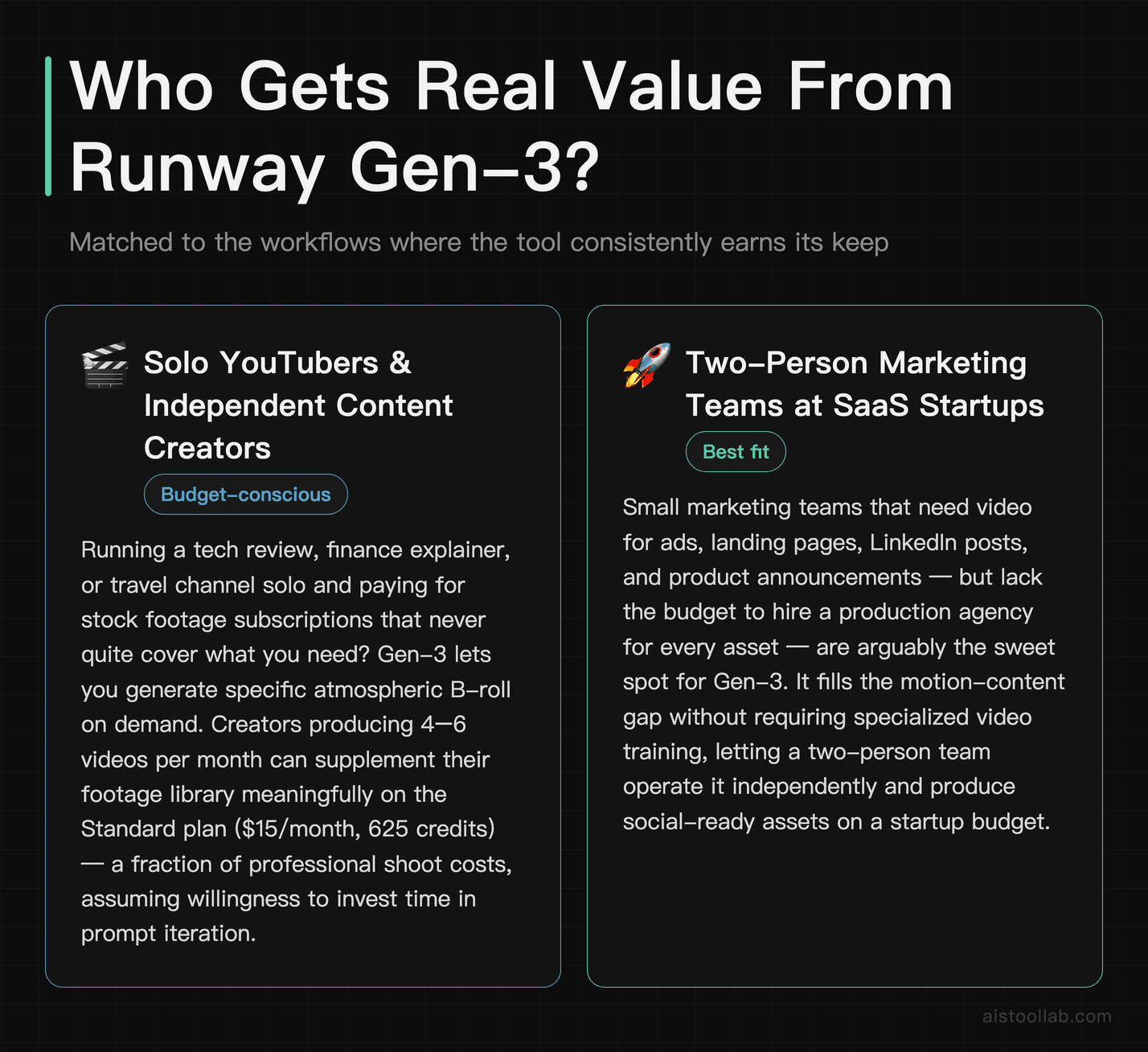
1. Solo Content Creators and YouTubers on a Budget
If you’re running a YouTube channel solo — maybe a tech review channel, a finance explainer series, or a travel vlog — and you’re paying for stock footage subscriptions that barely cover what you need, Runway was worth a serious look for exactly this — though the job now falls to Gen-4.5, not the Gen-3 model tested here. The ability to generate specific, atmospheric B-roll on demand means you’re no longer limited to whatever happens to be in the Storyblocks library that week. A creator doing 4–6 videos per month could realistically supplement their footage library for a fraction of what a professional shoot would cost, assuming they’re willing to put in the prompt iteration time. The Standard plan is $15/month month-to-month, or $12/month billed annually (official pricing page, checked 2026-08-02), and gives you 625 credits a month. At Gen-4.5’s published 12 credits per second that is about 52 seconds of generated video, counting every take rather than only the keepers — so budget the tier by seconds, not by clips.
2. Two-Person Marketing Teams at SaaS Startups
This was the sweet spot for Gen-3 while it was current; the same use case now runs on Gen-4.5. Small marketing teams at SaaS companies often need video content — for ads, landing pages, LinkedIn posts, product announcements — but don’t have the budget to hire a video production agency for every asset. Runway Gen-3 can fill the gap for motion graphics, animated backgrounds, and product-adjacent B-roll. The image-to-video mode pairs especially well with design assets you already have from your brand kit. What a two-person team can actually ship is capped by credits rather than effort: Standard’s 625 credits a month is roughly 52 seconds of generated Gen-4.5 video, so a genuinely weekly cadence sits on Pro (2,250) or Max (9,500).
3. Freelance Video Editors Adding AI Services to Their Offering
This is the use case I find most strategically interesting. A freelance video editor who knows how to prompt Gen-3 effectively can offer clients footage that simply didn’t exist in stock libraries — specific industry scenes, custom atmospheres, niche visual styles. Rather than replacing the editor, it’s an upsell: “I can generate custom B-roll that matches your brand palette” is a differentiator in a competitive freelance market. The iteration cost (credits) becomes a line item in the project budget, and the time saved versus organizing a shoot is dramatic. My producer friend from the opening? She now includes a “custom AI-generated B-roll” add-on in her packages. It’s become one of her better-margin services.
4. Social Media Managers Creating Short-Form Video Assets
For Instagram Reels, TikTok, and LinkedIn video — particularly the kind of ambient, aesthetic content that brands use as visual filler — Gen-3’s 10-second clips are nearly ideal in length. A social media manager handling 5–10 brand accounts could use Runway to produce platform-specific visual content at a cadence traditional production could not match — with the ceiling set by credits rather than time: at 12 credits per second on Gen-4.5, that cadence belongs on Pro (2,250 credits) or Max (9,500), not Standard. The motion brush feature is particularly useful for creating the slow, cinematic parallax animations that perform well on Instagram.
Runway Gen-3 vs. The Competition
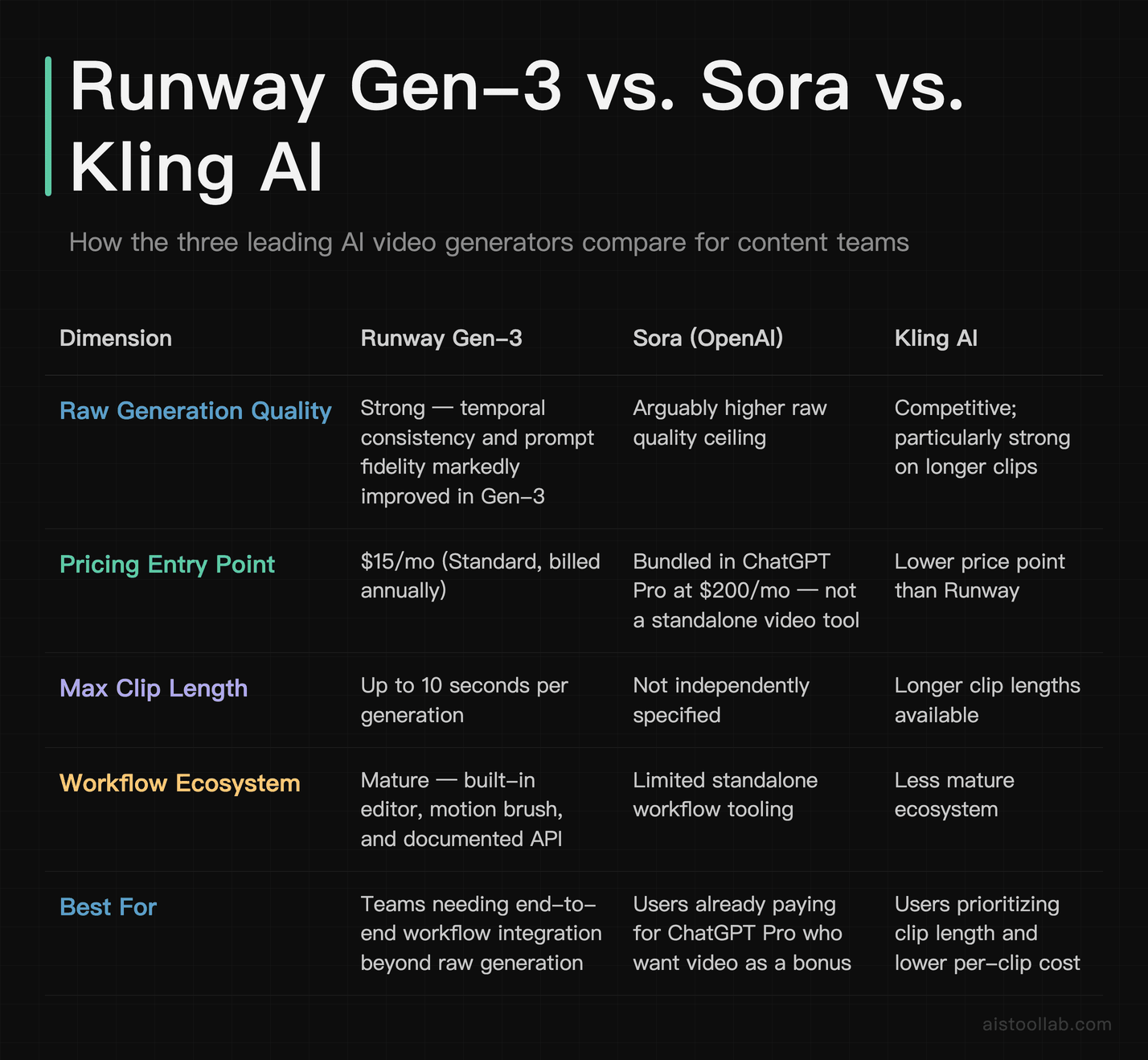
Runway isn’t operating in a vacuum — this space has gotten crowded fast. Here’s how Gen-3 actually stacks up against its main competitors on the dimensions that matter to content teams:
The honest summary: if you have access to Sora through a ChatGPT Pro subscription, the raw generation quality is arguably higher — but it comes bundled into a $200/month plan that you might not want just for video. Kling AI has impressed many users with longer clip lengths at a lower price point. Runway’s advantage is its mature ecosystem — the built-in editor, motion brush, and API make it the most workflow-ready option for teams that need more than just raw generation. For a deeper look at where Runway sits in the broader landscape, the 15 Best AI Tools for Video Editing and Production in 2026 roundup is worth reading.
Pricing: What You Actually Get
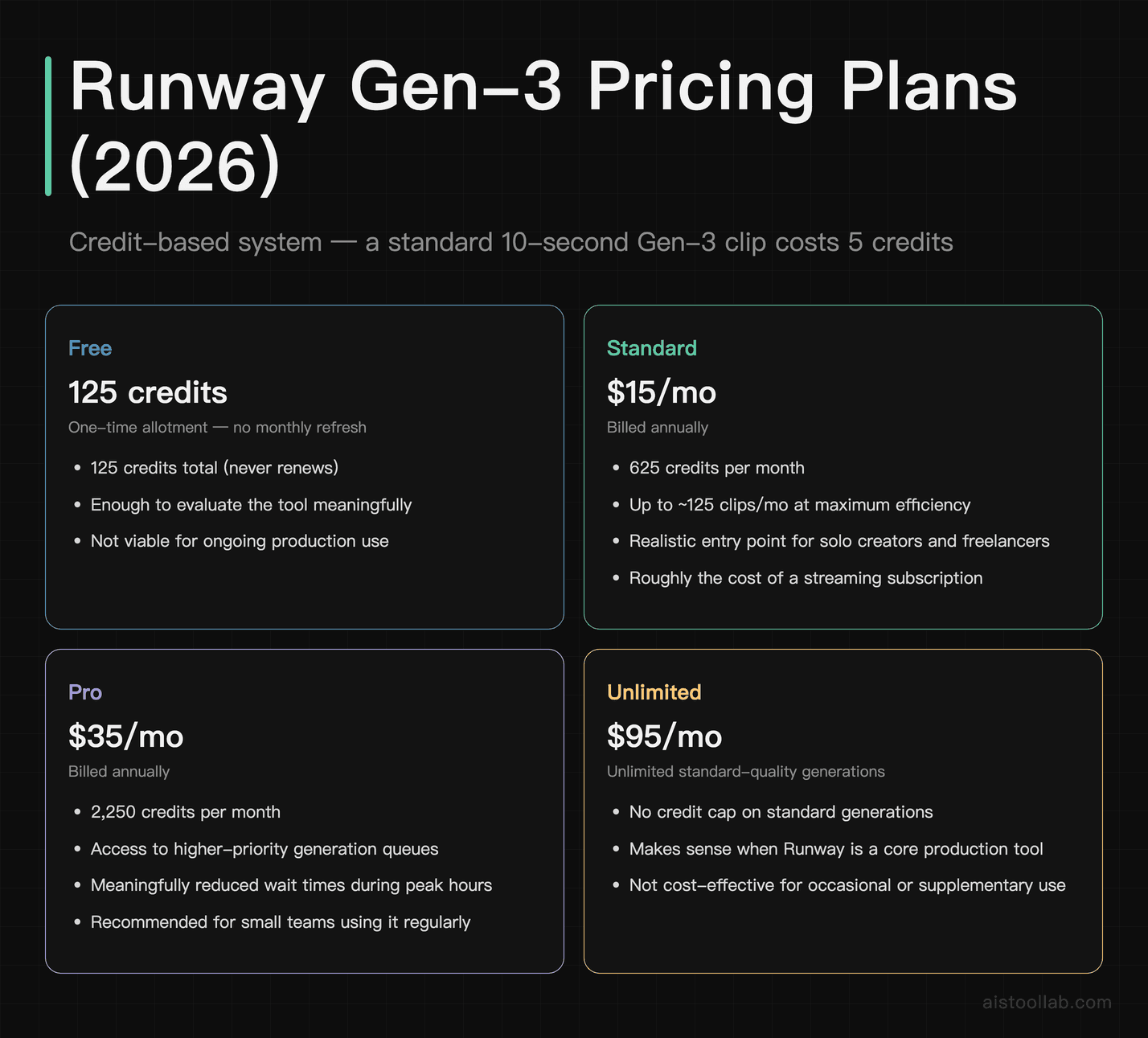
Runway’s pricing structure as of 2026 works on a credit system, which can feel a bit opaque until you understand the math. Here’s how the plans break down:
- Free Plan: a one-time deposit of 125 credits that doesn’t expire. Runway’s pricing page puts that at about 25 seconds of Gen-4 Turbo video, or 25 image generations (checked 2026-08-02). It is an evaluation allowance, not a recurring production one — and note that Gen-4.5 requires Standard or above, so the free tier tests Turbo, not the flagship model.
- Standard Plan: $15/month month-to-month, $12/month billed annually — 625 credits per month. On Runway’s published model rates (checked 2026-08-02), Gen-4.5 costs 12 credits per second and Gen-4 Video Turbo 5 credits per second, so 625 credits is about 52 seconds of Gen-4.5, or 125 seconds of Turbo computed from that 5 credits/sec rate. That is total generated seconds — every take you run, not just the ones you keep. (Runway’s own pricing card shows a lower 104-second figure for Turbo elsewhere on the same page; the two do not agree.)
- Pro Plan: $35/month month-to-month, $28/month billed annually — 2,250 credits per month plus access to higher-priority generation queues, which meaningfully reduces wait times during peak hours.
- Max Plan: $95/month — 9,500 credits per month, with one month of unused credits able to roll over. Max replaced Unlimited for new subscribers on June 1, 2026. Per Runway’s transition notice, existing Unlimited subscribers keep that plan through August 31, 2026; on September 1 monthly subscribers move to Max automatically at the same $95, while annual subscribers can either move to Max or take a refund for the remaining months of their term. This is the tier that makes sense if generated video is a core part of what you ship.
- Enterprise: Custom pricing with SLAs, team management features, and API access at scale.
For a freelancer or solo creator, the Standard plan at $15/month month-to-month — roughly the same as a streaming subscription — is a reasonable entry point to evaluate whether the tool fits your workflow. For a small marketing team using it heavily, the Pro or Max tiers make more financial sense per second generated. I’d avoid paying monthly rather than annually; the price difference is meaningful over a year.
Integrating Runway Gen-3 Into Existing Workflows
One of the things that sets Runway apart from some competitors is how seriously they’ve thought about integration. The Runway API lets developers and technically-inclined teams trigger video generation programmatically — useful if you’re building an automated content pipeline or want to generate assets as part of a broader production workflow. If your team is already using tools that support API integrations, this opens up some genuinely interesting automation possibilities.
For teams working in Adobe Premiere or Final Cut Pro, the practical workflow is straightforward: generate clips in Runway, download as MP4, import into your timeline. Not glamorous, but it works. The built-in Runway editor handles basic trimming and can be useful for quick previews and social-sized exports without leaving the platform.
One workflow that can be particularly effective: use Midjourney or another image generator to create a high-quality reference frame, then feed that into Runway’s image-to-video mode. You get much more control over the visual aesthetic than pure text-to-video allows, because you’re establishing the exact frame composition, lighting, and style in the still image before asking Runway to animate it. This two-step approach tends to give more reliable results than single-prompt text-to-video for stylistically specific outputs.
For teams that also use AI audio — worth noting that if you’re building a full AI-assisted production pipeline, pairing Runway with a tool like ElevenLabs Review 2026 (try free →) for voiceover gives you a surprisingly complete stack for producing content without a traditional production crew.
Pros and Cons
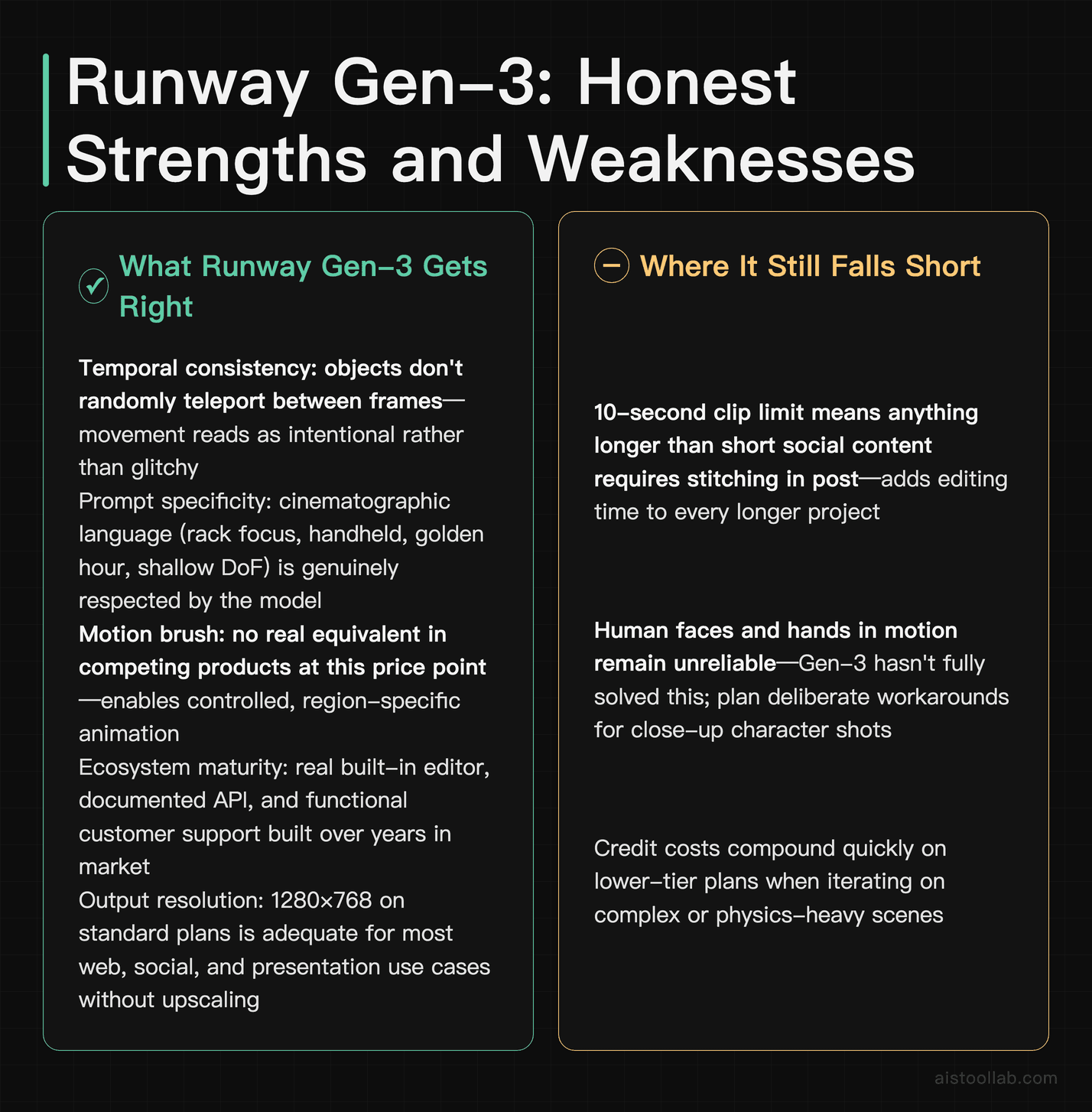
What Runway Gen-3 Gets Right
- Temporal consistency: Objects don’t randomly teleport between frames the way early AI video did. Movement feels intentional.
- Prompt specificity: Detailed prompts produce noticeably better results than vague ones, and the model actually respects cinematographic language like “rack focus,” “handheld,” and “golden hour.”
- Motion brush: A genuinely useful tool for controlled animation that has no real equivalent in competing products at this price point.
- Ecosystem maturity: Runway has been around long enough to have built a real editor, real API documentation, and real customer support.
- Output resolution: 1280×768 on standard plans — adequate for most web and social use cases without upscaling.
Where It Still Falls Short
- 10-second clip limit: For anything longer than social content, you’re stitching clips together in post — which works but adds editing time.
- Human close-ups: Faces and hands in motion remain the hardest thing in AI video broadly, and Gen-3 hasn’t fully cracked it. Plan workarounds for these shots.
- Credit costs add up: On lower-tier plans, iteration costs can feel punishing when you’re trying to nail a specific look.
- Server load variability: Generation times during peak hours are noticeably longer, which can disrupt a production deadline.
- No native audio generation: You’re handling audio separately, which is fine but worth knowing going in.
My Verdict: Who Should Actually Use This?
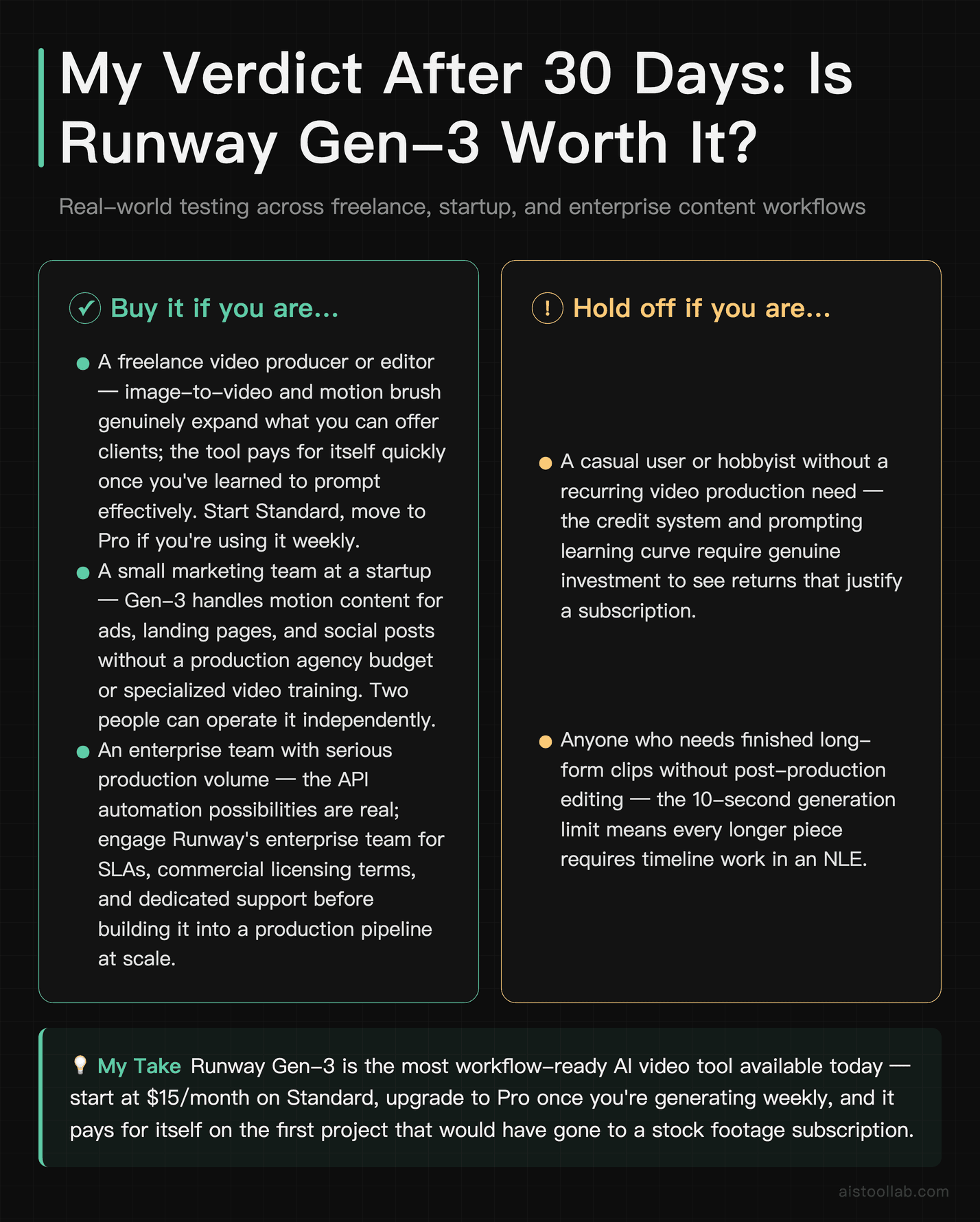
Here’s where Runway Gen-3 stands across multiple content workflows.
If you’re a freelance video producer or editor, the capability described here is what made Runway worth learning — but the image-to-video work now runs on Gen-4.5 rather than the Gen-3 model tested above, and I have not re-tested the motion brush against it, so treat the quality notes as indicative and re-test before you quote a client. On cost: at 12 credits per second, Standard’s 625 credits is about 52 seconds of generated Gen-4.5 video a month including everything you discard, which is an evaluation budget rather than a production one. Size the tier against the total seconds you expect to generate — takes and retries included — not against a clip count.
If you’re a small marketing team at a startup, Gen-3 is one of the better ways to produce motion content without a production budget. It won’t replace every video need, but for social assets, animated backgrounds, and supplementary footage, it’s a practical tool that two people can operate without specialized video training.
If you’re an enterprise team with serious production volume, talk to Runway about their enterprise options and test the API — the automation possibilities are real, but you’ll want dedicated account support and clear commercial licensing terms before building it into a production pipeline at scale.
If you’re a casual user or hobbyist hoping to produce Netflix-quality video with a few prompts, you’ll be disappointed. That’s not a knock on Runway specifically — it’s just an honest read on where AI video generation actually is right now. The tool rewards patience and craft; it punishes vague expectations. You can also check out the 15 Best AI Tools for Video Editing and Production in 2026 list for a broader view of the landscape if you’re still shopping around.
The headline stat I keep coming back to: my producer friend went from two days of B-roll sourcing per week to roughly four hours — not because AI does everything, but because it handles the footage that stock libraries couldn’t provide. That’s a real productivity shift for a solo freelancer. If that sounds like your situation, the $15/month Standard plan is worth a month’s experiment. You’ll know within a week whether it fits your workflow.
Frequently Asked Questions
Is Runway Gen-3 worth it for someone who’s never used AI video generation before?
Honestly, yes — but with realistic expectations. If you’re completely new to AI video tools, Runway Gen-3 is one of the more approachable entry points because the interface is clean, the prompting system is forgiving enough for beginners, and the free tier gives you 125 credits to experiment with before spending anything. The learning curve is real: your first few generations will probably be disappointing simply because effective prompting takes practice. Cinematographic language helps — phrases like “shallow depth of field,” “slow dolly forward,” or “golden hour backlighting” produce dramatically better results than vague prompts like “a nice office.” I’d recommend spending those free credits purely on experimentation before committing to a paid plan. They run on Gen-4 Turbo — Gen-4.5 needs Standard or above — and 125 credits is about 25 seconds of it, so realistically that is two full ten-second takes plus a few seconds over. If even one of them is something you’d actually consider using somewhere, that’s a good signal the tool fits your workflow. Most people with a creative background get there within a day or two of tinkering. The Standard plan at $15/month is a low-enough financial risk that it’s worth trying for a single month before deciding whether to commit annually.
How does Runway Gen-3 compare to Sora from OpenAI?
This is the question I get asked most often, and the honest answer is: it depends on what you’re optimizing for. Sora’s generation quality — particularly for complex scenes, realistic physics, and human motion — is arguably the highest available right now. The outputs can be genuinely cinematic in ways that still occasionally surprise me. However, Sora is only accessible as part of OpenAI’s ChatGPT Pro plan at $200/month, and as of this writing, access has been rolling out gradually with some limitations on commercial use. If you’re already paying for ChatGPT Pro for other reasons and video generation is just one use case, Sora is the obvious choice to explore. But if you’re evaluating video generation as a standalone tool and want something with a mature ecosystem, stable API, built-in editor, and pricing that scales from $15/month, Runway Gen-3 is the more practical choice for most content teams. Sora wins on ceiling; Runway wins on accessibility and workflow integration. For most solo creators and small teams, Runway is the more sensible default.
What’s the best way to write prompts for Runway Gen-3?
The most effective Runway Gen-3 prompts follow a structure that covers: subject and action, camera behavior, lighting, and aesthetic style. Think of it as a brief for a cinematographer. For example, rather than “a person walking in a city,” try “a young woman in a beige coat walking through a rain-slicked city street at night, slow tracking shot following from behind, neon reflections on wet pavement, cinematic color grade, shallow depth of field.” Each detail you add gives the model more to work with. Camera motion language that works well includes terms like: dolly in, dolly out, crane shot, handheld, static wide shot, slow pan, rack focus. Lighting terms that commonly produce good results: golden hour, blue hour, overcast diffused light, rim lighting, practical lighting. The one thing to avoid is contradiction — don’t ask for both “extreme close-up” and “wide establishing shot” in the same prompt. When working on a new style, a practical approach is to run 3–4 short test generations with variations on the same prompt before committing credits to a full-length version.
Can I use Runway Gen-3 outputs commercially?
According to Runway’s terms of service, paid subscribers can use generated content for commercial purposes. This is an important distinction from some competitors that restrict commercial use on lower-tier plans. However, I’d strongly recommend reading the current terms directly on Runway’s website, as AI tool licensing terms have been evolving rapidly and specifics can change. The general principle is that paid plan subscribers have broader rights than free users, and enterprise plans include explicit commercial use provisions. For any client work where the generated footage is a primary deliverable, it’s worth confirming you’re on an appropriate paid tier and keeping documentation of when and how you generated the assets. This is the kind of detail that matters when a client’s legal team starts asking questions.
How many credits does a typical content workflow actually use per month?
This varies enormously by how efficiently you prompt, but here’s a rough framework from my own usage. Work it out from Runway’s published per-second rates rather than per clip. At Gen-4.5’s 12 credits per second a ten-second take is 120 credits; on Gen-4 Video Turbo at 5 credits per second it is 50. One YouTube video a week needing 8–10 B-roll clips is therefore roughly 960–1,200 credits per video on Gen-4.5, or 400–500 on Turbo — before any re-generations. Over four weeks that is 3,840–4,800 credits on Gen-4.5, which overruns even the Pro plan’s 2,250 and points at Max (9,500); on Turbo it is 1,600–2,000, which fits inside Pro but leaves little room for retries. Either way the Standard plan’s 625 credits does not cover a weekly cadence. If you’re running a heavier social media operation — say, generating assets for multiple brand accounts across multiple platforms — you’ll likely burn through the Standard tier quickly and want to consider the Pro plan. My rule of thumb: for every finished clip you need, budget for approximately 3–4 generation attempts. Some prompts nail it first try; others need more iteration. Planning for iteration from the start makes the credit math much more predictable.
Does Runway Gen-3 work with video editing software like Premiere Pro or Final Cut?
Not through a native plugin, but the practical workflow is seamless enough. Generated clips export as standard MP4 files, which import directly into any professional editing suite without format conversion. The resolution (typically 1280×768 on standard tiers) is the main thing to be aware of — if your project is mastered at 4K, you’ll want to confirm the generated footage works at the required size, either through upscaling or strategic framing where a lower-resolution insert clip is acceptable. Runway does offer higher output resolution on the Pro and above tiers. For most web-delivery projects — YouTube, social media, web ads — the standard resolution is perfectly adequate. The workflow I use most often: generate in Runway, review and select the best clips in the Runway interface, download, then drop into Premiere for color matching and sequencing. It’s a clean handoff once you’re used to it. There’s no live integration or real-time collaboration with Adobe tools, but that’s not really the expected workflow for this type of tool anyway.
What kinds of content does Runway Gen-3 struggle with?
There are a few categories where Gen-3 consistently underperforms, and being honest about them is more useful than glossing over them. Close-up human faces in motion are still the hardest category — the model has improved significantly over Gen-2, but sustained, realistic facial expression during movement remains prone to occasional distortion. Fine text and logos baked into scenes often get warped, especially with more dynamic motion prompts. Very fast motion — action sequences, sports footage, explosions — tends to produce artifacts that reveal the AI origin more than slower, atmospheric content. Highly specific architectural or product accuracy is also tricky; if you need a generated clip to show a very specific building or product that has a precise real-world reference, the model will approximate rather than match exactly. My practical advice: design your production around Gen-3’s strengths (atmospheric B-roll, abstract visuals, slow cinematic movement, environmental footage) and handle the difficult categories with traditional production or stock footage.
Is there a free trial, and is it actually useful for evaluating the tool?
Yes — the free tier gives you 125 one-time credits, and they do not expire. The official pricing page translates that into about 25 seconds of Gen-4 Turbo video or 25 image generations — that is two full ten-second takes with about five seconds to spare, not 25 of them. Gen-4.5 needs Standard or above, so the free tier evaluates Turbo. That’s actually enough to get a genuine read on whether the tool fits your needs, as long as you’re intentional about how you spend those credits. My recommendation: rather than spreading them across many different types of prompts, pick two or three content scenarios that represent your real production needs and explore those specifically. If your main use case is animating brand illustrations, spend most of your free credits on image-to-video tests. If it’s atmospheric B-roll, focus there. You’ll get a much more useful signal than if you just generate whatever looks fun. The free tier doesn’t include priority queue access, so expect slower generation times during busy periods — but for evaluation purposes, that’s a minor inconvenience rather than a dealbreaker. One note: the free credits don’t refresh monthly, so once they’re gone, you’re on a paid plan or out.
Related reading: Hailuo AI Capabilities: What the Official Docs Say
Last updated: 2026
Explore more AI tools
👉 Browse the AI Tools Library to find the right tools for your workflow.
All prices in this article were verified against official pricing pages on 2026-08-02; plans and fees may change, so please refer to the official page for current details.