

The messy-file problem worth knowing about
One common headache when cleaning up a first big text file is figuring out why the same line keeps showing up repeatedly, and how to get rid of the extras without accidentally deleting the ones you actually need. It sounds trivial until you’re staring at a large export where many of the rows are exact copies, and hitting Backspace one line at a time is clearly not the answer.
Duplicate line removers are the small, unglamorous utilities that solve exactly this. They scan a chunk of text, spot lines that repeat, and keep one copy while dropping the rest. No AI wizardry, no monthly subscription drama — just a focused job done in a fraction of the time it would take by hand. But there are more flavours of this tool than newcomers expect, and the differences between them genuinely matter once you move past a toy example.
So let’s walk through what a duplicate line is, how these tools decide what to cut, the three main routes you can take (browser, text editor, command line), and a plain step-by-step for the cleanup tasks you’ll actually run into.
Contents
What a “duplicate line” actually is — and why files fill up with them
A duplicate line, in the strictest sense, is a line of text that is byte-for-byte identical to another line somewhere in the same file. Same characters, same order, same capitalisation, same trailing spaces (or lack of them). That last part often trips up beginners, and I’ll come back to it.
Duplicates creep in from a surprising number of places. A database export that joins tables can repeat rows when a record matches on multiple keys. Log files stack up identical warning lines every time the same event fires — a service reconnecting once a second will happily write the same message thousands of times. Copy-pasting from several sources into one document leaves overlapping chunks. Merging email lists, keyword lists, or URL collections often produces repeats. Even code picks them up: import statements duplicated across merges, repeated entries in a config block, the same dependency listed twice.
The common thread is that machines don’t mind repetition, but humans and downstream processes do. A mailing list with duplicates emails people twice. A keyword list with repeats skews your counts. In a dataset with duplicate rows, any metric derived from row counts or frequencies — totals, averages, and the like — can be quietly thrown off. Stripping the redundant lines isn’t cosmetic — it’s often a correctness issue.
One thing worth naming early: “duplicate” is about the exact string, not the meaning. Apple, apple, and apple (with a trailing space) are three different lines to a basic remover, even though a human reads them as the same word. Whether that’s a feature or a headache depends entirely on your data, which is why the good tools give you options.
What “without data loss” really means
The phrase “removes duplicates without data loss” gets thrown around a lot, and it’s worth being precise, because it’s easy to lose data if you’re not paying attention.
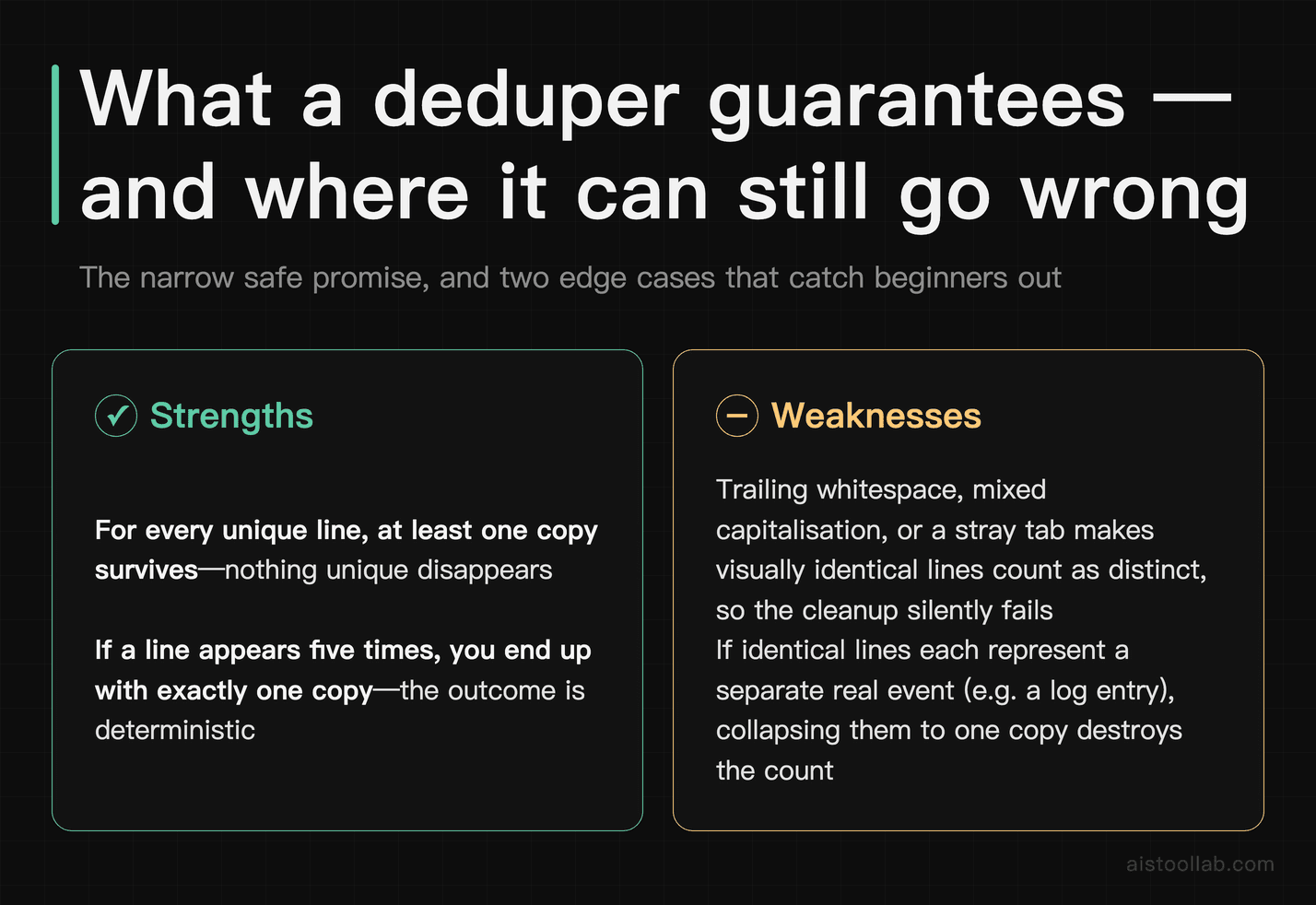
The safe promise a deduper makes is narrow: for every unique line, at least one copy survives. If a line appears five times, you end up with one of it. Nothing that was unique disappears. That’s the behaviour you want, and it’s what a well-behaved tool is designed to do.
The risk isn’t in that mechanic — it’s in the definition of “duplicate.” Two situations catch people out:
- Lines that look the same but aren’t. Trailing whitespace, mixed capitalisation, or a stray tab means two visually identical lines are treated as distinct, so the “duplicates” don’t get removed and you’re left scratching your head. That’s not data loss, but it’s a failed cleanup.
- Lines that are genuinely identical but you needed the repetition. If your file is a log where each identical line represents a separate real event, collapsing them to one copy destroys the count. Here the tool did exactly what you asked — and you lost information anyway.
The takeaway for a beginner: deduping is a text operation, not a semantic one. The tool matches strings; it has no idea what your data means. Before you run it, decide whether repetition in your file is noise (remove it) or signal (keep it, or count it first). And always — always — keep the original file until you’ve checked the result. These tools are cheap to re-run; recovering deleted rows is not.
Three routes: browser box, editor menu, or command line
There’s no single “duplicate line remover” you have to buy. The capability shows up in three different shapes, and each suits a different kind of person and task.
Web-based tools
The zero-friction option. You open a page, paste your text into a box, click a button, and copy the cleaned result back out. No install, nothing to learn — it runs in a browser without requiring you to install anything (though a locked-down machine may still restrict which sites or scripts it allows). Many of these free web utilities add handy toggles — ignore case, trim whitespace, sort the output, or remove empty lines at the same time. The trade-offs are practical rather than technical: you’re limited by how much text you can comfortably paste into a browser, and — this matters — when the tool processes your text on its server, your data leaves your machine and goes into someone else’s web page (some browser-only tools process everything locally instead, so check how a given tool works). For a list of public URLs, fine. For a customer export, think twice (more on that in the FAQ).
Text editor features
If you already live in a code or text editor, deduplication is often a menu item or an extension away. Notepad++ includes line-operation commands for removing duplicate lines, Sublime Text can reduce a selection to unique lines through its line-permutation commands, and most editors in this class support sorting and filtering lines natively or via a plugin. This route keeps everything local (good for privacy), handles reasonably large files, and lets you eyeball the change before saving. The cost is that exact menu names and availability shift between editors and versions, so you may need to check your specific tool’s documentation or grab an extension.
Command-line approaches
On macOS or Linux, the tools are already installed and free, and they read straight from disk rather than through a paste box, so file size isn’t capped by what a browser can hold. Three you’ll meet constantly:
sort file.txt | uniq        # sorts, then collapses duplicates
sort -u file.txt            # same result, shorter
awk '!seen[$0]++' file.txt  # removes duplicates, keeps original order
A common gotcha to watch for: uniq on its own only removes duplicates that are next to each other. Scattered duplicates survive unless you sort first — hence sort | uniq. If you need the original line order preserved (and you often do), the awk one-liner keeps the first occurrence of each line and drops later repeats without reshuffling anything. This is powerful and scriptable, but it requires learning command-line syntax. If you tinker with utilities like these, I’ve written more about the small-tool ecosystem in our AI Developer Utility Tools comparison.
How the three routes stack up
Quick note on how to read this: I’m rating these three routes for a beginner doing occasional-to-regular text cleanup on a personal laptop. The “beginner friendliness” column is my editorial call, based on the setup and syntax facts described above; if you’re building an automated pipeline instead, weight the “repeatable / scriptable” row much heavier and my friendliness notes stop mattering. The factual rows (cost, install, offline) are just what each route is.
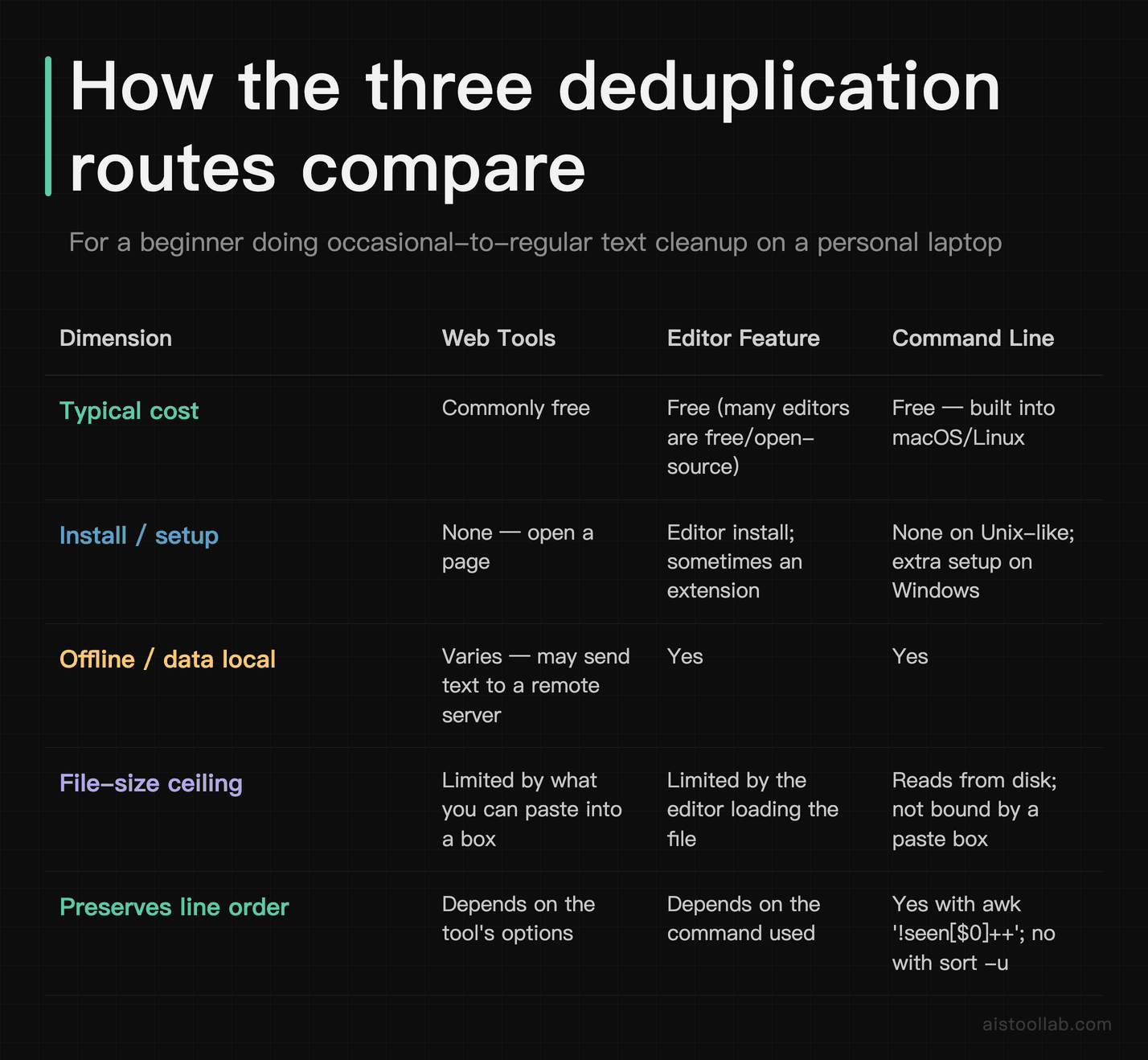
Read the table as “match the route to your situation,” not “column X wins.” A one-off cleanup of a public list on a work laptop points straight at a web tool. A recurring job on a big local file points at the command line. Something in between, where you want to watch the change happen, points at your editor.
A plain walkthrough: de-duping a messy export
Say you’ve exported a list of subscriber emails and, thanks to a join gone slightly wrong, plenty of addresses appear more than once. Here’s the beginner-safe sequence, tool-agnostic, using the checks that stop you from shooting yourself in the foot.
- Copy the original somewhere safe first. Duplicate the file, or paste the raw text into a scratch note. If the cleanup goes sideways, you want the untouched version back in one click.
- Look at the data before touching it. Are the “duplicates” truly identical, or do some have trailing spaces, mixed case (
Sam@x.comvssam@x.com), or stray blank lines between them? This decides which options you need. - Pick your route. Public-ish data, one-off job: a web deduper. Sensitive data or a recurring task: your editor or the command line, both of which keep the file on your machine.
- Turn on the right options. For emails you’ll usually want case-insensitive matching (so the two Sam addresses collapse) and whitespace trimming. On the command line, that’s where you’d normalise before deduping; in a web tool, it’s a checkbox.
- Run it, then count. Note how many lines you started with and how many you ended with. If a 5,000-line list drops to 4,800, that’s plausible. If it drops to 12, something matched too aggressively — stop and check.
- Spot-check the output. Scan for lines you know should be there. Confirm no unique address vanished.
- Save to a new file. Keep the cleaned version separate from the original until you’ve confirmed it downstream.
The whole thing takes a minute or two once you’ve done it once. The discipline that matters isn’t speed — it’s steps 1, 5, and 6, which are what separate “cleaned my data” from “quietly corrupted my data and didn’t notice.”
Where duplicate removal actually earns its keep
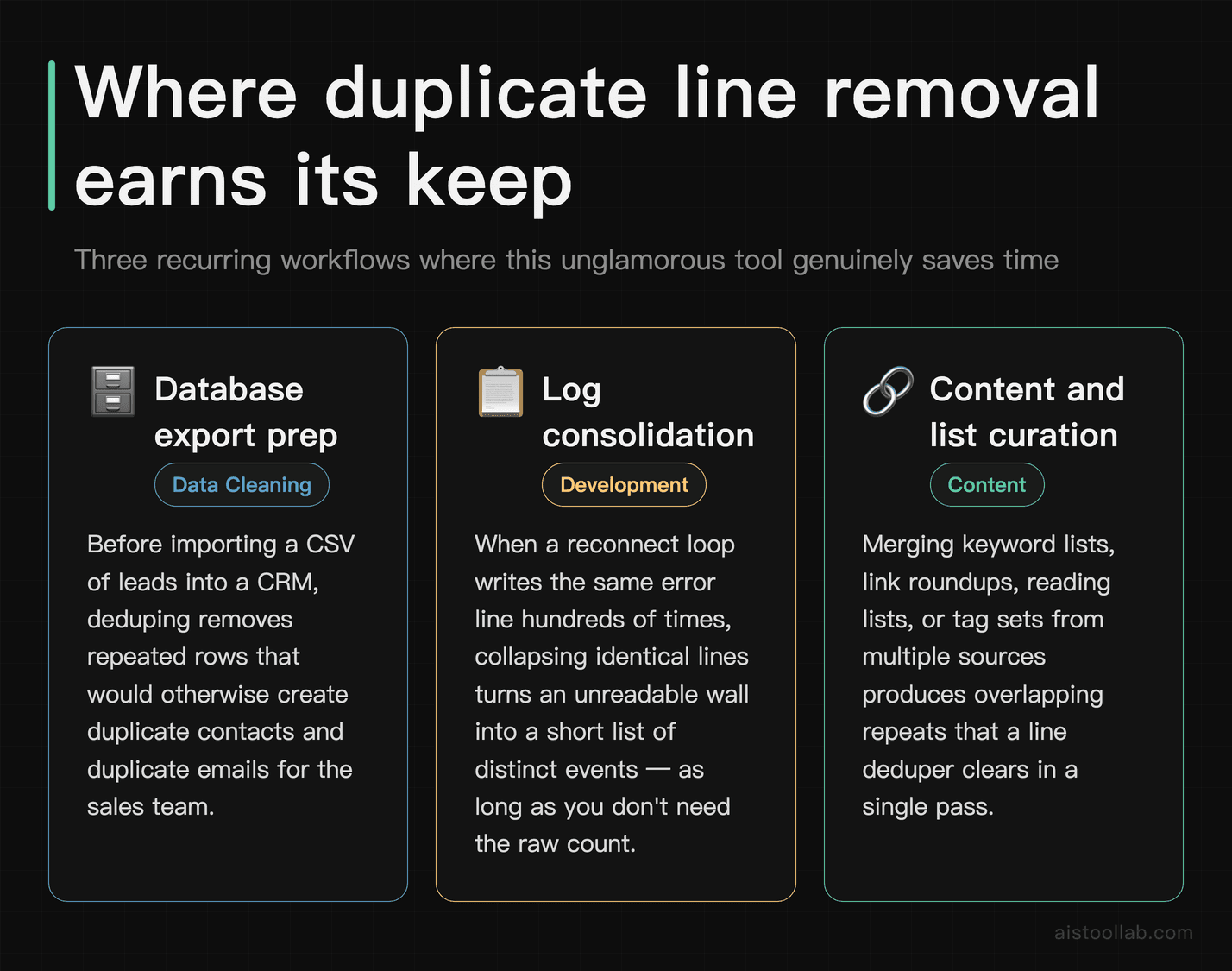
These tools are boring in the best way — they show up in the same handful of workflows again and again.
Database exports and dataset prep
If you’re pulling data out of a system and the query returns repeated rows, deduping is often the first cleanup step before analysis or import. Imagine you’re prepping a CSV of leads for a CRM upload: duplicate rows mean duplicate contacts, duplicate emails, and an unhappy sales team. A pass through a line deduper on the raw text (or a spreadsheet’s remove-duplicates feature for structured columns) heads that off. Just remember the byte-exact caveat — Acme Inc and Acme Inc. won’t collapse on their own.
Log consolidation
Say you’re a solo developer sifting a log for what actually went wrong, and a reconnect loop has written the same error line hundreds of times. Collapsing identical lines to one copy turns an unreadable wall into a short list of distinct events — as long as you don’t need the raw count. When you do care how many times each line fired, count first (the command line makes that easy) and dedupe second.
Content curation and list building
Anyone assembling a keyword list, a link roundup, a reading list, or a merged set of tags ends up with overlaps. Deduping keeps each item once. This is the classic web-tool job: paste, clean, copy back, done. It pairs naturally with other small text utilities — I go into related generators and cleaners in our piece on Random Text Generators.
Data preparation for other tools
Plenty of downstream processes assume unique input — a script that treats each line as a task, a config that should list each entry once, a test fixture that needs distinct records. Running a deduper as a preparation step keeps those processes honest. It’s the same “clean the input before you trust the output” principle that applies across developer utilities, from formatters to Hash Identifier Tools.
When a deduper is the wrong tool
Reaching for a duplicate line remover when the job is actually something else is a common beginner misstep, so here’s where I’d stop and pick a different tool.
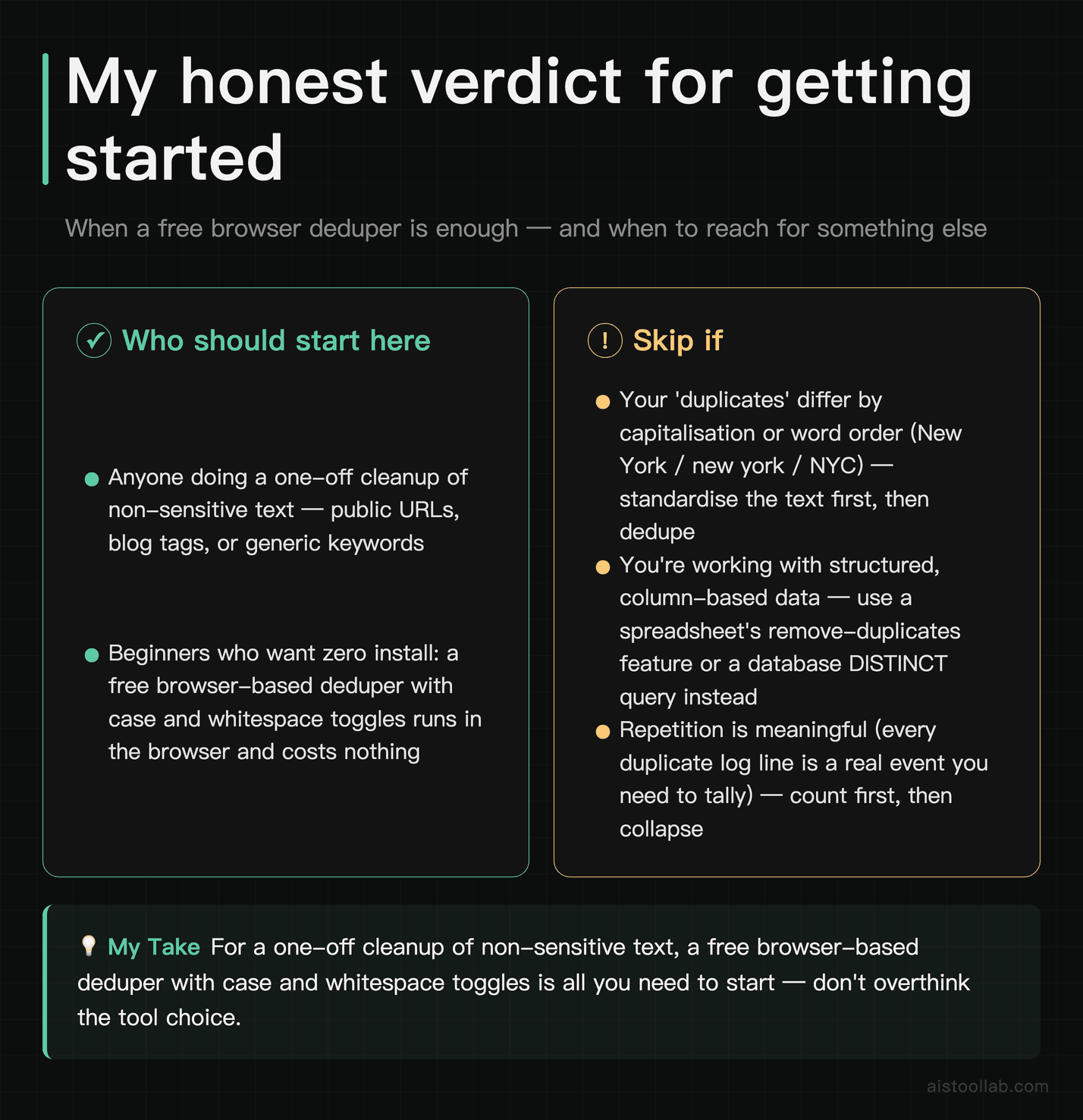
If your “duplicates” differ by capitalisation, punctuation, or word order — New York vs new york vs NYC — a plain line deduper won’t merge them, and no amount of clicking the button will change that. That’s a normalisation or fuzzy-matching problem, and you’ll want to standardise the text first (lowercase everything, trim, maybe map aliases) before deduping. If you’re working with structured, column-based data rather than flat lines, a spreadsheet’s remove-duplicates feature or a database DISTINCT query is designed for that case, because they understand rows and columns instead of raw strings. And if the repetition is meaningful — every duplicate log line is a real event you need to tally — deduping throws away the very thing you were trying to measure; count first, then collapse.
My honest verdict for someone just getting started: don’t overthink the tool choice. For a one-off cleanup of non-sensitive text, a free web-based duplicate line remover with case and whitespace toggles runs in the browser with no install and costs you nothing to try — on that convenience-and-cost basis, that’s where I’d point a beginner first. The moment your data is sensitive, or the task repeats, or the files get big, graduate to your text editor (to keep it local and watch the change) or the command line (to script it once and forget it). The skills transfer, and the sort -u versus awk '!seen[$0]++' distinction — sorted output versus original order preserved — is genuinely worth memorising, because it’s a decision that quietly changes what your cleaned file looks like.
Frequently Asked Questions
Are free online duplicate line removers safe for sensitive data?
Treat them as if they’re not, unless you have a specific reason to trust the site. If a tool processes your text on a remote server, that text leaves your device and is handled by someone else’s machine; some pages claim to run entirely in your browser, but you usually can’t verify that from the outside. For public information like a list of URLs, blog tags, or generic keywords, the risk is negligible. For anything that identifies people or your business — customer emails, internal logs, exported records, API keys accidentally sitting in the text — I’d keep the job on your own machine instead. Your text editor’s line-operation features and the command-line approach (sort -u, awk '!seen[$0]++') both do the work locally, so nothing leaves your device. The convenience of a web tool is real, but the offline routes keep the text on your own machine, and that’s not worth trading away for a task that takes the same minute either way.
What’s the difference between “remove duplicate lines” and “remove consecutive duplicate lines”?
This is a very common source of confusion, and it usually shows up as “why didn’t it remove all my duplicates?” Removing consecutive duplicates only collapses repeated lines that sit directly next to each other. The classic case is the Unix uniq command: on its own it only looks at adjacent lines, so if the same line appears at the top and bottom of your file with other content in between, both copies survive. Removing all duplicates, regardless of position, means every repeat anywhere in the file gets collapsed to one. To get that behaviour with uniq, you sort the file first so identical lines become adjacent (sort file | uniq, or the shorthand sort -u file). Many web tools and editor features do the “all duplicates” version by default, but always check — if your cleanup leaves obvious repeats behind, this adjacency distinction is almost certainly why.
Will removing duplicates change the order of my lines?
It depends entirely on the method, and it’s an easy detail to overlook. Anything based on sort -u or a sort-then-uniq pipeline will reorder your file alphabetically as a side effect, because sorting is how it groups duplicates together. If the order of your lines carries meaning — a chronological log, a ranked list, a sequence of steps — that’s a problem. To remove duplicates while keeping the original order, use a method that tracks lines as it goes and keeps the first occurrence of each: the awk '!seen[$0]++' one-liner does exactly this, and many web tools and editor commands offer a “keep original order” or “preserve order” option. Before you run any dedupe, ask yourself whether order matters for this file. If it does, pick an order-preserving method; if it doesn’t, sorting is fine and often makes the result easier to scan.
How do I keep one copy versus delete every copy of a duplicated line?
Those are two genuinely different operations, so name what you want before you start. The default behaviour of a duplicate line remover is “keep one copy” — a line appearing five times ends up appearing once. That’s what you want for list cleanup and most data prep. Occasionally, though, you want to keep only the lines that were unique to begin with and delete everything that was ever duplicated entirely — for example, when a repeated line signals a record you want to exclude rather than deduplicate. On the command line, uniq -u (after sorting) prints only lines that never repeated, while uniq -d prints only the ones that did. Some web tools expose this as a “remove all duplicated lines entirely” toggle separate from the standard “keep one copy.” Check which mode you’re in, because the two produce very different files from the same input, and it’s easy to grab the wrong one.
Can I remove duplicates while ignoring case or extra spaces?
Yes, and for real-world data you usually should. Basic deduping is byte-exact, so Email@site.com and email@site.com, or a line with a trailing space versus one without, count as different lines and won’t collapse. Many web-based removers offer checkboxes for “case insensitive” and “trim whitespace,” which normalise the comparison so those near-identical lines merge. In text editors it varies by tool and plugin, so check your specific options. On the command line you handle it by normalising before you dedupe — lowercasing and stripping whitespace as a preprocessing step, then running the dedupe on the cleaned text. One caution: normalising for comparison and normalising the output are different choices. Decide whether you want the surviving line to be the original (spaces and all) or the tidied version, because some tools keep the first form they saw while others keep the normalised one.
What if my file is too big to paste into a web tool?
That’s the natural ceiling of the browser route, and it’s the cue to move to a local tool. Web-based removers are bound by how much text you can reasonably paste into a box and how much your browser tab can hold, so a genuinely large export can choke or freeze. Your text editor can usually handle bigger files since it loads them directly, though very large files can still strain it. The command line avoids this limit because tools like sort and awk read from disk rather than needing everything pasted into a field, so file size stops being about a paste box. If you’re on Windows without those commands, installing an editor with strong line-operation features, or a Unix-style shell, gets you the same capability. The general rule: small and public, use the web; big or sensitive, keep it local.
Do I have to sort my file before removing duplicates?
Only for certain methods. If you’re using bare uniq, then yes — it only catches adjacent duplicates, so you sort first to bring identical lines together. If you’re using sort -u, the sort is built in, so there’s nothing extra to do (but your output comes back sorted). If you’re using an order-preserving method like awk '!seen[$0]++', a web tool’s order-preserving mode, or an editor’s “remove duplicates” command, you do not sort first — those track every line they’ve seen and remove repeats wherever they appear, no sorting required. So the real question isn’t “do I sort,” it’s “do I want my output sorted or in original order,” and that answer picks the method for you. Sorting is a means to an end for some tools and an unwanted side effect for others.
Is removing duplicate lines the same as removing duplicate rows in a spreadsheet?
They’re cousins, not twins. A duplicate line remover treats each line as one flat string and compares the whole thing. A spreadsheet’s remove-duplicates feature understands rows and columns, so it can dedupe based on specific columns — say, remove rows where the email matches even if the name or timestamp differs. For structured, tabular data, the spreadsheet (or a database SELECT DISTINCT) respects your column boundaries. For flat text — a list of lines, a log, a set of keywords, config entries — the line remover works directly on that flat content. A practical tip: if your data is really tabular but you’re feeding it through a line-based tool, remember that even a one-character difference anywhere in the row (an extra comma, a different case in one field) makes the whole line “unique,” so subtle duplicates slip through. Match the tool to the shape of your data.
Last updated: 2026
Found this review helpful?
👉 Browse the AI Tools Library to find the right tools for your workflow.