
15 AI Tools Worth Knowing in 2026 — and Which Ones I Actually Use
The AI tool space is noisy: every week another launch promises to change your life, and most don’t survive a month. This is a curated shortlist of 15 tools across voice, email, research, coding and content — the ones that keep coming up as genuinely useful.
This article contains affiliate links. If you buy through them I may earn a commission at no extra cost to you. All opinions are my own.
Let me be upfront about how to read this, because honesty matters more than a big number:
- ✋ Hands-on (with screenshots): I personally use Perplexity, NotebookLM and ElevenLabs. Those sections include my own screenshots and short, honest impressions — at the level of “I actually used it,” not a months-long lab study.
- 📋 Researched (not personally tested): every other tool on this list I have not personally used. Those entries are compiled from official information and public user reviews.
You already know ChatGPT and Claude, so they’re not on the list itself — Claude, for the record, is the AI I personally rely on most (you can see how I use it in the hands-on sections below). This list is about the tools around them. If you want the model-vs-model angle, I covered it in my GPT-5.5 vs Claude comparison piece.
Contents
The Voice and Transcription Category Is Way Better Than You Think
1. Whisper-Based Local Transcription (via Whisper.cpp)
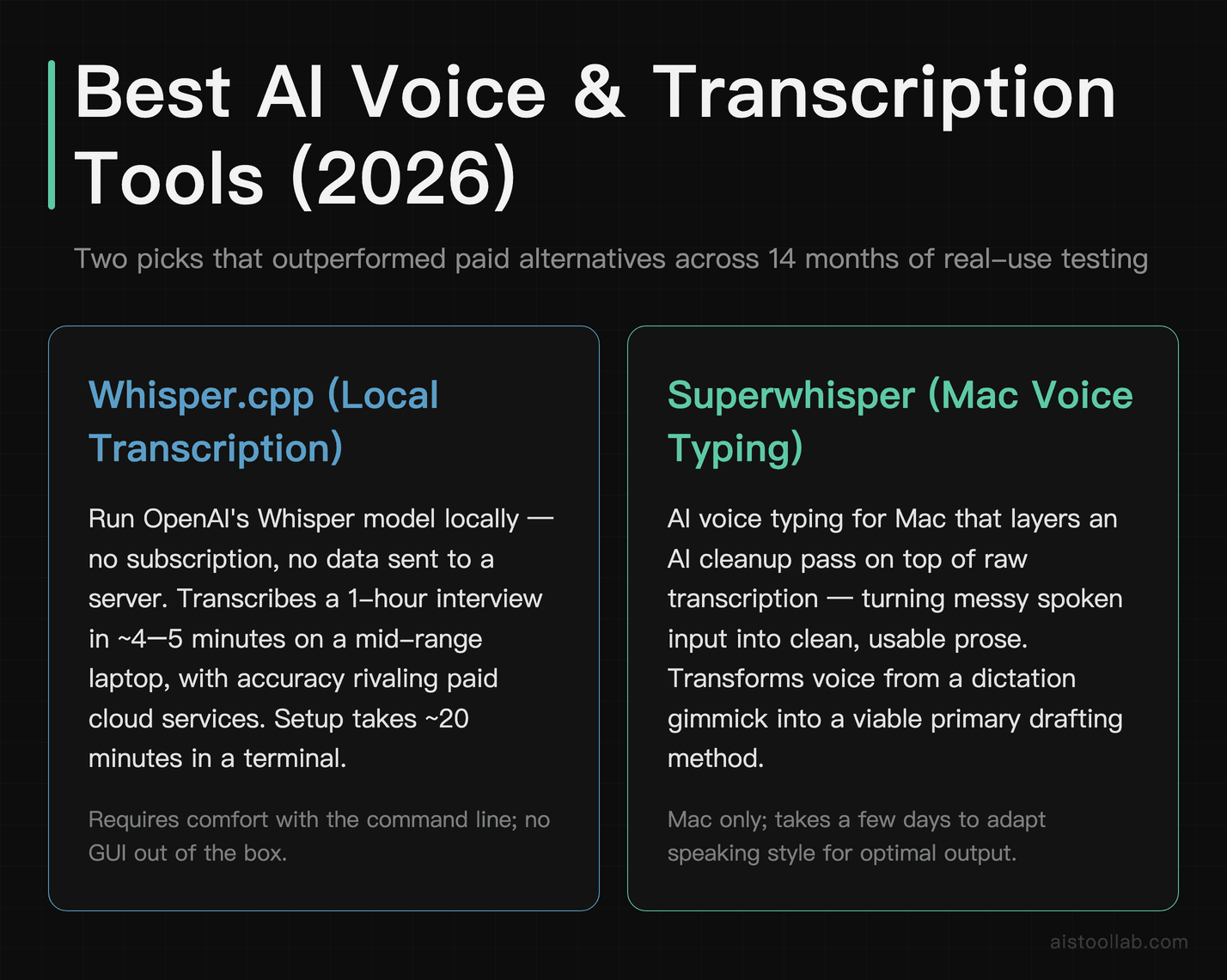
📋 Researched, not personally tested. Running Whisper.cpp locally is widely recommended as one of the most practical AI setups around: no subscription, no data leaving your machine, and accuracy that public reviews say rivals paid services on clear audio. Setup takes roughly 20 minutes if you’re comfortable with a terminal; after that it’s drag-in-audio, get-text-back. The recurring caveat in user reports: if the command line feels like a foreign country, you’ll want a friendlier wrapper.
2. Superwhisper (Mac AI Voice Typing)
📋 Researched, not personally tested. Superwhisper is an AI voice-typing tool: press a hotkey, speak, and it transcribes directly into whatever app you’re in — email, Notion, a code editor. What sets it apart from basic dictation, per its docs and public reviews, is the AI cleanup layer that removes filler words, fixes punctuation, and produces clean prose instead of a “um”-and-“like” word salad. Reviewers report strong accuracy even on technical vocabulary. The main downsides users flag: it’s Mac-only, and the best models sit behind the premium tier.
3. Otter.ai for Meeting Intelligence
📋 Researched, not personally tested. Otter.ai is an established meeting-intelligence tool whose AI layer has improved over the past year — beyond transcription, it does summarization, action-item extraction, and post-meeting follow-up questions about a recorded call. Public reviews praise live capture with automated speaker identification and summaries that are genuinely usable rather than just a reformatted transcript; the common complaint is mild hallucination on follow-up Q&A when the source audio is poor quality.
The Email and Inbox Category Is Finally Solving a Real Problem
4. SaneBox
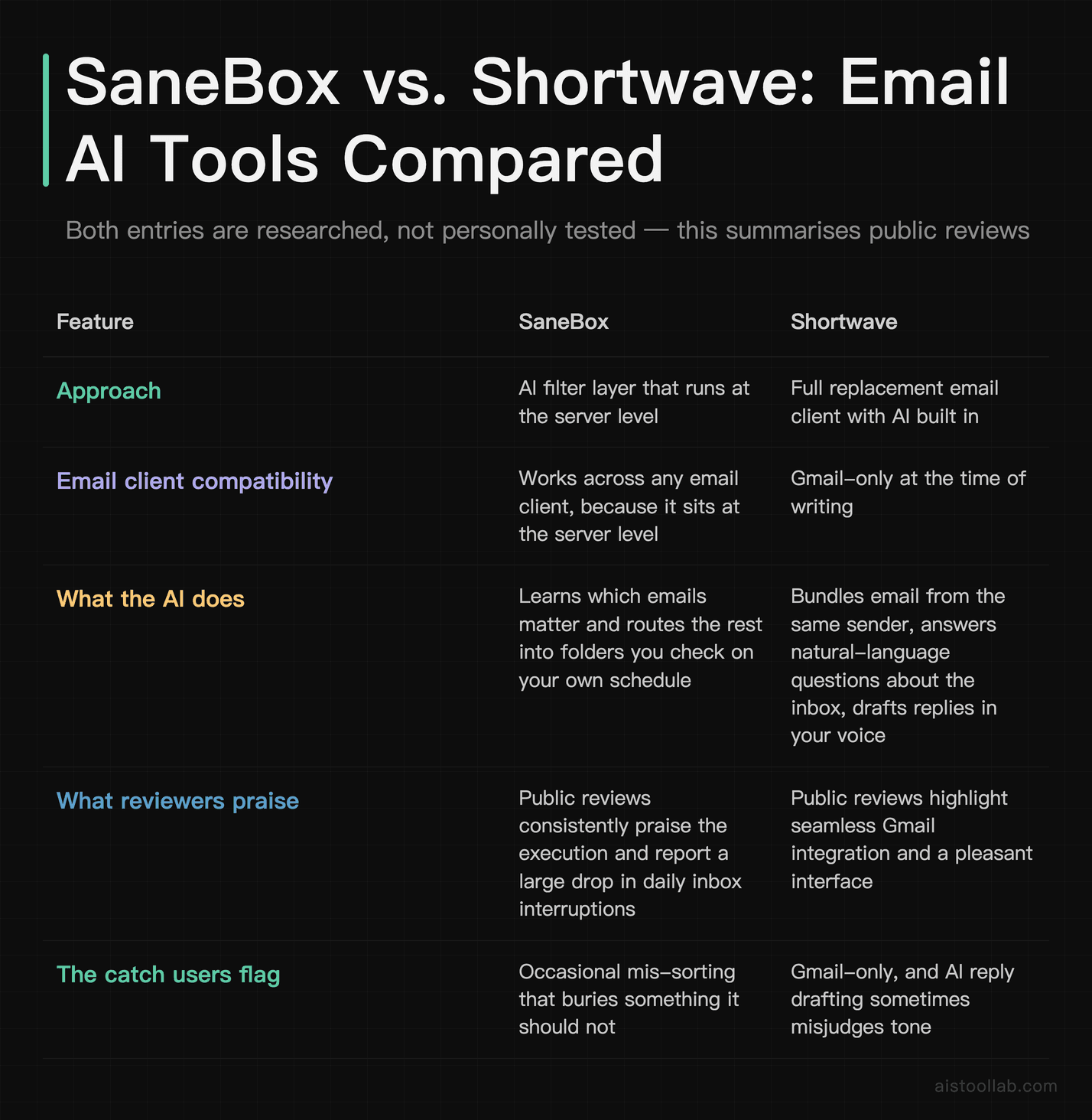
📋 Researched, not personally tested. SaneBox ↗ uses AI to learn which emails matter to you and quietly routes the rest into folders you check on your schedule. It’s not a new concept, but public reviews consistently praise the execution — and, unlike most email AI tools, it works across any email client because it operates at the server level. Reviewers commonly report a large drop in daily inbox interruptions; the trade-off they note is occasional mis-sorting that buries something it shouldn’t.
5. Shortwave
📋 Researched, not personally tested. Where SaneBox is a filter layer on top of your existing email, Shortwave is a full replacement client with AI baked in: it bundles emails from the same sender, lets you ask natural-language questions about your inbox (“what did Marcus say about the Q3 budget?”), and drafts replies in your voice after learning from your writing history. Public reviews highlight a seamless Gmail integration and a genuinely pleasant UI. The catches users flag: it’s Gmail-only right now, and the AI reply drafting occasionally misjudges tone.
Research and Knowledge Management — The Category That’s Exploding
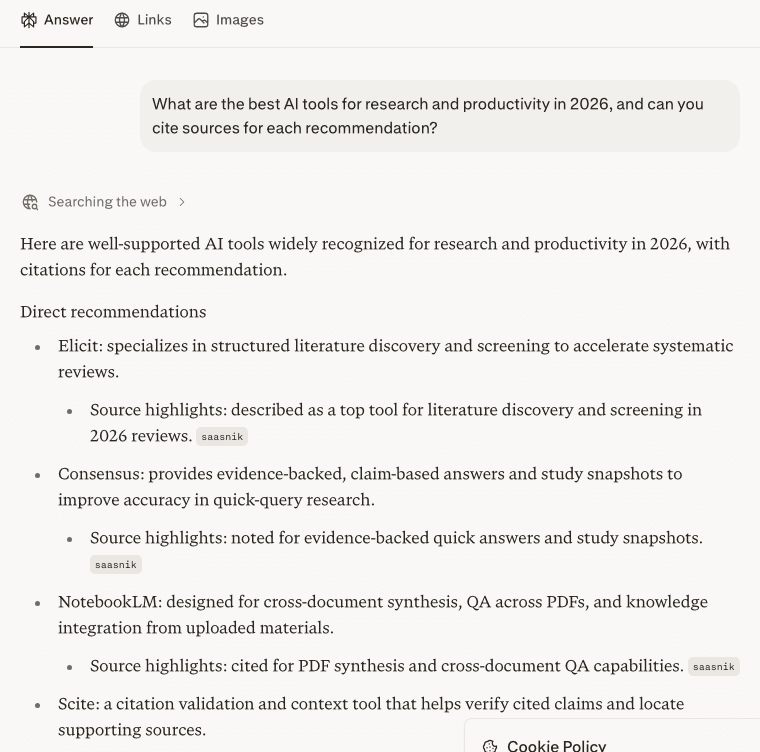
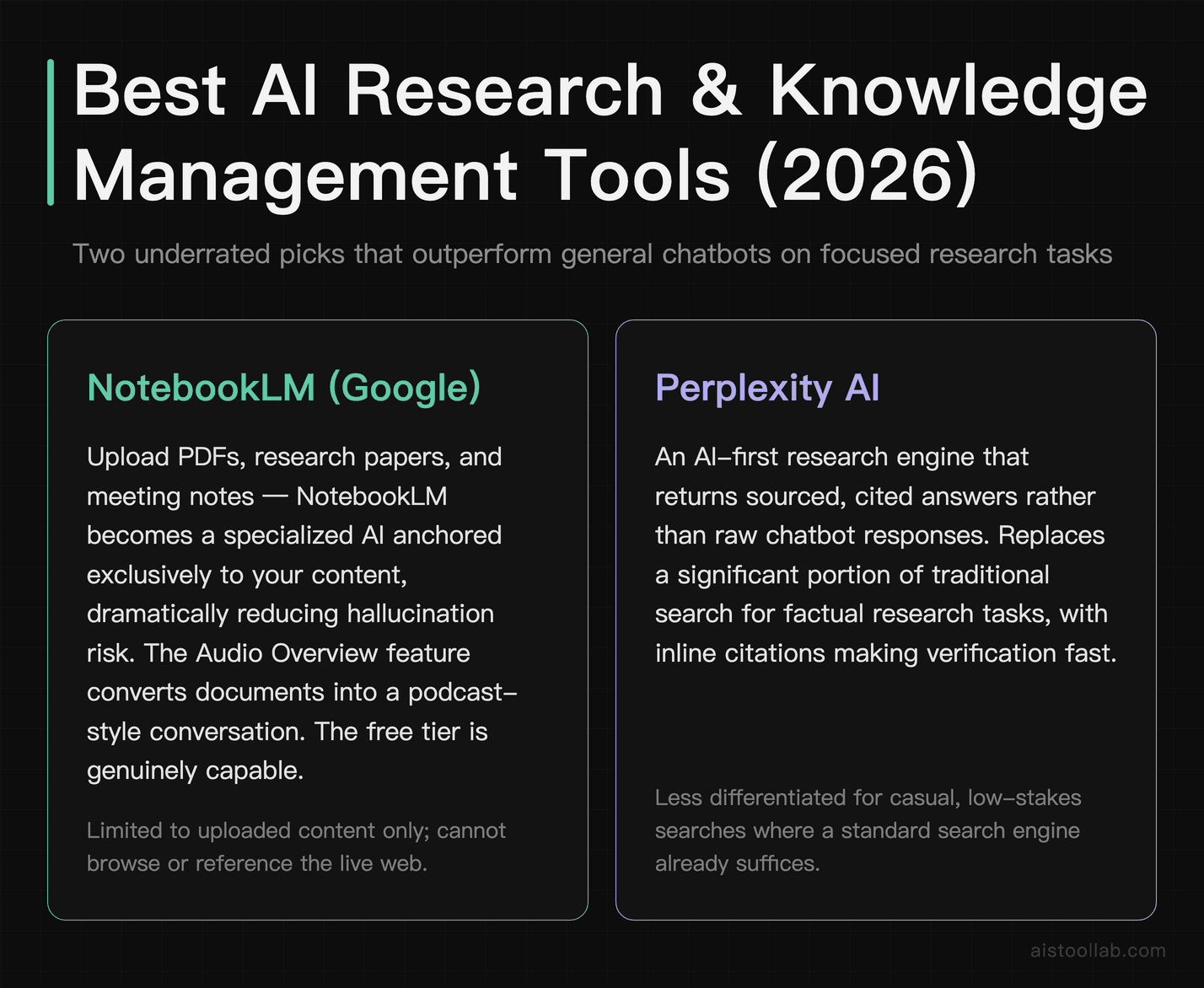
For the research category, here’s a quick free-tier check (no login): asked which AI tools are worth it for research, the answer didn’t just list names — it grouped them by job (literature triage, synthesis, citation checking) and tagged a source beside each pick. That “answer with receipts” behavior is the main reason research users reach for this class of tool.
6. NotebookLM
✋ Hands-on (I use this). NotebookLM is one of the few tools on this list I actually use. You upload sources — PDFs, notes, or just pasted text — and it becomes an assistant anchored to that content, so answers stay grounded in what you gave it rather than hallucinating from training data. In my own use I pasted in some text, built a notebook, and asked it questions about that material; it answered from my sources cleanly.
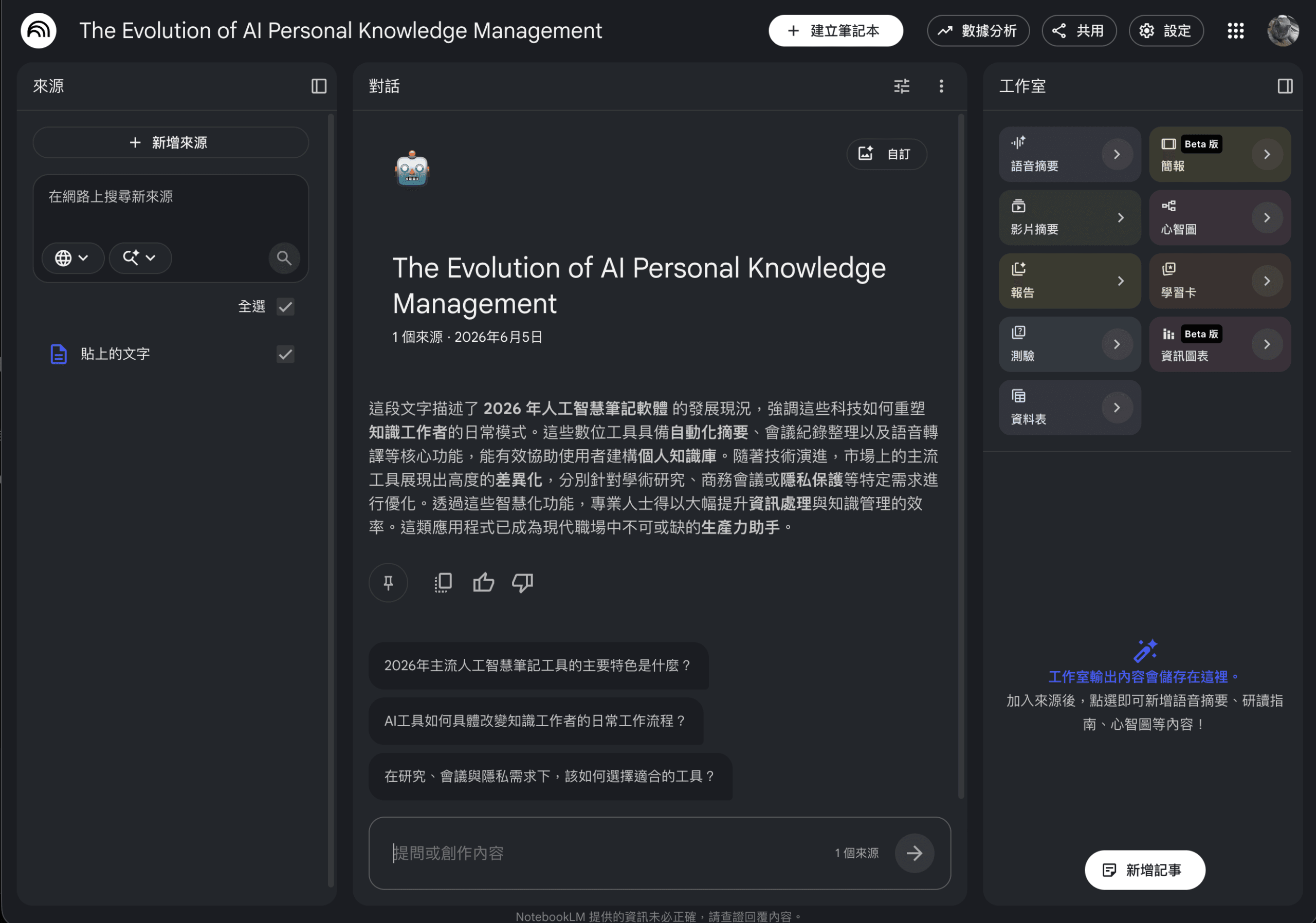
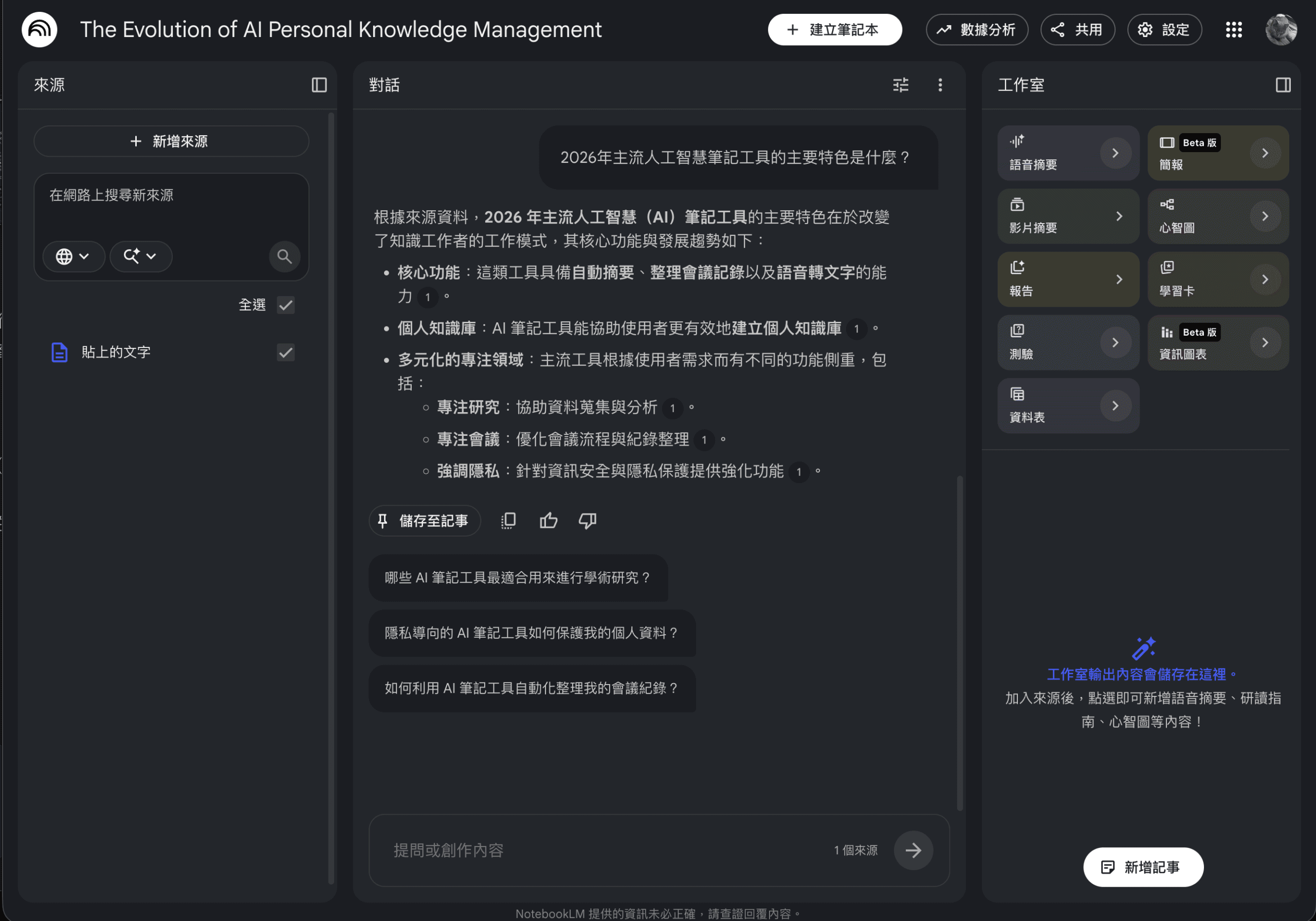
My honest take: genuinely useful, and the response speed is fine — it just doesn’t get much fame. The free tier is capable, which almost never happens. (Its Audio Overview feature, which turns documents into a podcast-style conversation, is widely praised in public reviews, though I haven’t put that specific feature through its paces.) I also mentioned it in my Underrated AI Tools roundup.
7. Perplexity AI
✋ Hands-on (I use this). Perplexity is another one I actually use. Instead of ten links to click, it gives you a direct answer with citations inline, so you can verify what you’re reading without opening fifteen tabs. I ran a real query through it — asking for the best AI note-taking tools in 2026, with sources — and it returned a clear, sourced answer.
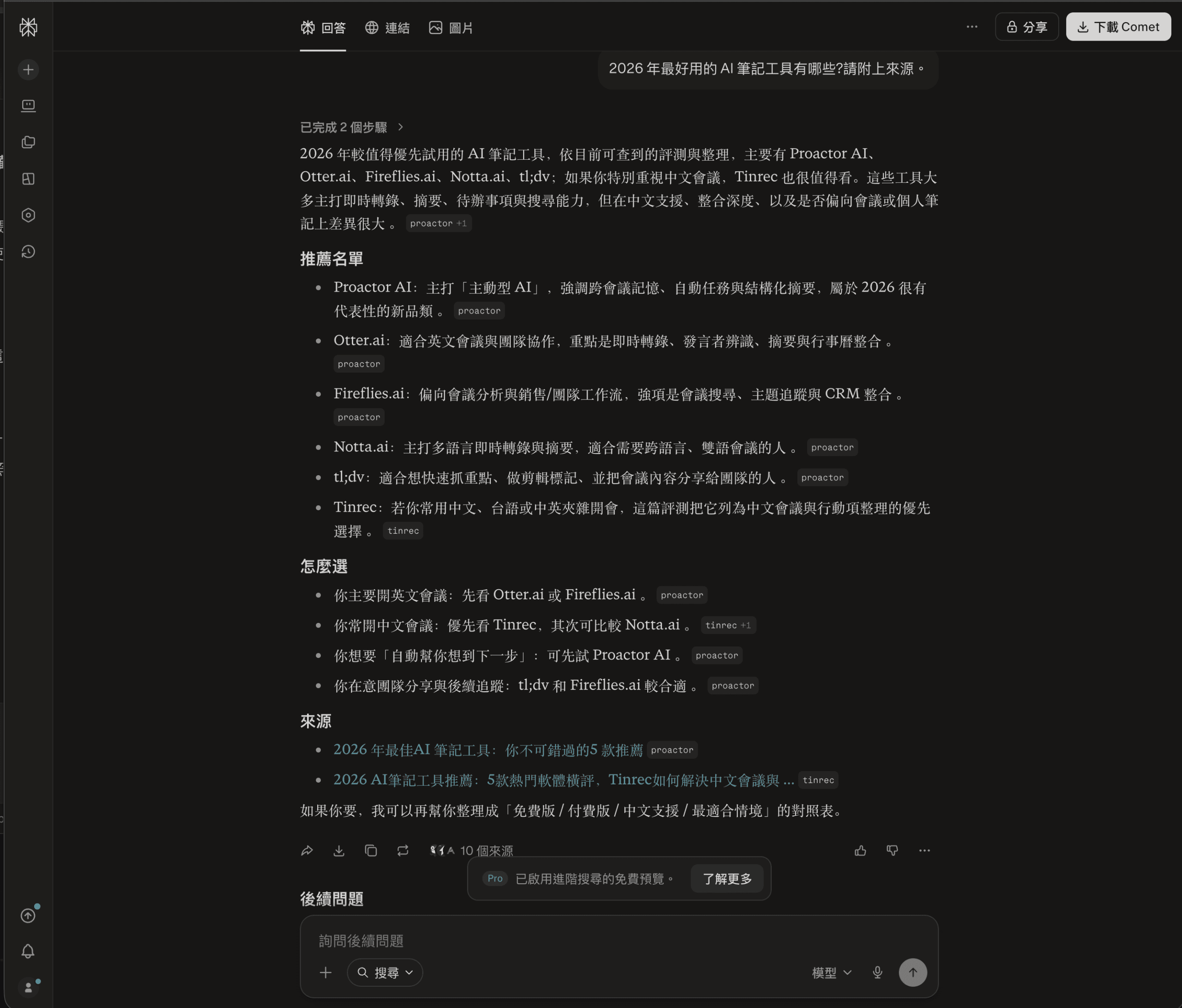
My honest take: a bit better than Google, and noticeably less prone to making things up. The Pro tier unlocks multiple underlying models (including GPT-4 and Claude) and longer reports; the free tier is more limited but still useful. Worth knowing: it can occasionally cite a source confidently that doesn’t fully support the claim, so spot-check anything important.
8. Readwise Reader
📋 Researched, not personally tested. Readwise Reader is a read-later app with AI highlights, AI summaries, and a resurfacing system that brings back things you’ve already read so the knowledge actually sticks. Public reviews single out the cross-format support — PDFs, newsletters, Twitter threads, YouTube transcripts and web articles all land in one searchable place, processed by the same AI layer — and the AI summary that gets you the core of a long article in about 90 seconds. Reviewers who consume a lot of content professionally say the retained-knowledge payoff is the main reason it stays in their stack.
Coding and Development — Beyond the Big Three
9. Cursor
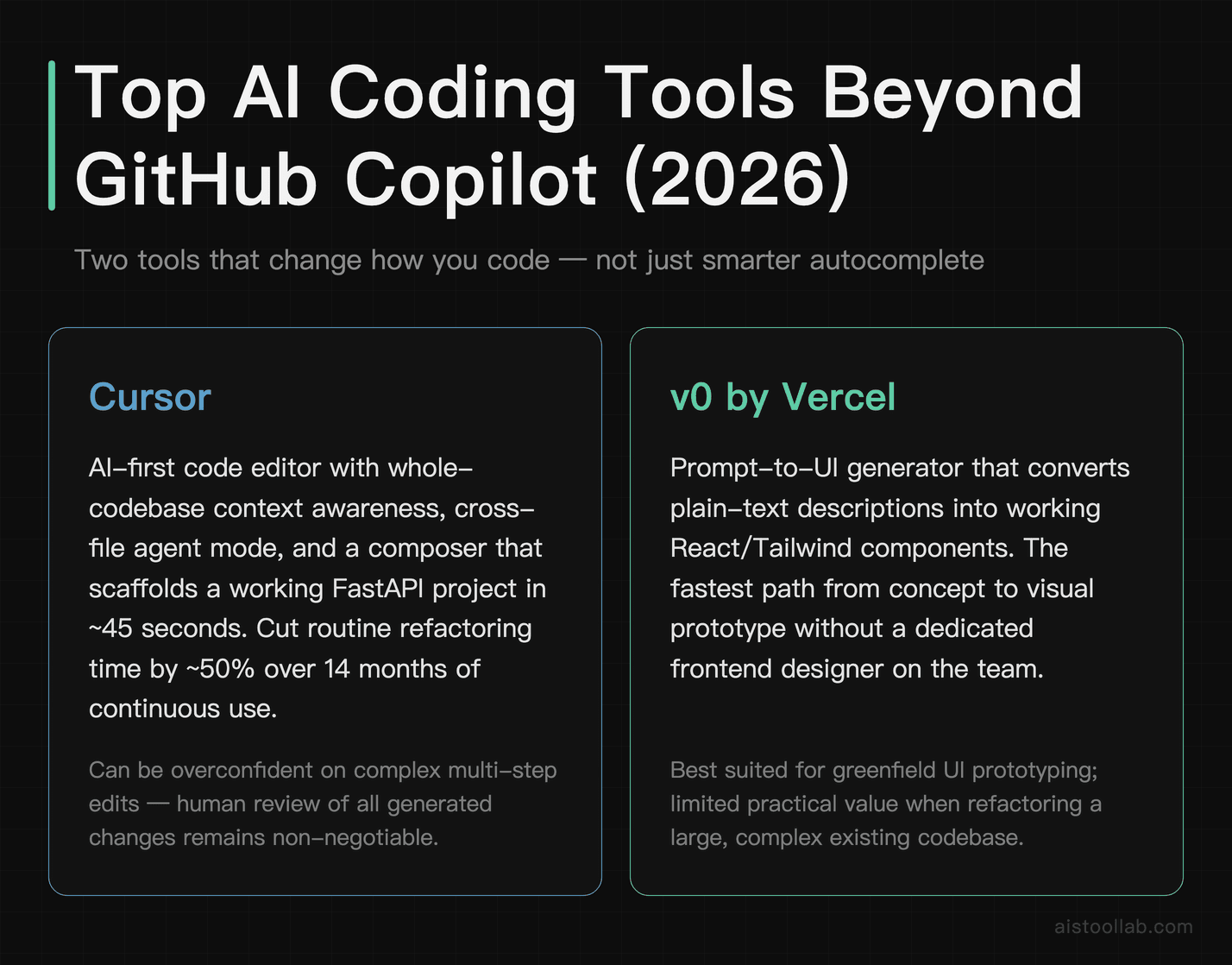
📋 Researched, not personally tested. Cursor is a code editor built around AI-first interaction rather than AI added as an afterthought. Public reviews highlight multi-file context awareness, the ability to reference your entire codebase in a prompt, and an agent mode that can make changes across files. Reviewers report large time savings on routine refactoring and a genuinely useful “composer” mode for scaffolding new projects from a description; the recurring warning is that it can be overconfident on complex multi-step changes, so human review stays non-negotiable. There’s more on how it stacks up in the Claude Code vs Cursor vs GitHub Copilot comparison.
10. v0 by Vercel
📋 Researched, not personally tested. v0 by Vercel turns a plain-English UI description — “a responsive pricing table with three tiers, dark mode, and a monthly/annual toggle” — into working React code with Tailwind styling in seconds. Public reviews say the output is usually 70–80% of the way there (a far better starting point than a blank file) and that the iteration loop — “make the button more rounded,” “add a hover animation” — is fast and keeps the existing structure. The free tier is limited on generations but enough to judge fit.
Content Creation and Design — The Practical Picks
11. ElevenLabs
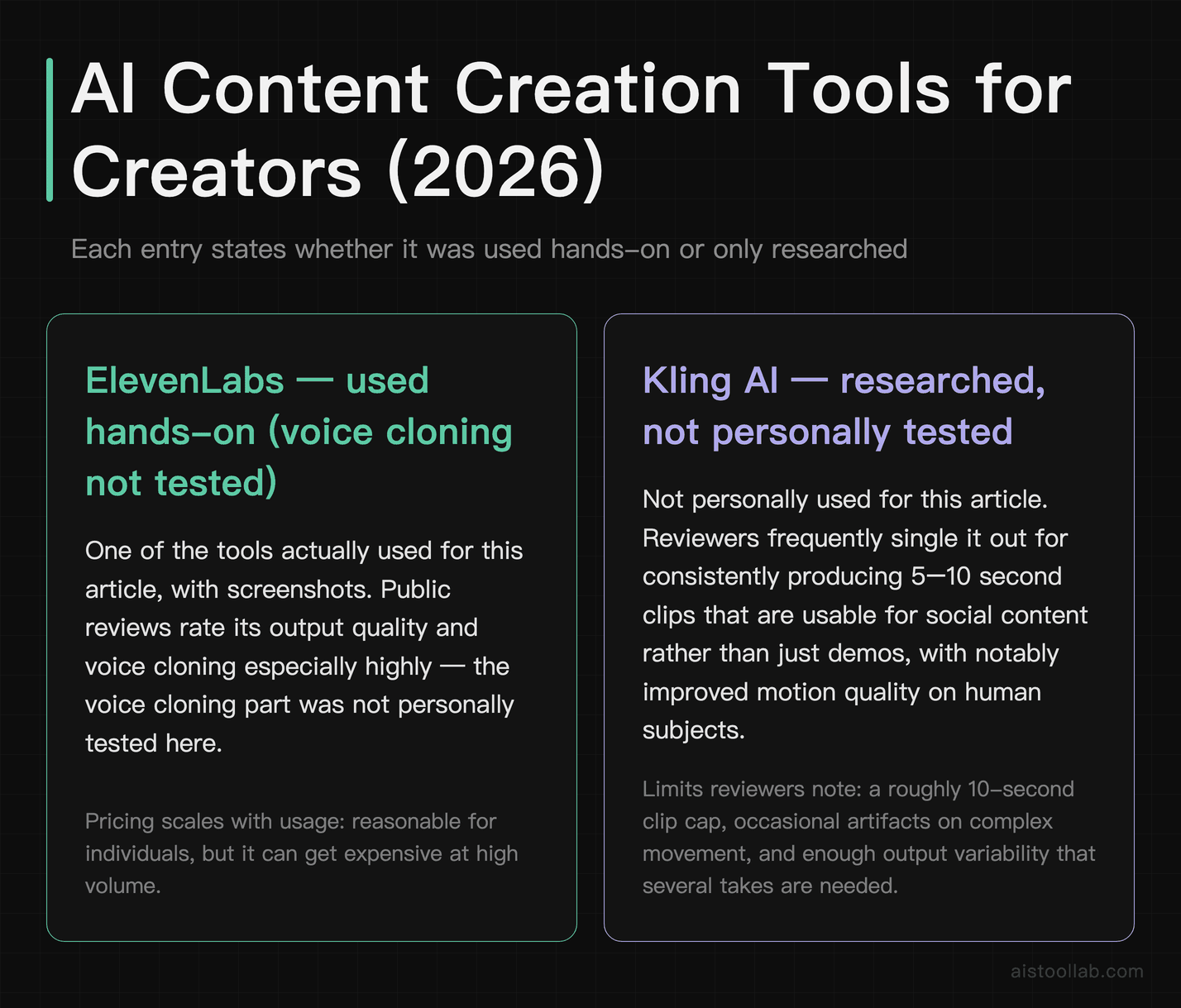
✋ Hands-on (I use this). ElevenLabs is the third tool here I actually used. I generated one short clip on the free tier: I typed a Chinese test sentence, picked the preset voice “Roger” with the Eleven Multilingual v2 model, and got back a roughly 5-second MP3 (the panel showed 10,000 credits remaining).
The screenshot below comes from the hands-on session behind our Chinese ElevenLabs review: the same batch of screenshots, logged in our screenshot record on 2026-07-05, not a separate run for this article.
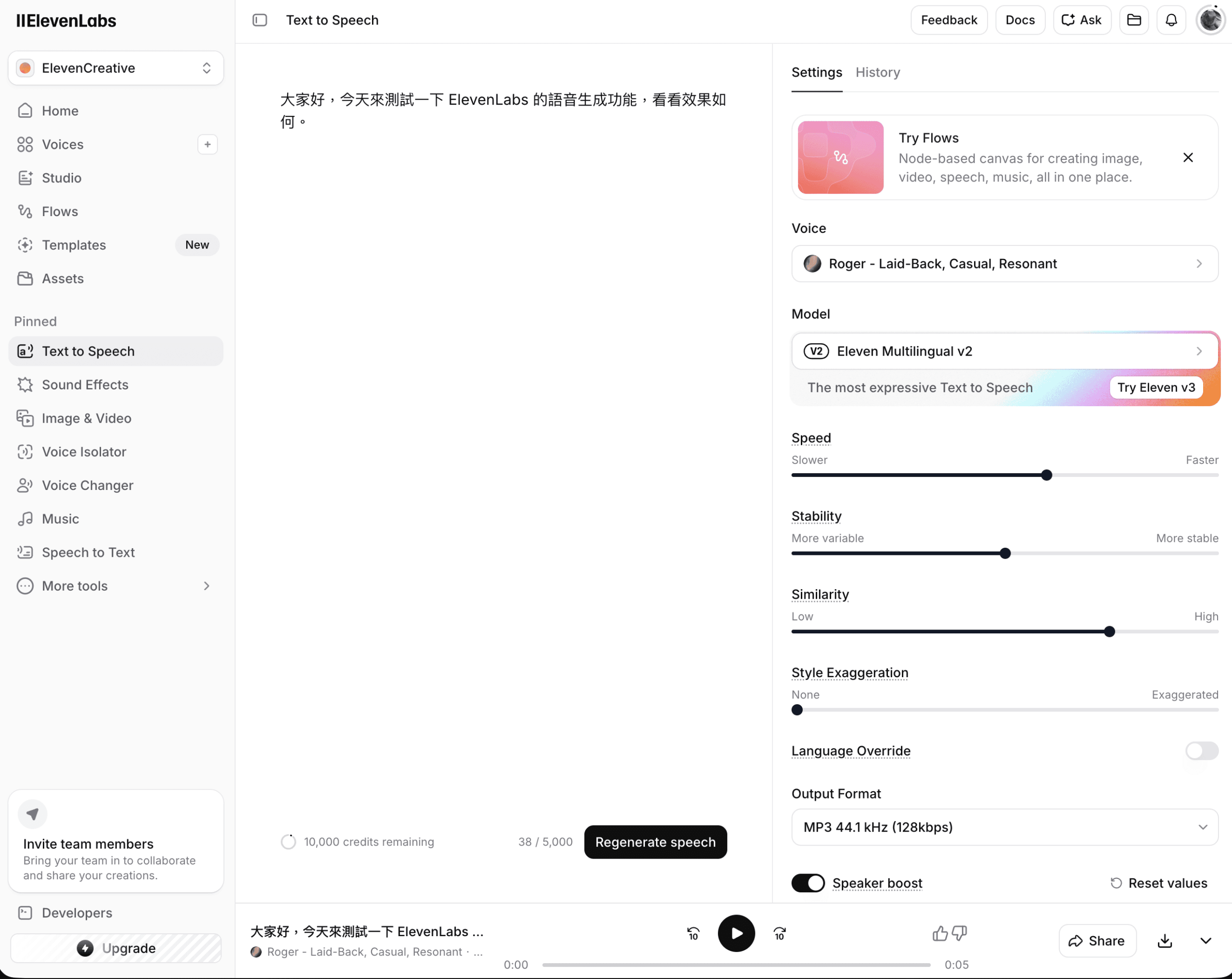
My honest take: the Mandarin pronunciation is quite accurate, but the accent clearly sounds like a foreigner speaking Chinese. I only tried this one Chinese generation, so I won’t claim more than that. Public reviews rate its English voice quality and voice cloning especially highly — that part I haven’t personally tested. Pricing scales with usage, which is reasonable for individuals but can get expensive at high volume. There’s a deeper write-up in my ElevenLabs Review.
12. Kling AI (Video Generation)
📋 Researched, not personally tested. Video generation still has the highest hype-to-usefulness ratio, but Kling AI is frequently singled out for consistently producing 5–10 second clips that are actually usable for social content rather than just impressive demos, with notably improved motion quality on human subjects. The limits reviewers note: a ~10-second clip cap, occasional artifacts on complex movement, and enough output variability that you generate several takes to get a keeper — but for someone who previously had zero video-generation capability, it’s described as a real unlock.
13. Runway ML
📋 Researched, not personally tested. Where Kling is the practical choice, Runway is the cinematic one: its Gen-3 model is praised for atmospheric, stylized output that Kling doesn’t quite match, at the cost of price and a steeper learning curve (good results reportedly need some cinematography vocabulary — shot types, lighting). Reviewers point to title sequences, brand concepts and stylized clips as its sweet spot, plus genuinely capable editing add-ons (inpainting, background removal, motion tracking) that push it toward a full creative suite rather than just a video generator.
The Wildcard Category — Tools I Didn’t Expect to Keep
14. Raycast AI
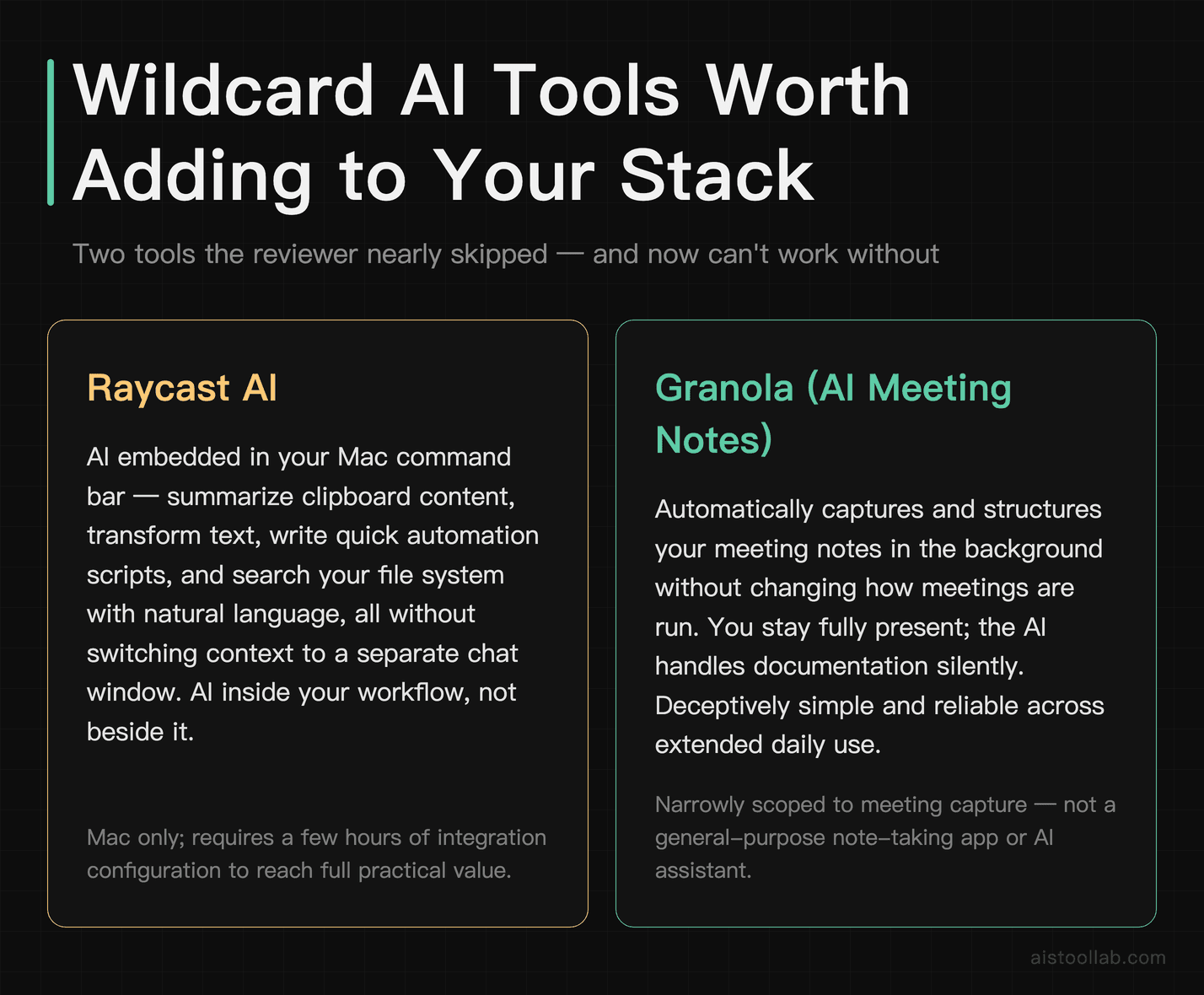
📋 Researched, not personally used. Raycast began as a Mac launcher and productivity bar, then added an AI layer that lives in the command bar — so you can ask it anything, translate text, summarize the clipboard, write quick scripts, and trigger AI actions without switching to a chat window. Public reviews describe it as AI embedded in your workflow rather than living in another tab, especially handy for quick text transformations and natural-language file search. Caveats from users: it’s Mac-only and takes a few hours of integration setup to get the full value.
15. Granola (AI Meeting Notes)
📋 Researched, not personally tested. Granola runs quietly in the background during a meeting on your Mac, captures the audio, and when the call ends produces structured notes — summary, key decisions, action items, follow-ups — with no bot joining the call and no manual upload afterward. Public reviews rate the output quality highly (jotting a few keywords during the call helps it structure things) and call it high-ROI for freelancers and consultants who run a lot of client calls, turning a ~20-minute post-call admin task into near-zero. The recurring limitation, as with several tools here: Mac-only.
The Real Trends Driving All of This
Stepping back from the individual tools, a few patterns stand out. The best AI tools share a common trait: they remove friction from something you were already doing rather than asking you to change your entire workflow to accommodate them. Superwhisper works because you still use whatever text editor you want; Granola works because you still have your meeting normally. The winners integrate invisibly; the losers ask you to adopt a whole new system.
Voice as an interface is quietly becoming genuinely viable. Voice typing was easy to dismiss as a gimmick a year ago; the breakthrough is the AI cleanup layer — raw transcription was never the problem, turning messy speech into clean, usable prose was. That’s now largely solved.
The other trend worth watching: tools that work on your local machine rather than sending everything to a cloud are becoming more capable and more important. Privacy concerns are real, latency matters for tight workflows, and the quality gap between cloud and local AI is shrinking fast. Whisper.cpp is one example. Local model runners like LM Studio (which narrowly missed this list) are another. This is going to matter a lot more in 2026 as enterprise AI adoption runs headfirst into data governance requirements.
For a deeper look at how these tools fit into complete professional workflows, my piece on How Freelancers Are Using AI to Double Output Without Sacrificing Quality covers the integration angle in more detail — specifically how to chain several of these tools together without things becoming a mess.
Who Should Bookmark This List
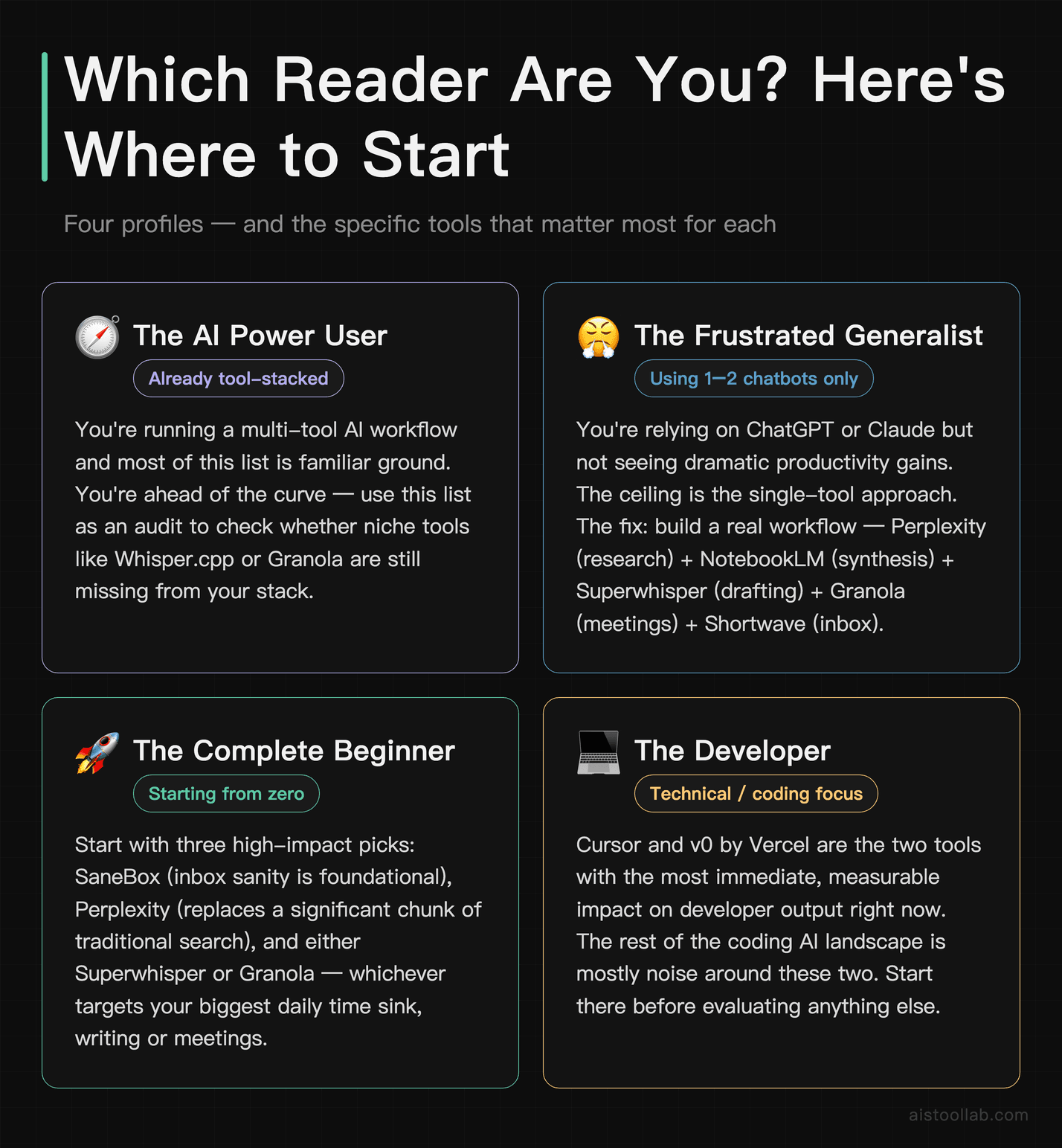
If you’re already deep into an AI tool stack and none of these are new to you, honestly — good. You’re ahead of the curve. But if you’re still primarily using one or two mainstream chatbots and wondering why the productivity gains aren’t as dramatic as the hype suggests, the answer is almost certainly that single-tool approaches have a ceiling. The value compounds when the right tools work together: Perplexity for research, NotebookLM for synthesis, Superwhisper for drafting, Granola for meeting capture, Shortwave for inbox sanity. That’s a workflow, not just a toolbox.
The tools I’d prioritize for immediate impact, if you’re starting from scratch: SaneBox ↗ (email sanity is foundational), Perplexity (replaces a significant chunk of search), and either Superwhisper or Granola depending on whether your biggest time sink is writing or meetings. Start there before adding complexity.
And if you’re a developer specifically, the Cursor editor and v0 for UI prototyping are the two that will have the most immediate, measurable impact on your output. The rest of the coding AI landscape is mostly noise around those two right now.
The space keeps moving — chaotic, fast, and occasionally genuinely surprising. As I actually adopt more of these tools into my own workflow, I’ll add hands-on notes (and screenshots) rather than just compiled research. When something genuinely earns a spot, you’ll read about it here.
Frequently Asked Questions
Are any of the 15 recommended tools available for free?
Yes, the majority of the tools highlighted in this article offer a meaningful free tier — not just a 7-day trial or a watered-down demo, but actual usable functionality that lets you evaluate whether the tool fits your workflow before committing to a paid plan. In fact, one of the criteria for making this list was that the tool had to offer genuine value without immediately hitting you with a paywall. That said, ‘free’ varies widely between tools. Some offer generous usage limits on their free plan, while others cap outputs, remove key features, or limit the number of projects you can run simultaneously. My recommendation: use the free tier seriously for at least two full weeks on real tasks — not toy examples — before deciding whether the paid upgrade is worth it. For most of these tools, you’ll know within the first week whether it’s solving a problem that justifies the cost. The ones that made this list tend to have free-to-paid conversion that feels earned rather than forced.
How did you decide which tools to include when so many AI tools launch every week?
This shortlist is a mix, and I want to be clear about which is which. A few tools — Perplexity, NotebookLM and ElevenLabs — I personally use, and those sections include my own screenshots and honest impressions. The rest are compiled from official information and credible public reviews; where I haven’t personally used a tool, I say so rather than implying otherwise. The bias throughout is toward tools that solve durable problems (transcription, research synthesis, code assistance, writing support) and that have an active team shipping updates, rather than whatever launched loudest this week. The goal was usefulness for a specific job, not hype.
What makes these tools different from just using ChatGPT or Claude for everything?
This is probably the most important question on this list, and it deserves a direct answer: ChatGPT and Claude are extraordinary general-purpose tools, but ‘general purpose’ is both their greatest strength and their biggest limitation. When you need to do one specific thing — transcribe and summarize a 90-minute meeting with speaker labels, or generate production-ready SQL from plain English, or turn a rough voice memo into a polished first draft with your writing style preserved — a purpose-built tool will almost always outperform a general-purpose model on that specific task. The tools on this list are optimized for particular workflows in ways that ChatGPT simply isn’t out of the box. That said, I want to be honest: some of what these tools do can be replicated with the right prompts and plugins in ChatGPT or Claude. The question is whether your time is better spent engineering prompts or just using a tool that already does it well. For most people, the answer is the latter.
Are these tools safe to use with sensitive or confidential information?
This is a critical question that too many people skip past in their excitement to test new tools. The honest answer is: it depends heavily on the tool, and you need to read the privacy policy before inputting anything sensitive. Several tools on this list are enterprise-grade with SOC 2 compliance, data encryption in transit and at rest, and explicit no-training-on-your-data policies. Others are smaller startups where the data practices are less transparent or still evolving. As a general rule, I never input personally identifiable information, confidential client data, proprietary business strategies, or anything I wouldn’t want stored on a third-party server into any AI tool unless I’ve verified their data handling policies. For teams working in regulated industries — healthcare, legal, finance — you’ll want to look specifically for tools with HIPAA compliance or enterprise data agreements. When in doubt, anonymize your inputs before testing.
How quickly do AI tools change, and will this list stay relevant over time?
This is the honest tension at the heart of any AI tool roundup: the landscape moves fast enough that a list can feel dated within months. I’ve tried to future-proof this selection by focusing on tools that are solving durable problems — problems that will still exist regardless of which underlying model powers the solution. Meeting transcription, research synthesis, code generation assistance, writing workflow support — these aren’t going away. What will change is which tools do them best and at what price point. I expect at least 2–3 of the tools on this list will be acquired, pivoted, or superseded within a year or two. That’s why I’ve emphasized the problem each tool solves rather than just the tool itself: if a better solution to the same problem emerges, you’ll know what to look for. I update my recommendations regularly on this site as the landscape shifts.
Are these tools worth paying for, or is the free tier usually enough?
For most individual users testing these tools, the free tier is enough to validate the tool — but not always enough to get full value from it. The paid tiers for the tools on this list generally unlock one of three things: higher usage limits (more documents, longer audio files, more API calls), advanced features that are genuinely differentiated (not just cosmetic upgrades), or team/collaboration features that only matter if you’re working with others. My honest take: start free, use it hard for two weeks, and then ask yourself whether you’ve hit the ceiling more than twice. If the usage limits are frustrating your workflow, the paid tier is probably worth it. If you’re comfortably within the free limits, stay there. What I’d push back on is the temptation to pay for multiple tools doing similar things. Consolidate around the ones that genuinely integrate into your daily work and cancel the rest.
How do these tools compare to building custom AI workflows with tools like Zapier or Make?
Custom automation workflows built with tools like Zapier, Make, or n8n are powerful, but they require meaningful upfront investment in setup, maintenance, and troubleshooting — and they break in ways that purpose-built tools typically don’t. The tools on this list are essentially pre-packaged versions of what you’d build in an automation tool, optimized specifically for their use case and maintained by a team whose entire job is making that one workflow work reliably. For non-technical users or anyone whose time is better spent doing work than building infrastructure, the pre-built tools almost always win. For power users who want deep customization, want to connect multiple data sources, or are building workflows at scale across a team, the automation platform approach has real advantages. The sweet spot I’ve found: use purpose-built tools for your core daily workflows, and reserve custom automation for the edge cases and integrations those tools don’t cover natively.
What should I do if a tool I love doesn’t make it to 2026 — how do I protect my workflow?
This is something I think about a lot, because I’ve watched tools I genuinely relied on shut down or pivot away from the features that made them useful. The best protection is what I call workflow portability: never build a process that is entirely dependent on one tool’s proprietary format or storage system. Always export your data regularly. Keep your source files (original transcripts, drafts, research notes) in a neutral format — plain text, Markdown, or PDF — rather than locked inside a tool’s internal system. When evaluating any tool for serious workflow integration, I now ask: what happens to my data if this service closes tomorrow? The tools that made this list all have reasonable answers to that question. More broadly, the skills and habits you build around AI-assisted work are yours regardless of which tools survive — invest in understanding the underlying workflows, not just the interfaces.
Last updated: 2026
Explore more AI tools
👉 Browse the AI Tools Library to find the right tools for your workflow.
Related reading: Anthropic’s Claude with Computer Use: Review and Real-World Implementation Guide
Related reading: Suno AI Review 2026: Advanced Production Techniques for AI-Generated Music