

The Editor That Understands Your Whole Project — If You Already Code
Here’s a scenario that keeps showing up in Reddit threads and Hacker News comments: a designer who writes the occasional Python script sits down, describes what they want in plain English, and a couple of hours later they’ve got a working FastAPI backend running. They’re not entirely sure how it happened. That story — some version of it — has become one of the most common ways people describe their first serious encounter with Cursor.
It’s easy to roll your eyes at that. The AI-coding space is drowning in breathless claims, and “I built an app and I don’t even code” energy usually means the app is a to-do list that breaks on the second click. But Cursor has earned a different kind of reputation. Across G2, Capterra, and developer forums, the consistent thread isn’t “it writes code for you” — plenty of tools do that. It’s “it understands the whole project,” which turns out to be the part that actually matters.
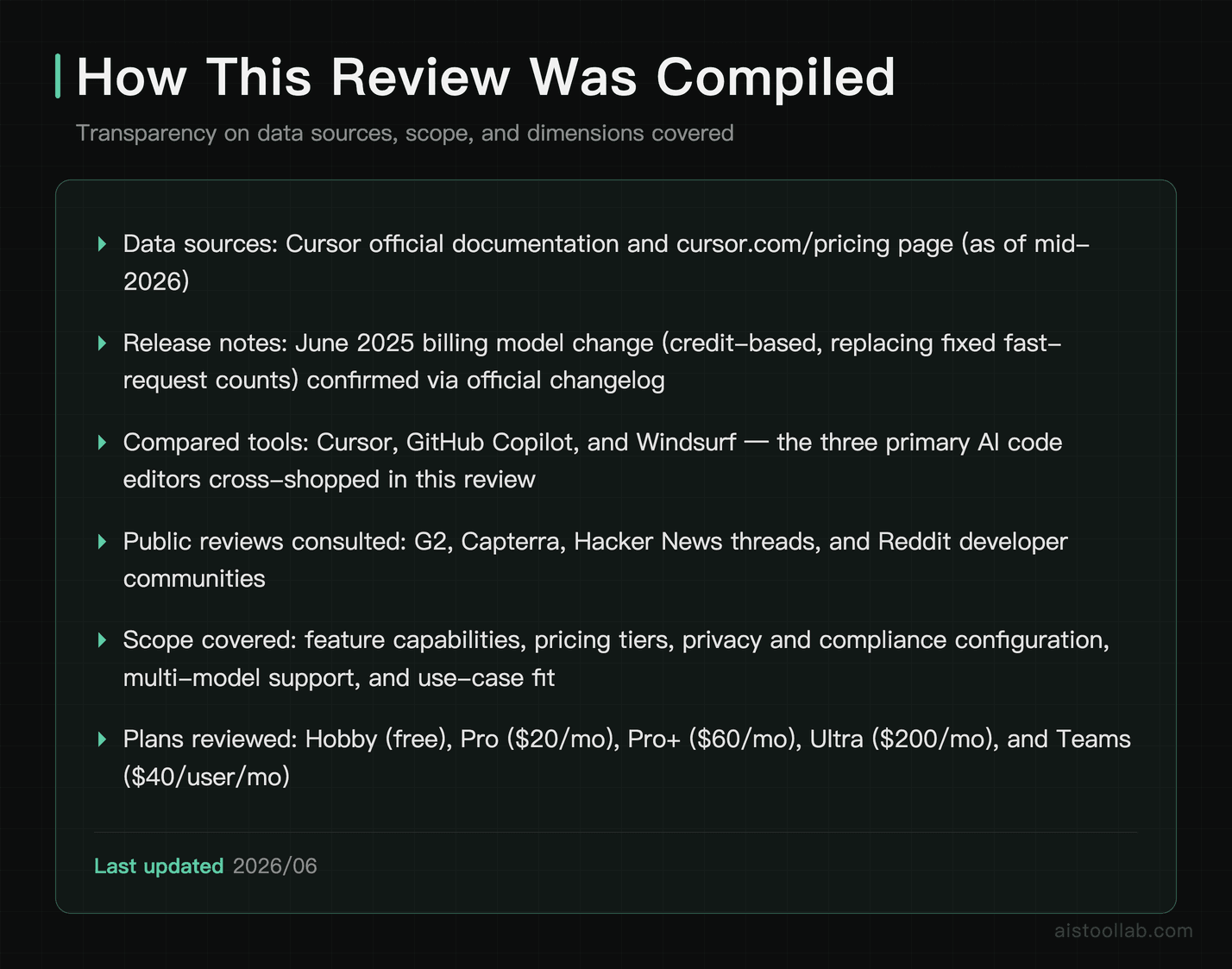
What follows is compiled from Cursor’s official documentation, its public pricing page, release notes, and the broad consensus across public reviews — not a personal test run. The goal is to cut through the hype and answer the only question that counts for your wallet: is this thing actually worth switching to in 2026, or is it just VS Code with a chatbot bolted on?
What Cursor Actually Is (And What It’s Not)
Let’s clear up the most common confusion first, because a lot of write-ups muddy it. Cursor ↗ is not a plugin. It’s not an extension you install into VS Code. It’s a fork of VS Code — meaning it looks almost identical, supports the same extensions, uses the same keyboard shortcuts, and imports your existing settings in roughly half a minute. According to the official docs, that migration friction is intentionally close to zero, which is exactly why so many VS Code users describe the switch as painless.
What Cursor layers on top is a deeply integrated AI system that goes well past autocomplete. The architecture is built around understanding your entire codebase — not just the file you have open — and operating across multiple files at once. That’s the central differentiator, and it’s what makes the comparison to GitHub Copilot more interesting than a simple “which autocomplete is smarter” debate.
Cursor’s maker, Anysphere, brands it as “the AI-first code editor,” and for once the slogan reflects the design. The AI isn’t a feature stapled onto a traditional editor — context gathering, response generation, and the editing workflow are all built around AI-native patterns from the ground up. The company has been shipping updates at a brisk pace, and public reviews note that the rough edges people complained about a year ago have largely been smoothed out. What’s left, by reviewer consensus, is a tool that genuinely changes the pace of work for the right kind of developer.
Composer and Agent Mode: What They Actually Do
This is where reviews tend to either get too technical or stay frustratingly vague. Here’s what these two flagship features are designed to do, based on the official documentation and how reviewers describe using them.
Composer Mode
Composer is Cursor’s multi-file editing interface. You open it (Cmd+I on Mac, Ctrl+I on Windows), describe what you want to build or change, and Cursor generates edits across however many files are relevant — showing you a diff before anything gets applied. The official framing is “pair programming,” and public reviews echo that: it’s less like autocomplete and more like collaborating with someone who types fast and never groans at a refactor.
A representative example from community write-ups: a request like “add a dark mode toggle to the navbar, store the preference in localStorage, and apply the class to the root element.” Reviewers describe Cursor identifying every file involved — the navbar component, a hooks file, the root app component, a CSS module — and generating coordinated edits across all of them in a few seconds, with a diff to approve. The common caveat in reviews is that it’s “right enough that you’re editing, not rewriting,” which is a meaningful distinction.
Agent Mode
Agent mode goes a step further. Rather than you describing each change, the agent can plan and execute multi-step tasks autonomously — running terminal commands, reading error output, fixing the error, running tests, and iterating until things pass. Cursor’s documentation positions it for background tasks, and it now ships with native MCP (Model Context Protocol) support, which lets the agent connect to external tools and data sources in a standardized way.
A typical reviewer scenario looks like: “set up a pytest suite for this FastAPI project, write tests for the main endpoints, and make them pass.” Public reviews report the agent scaffolding a test file, writing the tests, running them, catching its own failures (often a fixture issue it created), fixing them, and re-running until green. The recurring praise is that it handles the setup-and-scaffolding grind that developers universally hate. The recurring warning, which we’ll come back to, is that it needs supervision — it doesn’t always stay inside the lines you drew.
Codebase Context: Where Cursor Pulls Ahead
The thing that doesn’t get enough airtime in AI coding comparisons is that context is everything. A suggestion that doesn’t know how your project is structured is just fancy autocomplete. A system that understands your whole repo is a different category of tool.
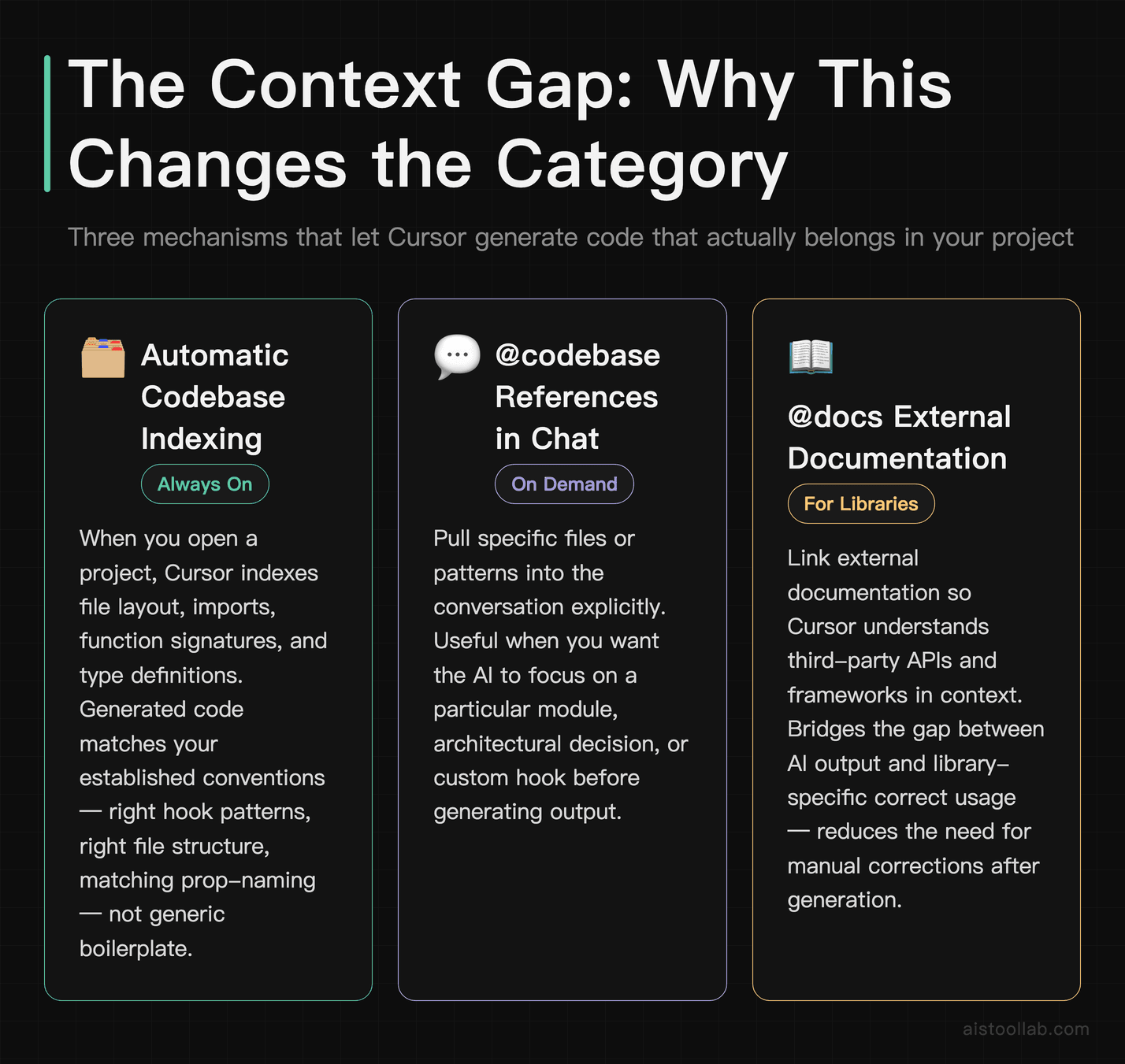
Cursor relies on what it calls codebase indexing. When you open a project, it indexes the structure — file layout, imports, function signatures, type definitions, and your existing patterns — and keeps that context available when generating suggestions. You can also pull files in explicitly with @codebase references in chat, or reference external documentation with @docs. The official docs describe this as the mechanism that lets generated code match your conventions rather than producing generic boilerplate.
This is the dimension where public reviews most consistently separate Cursor from line-level assistants. The widely reported pattern: ask a tool to generate a new component, and a context-blind assistant gives you syntactically correct code that ignores your CSS-module conventions, your custom hooks, and your established component structure. Cursor, by contrast, is praised for producing code that “looks like it belongs in your codebase” — right hook patterns, right file structure, matching prop-naming conventions. That’s the gap between AI output you rewrite and AI output you actually ship. The same context principles I covered in the Claude 4 Opus review apply here, except Cursor operationalizes them at the editor level in a way standalone chat assistants structurally can’t.
Models, Speed, and Accuracy: The Real Talk
Model selection is a bigger deal than most people realize, and this is an area where outdated reviews will steer you wrong. As of mid-2026, Cursor’s documentation lists a current-generation lineup: Claude 4.x (Sonnet and Opus), Gemini 2.5, the GPT-5 series, and o-series reasoning models. If you read an older review touting GPT-4o and Claude 3.5 Sonnet as the headline models, that information is stale — the frontier roster has moved on. The practical upshot is that you can match the model to the task: a fast model for quick edits, a heavier reasoning model for gnarly multi-file work.
On speed, public reviews generally describe generation as quick — a substantial code block comes back in seconds, and chat responses feel comparable to using Claude or a GPT model in a browser, with the major advantage that results apply directly to your files instead of getting copy-pasted around.
Accuracy is where nuance matters, and reviewer consensus is refreshingly candid about it. Cursor is not a substitute for understanding what you’re building. It’s a capable collaborator whose work you have to review. The developers who get the most out of it, per the broad review consensus, are the ones who can scan generated code and spot what’s off quickly — not the ones hoping to skip understanding entirely. Reviews also consistently note that Cursor is strongest on well-documented, popular frameworks (React, Next.js, FastAPI, Express) and gets shakier with niche libraries, unconventional legacy patterns, or highly domain-specific logic. That tracks with how the underlying models are trained: popular frameworks simply have more training signal.
Cursor vs GitHub Copilot vs Windsurf: A Direct Comparison
The AI-editor field has consolidated into a few serious players. GitHub Copilot remains the incumbent. Windsurf (formerly Codeium, renamed in 2025 and acquired by Cognition later that year) is the other agent-forward editor people cross-shop. Here’s how they line up on the dimensions that actually drive a buying decision, based on each tool’s official documentation and public reviews.
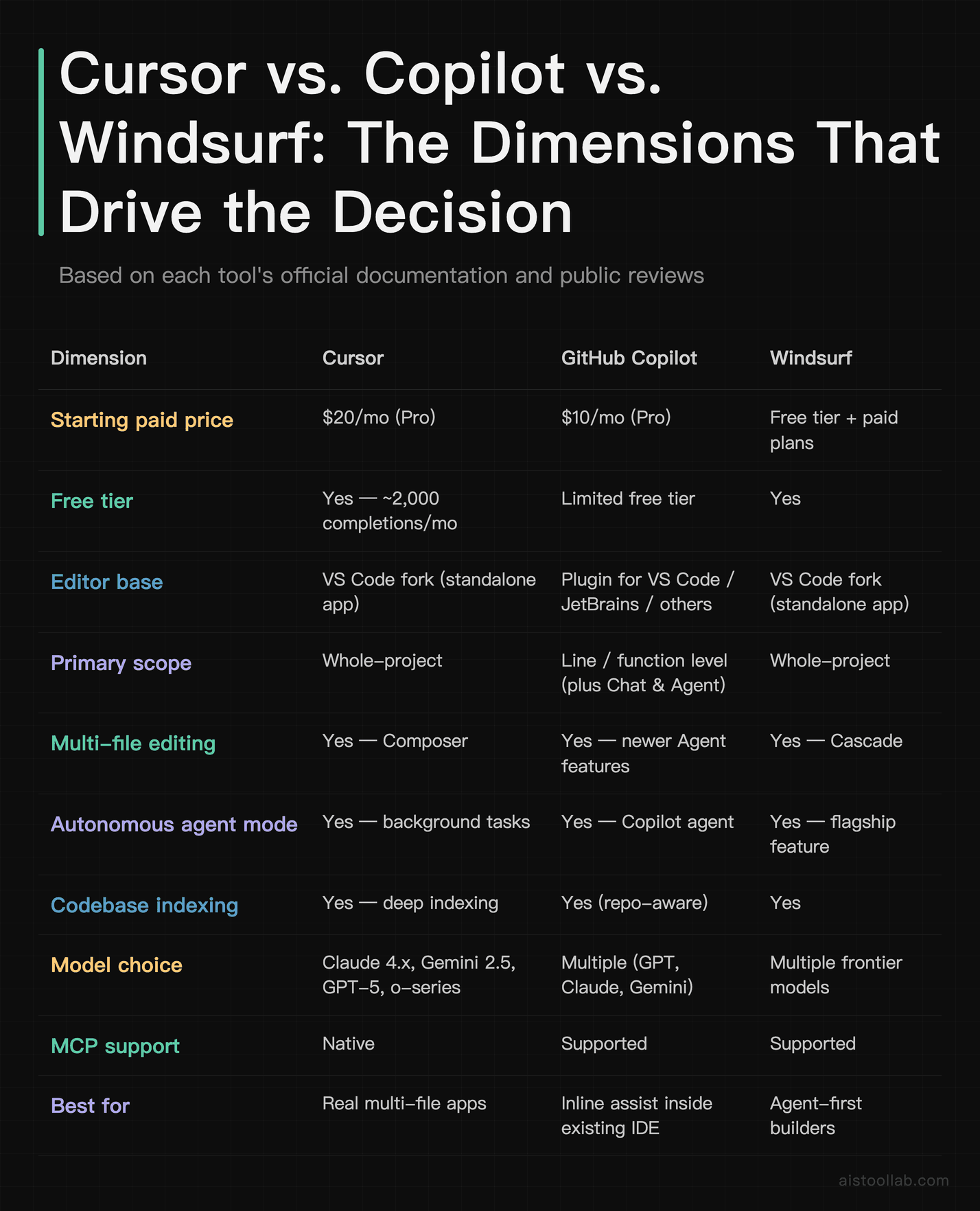
The practical takeaway from the documented capabilities: if you mostly write scripts or work a single file at a time, Copilot is cheaper and lives inside the IDE you already use — no migration, less overhead. If you’re building real applications where multiple components and modules have to work together, Cursor and Windsurf both operate at a level Copilot’s inline assist wasn’t originally designed for. Between Cursor and Windsurf, the choice comes down to preference and ecosystem; reviewer sentiment is genuinely split, and both are credible picks. I went deeper on the incumbent’s value proposition in the Microsoft Copilot comparison if you want that angle.
Pricing and the Billing Model: What Actually Changed

This is the section where outdated reviews will cost you money, so pay attention. As of the current pricing page (cursor.com/pricing), the tiers are:
- Hobby — Free: roughly 2,000 completions per month, a limited number of slow premium requests, and the full editor. Fine for evaluation; you’ll hit the ceiling fast if you lean on Composer or Agent mode.
- Pro — $20/month: the tier most professional developers land on. Unlimited completions plus a pool of premium model usage.
- Pro+ — $60/month: a higher usage allowance for heavier users who burn through Pro’s budget.
- Ultra — $200/month: the maximum-usage individual tier for people running agents aggressively all day.
- Teams — $40/user/month: adds team management, privacy controls, and SSO. For any team handling proprietary code, this is effectively the minimum acceptable tier on compliance grounds.
Annual billing saves roughly 20% across the paid tiers. Here’s the crucial update: since June 2025, Cursor moved away from the old fixed “500 fast requests per month” structure to a credit / usage-based model. At the $20 Pro tier, that allowance works out to roughly 225 requests-equivalent of premium model usage per month, after which you’re metered or throttled depending on settings. If you read a review that still talks about “500 fast requests,” it predates this change and is describing a pricing model that no longer exists.
The practical implication: complex Agent-mode sessions can consume several requests-equivalent in one go, so heavy agent users should budget for Pro+ or Ultra rather than assuming Pro will carry them. For most individual developers, though, $20/month is the sweet spot — about the price of a couple of streaming subscriptions, and trivially justified if it saves even an hour or two of work in a week. For a broader sense of where AI subscriptions sit on value, the Claude Pro comparison is a useful reference point.
Use Cases: Who’s Actually Getting Value
The solo founder shipping an MVP
A solo technical founder building a SaaS product alone is arguably Cursor’s ideal user. Greenfield development with popular frameworks is exactly where the codebase-aware generation shines, and Agent mode handles the scaffolding — auth boilerplate, CRUD endpoints, test setup — that eats days you don’t have when you’re racing to a launch. Public reviews from indie builders consistently cite this as the workflow where Cursor pays for itself fastest. The pattern that works: let the agent build the predictable plumbing, then spend your scarce hours on the differentiated product logic that actually needs your judgment.
The mid-level developer juggling client projects
A freelance developer running three client projects at once lives in context-switching hell — different codebases, different conventions, different stacks. Cursor’s per-project indexing means each codebase carries its own context, so generated code matches that client’s patterns rather than bleeding conventions across projects. Reviewers in this position frequently highlight the time saved on the repetitive structural work that fills a billable day: new pages following existing patterns, wiring up state, writing prop types. The understanding-required caveat applies — you still review everything — but for someone billing hourly, faster shipping on the boilerplate is a direct line to either more revenue or more free evenings.
The team modernizing a legacy codebase
A small engineering team migrating an older codebase — say, moving from callbacks to async/await across thousands of lines — is the hardest use case, and reviews are candid that results here are mixed. Agent mode reportedly handles simpler functions well but struggles with deeply nested callback chains and unconventional legacy patterns, requiring careful human review of a meaningful chunk of the changes. Still, the consensus is that even a partial autonomous migration with diligent review beats doing the entire tedious job by hand. For this use case, the Teams plan’s privacy controls aren’t optional — they’re the baseline for touching proprietary code at all.
What Cursor Gets Wrong
No tool earns a recommendation without candid caveats, and the public reviews surface a consistent set of frustrations worth knowing before you commit.
Context-window limits still bite. On very large files or sprawling codebases, reviewers report Cursor occasionally losing track of earlier context and producing suggestions that contradict something it generated earlier in the same session. This is more a model limitation than a Cursor-specific flaw, but it’s real and it shows up in practice.
Agent mode can overstep. A recurring complaint is the agent taking initiative you didn’t authorize — restructuring a folder layout, say, as part of a broader task, without asking first. The changes are often technically reasonable but not what you wanted. The universal advice from reviewers: always review the agent’s planned changes before confirming.
Aggressive tab completion catches newcomers. Cursor’s inline suggestions sometimes auto-complete in a direction you didn’t intend, and if you’re not watching closely you can accept something subtly wrong. It’s a habit adjustment more than a defect, but it trips people up in the first week.
Heavy resource use on big repos. Indexing a six-figure-line repository takes time, and reviewers on older or lower-spec machines note meaningful RAM usage. Not a dealbreaker, but worth knowing if your hardware is modest.
Who Should Switch (And Who Shouldn’t)
Vague “it depends” verdicts help nobody, so here’s the direct read based on the compiled evidence.
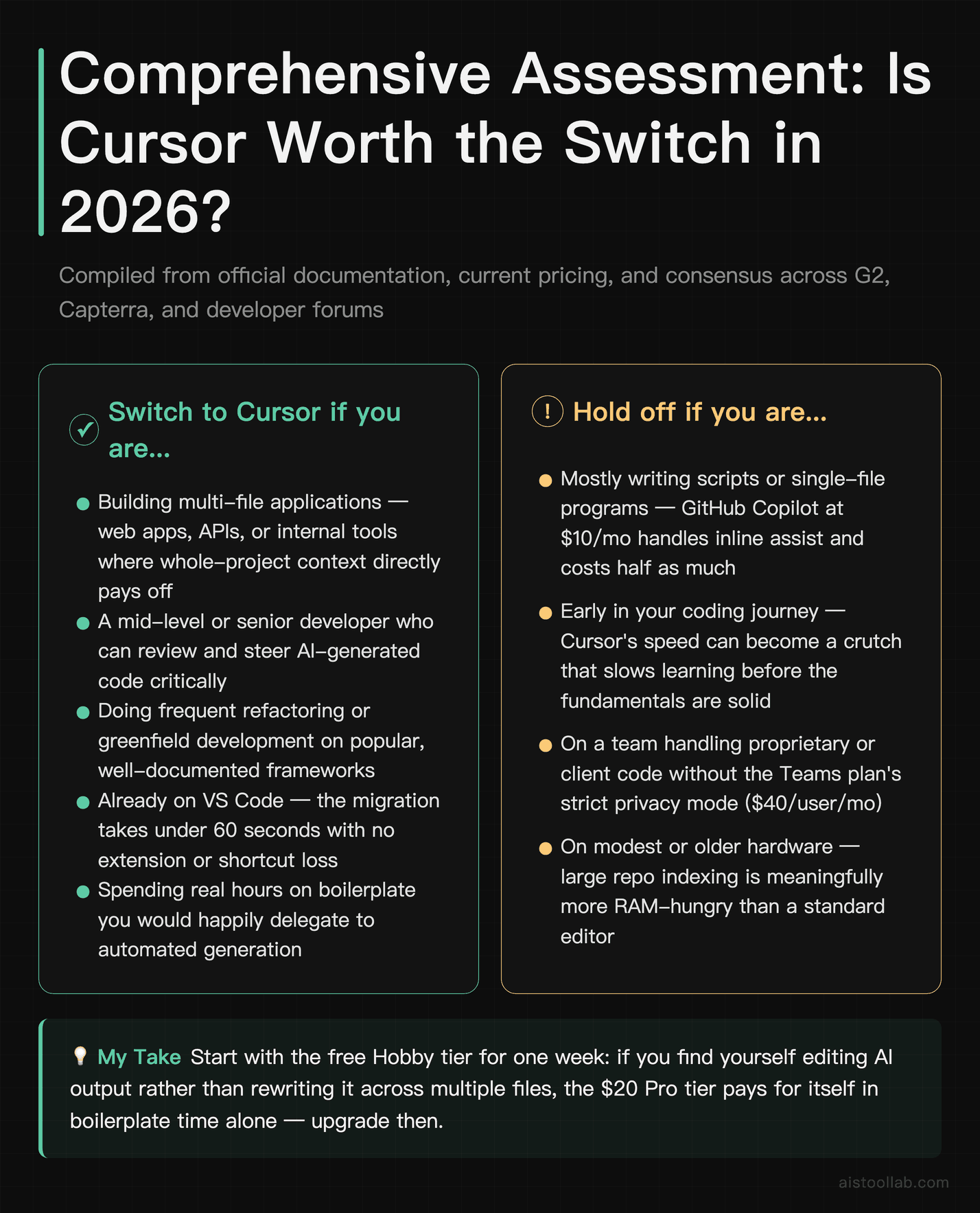
Switch to Cursor if you’re building real applications — web apps, APIs, internal tools — where multiple files have to work together; you’re a mid-level or senior developer who can review and steer AI output; you do frequent refactoring or greenfield work; you’re already comfortable on VS Code; and you’re spending real time on boilerplate you’d happily automate. For this profile, the documented capabilities and reviewer consensus point clearly toward Cursor being worth the $20.
Stay where you are if you mostly write scripts or single-file programs where Copilot’s cheaper inline assist is plenty; you’re on a team with strict data rules that can’t accommodate the Teams plan; or you’re early in your coding journey and need to genuinely understand what you’re writing. That last one matters — multiple reviewers warn that Cursor’s power can become a crutch that slows learning if you lean on it before the fundamentals are solid. The students-and-AI angle is worth thinking through here; I’d point beginners to the 學生用 AI discussion on building skill without over-relying on the tool.
Frequently Asked Questions
Is Cursor safe to use with proprietary code?
It depends heavily on which plan you’re on, and this is worth getting right before you point it at sensitive work. On the free and Pro plans, Cursor’s documentation indicates your code may be used to help improve its systems unless you explicitly enable privacy settings — so the responsibility is on you to opt out. The Teams plan ($40/user/month) includes a stricter privacy mode where, per the official docs, your code is not stored or used for training, which is the configuration most companies will need to satisfy compliance and security review. If you’re a solo developer working on personal or open-source projects, the privacy stakes are lower and Pro is fine. But if you’re touching proprietary client code, internal company systems, or anything under NDA, treat the Teams plan and its privacy controls as the baseline rather than an optional upgrade. The practical advice from reviewers is to read the current privacy documentation carefully and confirm your settings before your first real session, since defaults can change between versions.
Can I use my own API keys with Cursor?
Yes. According to the official documentation, Cursor lets you bring your own API keys from providers like OpenAI and Anthropic. This is a genuinely useful option in two situations. If you already have generous API access through your company or an existing developer account, routing usage through your own keys can be more cost-effective than paying for higher Cursor tiers, and it gives you direct control over model selection and rate limits. It’s also helpful if you have specific billing or governance requirements — some organizations prefer all model usage to flow through a single audited account. The trade-off is that bring-your-own-key setups can bypass some of the optimizations and conveniences baked into Cursor’s managed subscription, and you take on responsibility for managing those keys securely. For most individual developers, the bundled Pro subscription is simpler and the math works out fine. Power users running heavy agent workloads are the ones most likely to benefit from wiring in their own keys.
Does Cursor work with all programming languages?
Functionally, yes — because Cursor is a VS Code fork, it works with any language VS Code supports, which is essentially everything with a published language extension. The more important nuance, repeatedly flagged in public reviews, is that the quality of AI suggestions varies dramatically by how well-represented a language and framework are in the underlying models’ training data. JavaScript and TypeScript, Python, and Go tend to get the strongest results, along with popular frameworks like React, Next.js, and FastAPI. More niche languages, obscure frameworks, or heavily domain-specific codebases will still work, but you should expect lower first-try accuracy and more manual correction. This isn’t a Cursor-specific limitation — it’s inherent to how large language models learn from public code. If your daily work is in a mainstream stack, you’ll see Cursor near its best. If you’re deep in a rare language or an unconventional legacy system, temper your expectations and treat it as a helpful assistant rather than an autopilot.
How is Cursor different from just using Claude or a GPT model in a browser?
The difference comes down to integration and context, and it’s bigger in practice than it sounds on paper. A browser-based AI assistant only sees what you manually paste into it — which means you’re constantly copying code in, copying responses out, and the model has no awareness of your broader project. Cursor, by contrast, has indexed your entire codebase. It understands your file structure, your imports, your existing patterns and conventions, and it can edit files directly rather than just suggesting text you then have to integrate yourself. That changes the workflow fundamentally: instead of describing your whole project context every time, you ask for a change and Cursor already knows where everything lives. Reviewers consistently describe this as the difference between a smart assistant you have to babysit and a collaborator that’s actually embedded in your work. For one-off questions or learning, a browser chat is fine and free. For sustained development on a real project, the editor-level integration is the whole point.
Has Cursor’s pricing changed recently, and what’s the catch?
Yes, and this trips up anyone reading older reviews. The headline tiers as of mid-2026 are Hobby (free), Pro at $20/month, Pro+ at $60/month, Ultra at $200/month, and Teams at $40/user/month, with annual billing saving roughly 20%. The significant change happened in June 2025, when Cursor shifted from a fixed “500 fast requests per month” allowance to a credit / usage-based model. At the Pro tier, that translates to roughly 225 requests-equivalent of premium model usage per month before metering kicks in. The “catch,” if you can call it that, is that heavy Agent-mode usage burns through credits faster than simple autocomplete, because a single multi-step agent task can consume several requests-equivalent. If you run agents constantly, Pro can feel tight and you may need Pro+ or Ultra. For typical individual development with a mix of completions, Composer edits, and occasional agent runs, $20/month is comfortable. The free Hobby tier is genuinely useful for evaluation but will throttle you quickly if you test the AI features seriously.
Which model should I pick inside Cursor for coding?
Cursor exposes a current-generation lineup — Claude 4.x (Sonnet and Opus), Gemini 2.5, GPT-5 series, and o-series reasoning models — and the right pick depends on the task rather than there being one universal best. The general pattern reported across public reviews is to match model weight to job complexity: lighter, faster models for quick edits and autocomplete-style work, and heavier reasoning models for complex multi-file refactors or architectural decisions where you want the model to think more carefully. Claude’s models have a long-standing reputation among developers for coherent, well-structured code on multi-file edits, while the GPT-5 series and o-series reasoning models are frequently praised for harder logic problems. Gemini 2.5 is a strong all-rounder. The candid answer is that model performance for coding is genuinely debated and varies by language and task, so the best approach is to test two or three on your actual codebase and see which produces output you edit least. The good news is switching models in Cursor is a quick dropdown, not a reinstall.
Is Cursor good for someone just learning to code?
This is where reviewer opinion turns cautionary, and it’s worth taking seriously. Cursor is a productivity multiplier built for people who already understand what they’re building — it accelerates work you know how to do. For an absolute beginner, that same power can backfire. If you let Composer and Agent mode generate code you don’t understand, you can produce working software while learning very little, which creates a fragile foundation that catches up with you the moment something breaks and you can’t diagnose it. The developers who struggle most with Cursor, per the broad review consensus, are the ones expecting it to substitute for understanding. That said, used deliberately, it can be a decent learning aid — reading its generated code, asking the chat to explain why an approach works, and treating it as a tutor rather than an autopilot. If you’re early in your journey, the disciplined approach is to write code yourself first, then use Cursor to check and explain, rather than the reverse. The goal is to build skill, not dependency.
Cursor vs GitHub Copilot — which should I actually buy?
Based on the documented capabilities and reviewer consensus, the deciding factor is the kind of work you do, not which tool is “better” in the abstract. GitHub Copilot is cheaper at $10/month, lives as a plugin inside the IDE you already use, and excels at line- and function-level inline assistance — if your work is mostly scripts, single files, or incremental edits within an existing workflow, it’s the lower-friction, lower-cost choice and there’s no compelling reason to switch. Cursor justifies its $20/month when you’re building real multi-file applications where the project-level understanding genuinely changes outcomes: Composer’s coordinated edits and the deeper codebase indexing produce code that matches your conventions in a way line-level assist isn’t designed to. Copilot has been adding its own agent and multi-file features, so the gap is narrowing, but Cursor’s whole-project, AI-first architecture still reads as more cohesive in reviews. The pragmatic move: if you build applications, Cursor; if you assist your typing inside an existing IDE setup, Copilot. Both offer free or trial access, so test each on real code for a week before deciding.
Final Verdict
Cut through the hype and the picture is fairly clear. Based on Cursor’s official documentation, its current pricing, and the consistent themes across public reviews on G2, Capterra, and developer forums, this is one of the few AI coding tools that reviewers describe as a genuine category shift rather than an incremental upgrade. The codebase-aware generation, Composer’s multi-file editing, and Agent mode’s autonomous scaffolding add up to a workflow that meaningfully changes the pace of building real software — not just autocompleting individual lines.
It’s not flawless, and the evidence is candid about that: the credit-based usage limits can pinch heavy agent users, Agent mode needs supervision, accuracy drops off on niche stacks, and it won’t rescue a fundamentally wrong approach to a problem. But for the target user — a developer building applications more complex than scripts, who can review and steer AI output — the documented strengths clearly outweigh the rough edges.
If it were my money on the line: if you’re building real multi-file applications and you’re comfortable on VS Code, Cursor at $20/month is an easy call to at least trial seriously — the time saved on boilerplate alone tends to cover the cost within the first week. If you mostly write scripts or work a single file at a time, save the money and stick with GitHub Copilot. And if you’re still learning the fundamentals, hold off until you can read generated code critically — otherwise the tool’s power works against you. Next step: grab the free Hobby tier, point it at a real project rather than a toy, and you’ll know within an afternoon whether it changes how you work.
Last updated: 2026